


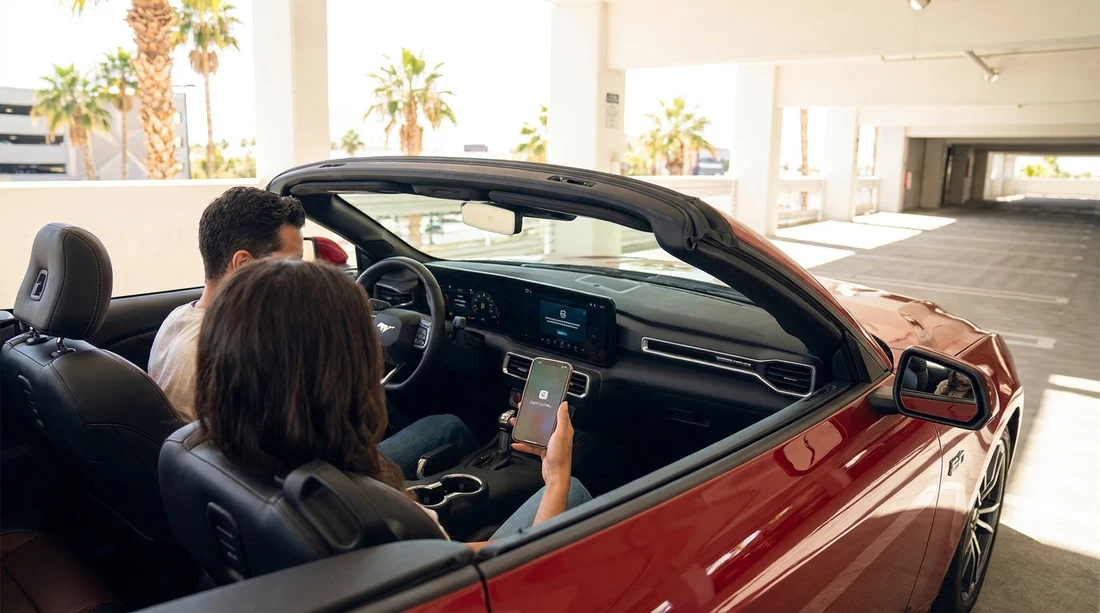
Quick Summary:
- Confirm the car supports wireless CarPlay, not only USB CarPlay.
- Enable Bluetooth and Wi-Fi, then accept prompts on the iPhone.
- Remove old pairings, then restart phone and infotainment if needed.
- Test maps, calls, and audio before leaving the car hire lot.
Wireless Apple CarPlay is one of those features that feels effortless when it works, but can waste time if you discover a compatibility issue after you have already left the rental facility. In Las Vegas, you may be collecting keys after a flight, juggling luggage, and trying to get navigation working quickly. The best approach is to treat CarPlay set-up like a short checklist you complete at the counter or in the pick-up bay, before you drive away.
This guide explains how to confirm the vehicle supports wireless CarPlay, how the Bluetooth and Wi-Fi pairing process works, and the common pitfalls that can slow you down when you are collecting a car hire in Las Vegas.
1) Confirm wireless CarPlay compatibility before you start pairing
First, separate three similar sounding scenarios: (1) wireless CarPlay, (2) wired CarPlay that requires a USB cable, and (3) no CarPlay at all (some trims only offer Bluetooth audio). A vehicle can have a touchscreen and still lack wireless CarPlay.
At the counter, ask specifically whether the vehicle has wireless Apple CarPlay, not just CarPlay. If you are picking up at the airport, doing this check early can save you switching cars later. Hola Car Rentals publishes local pages that help you compare options for the area, such as Las Vegas airport car rental and broader regional coverage like Nevada car rental.
On the vehicle itself, you can often confirm wireless support without digging through manuals. Look for a “Phone Projection”, “CarPlay”, or “Apple CarPlay” tile in the infotainment home screen. If it mentions “Connect via USB”, that is usually wired-only.
Also check the vehicle’s Bluetooth device list. Many wireless systems create an entry that later shows as “CarPlay” or similar after the first pairing.
2) Prepare your iPhone in under a minute
Wireless CarPlay depends on both Bluetooth and Wi-Fi, even if you are using mobile data for navigation. Do these quick checks before you touch the car’s screen.
Turn on Bluetooth and Wi-Fi in Settings, not only in Control Centre. Control Centre can show icons as on while still limiting some behaviours.
Disable VPN temporarily if you use one. Some in-car systems struggle to complete the handshake when a VPN is active.
Check CarPlay permissions: Settings, General, CarPlay. If you see old rental vehicles listed, delete them. A crowded CarPlay list can cause your iPhone to auto-connect to something you no longer have.
3) Pair correctly: Bluetooth first, then the Wi-Fi link forms automatically
Most wireless Apple CarPlay systems start with Bluetooth pairing, then silently create a direct Wi-Fi connection between your iPhone and the vehicle. That means two approvals usually happen: one on the car screen and one on the iPhone.
Step A: Put the car in accessory or engine-on mode and give the head unit time to load.
Step B: Open the car’s phone or connectivity menu and choose Add Device or Pair New Phone.
Step C: On iPhone, go to Settings, Bluetooth and select the vehicle when it appears. Confirm the pairing code matches on both screens.
Step D: Accept the CarPlay prompt. You may see “Use CarPlay with this car?” Tap Allow. If asked whether to allow CarPlay while locked, choose Allow.
Step E: Wait for the Wi-Fi connection. Your iPhone may briefly show a Wi-Fi network name that looks like the car brand or model. That is expected.
If you are comparing providers for car hire, note that trims and infotainment packages vary even within the same category. Supplier-specific pages like Hertz car rental in Nevada or Dollar car rental in Nevada can be useful for setting expectations around vehicle classes, but always confirm the exact car you are assigned.
4) Avoid the most common counter and lot set-up pitfalls
These are the issues that most often cause “It connected yesterday, but not today” behaviour in rental cars.
Old driver profiles and previous phones still stored: Rental vehicles can have multiple phones saved. If the last driver’s phone is still in memory, the system may attempt to reconnect to it, slowing down your pairing or causing your CarPlay session to drop. Fix: In the car’s Bluetooth or phone list, delete old devices.
Multiple iPhones competing inside your group: If more than one person in your party has an iPhone, the car may latch onto the wrong device first. Fix: Turn Bluetooth off on the other phones until the main phone is connected and CarPlay is working reliably.
USB cable plugged in changes the behaviour: Some vehicles prioritise wired CarPlay if a cable is connected, even when wireless is available. Fix: Set up wireless first with no cable attached, then charge afterwards.
No audio, or audio plays from the phone instead of the car: Sometimes CarPlay loads visually but audio routes incorrectly. Fix: Select the car as the audio output on iPhone and confirm the source is CarPlay on the car screen.
5) Do a 60-second test before you leave the facility
Before you merge onto Las Vegas Boulevard or head to the Strip, do a quick functional test while parked. This is the fastest way to confirm the connection will hold once you start driving.
Navigation: Open Apple Maps or your preferred app and start a short route. Confirm the map moves and voice guidance is audible.
Calls: Make a quick call to voicemail or a trusted contact and confirm microphone clarity.
Music: Start a song or podcast, then switch between apps to confirm the system is responsive.
Siri: Press and hold the steering wheel voice button, or use “Hey Siri” if supported, and ask it to navigate to a nearby location.
If anything is unstable, resolve it while you still have staff nearby and good reception. It is easier to request a reset or swap vehicles in the pick-up bay than after you have driven off-site.
6) Quick fixes if wireless CarPlay will not connect
If you have followed the steps and it still fails, try these in order.
1) Toggle Bluetooth and Wi-Fi off and on, then reselect the car in Bluetooth settings.
2) Forget the car on your iPhone: Settings, General, CarPlay, select the vehicle, Forget This Car. Then pair again.
3) Delete your phone from the car in its device list, then add it again.
4) Restart the infotainment system, or turn the car off and back on if needed.
If you are still stuck, ask whether the assigned vehicle only supports wired CarPlay. In that case, you can use a USB cable and decide whether to swap to a different vehicle class, for example an option outlined on SUV rental in Las Vegas, where newer trims sometimes include upgraded infotainment.
FAQ
Does wireless Apple CarPlay use my mobile data in Las Vegas? CarPlay itself does not require mobile data, but navigation, streaming, and live traffic typically do. The wireless link between phone and car uses Bluetooth and a direct Wi-Fi connection.
What if the rental car only supports wired CarPlay? Use a USB cable connected to the port that supports data, often marked with a phone icon. You can still charge and use CarPlay, you just will not have the wireless convenience.
Why does the car keep connecting to someone else’s phone? The vehicle may still have previous drivers saved and will try to reconnect automatically. Delete old devices in the car’s Bluetooth list, then pair your iPhone again.
Can two iPhones use CarPlay at the same time? Typically only one phone can run CarPlay at once. Some cars allow a second phone for calls or Bluetooth audio, but it can interfere with pairing, so connect one device first.
Should I remove my phone from the car before returning it? Yes. Forget the vehicle in your iPhone’s CarPlay settings and delete your phone from the car’s device list to protect privacy and reduce issues for the next driver.





























































































