


Quick Summary:
- Confirm the exact model supports wireless Android Auto before signing paperwork.
- Pair your phone while parked, approve prompts, and test navigation audio immediately.
- Enable Bluetooth and Wi-Fi, and temporarily disable any VPN during pairing.
- Pack a quality USB data cable and locate the data-enabled port.
Wireless Android Auto can make a Florida drive feel effortless, but rental cars vary widely by trim level, infotainment software, and even which USB ports are active. A quick, methodical check before you leave the counter and again while still parked can save you from fumbling with settings at the first junction.
This guide focuses on what to verify during car hire collection, how to complete the wireless pairing in the vehicle, and how to keep a reliable USB fallback plan for when wireless refuses to cooperate.
What to confirm at the counter before you take the keys
Start by treating wireless Android Auto as a feature you need confirmed, not assumed. Many vehicles have Android Auto, but only some support wireless, and some fleets disable features depending on model year or software.
Ask the agent to confirm three things: the exact vehicle model (not just class), whether wireless Android Auto is supported, and whether the infotainment system is functioning normally. If they cannot confirm, ask whether you may sit in the car briefly to test pairing before driving off. This is a reasonable request because it is a safety issue, and you want navigation set before joining Florida traffic.
If you are collecting around Miami, you can also check collection specifics and typical fleet expectations for your pickup point. See car hire Miami MIA for location context, and if you are in the Doral area, car hire airport Doral DRL can help you orient your plans around the rental process.
Also confirm the car has at least one working USB port suitable for data, not only charging. Some cars have multiple ports, but only one supports Android Auto. You can request a quick note from staff on which port is used for phone projection, or plan to check it yourself as soon as you get in.
In-car setup, do this while still parked
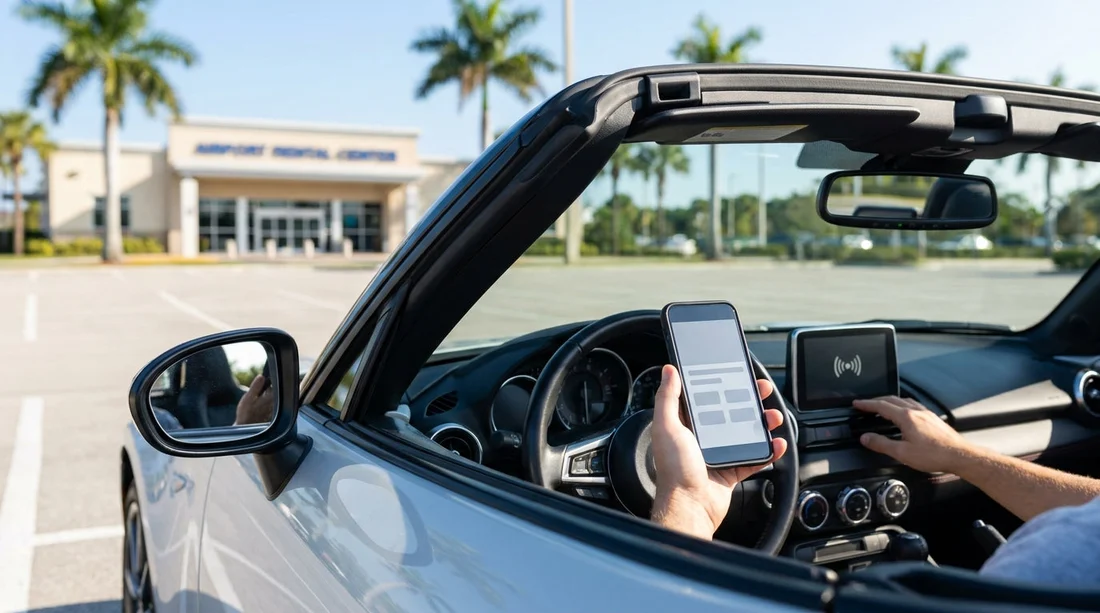
Once you are seated, keep the vehicle in Park with the handbrake on, and complete setup before you move. Wireless Android Auto typically uses Bluetooth for initial handshake and Wi-Fi Direct for the data connection, so both systems must be enabled on your phone.
Step 1, prepare your phone. On Android, update Android Auto and Google Maps while you still have reliable data. Enable Bluetooth and Wi-Fi. If you use a VPN, switch it off during pairing because it can interfere with the Wi-Fi Direct connection. Make sure Location Services are on, and check Battery Saver is not restricting Android Auto.
Step 2, clear old car pairings. If your phone is already paired to previous rentals, remove those Bluetooth pairings to avoid it trying to connect to the wrong device. On many cars, the infotainment system can also store old devices, so delete any unknown phones from the car’s Bluetooth list if possible.
Step 3, start pairing from the car screen. Use the infotainment menu, usually something like Phone, Connections, Bluetooth, or Android Auto. Choose Add Device. Accept the Bluetooth pairing code on both phone and car. When prompted, approve Android Auto permissions on your phone. Some cars require you to tick a box allowing contacts and messages, and you can allow it if you want hands-free calling and readouts.
Step 4, accept the wireless prompt. Many systems first connect over Bluetooth, then ask whether to use Android Auto wirelessly. Confirm this. If the car instead demands a USB cable first time, connect via USB once, complete the setup, then attempt wireless on the next connection. This behaviour is common on certain head units.
Step 5, verify audio routing. Open a navigation app and start a short route. Confirm guidance plays through the car speakers, and that media audio works too. Then place a quick test call to ensure the car microphone is working and that call audio is not coming from the handset.
Common reasons wireless Android Auto fails in rental cars
Wireless issues are usually not random, they cluster around a few predictable causes. Knowing them lets you fix most problems in under five minutes.
The car does not actually support wireless. Some trims support only wired Android Auto even if the screen looks modern. If wired works instantly but wireless never appears as an option, this may be the reason.
Wrong USB port assumption. If the system requires an initial USB setup, using a charge-only port will fail silently. Look for a port marked with a smartphone icon or labelled for phone projection. In some SUVs and vans, the active port is in the centre console rather than the front stack.
Phone software restrictions. Battery optimisation can kill the Wi-Fi Direct session. Add Android Auto, Google Play Services, and your maps app to the “Unrestricted” or “Not optimised” list if available on your device.
Too many stored devices. Some infotainment units become unreliable when the memory is full. Delete old devices from the car’s Bluetooth and Android Auto lists, then reboot the head unit if the option exists.
USB fallback plan, what to pack and how to use it
A USB fallback is not just for older cars, it is also your fastest recovery option if wireless drops mid-trip. Treat it as part of your Florida car hire kit.
Bring a known-good cable. Use a short, high-quality USB-A to USB-C or USB-C to USB-C data cable that you have already used for Android Auto. Many cables charge but cannot pass data reliably, and rental cables sold in airport shops are hit and miss.
Know which port is data-enabled. Test the port before leaving. Plug in and confirm Android Auto launches. If it does not, try the other ports. Once you find the correct one, keep the cable routed so it does not interfere with gear selection or steering.
Keep wireless and wired profiles clean. If you switch between wired and wireless often, the car may create duplicate profiles. If you start seeing repeated prompts or connection loops, delete the phone from the car and re-add it, then stick to one mode for the rest of the rental if possible.
Safety and convenience checks before you drive off
After you have Android Auto working, take one more minute to make it genuinely usable for Florida driving.
Set your default navigation and audio volume. Start a route to a nearby location and set guidance volume so it is audible over motorway noise. Verify the audio does not jump to maximum when guidance speaks.
Disable distracting notifications. In Android Auto settings, limit message previews if you prefer. You can keep calls and navigation but silence group chat pop-ups.
Check charging behaviour. Wireless Android Auto can drain battery, especially with screen on and GPS running. If the car has wireless charging, test it, but be aware some pads overheat phones. A wired connection often charges more reliably.
If you are hiring for a larger group or with lots of luggage, cabin layout matters because phone placement and cable routing can become awkward. For bigger vehicles, see van hire Florida MIA to compare what might work better for your setup, especially if you need extra front storage and more accessible ports.
Finally, if you are collecting through specific partner counters, experiences can vary by process. For example, Avis car rental Florida MIA and Payless car hire Orlando MCO are useful references for understanding where you might be picking up and how to plan your time for a quick in-car tech check.
FAQ
Does every Florida rental car support wireless Android Auto? No. Many rentals support Android Auto, but wireless depends on model year, trim, and infotainment version. Always verify before you leave the lot.
Why does the car ask for a USB cable even though it has wireless? Some systems require a first-time USB connection to authorise Android Auto, then they allow wireless on later connections. Completing setup once via USB often fixes it.
What if Android Auto connects but there is no sound? Check the car’s audio source is set to Android Auto or Bluetooth audio, then raise the guidance volume while a prompt is speaking. Also confirm call audio is set to the car, not the handset.
Can I pair multiple phones for different drivers? Usually yes, but keeping two phones active can cause connection fights. Pair both, then disable Bluetooth on the phone not in use, or set a primary device in the car’s settings.
Is it safe to set this up while parked at the airport exit? It is safer to set up in the bay or a designated parking area before joining traffic. If you need more time, pull into a safe space and complete pairing with the car in Park.





























































































