


Quick Summary:
- Delete unknown paired phones and Bluetooth devices before leaving the bay.
- Clear recent destinations, favourites, and home address from the nav.
- Remove call logs, message previews, contact syncing, and voice history.
- Use a full infotainment reset if menus look customised or confusing.
At rental car pick-up in Las Vegas, you are often moving quickly, flight tiredness, bright sun, and a queue behind you. Modern infotainment systems remember a surprising amount, including Bluetooth pairings, recent calls, navigation favourites, garage door settings, and even Wi-Fi networks. If the last driver did not clear their data, you could see their phone name, their saved “Home”, or prompts to reconnect automatically. Equally, if you pair your own phone and do not remove it, your details may remain for the next renter.
This quick pre-drive checklist is designed for car hire pick-up at the counter or in the parking bay. It focuses on privacy and safety without needing special tools. If you are collecting from an airport facility, allow an extra two minutes before driving away, because it is easiest to do while parked and connected to the car’s menus. For pick-ups around the terminals, see practical location info on Las Vegas airport car hire.
Step 1, check for existing paired devices
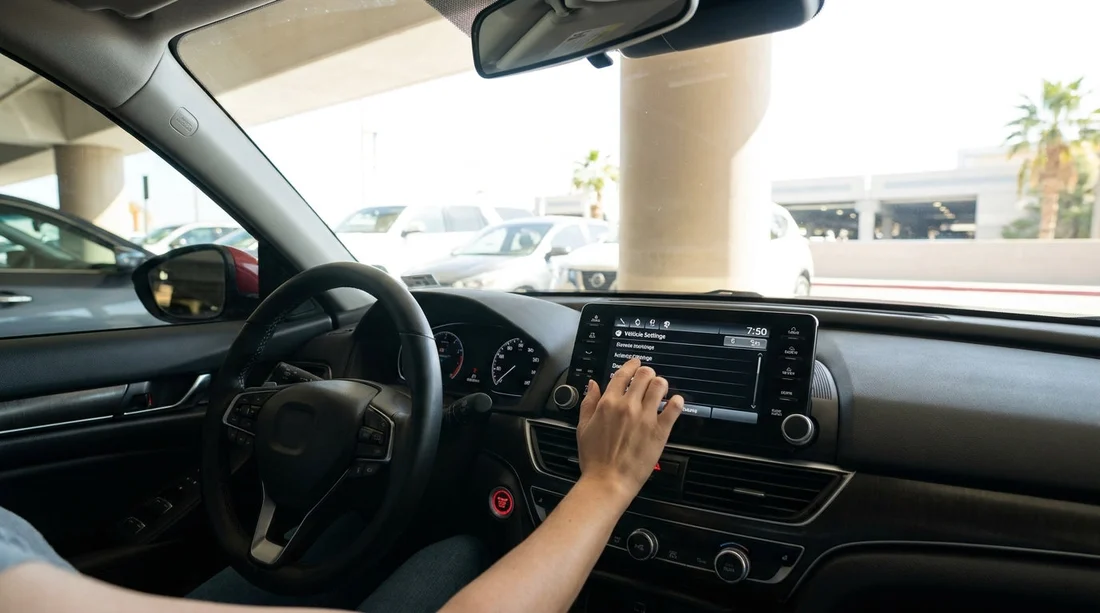
Start the car, keep it in Park, and turn the infotainment screen on. Open Settings, then Bluetooth, Phone, or Connections, labels vary by brand. Look for a list called “Paired devices”, “Known devices”, or “Saved phones”. If you see unfamiliar device names, remove them.
Delete each old device one by one. Many systems have “Forget device”, “Remove”, or a trash icon. If there is a “Delete all devices” option, use it, but only after confirming you have not paired your own phone yet. This prevents auto-connecting to someone else’s handset and reduces the chance that contact lists or message previews show on screen.
Step 2, disable contact and message syncing before pairing
When you pair your phone, many cars request permission to sync contacts, recent calls, and messages. For privacy at car hire return, consider disabling these options and using only audio streaming plus hands-free calling. On iPhone, you can also control what the car can access through Bluetooth and CarPlay prompts. On Android, similar permissions appear during pairing and in Bluetooth device settings.
If you do allow syncing for convenience, plan to remove your phone again at the end of your trip. That single action usually removes the downloaded address book and call history stored in the vehicle’s head unit.
Step 3, clear navigation history, favourites, and “Home”
Next, open the navigation app on the car screen. Check these areas and delete entries:
Recent destinations and recent searches, this can reveal hotels, residential addresses, or planned stops. Saved favourites, sometimes called “Starred”, “Shortcuts”, or “Saved places”. “Home” and “Work” addresses, which are often set once and then persist. Previous routes, trip history, and map search suggestions.
Many systems let you clear navigation data in one go, look for “Clear personal data”, “Delete history”, or “Reset navigation”. If the car uses built-in navigation plus Apple CarPlay or Android Auto, clear both. CarPlay and Android Auto mainly use your phone’s maps, but the car may still keep recent destinations or voice commands in its own logs.
If you are planning a longer Nevada road trip, it helps to start with a clean nav screen to avoid distractions. Local pickup options are summarised on car rental in Las Vegas and car rental in Nevada, which can be handy when comparing vehicle types and collection points.
Step 4, remove call logs and text previews
Even after deleting Bluetooth pairings, some head units keep call history, text previews, and recent contacts in a separate “Phone” section. Open Phone, Recents, Call history, Messages, and Contacts. If there are options to delete, clear them. If there is a “Clear phone data” setting, use it.
Also check the notification settings. If “Display message previews” is enabled, switch it off unless you truly need it. Aside from privacy, message previews can be distracting, especially when you are still getting used to a new vehicle in Las Vegas traffic.
Step 5, check Wi-Fi, hotspots, and connected apps
Some vehicles store Wi-Fi networks, hotspot passwords, or linked accounts for music and navigation apps. In Settings, look for Wi-Fi, Hotspot, Apps, Accounts, or Connected services. Remove any stored network you do not recognise. If there is an option to log out of apps, do so, and avoid signing into personal streaming accounts unless you will remember to sign out later.
If you do sign in, use a device-based sign-in method where possible and avoid storing passwords in the car. A quick sign-out at the end of your rental reduces the risk of the next driver seeing your playlists, email, or profile name.
Step 6, inspect driver profiles, garage buttons, and paired keys
Higher-spec vehicles can store multiple driver profiles and even learn seat and mirror positions, paired keys, and garage door codes. Before leaving the bay, check for a Driver Profile menu. If the car has existing named profiles, switch to Guest and delete other profiles if the system allows.
This step matters for larger vehicles as well, where families might create profiles quickly. If you are collecting a people carrier for a group trip, you may appreciate the extra space, but still want a clean system. See vehicle options like minivan hire in Las Vegas for context on what features might be included.
Step 7, run a full infotainment reset when in doubt
If you cannot find all the menus, or the system looks heavily customised, a factory reset can be the fastest path. Look for Settings, System, Reset, then “Factory data reset”, “Erase personal data”, or “Restore defaults”. Confirm it is resetting the infotainment only, not vehicle safety settings. The car may restart the screen and take a minute to reload.
If you are using a branded vehicle and the menus differ, the principles remain the same. Some models bury reset options under System or General. If you want to anticipate what you might get, Hola Car Rentals provides overviews for common providers such as Hertz car rental in Las Vegas, which can help you understand typical fleet features and trim levels.
FAQ
Will deleting Bluetooth pairings also remove my contacts and call history from the car? Usually yes, but not always. Some systems keep phonebook and call logs in a separate Phone menu. After forgetting your device, also clear Recents, Contacts, and Messages if those menus show delete options.
Is a factory reset safe to do at rental car pick-up? It is generally safe when it only resets the infotainment unit. Do it while parked, and avoid changing safety or driver-assist settings. If the car prompts about resetting vehicle functions, stop and ask staff.
What if the screen is locked, frozen, or I cannot find the delete options? Ask the rental desk or bay attendant to assist, as they may know the exact model’s menu path. If the system is unresponsive, request a different vehicle rather than driving with a distracting fault.
Does Apple CarPlay or Android Auto store data in the car? CarPlay and Android Auto mainly use your phone’s data, but the car may still store Bluetooth pairing info, last connected device names, and sometimes recent destinations or voice commands. Clearing pairings and navigation recents covers most issues.
How can I reduce privacy risk without spending ages on settings? Pair for audio and calls only, decline contact and message syncing, and clear navigation recents. Then remove your device from Bluetooth at return. This keeps your personal data footprint minimal for car hire.































































































