


Quick Summary:
- Before moving off, delete old phones from the car’s paired list.
- Enable Bluetooth, select the car system, and confirm the matching PIN.
- Set your phone as primary for calls, maps audio, and music.
- Test a short call and music, then adjust volume and microphone.
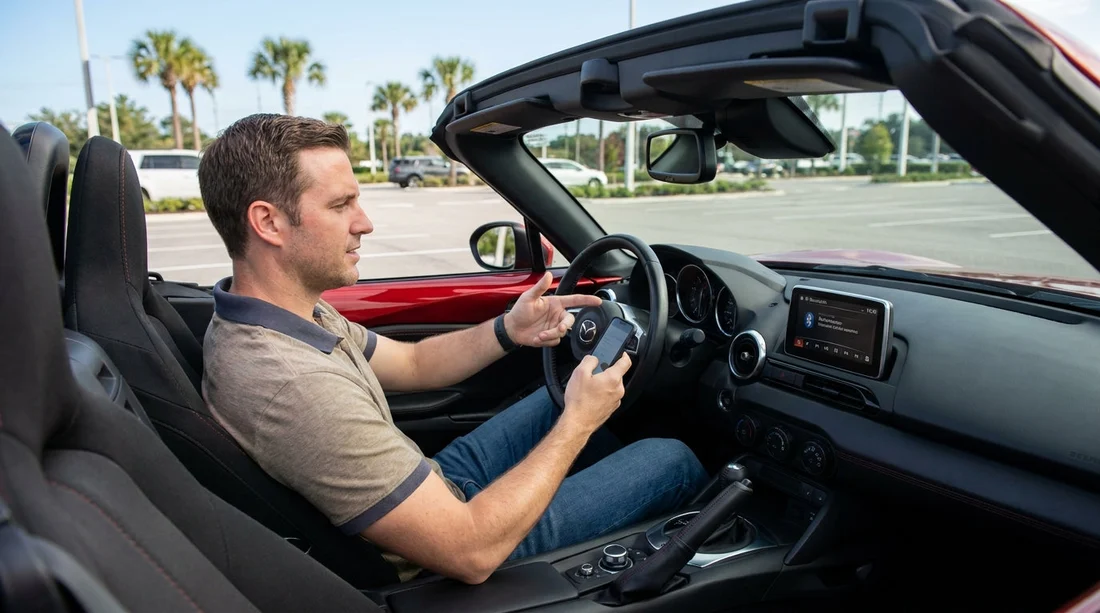
When you pick up a car hire in Orlando, the quickest way to start your trip smoothly is to pair your phone to Bluetooth before you drive off. Doing it while parked also helps you stay hands-free and focused once you’re on airport roads, toll lanes, and busy junctions.
If you are collecting at MCO, it is worth allowing five minutes at the bay to sort Bluetooth and audio. If you arranged your Orlando pickup through car rental Orlando MCO, you can run this checklist before you join the exit queue.
1) Park first and gather what you need
Do all setup with the car in Park, handbrake applied, and engine on if the screen requires it. Keep your phone unlocked, with enough battery, and have your cable available in case you choose to use USB audio or need to charge. If you have two phones, decide which one should handle calls and texts, because many systems prefer a single “primary” device.
Turn off any old Bluetooth accessories on your phone, such as headphones, so the phone does not reconnect to them while you are pairing. On iPhone, check Control Centre and confirm Bluetooth is on. On Android, go to Quick Settings and do the same.
2) Clear previous drivers from the car
Rental vehicles often have several previously paired phones saved. That can cause random auto-connecting, missed call audio, or music starting from a stranger’s device name. In the car’s Bluetooth menu, look for options like “Paired devices”, “Manage devices”, or “Bluetooth devices”. Remove every device you do not recognise.
Sometimes the fastest reset is to forget the car on your phone too. If your phone has previously connected to the same make and model, you might see an old entry. Tap “Forget” or “Unpair”, then start fresh.
3) Pair your phone the safe, reliable way
On the infotainment screen, choose “Add device”, “Pair new device”, or “Phone”. The car will either broadcast a name like “Honda HandsFreeLink” or show a pairing code. On your phone, select that car name from the list of available devices. Confirm the PIN matches on both screens, then accept.
Next, the car may request permissions. For a rental, be selective. Allow access to contacts and recent calls only if you want to use voice calling by name and see caller ID. If you prefer privacy, you can often deny contacts and still use basic call audio. For message access, consider turning it off to prevent texts from appearing on the car screen.
If you are travelling as a group and using a larger vehicle, the pairing process is the same. If your hire is an SUV, the pickup page for SUV hire Disney Orlando MCO often corresponds to vehicles with newer infotainment, which may also support wireless phone projection.
4) Set calls and media correctly
Many systems create separate Bluetooth connections for “Phone audio” and “Media audio”. After pairing, open the device settings on the car screen and ensure both are enabled if you want calls and music through the speakers. If you only enable phone audio, your maps and music may stay on your phone speaker.
Then set your device priority. Look for “Connect for calls”, “Connect for audio”, or “Set as favourite”. If two phones are paired, assign your preferred phone for calls first. Some cars will not allow dual audio streams, so do not be surprised if one function drops.
5) Test in one minute: call, microphone, and music
Before leaving the rental area, do a simple test while still parked. First, place a quick call to a travel companion or voicemail. Confirm you can hear clearly and that they can hear you. If they say you sound distant, reduce cabin noise by closing windows.
Second, play a familiar song or podcast and check left and right speakers work. Increase volume to a realistic cruising level. Then pause and resume using steering wheel controls, because those are what you will actually use on the road.
If you collected at MCO via car rental airport Orlando MCO, doing this test at the bay can save you from pulling over on an exit ramp later.
6) Decide between Bluetooth and phone projection
Bluetooth is usually enough for hands-free calls and basic audio, but some rentals also support Apple CarPlay or Android Auto. If your car has it, projection can improve navigation and audio apps on the screen. You may need a USB cable, and you may need to approve prompts on your phone.
For privacy in a rental car hire, disconnect your phone and delete the pairing when you return the car. Some systems store recent destinations, so it is sensible to clear navigation history as well.
7) Quick troubleshooting before you join traffic
If pairing fails, try these fixes in order, still parked. Toggle Bluetooth off and on on your phone. Remove the device from the car and “Forget” the car on your phone, then pair again. If the car is already connected to another phone in the cabin, disconnect that device temporarily.
When you have a smooth setup, you can focus on the drive, whether you are heading to hotels, theme parks, or out of the city. If you are comparing operators for car hire at MCO, pages like National car hire Orlando MCO and Payless car hire Orlando MCO often correspond to different vehicle trims, which can affect whether you get wireless projection or only standard Bluetooth.
8) Protect your privacy before you return the car
Before you hand back the keys, delete your phone from the car’s paired devices list and clear recent call lists if the system stores them. If you used navigation, clear home and work addresses and recent destinations. On your phone, also “Forget” the car so it does not auto-connect next time you are near a similar model.
This final step is especially relevant in rentals, because the next driver should not see your contact names or recent calls, and you should not risk connecting unintentionally when you arrive back at the terminal.
FAQ
Q: Where do I find the Bluetooth pairing menu in most rental cars?
A: Look for “Phone”, “Connections”, or a Bluetooth icon in Settings. Choose “Add device” or “Pair new device”, then select the car name on your phone.
Q: Should I allow the car to access my contacts in a rental?
A: Only if you want hands-free calling by name and caller ID. For privacy, you can deny contact sharing and still use basic call audio and music.
Q: Why does the car keep connecting to a different phone?
A: The car may have multiple saved devices and will auto-connect to the last used. Delete old paired phones, then set your device as the primary for calls and audio.
Q: My music plays, but calls don’t route through the car. What should I check?
A: Ensure “Phone audio” is enabled for the paired device, and switch the call audio source to the car Bluetooth icon during a call.
Q: What should I do before returning my Orlando rental car?
A: Remove your phone from the car’s paired list and delete recent navigation destinations. Then “Forget” the car in your phone’s Bluetooth settings.




























































































