


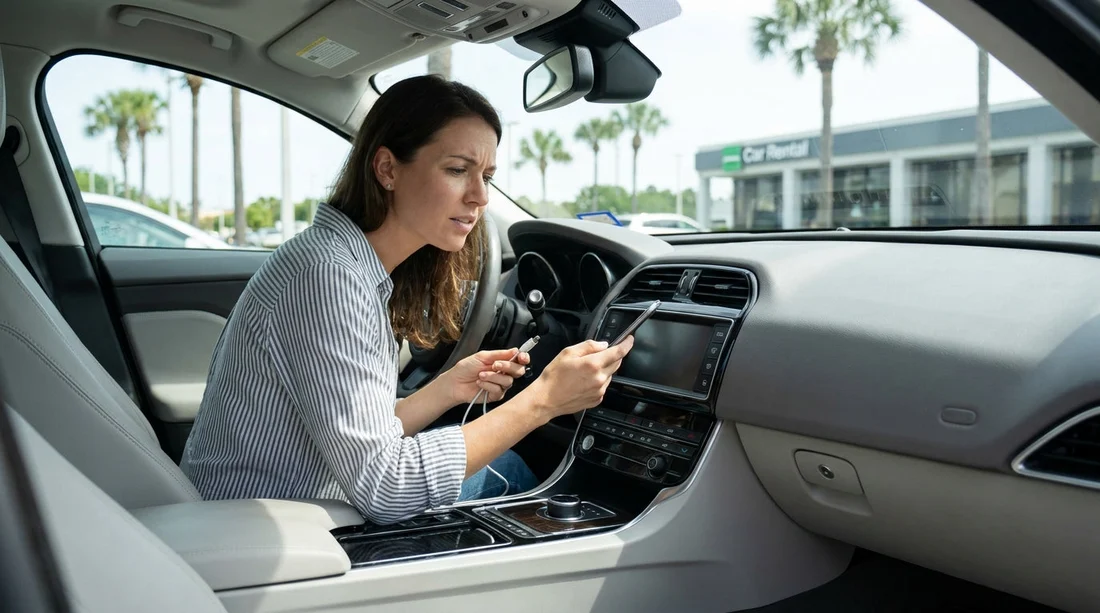
Quick Summary:
- Use a data-capable USB cable and try the correct infotainment port.
- Unlock your phone, accept prompts, and allow CarPlay or Android Auto permissions.
- Forget old pairings, restart phone and infotainment, then reconnect in order.
- Enable projection settings, then test wired and wireless to confirm support.
When you collect a car hire in Orlando, you want maps, music, and calls working before you join airport traffic. If Apple CarPlay or Android Auto will not connect at the desk or in the pick-up bay, it is usually a small setup issue, not a fault with the vehicle. The key is to troubleshoot quickly while you are still parked, with staff nearby if you need them to note anything on your paperwork.
Below is a counter-side checklist you can run through in five to ten minutes. It focuses on the common causes at car hire pick-up, cables, permissions, pairing history, and head unit settings. If you are collecting near the terminal, it can help to do this before you leave the rental complex and commit to toll roads and busy junctions.
If you are arranging a vehicle for your trip, it helps to know what to expect at the airport desks and garages. Hola Car Rentals has Orlando pages that cover pick-up locations and vehicle types, including car hire at Orlando MCO for the airport and Disney area, plus options like minivan rental around Orlando MCO if you need extra USB ports for family devices.
Step 1: Confirm what the car supports
Before you change settings, establish whether the vehicle has wired CarPlay, wireless CarPlay, wired Android Auto, wireless Android Auto, or a mix. Some trims only support one method, and some require a first-time wired connection to enable wireless later. Look for an on-screen prompt such as “Connect Apple CarPlay” or “Android Auto”, or a “Phone Projection” menu in the infotainment settings.
Also check the USB port you are using. Many vehicles have multiple ports, but only one is connected to the infotainment system. Others are charge-only. If the port is marked with a phone icon or a small screen icon, that is usually the data port. If nothing is marked, test another port.
Step 2: Fix the most common cause, the cable
A surprising number of “CarPlay not working” cases are cable-related, especially during travel.
Use a data-capable cable. Some cables charge only. A genuine Apple cable or a reputable USB-IF certified cable is more reliable than a thin travel spare.
Check the connectors. Lint in the phone port or a slightly loose connector can cause intermittent drop-outs. If your phone does not sit firmly, try another cable.
Try a different USB port. Even the correct port can be worn. If one port fails, test another before assuming the system is broken.
Avoid USB hubs initially. Connect phone to car directly to reduce negotiation issues.
Step 3: Clear the permissions and prompts bottleneck
At car hire pick-up, people often plug in while the phone is locked or while they are rushing through on-screen prompts. Projection requires permissions, and ignoring one prompt can block it until you reconnect.
On iPhone: Unlock the phone, then reconnect. If asked to allow CarPlay while locked, choose allow if you are comfortable. Go to Settings, General, CarPlay, then check the vehicle appears. If it appears but will not launch, remove it and set it up again.
On Android: Unlock the phone and accept Android Auto prompts. Ensure Bluetooth and Wi-Fi are on, as Android Auto often uses both even for a wired session. Check Android Auto is installed and enabled. If you have work profiles or device management, it can restrict projection, so try your personal profile if available.
Step 4: Reset the connection cleanly
If the cable and prompts look fine, do a clean reset. This is faster than random tapping, and it removes old pairings from previous renters.
1) Forget the car on your phone. In Bluetooth settings, remove the vehicle. On iPhone, also remove it from the CarPlay list.
2) Delete your phone from the car. In the infotainment Bluetooth or Phones menu, remove any devices you do not recognise, then remove yours.
3) Restart both. Power-cycle your phone. Then restart the infotainment system. Some cars have a hold-to-reboot button combination, others need ignition off, door open, then lock for a minute.
4) Reconnect in the right order. Start the car, let the infotainment fully boot, unlock phone, connect cable, then follow prompts.
Step 5: Check projection settings in the car
Many systems allow CarPlay or Android Auto to be toggled off. Look for menus like Projection, Smartphone integration, Apple CarPlay, or Android Auto. Ensure they are enabled. If there is a setting for allow while moving, leave it at default and just enable projection.
Depending on who you are renting with, the system layout can vary. Hola Car Rentals provides supplier-specific Orlando information, for example National car hire at Orlando MCO and Enterprise car hire at Orlando MCO, which can help you anticipate where you will collect and who to speak to if the screen is not responding.
Step 6: If it still will not connect, decide the safest next step
If you have tried two cables, two ports, accepted permissions, reset pairings, and verified projection is enabled, decide whether to swap the vehicle, get staff to record the fault, or continue without integration.
Ask for assistance while you are still on site. Staff can confirm whether the car has a known issue, whether the USB port is charge-only, or whether the head unit needs a supervised reset.
Use built-in navigation if available. Some vehicles have their own navigation and Bluetooth calling, which may be good enough until you have time to troubleshoot again.
For general pick-up guidance around the airport, including where you may have time to sit and pair devices, see car rental at Orlando MCO.
FAQ
Why does my phone charge but CarPlay or Android Auto will not appear? Many vehicles have charge-only USB ports, and some cables do not carry data. Try a different port and a known data-capable cable, then reconnect with your phone unlocked.
Do I need mobile data for CarPlay or Android Auto to connect? Connection does not require mobile data, but your apps may. The initial pairing uses USB, Bluetooth, and often Wi-Fi. Once connected, offline maps can still work if downloaded.
What should I do if the car keeps connecting to another person’s phone? Delete unknown devices from the car’s Bluetooth list, then forget the car on your phone and re-pair. If you cannot remove old devices, ask staff to clear them.
Can I use wireless CarPlay or Android Auto straight away in a car hire? Sometimes, but not always. Some systems require a first wired session to authorise wireless. If wireless fails at pick-up, use wired for the first journey and retry later.
Should I factory reset the infotainment system at the rental lot? Avoid doing it yourself unless staff instruct you. A factory reset can remove settings the rental company needs, and it may not fix a hardware fault like a damaged USB port.

























































































