


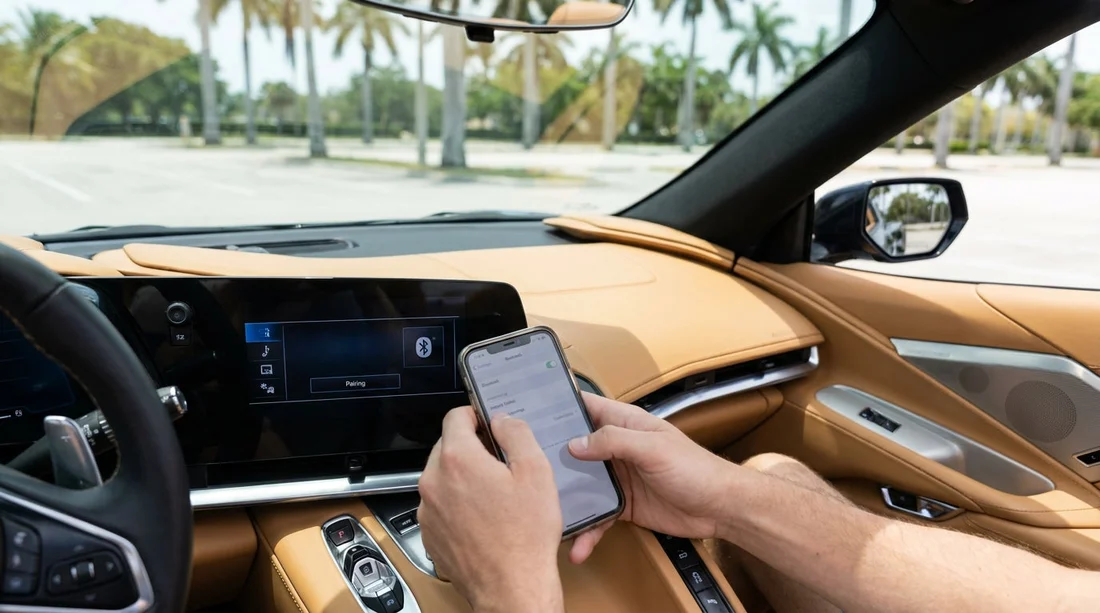
Quick Summary:
- Enable Bluetooth and set your phone to discoverable before starting.
- Clear old pairings on the car system, then add your device.
- Place a short test call to confirm mic, speaker, and volume.
- Check Miami hands-free expectations, then mount phone and set Do Not Disturb.
Pairing Bluetooth before you pull away is one of the simplest ways to make a car hire in Miami safer and less stressful. It also helps you avoid fumbling with your phone in unfamiliar traffic, especially around airport exits, one-way streets, and busy junctions. Use this practical pick-up checklist while you are still parked at the collection area, so you can drive off with calls, navigation prompts, and audio working as expected.
Before you start, set up your phone for a clean pairing
Start with your handset, because most pairing problems begin there rather than in the car. Switch on Bluetooth, and make sure your phone is in discoverable mode. On iPhone, keep the Bluetooth settings screen open. On Android, open Bluetooth settings and confirm visibility, if your device requires it.
Next, reduce distractions by turning on Do Not Disturb or driving focus. Allow calls from favourites if you want, but mute notifications that could tempt you to pick up the handset. If you rely on voice assistants, confirm the language and wake command work with your accent and background noise.
Finally, check power. Plug in a cable now, or ensure you have a charging lead that fits the vehicle. A phone that drops to low battery can reduce Bluetooth reliability and may dim your screen just when you need navigation.
Step-by-step: pair Bluetooth while you are still at pick-up
Use this sequence in the vehicle, before you leave the car park.
1) Identify the infotainment system and the correct menu. Look for “Phone”, “Bluetooth”, “Connections”, or “Settings”. If the screen is locked behind a safety message, accept it while stationary.
2) Delete old devices on the car system. Rental vehicles often have dozens of stored phones. Go to the paired devices list and remove any you do not recognise. This prevents the system from trying to reconnect to a previous driver and failing.
3) Start pairing from the car, then from your phone. Choose “Add device” on the car, then select the car name on your phone. If asked, confirm the pairing code matches on both screens.
4) Grant permissions carefully. Most systems ask to sync contacts, call history, and messages. For a hire car, many travellers choose calls only, and skip messages or full contact sync. If you do sync contacts for convenience, consider removing the device at drop-off.
5) Select the correct audio output. On some phones, Bluetooth connects for calls but media stays on the handset speaker. In your phone’s audio output selector, choose the car’s Bluetooth profile for both calls and media, if you want navigation prompts through the car speakers.
If you are collecting near the airport and want location-specific guidance for fleets and vehicle types, the Hola landing pages for Miami Airport rentals and van hire in Florida are useful references when planning what tech features you might encounter.
Test the essentials in under two minutes
Do a quick test while parked. This catches the common issues, low microphone gain, audio routed to the wrong speaker zone, or echo.
Make one short call to voicemail or a friend. Speak normally, then ask if you sound distant. If they cannot hear you well, check whether the car has a separate voice volume setting. Many systems have independent volume controls for calls and navigation, so turning up music volume may not help.
Check speaker balance by listening for your caller through the front speakers. If audio is coming from a single corner speaker, look for a “sound” or “balance” menu. In some vehicles, a phone call defaults to the driver-side speaker only, which can be fine, but you should know what to expect before you hit the road.
Trigger navigation prompts if you will use them. Start a route and wait for the first voice prompt. Confirm it plays through the car audio at a sensible level, and that it ducks music audio rather than blasting over it.
Try voice dial so you can place calls hands-free. Press the steering wheel voice button if present. If it triggers the car’s built-in voice system rather than Siri or Google Assistant, check whether you can switch the default assistant in settings.
Confirm local hands-free expectations before you drive
In Miami, you will see plenty of drivers handling phones, but that does not mean it is wise. Your safest approach in a car hire is to act as if you will not touch the phone once you set off. Keep your phone in a stable mount, set your destination before moving, and use voice commands for calls.
Also consider where you will be driving. Busy multi-lane roads and fast merges make it much harder to troubleshoot audio glitches on the move. If Bluetooth is temperamental, it is better to pull into a safe parking area and fix it, rather than attempt to re-pair in traffic.
If you are starting from Downtown rather than the airport, you may be comparing different vehicle classes. These Hola pages can help you align expectations for different dashboards and connectivity: budget car hire Downtown Miami and van hire Downtown Miami.
Common pairing problems and fast fixes at the kerb
The car cannot find your phone. Toggle Bluetooth off and on, then keep the Bluetooth settings screen open so your phone remains discoverable. If your phone is connected to earbuds or a smartwatch, disconnect them temporarily to avoid confusion.
Your phone connects, but calls still use the handset. On your phone during a call, tap the audio source and choose the car. Then check the Bluetooth device settings and ensure “Calls” is enabled for that connection.
Audio stutters or drops. Move the phone away from other electronics, and avoid placing it directly on top of a wireless charging pad if it overheats. If several previous devices are stored, clearing them often improves stability.
Echo for the person you call. Reduce call volume slightly, and make sure windows are closed for the test. Echo is often caused by the microphone picking up the speaker output at high volumes.
You cannot access contacts. Revisit permissions on the handset. You can allow contacts without giving the car access to messages. If you prefer privacy, use voice dial by number instead of syncing contacts.
Privacy and clean-up: what to do before returning the vehicle
Bluetooth convenience should not come at the cost of leaving personal data behind. Before you return the vehicle, remove your phone from the car’s paired list. If the system downloaded contacts or recent calls, delete them if a menu option exists. Also forget the car on your phone’s Bluetooth device list, so your handset does not try to reconnect the next time you pass a similar model in a car park.
If you are driving beyond Miami, pairing habits stay the same, but the fleet and head units can vary by location. For travellers who pick up or drop off nearby, the Hola pages for car hire in Fort Lauderdale and Fort Lauderdale Airport car hire can be helpful when planning your connectivity checks across different collection points.
A final pick-up checklist you can run in order
Before you put the car in gear, run this quick sequence: set phone to Do Not Disturb, enable Bluetooth, clear old car pairings, pair your device, allow only the permissions you actually want, then place a test call. Confirm call volume, microphone clarity, and navigation prompt volume. Finish by securing the phone in a mount and putting the charging cable where it will not interfere with steering or gear selection. With those steps done, your car hire in Miami will feel calmer from the first junction.
FAQ
Q: Should I pair Bluetooth before I leave the rental car park in Miami?
A: Yes. Pairing and testing while stationary lets you confirm audio, permissions, and voice controls without distraction in traffic.
Q: What permissions should I allow when pairing in a hire car?
A: Allow calls as a minimum. Only sync contacts or messages if you truly need them, and remove your device before returning the vehicle.
Q: My phone paired, but I cannot hear the caller through the car speakers. What now?
A: During a call, switch the audio source to the car, then check the Bluetooth device settings and ensure “Calls” audio is enabled.
Q: Can I use navigation prompts through Bluetooth as well as hands-free calls?
A: Usually, yes. Select the car as the media output on your phone, then start a route and confirm the first prompt plays clearly.
Q: How do I protect my privacy after using Bluetooth in a rental?
A: Delete your phone from the car’s paired list, clear downloaded data if available, and forget the car connection on your handset.

























































































