


Quick Summary:
- Delete old phones from Bluetooth, CarPlay, and Android Auto before driving.
- Clear recent destinations, saved places, and navigation history at pick-up.
- Remove synced contacts, call logs, messages, and voice assistant data.
- Sign out of apps, forget Wi-Fi networks, and reset driver profiles.
Picking up a car hire in Las Vegas is usually fast, but the infotainment system can quietly store a surprising amount of personal data from the last driver. Phones get paired, contacts sync, navigation remembers addresses, and apps can stay logged in. If you drive off without a quick reset, you might inherit someone else’s settings, or leave your own information behind for the next renter.
This guide gives you a practical, two minute privacy-and-safety checklist to run at pick-up. It focuses on the items that matter most, paired phones, synced personal data, navigation history, and connected apps. The exact menus vary by make and model, but the principles are consistent across most modern systems.
If you are collecting at the airport, you can do these checks while still parked in the bay, before you join I-15 traffic. For pick-ups near the terminals, see car hire airport Las Vegas. If you are organising a Nevada-wide trip, the local overview pages car rental Nevada and car hire Nevada can help you compare options without rushing the handover.
Why resetting the infotainment system matters
Infotainment systems are not just radios. They can store call history, contact names, recent addresses, Wi-Fi passwords, and app tokens for services like Spotify or navigation subscriptions. In a rental context, that creates two risks.
First, privacy: a later driver could see your recent destinations, or your phone could auto-connect and share notifications. Second, safety: you could be distracted by someone else’s saved favourites, incorrect audio settings, or a navigation system that keeps suggesting the previous driver’s home address.
In Las Vegas, it is common to drive straight into complex routes, airport loops, hotel loading zones, and busy arterials. A clean system means fewer surprises when you need directions quickly.
Step 1: Remove paired phones and projected phone sessions
Start with Bluetooth and phone projection. Even if you do not plan to use hands-free, you want to ensure the car is not set to auto-connect to a stranger’s device, and that your own device will not remain in the system after you return the vehicle.
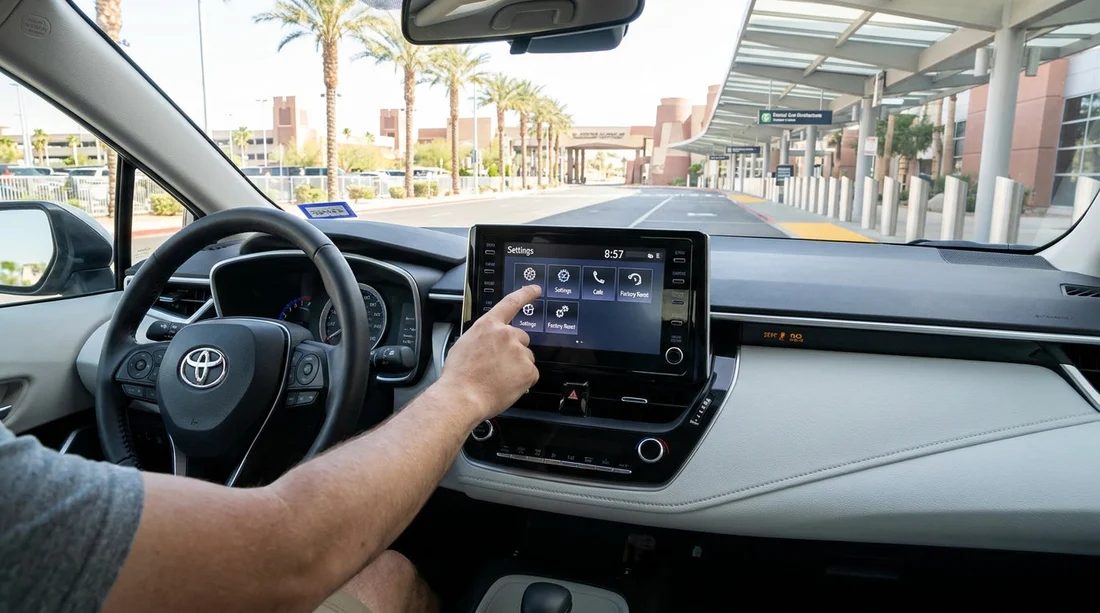
On the infotainment screen, look for Settings, Connections, Phone, Bluetooth, or Devices. You are typically looking for a list of paired devices. Delete every device you do not recognise. If there is a “Delete all” or “Factory reset connections” option, that is usually quickest.
Next, check Apple CarPlay and Android Auto menus. Some cars store “trusted” phones separately from Bluetooth. Remove any listed phones, and disable “Allow while locked” on your phone if you want to reduce notification exposure while driving.
Quick test before leaving: with your phone’s Bluetooth briefly turned off, confirm the car is not trying to connect to another device or displaying someone else’s name at the top of the screen.
Step 2: Clear synced contacts, call logs, and messages
Many systems automatically import your contacts and recent calls once a phone is paired. Some also display message previews for texts and chat apps. At pick-up, you want to remove any existing personal data, and limit what you sync from your own device.
In Phone settings, look for options such as “Sync contacts”, “Download phonebook”, “Message access”, or “Notifications”. If you see any names you do not recognise, clear the phonebook or delete the user profile associated with that device. If the system allows it, turn off message access and contact syncing for your trip, then rely on navigation prompts and basic call audio only.
This also helps if multiple drivers will share the car. Fewer synced contacts reduces mix-ups and avoids exposing private numbers if you hand the keys to someone else.
Step 3: Wipe navigation history and saved places
Navigation is the most sensitive part for many renters because it reveals patterns. Recent destinations can include hotels, residential addresses, medical visits, and meeting points. Clearing it takes seconds and is worth doing even if you will use your phone for navigation.
Open the built-in navigation app, then find Recent, History, or Where To. Delete recent destinations. Then check Saved, Favourites, Home, Work, and Stored Locations. Remove anything present. Finally, clear search history in the map app if that is separate.
If the vehicle uses Google built-in or another account-based system, check whether a user account is still signed in. If you see an unfamiliar profile name, sign it out before you drive off.
Step 4: Sign out of media apps and remove your accounts
Streaming audio apps and voice assistants can remain logged in after a renter returns the car, especially if the vehicle supports native apps. If the car has apps for Spotify, Apple Music, Amazon Music, Audible, or similar, open the app list and check for an account avatar or user name. Sign out of any account you do not recognise.
If you sign in with your own credentials, prefer temporary sign-in methods where available, and sign out again at return. A safer alternative is to stream audio from your phone without logging into any car-native app. That limits what the vehicle stores locally.
Step 5: Forget Wi-Fi networks, hotspots, and garage controls
Some vehicles remember Wi-Fi networks and passwords, especially if a previous renter connected to a phone hotspot or hotel network. In Network or Wi-Fi settings, look for saved networks and choose Forget Network or Remove.
If the car includes an in-car hotspot, check whether it is enabled and whether any devices are connected. Disable the hotspot if you will not use it.
Step 6: Reset driver profiles and personalisation
Many modern cars store driver profiles that bundle infotainment preferences with seat position, mirror settings, climate defaults, and radio presets. If you see profiles named “Guest”, “Driver 1”, or a person’s name, switch to Guest or create a temporary profile for your trip. If you cannot remove a named profile, do not save changes to it.
In infotainment settings, look for Privacy, Personal Data, or Reset options. Some cars offer “Clear personal data” without wiping the entire system. That is ideal for a rental. A full factory reset can be slower and might require re-pairing essentials, so use it only if you see extensive data you cannot otherwise remove.
If you have chosen a larger vehicle for group travel, extra driver profiles are common. For example, in an SUV rental Las Vegas or a van rental Nevada, take an extra moment to confirm rear entertainment screens and second-row controls are not locked to a prior user’s settings.
A two minute pick-up routine you can repeat every time
To keep it simple, run this routine while the car is still in park and before you connect your own phone.
First, delete old phones and projection sessions. Second, clear contacts and message access, and keep syncing turned off unless you truly need it. Third, wipe navigation recents and saved places. Fourth, sign out of any logged-in media apps and forget Wi-Fi networks.
Finally, at return, repeat the same steps in reverse, remove your phone, clear nav history, and sign out. It takes less time than taking a final fuel photo, and it helps protect you and the next driver.
FAQ
Q: Will deleting paired phones remove my ability to use hands-free calling?
A: No. You can delete existing devices first, then pair your own phone again. The goal is to ensure only your device is stored during your car hire period.
Q: Should I do a full factory reset of the infotainment system?
A: Usually not. Prefer options like “clear personal data” or deleting devices, navigation history, and accounts. Use a full reset only if you cannot remove a previous user’s data any other way.
Q: Can a rental car keep my contacts after I return it?
A: Yes, if contact syncing or message access was enabled. Before returning the car, delete your phone from the device list and clear any downloaded phonebook, call history, and message permissions.
Q: What if the car shows a previous driver’s home and work addresses?
A: Go into the navigation app’s saved places and delete Home, Work, favourites, and recents. If the system is signed into an account, sign it out as well.
Q: Is it safe to log into Spotify or other apps built into the car?
A: It can be, but it is safer to stream from your phone without logging into car-native apps. If you do log in, remember to sign out and clear app data before you hand the car back.





























































































