


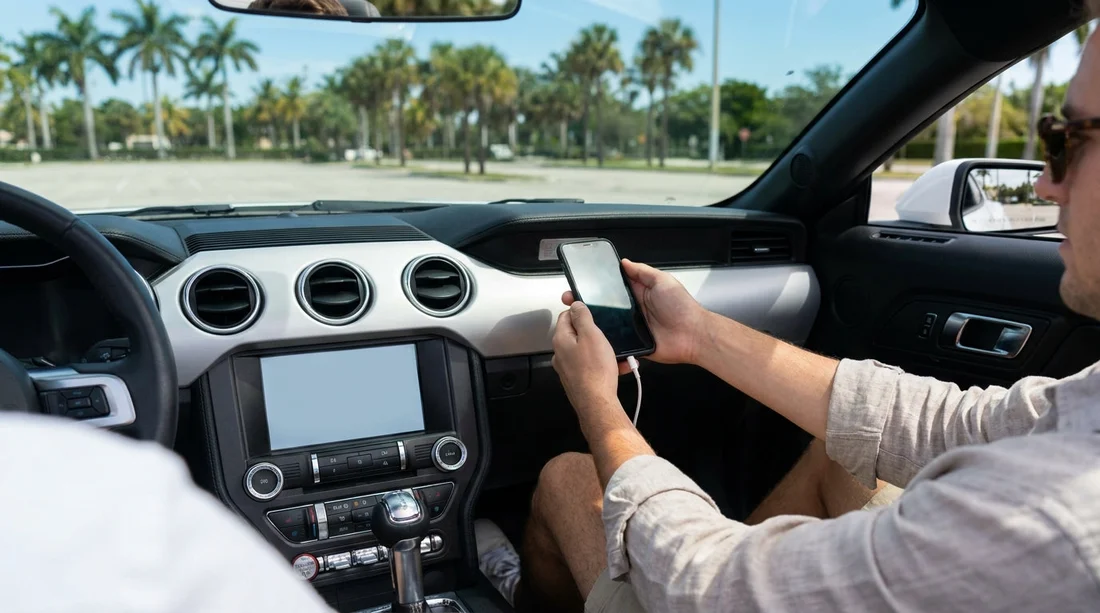
Quick Summary:
- Update your phone and key apps, then restart before pick-up.
- Pack a data-capable USB cable plus a backup, avoid charge-only leads.
- Pre-enable Bluetooth, Wi-Fi, Siri or Google Assistant permissions for car connections.
- Clear old car pairings and set a navigation default for faster setup.
When you collect a vehicle for car hire in Miami, the quickest win is having your phone ready to connect within the first minute. CarPlay and Android Auto can feel seamless, but they rely on the right cable, the right permissions, and a few settings that are easy to overlook when you are tired from a flight or juggling luggage. The good news is that preparation takes ten minutes at home and saves a lot of fiddling in the pick-up bay.
This guide focuses on what to check on your phone, what cables and adapters to pack, and how to avoid the most common connection delays, so you can get directions, calls, and music working immediately.
Check your rental car likely supports CarPlay or Android Auto
Most modern models in Miami fleets offer CarPlay and Android Auto, but the connection method varies, some are wired-only, some support wireless, and some need an initial cable pairing before wireless works. If you are collecting in the city, it helps to know your pick-up point and typical vehicle classes. For example, a central collection point such as car hire in Downtown Miami often has newer infotainment systems, but you should still pack for a wired connection because it is the most universally supported.
If you are arriving via the airport area, you may want to factor in a fast set-up at kerbside so you can pull away quickly. The same phone prep applies wherever you collect, whether you are using car rental in Miami generally, or collecting near Coral Gables via car hire Airport Coral Gables.
Before you fly, update and tidy your phone
CarPlay and Android Auto are sensitive to software versions. The simplest way to avoid a silent failure is to update your phone operating system and your key apps the day before travel, not in the rental lot. Update iOS or Android, then update Apple Maps or Google Maps, Waze, Spotify, WhatsApp, and any podcast or audiobook apps you plan to use. After updating, restart your phone to clear background glitches.
Also check that your phone has enough free storage. Low storage can cause apps to crash or fail to load map data quickly. As a practical benchmark, aim for at least 2 to 5 GB free. Finally, set a screen lock method that is quick for you. You may need to unlock the phone once to allow the initial connection prompt.
Pack the right cables and adapters for Miami car hire
Most connection problems at pick-up come down to the cable. Pack at least one high-quality, data-capable cable, and bring a spare. Avoid old, frayed leads and avoid charge-only cables that do not transfer data.
For iPhone: bring an Apple-certified Lightning cable if your iPhone uses Lightning, or a USB-C cable for newer iPhones. Many cars have USB-A ports, so consider a USB-A to Lightning or USB-A to USB-C lead depending on your handset. If you only have USB-C to USB-C, pack a small USB-A adapter as backup.
For Android: bring a USB-C cable that supports data. If your phone still uses Micro-USB, bring the correct lead and consider packing a Micro-USB to USB-C adapter as insurance.
Also pack a 12V charger that fits the car socket, ideally with USB-A and USB-C outputs. Even if the car has USB ports, they may charge slowly, and navigation plus music can drain the battery quickly in Miami heat with the screen on.
Set permissions and connectivity settings ahead of time
Both platforms need permissions to work smoothly. Do this before you travel, when you have time to read prompts.
Enable Bluetooth and Wi-Fi: Wireless CarPlay and wireless Android Auto typically use both. Even in wired mode, Bluetooth is often used for calls or initial handshakes.
Allow contacts and notifications: If you want hands-free calling and message readouts, grant permission. If you prefer privacy, you can decline, but do it deliberately rather than in a rushed tap at the desk.
Enable voice assistant: CarPlay works best with Siri enabled, and Android Auto relies on Google Assistant. Confirm your assistant is set up, you are signed in, and voice match is working if you use it.
Disable VPNs temporarily: Some VPNs interfere with map tiles or sign-in prompts. If you use a VPN for work, consider turning it off for the initial set-up and turning it back on later if needed.
Pre-load navigation for Miami and choose your defaults
At pick-up you want directions instantly, especially if you are heading onto I-95 or the Dolphin Expressway. Open your preferred navigation app before you fly and ensure you are signed in. Then set your default navigation.
CarPlay: iOS uses Apple Maps as the default for many Siri commands, but you can still open Google Maps or Waze on the CarPlay screen. Make sure the app you prefer is installed and allowed to use location services, ideally set to “While Using”.
Android Auto: choose your preferred default maps app in Android settings if available, and ensure location accuracy is on. Download offline maps for Miami if you expect patchy signal in parking garages or if you want to reduce roaming data usage.
Save key destinations ahead of time, such as your hotel, cruise terminal, or meeting address. That way you can start guidance without typing on a tiny on-screen keyboard.
At pick-up, follow a fast connection routine
Once you are seated, start the car fully, then connect. Many systems behave differently between accessory power and engine-on states.
For wired connections: unlock your phone, plug in with your data cable, and watch for a prompt on the phone asking to allow CarPlay or Android Auto. Tap allow. If the car asks for permissions on its screen, confirm there too.
For wireless connections: ensure Bluetooth and Wi-Fi are on, then open the car’s phone or projection menu. Pair Bluetooth first if prompted. Some cars require the first connection to be wired, then you can enable wireless later.
Keep your phone out of direct sunlight on the dashboard. Overheating can cause CarPlay or Android Auto to disconnect, and Miami temperatures can push phones into thermal throttling quickly.
Troubleshooting if it will not connect
If you have done the prep and it still fails, work through the quickest fixes in order.
1) Swap the cable: use your backup cable. This solves a high percentage of issues.
2) Try a different USB port: some cars have a “data” port and a “charge-only” port. If one does nothing, move to the other.
3) Toggle Bluetooth and Wi-Fi: turn them off and on again, then reconnect. For wireless, forget the car and re-pair.
4) Restart the phone: a 20-second reboot often restores projection functions after an update.
5) Check restrictions: on iPhone, Screen Time restrictions can block CarPlay. On Android, battery saver modes can limit background activity for Android Auto, so disable battery saver while driving.
If you are collecting a larger vehicle, such as a people carrier, note that some vans have different head units and port locations. If you are using van rental in Doral, allow an extra minute to locate the correct USB port, which may be lower on the centre stack or near a storage cubby.
If you plan to use a specific supplier, it can still be useful to confirm connectivity at collection. Whether you are driving away with Alamo car rental in Miami or another option, the same phone prep and cable kit will make the set-up straightforward.
FAQ
Do I need a USB cable for CarPlay or Android Auto in a Miami rental? Not always, but it is the safest approach. Many cars support wireless, yet wired connections are more universal and often more stable, so pack a data-capable cable and a spare.
Why does my phone charge but CarPlay or Android Auto will not start? The cable or port may be charge-only. Try a different cable, then try another USB port in the car, and make sure you have unlocked the phone and accepted the on-screen permission prompt.
Will using CarPlay or Android Auto use my mobile data? Yes for streaming music, live traffic, and online maps. To reduce data use, download offline maps for Miami and cache playlists or podcasts before you travel.
Can two phones connect at once? Many cars can store several phones, but only one device usually runs CarPlay or Android Auto at a time. Decide who is the primary device, and disable automatic connection on the other phone if it keeps taking over.
What should I do before returning the rental car? Forget the car in your phone’s Bluetooth and CarPlay or Android Auto settings, and delete your phone from the car’s device list if the menu offers it, to protect your privacy.





























































































