


Quick Summary:
- Download offline Las Vegas maps and key routes on reliable Wi-Fi.
- Save pick-up, hotel, and first-stop addresses into map favourites.
- Check storage space, battery health, and offline navigation permissions beforehand.
- Plan for weak signal zones, roaming limits, and airport exit directions.
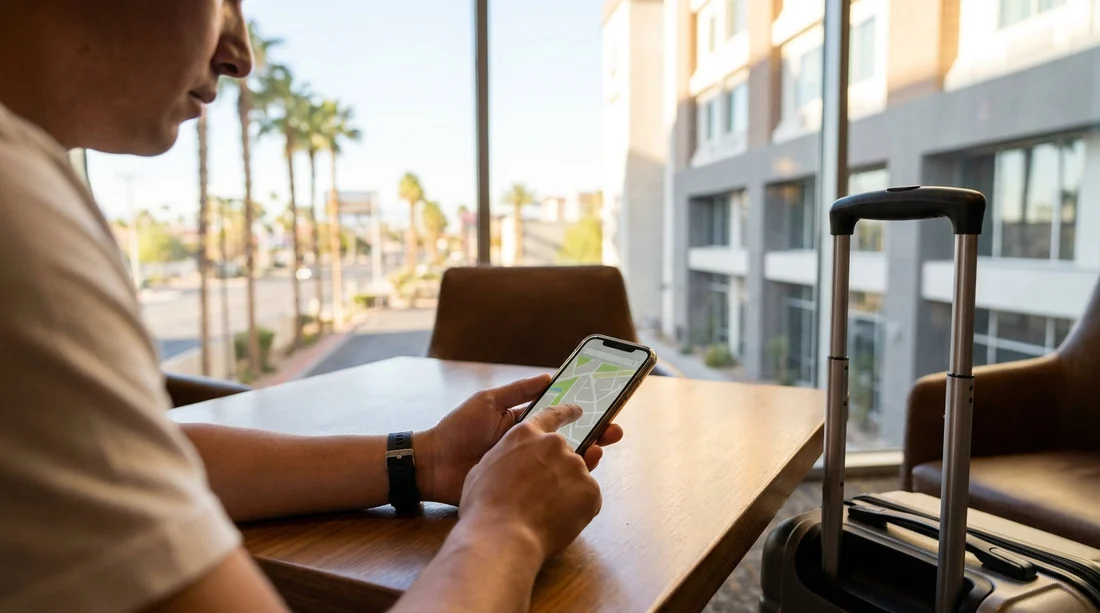
Collecting a car hire in Las Vegas is often the moment you most need navigation, you have just landed, you may be tired, and mobile data can be unreliable or expensive. A little preparation on your phone before you reach the rental counter helps you leave the airport smoothly and reduces the risk of wrong turns, toll-road surprises, or getting stuck without signal.
This checklist focuses on practical steps you can complete before pick-up, so you can navigate even if your connection drops. It also helps if you are sharing driving with someone else, as both phones can be prepared in the same way.
1) Decide what you need offline, city only or full trip
Start by listing the first three drives you are most likely to do immediately after pick-up. Common routes include Harry Reid International Airport to your hotel on the Strip, then to a supermarket, then to a day trip such as Red Rock Canyon. If your plans include areas outside the city, download more than the central Las Vegas map, because the signal can be patchy in desert and canyon areas.
If your car hire is collected at the airport, remember that the airport area has complex road layouts, flyovers, and exits. Having that region stored offline is useful even if you are only staying in the city. For location details, it helps to know where your provider’s airport facilities sit relative to terminal transport and exit roads, see car rental airport Las Vegas.
2) Update your mapping apps before you travel
Do app updates at home on stable Wi-Fi. Updates can change menu locations and offline-download methods, and you do not want to be learning a new interface at the kerbside. Open your preferred map app and confirm you can search for an address, start navigation, and view it without signing in again. If the app logs you out, sign back in now and ensure two-factor authentication is not going to block access without text messages.
3) Download offline maps properly, not just screenshots
Offline maps are more than saved images. You want turn-by-turn navigation that works with GPS even when data is off. In your map app, download the Las Vegas offline region, then zoom out and add the corridor you will drive. If you plan to visit Hoover Dam or Valley of Fire, include those areas too.
After downloading, test it. Put your phone into airplane mode, then turn GPS back on (many phones allow location services without mobile data). Start a route from the airport to your accommodation and check the app still offers navigation. If it refuses, your offline region is too small, not downloaded correctly, or the app requires a data handshake at the start.
If you are comparing vehicle types for your Las Vegas trip, you may be planning longer drives. Understanding your likely routes can inform how much map coverage to store, for general options see car rental Las Vegas and for statewide driving considerations see car rental Nevada.
4) Save critical addresses in three formats
Do not rely on a single search result. Save each essential location in your map favourites with a clear label, a plain-text note stored on your phone with the full address, and a screenshot of your confirmation showing the address.
Key addresses to store before pick-up in Las Vegas include your accommodation, the first fuel stop, a supermarket, and any timed booking like a show venue. Add the car hire collection address and the return location as well. Airport rental operations can use separate facilities, and returns can be signed differently from collections.
5) Mark “no-go” options, tolls, and route preferences
Las Vegas driving is generally straightforward, but navigation settings can still trip you up. Before you fly, open navigation settings and choose whether to avoid toll roads, avoid motorways for the first leg, or prioritise fuel efficiency, and keep the preference consistent across devices.
6) Check storage, battery, and offline permissions
Offline maps can take significant space. Before downloading, ensure you have at least 2 to 5 GB free, more if you are storing multiple regions. If you are low, clear old downloads, large videos, or unused apps.
Battery is equally important. Pack a car charger that matches your phone and supports fast charging, and bring a spare cable if you can. Also pack a small power bank so you can navigate while waiting for the shuttle or sorting paperwork.
Confirm your map app has location permission set to “Always” or “While using”, and that “Precise location” is enabled. GPS works without data, but only if the phone is allowed to use it.
7) Prepare for roaming, SIM changes, and airport Wi-Fi limitations
If you are arriving from outside the US, decide whether you will use roaming, an eSIM, or airport Wi-Fi. Roaming can be expensive, and some people disable data entirely until they sort a local plan. Offline maps prevent navigation becoming dependent on that decision.
Also note that switching SIMs or activating an eSIM can temporarily disrupt service and may require reboots. Complete the offline-map and saved-address work before you start changing mobile settings.
8) Build an “arrival mode” on your phone
Create a simple setup for the first hour after you collect the keys. Set Do Not Disturb or Focus mode so alerts do not cover the map screen, and share key addresses with your companion so they can navigate if your phone overheats or runs low on battery.
If you are looking at a bigger option, see SUV rental Las Vegas. Planning parking locations in advance can reduce last-minute detours.
9) Run a full offline test route before travel day
The most useful step is a rehearsal. The day before you fly, turn on airplane mode, enable GPS, open your map app, and start navigation from the airport to your accommodation. Then simulate a second route, for example from your hotel to a grocery store, and confirm the route and spoken directions work.
Finally, search for one of your saved places without data. If search fails, ensure the place is saved in favourites, not just in your recent history.
10) On pick-up day, use maps without creating risk
Once you are at the car hire location, set your first destination before you put the car in motion. Mount the phone securely, connect power, and start navigation while parked. If you need to adjust the route, do it in a car park, not while moving.
As you set off, check the map scale, make sure it is showing the next turn clearly, and verify the first few instructions make sense. Airport exits can involve rapid lane changes, so it is better to confirm the initial direction before you leave.
FAQ
Do offline maps work without any mobile data in Las Vegas? Yes. Offline maps use GPS for your location, and stored map data for roads. You can keep mobile data off and still navigate, as long as the area is downloaded.
What addresses should I save before collecting my car hire? Save the car hire pick-up and return points, your accommodation, a first fuel stop, and your first timed booking. Store each as a map favourite and a plain-text note.
How do I know my offline map download is big enough? Put your phone in airplane mode, re-enable location services, and start a route. If the app cannot calculate directions, expand the offline region and download again.
Will GPS drain my battery quickly during long drives? It can. Use a car charger, reduce screen brightness, and close background apps. A power bank is useful while you are waiting for shuttles or paperwork.
Can two people share the same saved places and routes? Yes. Share a list of saved addresses via notes or screenshots, and have both phones download the same offline regions. This provides redundancy if one phone fails.





























































































