


Quick Summary:
- Confirm wireless CarPlay support, then enable Bluetooth and Wi‑Fi together.
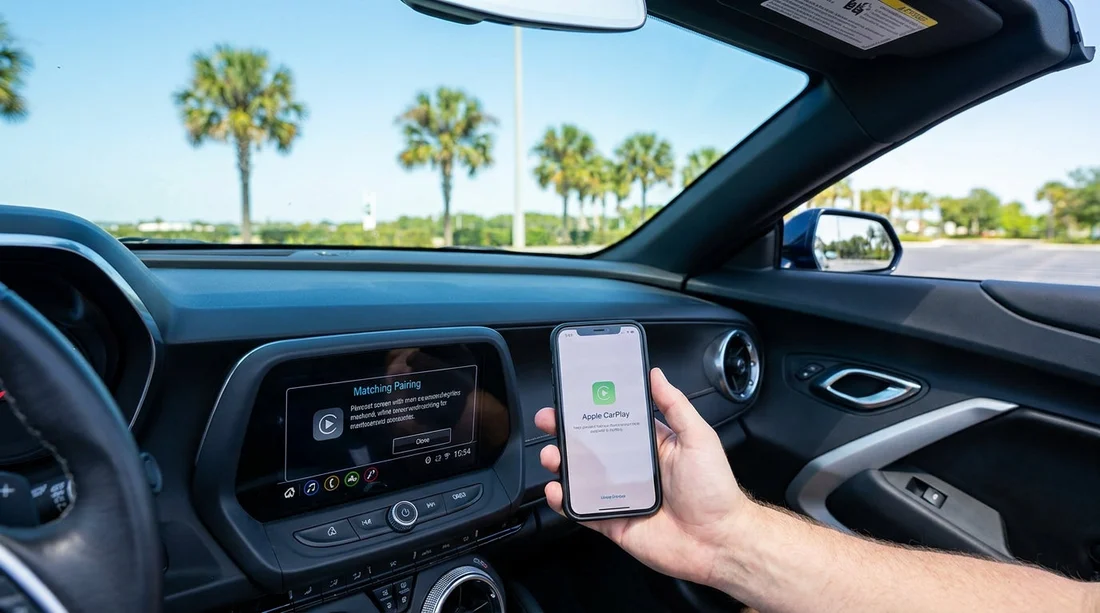
- Pair in the car’s CarPlay menu, accept prompts, limit contact sharing.
- Disable message previews, review Siri access, and avoid unnecessary location sharing.
- Test maps, calls, and audio, then forget the car after returning.
After you pick up a car hire in Orlando, wireless Apple CarPlay is one of the quickest ways to get navigation, calls, and music working safely. The key is to set it up before you leave the airport or rental location, because permissions and connection settings are easiest to check while stationary and you can fix issues without pressure.
If you are collecting near the terminals, it helps to complete this process in the pick-up area or car park. Many travellers collect vehicles via Orlando MCO airport car rental options, so plan two to five minutes before you drive off to confirm wireless pairing, privacy settings, and audio routing.
Before you start, confirm wireless CarPlay is actually available
Not every model supports wireless Apple CarPlay, even if it has CarPlay via USB. Start with these quick checks on the car’s infotainment screen:
Look for “Apple CarPlay” in the phone or projection menu. Some systems label it as “Phone Projection”, “Smartphone Integration”, or “Apps”. If you see CarPlay but it only lists USB, you may need a cable for this trip.
Check that Bluetooth and Wi‑Fi can be enabled at the same time. Wireless CarPlay uses Bluetooth for initial handshakes and Wi‑Fi for the main connection. If the system forces Wi‑Fi off when Bluetooth is on, wireless may be disabled or restricted.
Confirm you have a strong iPhone battery. Wireless CarPlay can draw more power than a cable connection. If the car has wireless charging, test it, but do not assume it will charge reliably through thick cases.
If you are choosing a larger vehicle for family travel, you can still use the same steps in an SUV or people carrier. Hola Car Rentals has dedicated pages for options such as SUV hire near Disney Orlando MCO and minivan hire Orlando MCO, where built-in infotainment often includes CarPlay, but feature sets vary by trim.
Quick pairing checklist, step by step (wireless)
Use this sequence to minimise failed pairings and repeated prompts.
1) Prepare your iPhone. Open Settings, then Bluetooth, and leave Bluetooth on. Also ensure Wi‑Fi is on. If you previously connected to many rental cars, consider turning off Bluetooth briefly, then back on, to refresh the device list.
2) Put the car into pairing mode. On the car screen, open Phone, Bluetooth, or Connections, then choose Add Device or Pair New Device. Some cars require you to select Apple CarPlay first, then “Add iPhone”.
3) Confirm the Bluetooth code. A code should appear on both the car and your iPhone. Confirm they match, then accept on both ends. If the car asks to sync contacts, decide based on privacy, you can usually decline and still use CarPlay.
4) Accept the CarPlay prompt on your iPhone. You will see “Use CarPlay with [car name]?” Tap Allow. If asked to enable wireless CarPlay, accept. If the car supports it, it will create a Wi‑Fi link automatically.
5) Set CarPlay to auto-connect for this trip only. Many cars offer an “auto-connect” toggle. It is convenient during your rental, but remember to remove the pairing later so your phone does not reconnect to a future driver’s car with the same system name.
6) Choose your default audio source. Start a track in Apple Music, Spotify, or a podcast app and confirm audio plays through the car. Then place a quick call to voicemail or a contact to ensure call audio is routed correctly.
Permissions and privacy, what to allow and what to avoid
Because you are in a car hire, treat the infotainment system as a shared device. Apple CarPlay is designed to keep data on your phone, but pairing can still expose call logs, contacts, and message previews if you grant access.
Contacts and favourites: If you do not need hands-free calling by name, decline contact sync when prompted. You can still dial manually or use recent calls without importing your address book on some systems.
Messages and notifications: Go to iPhone Settings, Notifications, Messages, then set previews to “When Unlocked” or “Never”. This reduces the chance of personal information appearing on the car display.
Siri settings: Siri makes CarPlay useful, but you can limit what it reveals. Check Settings, Siri, then disable “Announce Notifications” if you do not want messages read aloud when passengers are present.
Location sharing: In Apple Maps or Google Maps, avoid sharing ETA unless you want it enabled. Also review which navigation app has location permission set to “While Using the App”, rather than “Always”.
Garage door and wallet prompts: If the car suggests adding a vehicle to Wallet or setting up a manufacturer app, skip it. Those features can create longer-lasting links than you need for a short Orlando stay.
For travellers comparing providers and vehicle classes around the theme parks, pages such as Budget car rental Disney Orlando MCO can help you understand typical fleet options, but always confirm the exact car’s infotainment menus before you drive away.
Troubleshooting wireless CarPlay before you leave the lot
If the CarPlay icon does not appear, or it keeps disconnecting, work through these checks in order.
Restart the connection. Turn the car off, open the door, then restart. On the iPhone, toggle Airplane Mode on for five seconds, then off. This resets radios without a full reboot.
Forget and re-pair cleanly. On the iPhone, go to Settings, Bluetooth, tap the “i” beside the car, then Forget This Device. Also remove the phone from the car’s paired devices list. Pair again from scratch.
Check for an existing active phone. Some rentals keep a previous pairing until cleared. If the car shows another phone connected, delete it. If you cannot, ask staff to reset infotainment, or do it yourself if a “Factory Reset” or “Clear Personal Data” option exists.
Disable VPN temporarily. Some VPNs interfere with the Wi‑Fi link used by wireless CarPlay. Turn the VPN off, connect CarPlay, then test. You can re-enable the VPN afterwards and see if it remains stable.
Try wired as a fallback. Even if the goal is wireless, a cable confirms CarPlay compatibility quickly. If wired works but wireless does not, the issue is usually Wi‑Fi pairing or an infotainment setting such as “Wireless projection” being off.
How to remove your data when returning the rental
Before you hand back your car hire, remove your phone and clear any stored information. This takes less than a minute and protects your privacy.
On the iPhone: Settings, Bluetooth, tap the “i” next to the car name, then Forget This Device. Also check Settings, General, CarPlay, select the car, then tap Forget This Car.
On the car: In the phone or connections menu, delete your phone profile. If there is a “Clear personal data” option, use it to remove call history, contacts, and navigation history stored locally.
If you are collecting and returning at the airport and want a smooth start and finish, you can review Hola Car Rentals Orlando pages such as car hire Orlando MCO and car rental Orlando MCO for practical planning, including where you may have a few minutes to set up your phone calmly.
FAQ
Why does wireless Apple CarPlay need both Bluetooth and Wi‑Fi? Bluetooth handles discovery and initial pairing, then the car and iPhone use Wi‑Fi for the higher bandwidth connection that keeps maps and audio responsive.
Can I use Apple CarPlay without sharing my contacts in a rental car? Yes. Declining contact sync often still allows navigation and audio, and you can usually place calls manually without importing your full address book.
What should I do if CarPlay keeps disconnecting in Orlando? Forget the device on both the iPhone and the car, then re-pair. Also disable any VPN temporarily, and confirm the car is not trying to connect to another saved phone.
Will wireless CarPlay drain my iPhone battery quickly? It can, especially with navigation running. Use a charging cable or reliable wireless charging, and avoid Low Power Mode if you notice lag or dropouts.
How do I make sure my data is removed when I return the car? Forget the car in iPhone Bluetooth and CarPlay settings, then delete your phone profile on the car’s infotainment system, including any personal data reset option.































































































