


Quick Summary:
- Download offline map areas for Texas cities and your route over Wi-Fi.
- Enable CarPlay, location services, and background refresh for your maps app.
- Bring the right cable, then test audio, calls, and navigation prompts.
- Save key stops offline, and set Maps to avoid tolls.
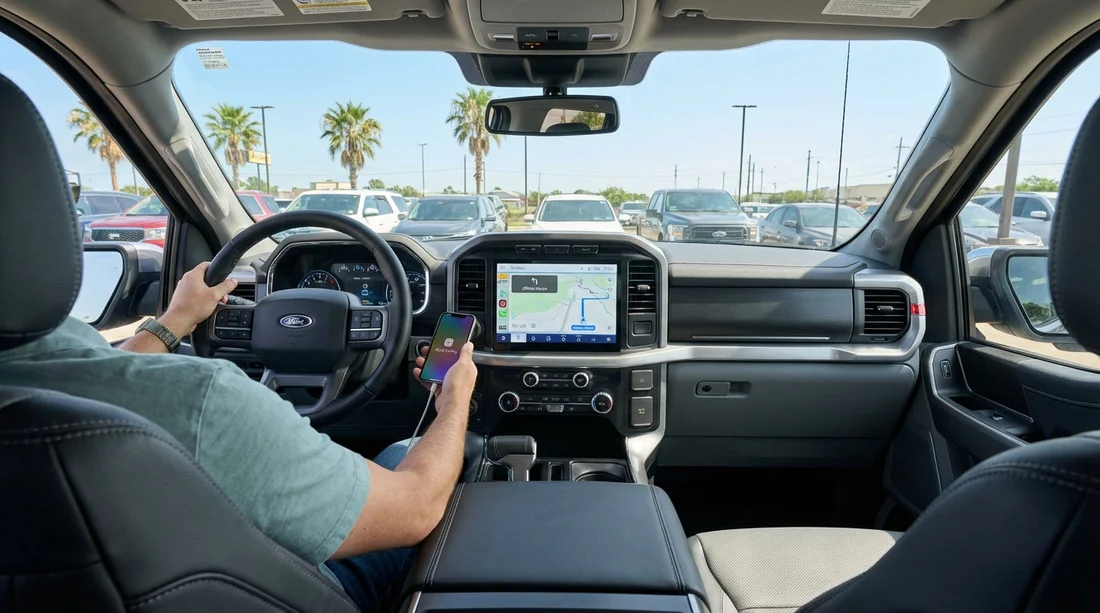
Setting up Apple CarPlay with offline maps before you pick up a car hire in Texas saves time, avoids roaming surprises, and means navigation works even if reception drops on long interstate stretches. The aim is simple: your iPhone should connect instantly, your maps should load without mobile data, and your first destination should be ready to start the moment you leave the car park.
This checklist is designed for a quick pre-pick-up routine you can do the night before travel, plus a two minute test in the vehicle after collection.
1) Choose one maps app and update it over Wi-Fi
Pick the navigation app you will actually use in the rental, then update it while you have reliable Wi-Fi. Apple Maps supports offline maps in iOS 17 and later, and Google Maps supports offline areas on iPhone. Whichever you choose, keep it to one primary app for offline use, so you are not downloading duplicate regions and burning storage.
While you are preparing travel for major Texas airports and city driving, it helps to know where you are collecting. Hola Car Rentals has airport pages for popular pick-up points, for example car rental Austin AUS or car rental San Antonio SAT. Your collection location determines which offline areas you should prioritise.
2) Download offline maps for the exact areas you will drive
Offline maps work best when you download a slightly larger area than you think you need. In Texas, distances add up quickly, so include the airport, the city centre, and the corridor to your first stop.
Apple Maps (iOS 17+): Open Apple Maps, tap your profile icon, choose Offline Maps, then Download New Map. Search for the city or region, adjust the map frame to include the full driving area, then download. Enable automatic updates if you have Wi-Fi access before you fly, and confirm that “Only Use Offline Maps” is turned on if you want to minimise data use.
Google Maps: Open Google Maps, tap your profile icon, Offline maps, then Select your own map. Drag the rectangle to cover your route and surrounding detours, then download. In Settings, set “Download preferences” to Wi-Fi only.
Practical Texas tip: include buffer for wrong exits and construction. Metro areas like Austin and San Antonio often have short notice lane closures, and a reroute can nudge you outside a too-tight offline region.
3) Pre-save key locations so they work without signal
Offline maps cover the road network, but you still want your places ready. Save these in your maps app and in your iPhone contacts, so you can search them quickly even if the app is slow to index:
Must-saves: your hotel or accommodation, the car return address, your first fuel stop, and any booked activities with a fixed time. If you are flying into West Texas, also save the airport terminal area and at least one alternative fuel stop outside the airport zone.
If you are picking up around El Paso or Fort Worth, it is worth noting in advance where you will be driving next. Pages like car hire airport El Paso ELP and van hire Fort Worth DFW can help you align your offline downloads with the right metro area and airport roads.
4) Prepare CarPlay permissions and settings before you travel
CarPlay problems at the rental desk are usually permission problems. Fix them before you leave.
On iPhone: go to Settings, General, CarPlay. Make sure CarPlay is allowed if you use Screen Time restrictions. Then go to Settings, Privacy & Security, Location Services. Ensure Location Services is on, and set your maps app to “While Using the App” or “Always” if you prefer uninterrupted guidance. Also check Settings, General, Background App Refresh, and keep it enabled for your maps app to improve prompt timing.
On the map app: enable voice guidance, set language, and pick whether to avoid motorways or tolls. Texas has toll roads around major cities, so decide now whether your routing should avoid tolls. Changing it later is easy, but doing it now reduces mistakes when you are tired after a flight.
5) Pack the right cable, and plan for wired or wireless CarPlay
Many rental vehicles still require a cable for CarPlay, and some wireless systems only behave reliably after the first wired connection. Bring a high-quality USB-A to Lightning cable, plus USB-C to Lightning if you are likely to see newer USB-C ports. Avoid flimsy cables, they disconnect mid-route and CarPlay can drop your audio prompts.
Also pack a 12V charger with enough power. Navigation, bright screens, and background GPS drain a phone quickly, even with offline maps. You want the iPhone charging while CarPlay is running.
6) Do a two minute test in the car park after collection
Once you collect your car hire in Texas, do a fast systems check before you drive away. This prevents the classic situation where you are on an airport exit ramp with no directions.
Test steps: start the car, connect your iPhone, accept any CarPlay prompts on both the phone and the vehicle screen, and confirm CarPlay launches. Open your chosen maps app on CarPlay, set a simple destination nearby, and start a route. Play a short audio track, then confirm you can still hear navigation prompts. Finally, place a quick call to voicemail or a travel companion to check the microphone and speaker routing.
If CarPlay does not appear, check the vehicle’s USB port. Some cars have data and charge ports, and only one supports CarPlay. If it still fails, remove the car from Settings, General, CarPlay, then reconnect.
7) Reduce data use without breaking navigation
Offline maps are the biggest win, but a few extra tweaks can cut usage further:
Disable auto-play streaming: set your music app to download playlists over Wi-Fi, or switch to local files. Streaming while navigating can chew through data fast.
Stop background downloads: pause app updates and cloud sync until you are settled. Offline navigation works best when your phone is not busy doing large uploads in the background.
Keep time zone and region automatic: you want accurate ETA calculations. Leave automatic time enabled, so your phone stays aligned if you travel across time zones before entering Texas.
8) Plan for toll roads, parking, and airport exits
Offline maps will guide you, but you still need to avoid common first-drive headaches.
Tolls: if you want to avoid tolls, set it before starting your first route. If you are unsure, you can keep tolls allowed and make a decision later, but be consistent so your offline route matches your expectations.
Airport exits: airports have complex one-way systems. Zoom in and study the first two turns while parked. This is where offline maps help, because you can load the area instantly without waiting for data.
Parking and drop-off: save the return address as a favourite the moment you collect the keys. If you are collecting via a specific operator, keep the location handy, for instance Payless car hire Austin AUS is a useful reference point if that is your pick-up provider.
FAQ
Q: Can I use Apple CarPlay with offline maps without any mobile signal in Texas?
A: Yes, if the map area is downloaded and GPS is available. You may lose live traffic, incident alerts, and some search results, but turn-by-turn routing usually works within the offline region.
Q: Should I download offline maps for the whole of Texas?
A: Only if you have plenty of storage. A better approach is downloading the metro areas you will visit and a corridor around your route, with a buffer for detours.
Q: Will offline maps still reroute if I miss a turn?
A: Generally yes, as long as the alternate route stays inside your downloaded area. If the best reroute leaves the offline region, the app may struggle until data returns.
Q: Do I need a cable for CarPlay in a rental car?
A: Many rentals still use wired CarPlay, and even wireless systems can require a first wired pairing. Bringing a reliable Lightning cable avoids most connection issues.
Q: How do I make sure navigation prompts are heard over music?
A: Start a test route in the car park, play audio, and confirm prompts interrupt properly. If not, adjust the navigation volume while a prompt is speaking.































































































