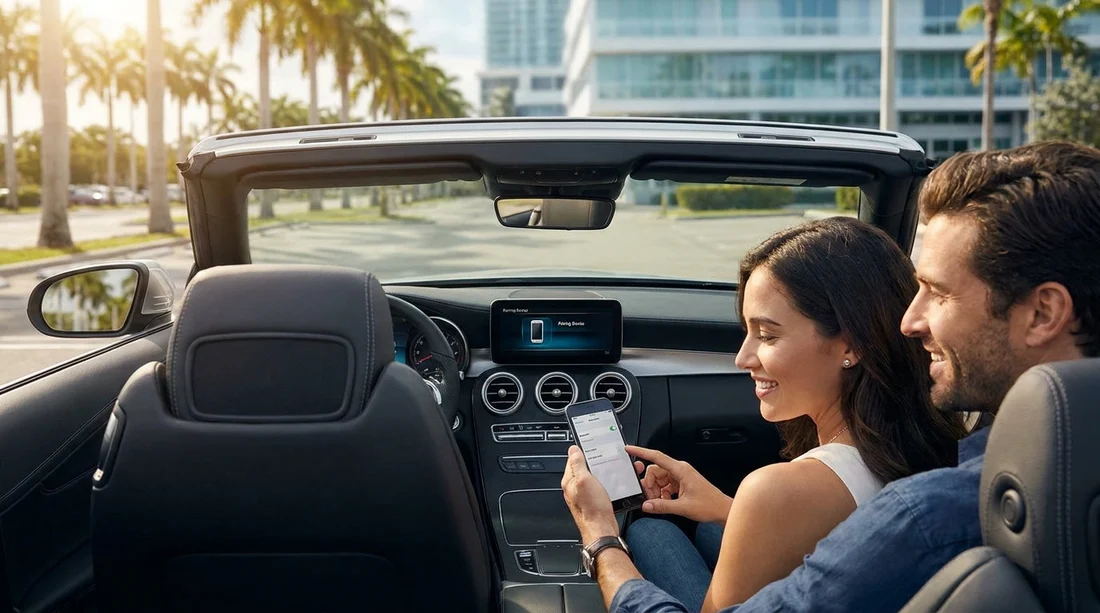
Quick Summary:
- Park safely at pick-up, enable Bluetooth, and keep your phone visible.
- Start pairing on the car screen, then confirm the matching code.
- Approve permissions you need, then choose your preferred audio source.
- Test a hands-free call and navigation voice before joining traffic.
Pairing your phone with Bluetooth before you leave the pick-up area is one of the quickest ways to make a Miami car hire feel familiar straight away. Done properly, it means turn-by-turn directions are audible, calls are hands-free, and you are not tempted to handle your phone once you are on busy roads like the Dolphin Expressway or I-95.
The key is to do it while the car is stationary, with enough time to test everything. Build five minutes into your collection routine so you are not rushing. If you are collecting at the airport, pairing is easiest before you exit the car park lanes.
If you are arranging your Miami pick-up through a dedicated page such as car hire at Miami Airport (MIA) or car rental in Florida (MIA), the steps below will still apply because most modern cars follow a similar Bluetooth process.
Before you start: safety and readiness checks
First, get yourself fully stopped in a safe place. Put the car in Park, apply the parking brake, and keep the engine running if required for the infotainment system. Do not attempt pairing while queueing at barriers or moving between lanes.
Next, prepare your phone. Turn on Bluetooth, then make the device discoverable or visible. On iPhone, the Bluetooth settings screen usually keeps you visible while it is open. On Android, visibility can be automatic for a short period after opening Bluetooth settings. If you have multiple devices, switch off Bluetooth on anything you are not using, such as a second phone or tablet, to prevent the car connecting to the wrong one.
Finally, check power. Plug in your cable or keep a charger ready. Navigation, streaming audio, and screen brightness drain batteries quickly, especially in Miami heat.
Step-by-step: pairing Bluetooth at pick-up
Step 1, reset the car’s pairing mode if needed. If the previous driver’s phone is still saved, the car might try to reconnect to it or show a full list of old devices. On the car screen, look for Phone, Settings, Bluetooth, or Connected Devices. If you see old entries, choose “Forget”, “Remove device”, or “Delete”. This also protects your privacy, because you do not want your contacts or call logs stored after you return the vehicle.
Step 2, start pairing from the car screen. In most systems, you choose “Add phone” or “Pair new device”. The car will then search for nearby phones, or display a Bluetooth name and pairing prompt. Starting from the car screen tends to be faster than searching for the car from your phone, and it reduces the chance of selecting the wrong vehicle in a busy pick-up area.
Step 3, select the correct device name. Your phone will appear as its Bluetooth name, often your first name or your model. If you see several similar names, double-check your phone’s Bluetooth name in settings, then choose it on the car screen. In a crowded airport garage, other cars can be in pairing mode too, so accuracy matters.
Step 4, confirm the pairing code. A code will appear on both the car screen and your phone. Confirm they match, then accept on both devices. If the codes do not match, cancel and try again. A mismatch can indicate you selected the wrong device, or another system is attempting to pair.
Step 5, approve permissions intentionally. Your phone may ask whether to allow contacts and favourites, call history, notifications, and media access. If you want hands-free calling by voice command, allow contacts. If you prefer privacy, you can deny contacts and still use audio. For messaging read-outs, you may need to allow notifications.
Step 6, set the phone as primary. If the car supports multiple devices, set yours as the primary phone, especially if you are travelling with others. This prevents confusion where calls route through a passenger’s phone and music through yours. Most systems let you assign a “Phone” device and a separate “Audio” device.
Step 7, disable distracting pop-ups. If your phone offers driving focus or do-not-disturb-while-driving, consider enabling it. It reduces the urge to pick up the device while navigating unfamiliar roads.
Make navigation and calls work immediately
Bluetooth pairing is only part of the goal. You also want clear navigation audio and reliable call quality before you leave the collection area.
Test hands-free calling. Make a quick call to your voicemail or a trusted contact and confirm the car microphone and speakers work. If the other person says you sound distant, locate microphone settings in the car audio menu and turn off any “private mode” or “handset mode”.
Test navigation audio. Open your preferred maps app and start a short route, even if it is only to a nearby junction. Confirm voice guidance comes through the car speakers. If you cannot hear prompts, check three things: the phone volume while guidance is speaking, the car media volume, and whether the car is set to play prompts via Bluetooth audio.
Consider CarPlay or Android Auto. Some vehicles support wireless or wired smartphone projection, which can be easier for navigation. If you use it, connect it now so you do not troubleshoot later. Even when using projection, Bluetooth may still handle calls, so complete both setups before you drive off.
Troubleshooting: common Bluetooth issues at Miami pick-up
Problem: the car cannot find your phone. Ensure Bluetooth is on and your phone is discoverable. Keep the Bluetooth settings screen open. Move the phone closer to the dashboard and try again. If it still fails, restart Bluetooth on the phone, or reboot the phone entirely, which often resolves stubborn pairing issues.
Problem: pairing succeeds, but audio is silent. In your phone’s Bluetooth device details, make sure “Calls” and “Audio” toggles are enabled. On the car, select the Bluetooth source and raise media volume. Some systems remember a low volume level from a previous driver.
Problem: the car keeps connecting to the wrong phone. Delete the other phone from the car’s saved list, or set your phone as priority. If you are travelling as a group, decide who should be primary for calls versus music.
Problem: echo or poor call quality. Lower the car microphone sensitivity if that option exists, reduce volume slightly, and avoid placing the phone near the car’s microphone. Also confirm only one device is connected for calls, because dual connections can cause echo.
Problem: the system is frozen or laggy. Turn the car off, open and close the driver’s door, then restart. Many infotainment systems fully reset after a power cycle. If that does not help, use the car’s “Reset” option in settings if available.
Privacy and data: what to remove before you return the car
Bluetooth convenience can leave data behind. Before returning your car hire, remove your phone from the car’s Bluetooth list and, if applicable, remove the car from your phone’s saved Bluetooth devices. Also clear any downloaded contacts, recent destinations, or garage door codes stored in the infotainment system.
It is worth building this into your drop-off routine, whether you collected through a Miami deal like budget car hire in Miami (MIA) or chose a larger vehicle via minivan hire in Florida (MIA). Different models store data in different places, but the principle is the same.
If you are collecting from nearby areas such as Fort Lauderdale, the same pairing method applies. Pages like car hire in Fort Lauderdale (FLL) often involve similar airport or city pick-up environments where it helps to pair while parked and calm.
FAQ
Q: Should I pair Bluetooth or use Apple CarPlay or Android Auto?
A: If the car supports CarPlay or Android Auto, it can be better for navigation and messaging. Bluetooth is still useful for calls and as a fallback, so pairing is worth doing either way.
Q: Why does the car ask for access to contacts and messages?
A: Contact access enables caller names, voice dialling, and favourites. Message access enables read-outs on the screen. You can decline permissions for privacy and still use basic audio.
Q: My phone paired, but maps directions do not play through the speakers, what now?
A: Check the phone volume while a prompt is speaking, then check the car’s media volume. Also confirm Bluetooth audio is enabled for that device in your phone’s Bluetooth settings.
Q: How do I stop the car connecting to a passenger’s phone instead of mine?
A: In the car’s Bluetooth device list, set your phone as the primary for calls and audio. Remove other saved phones if the system keeps selecting them automatically.