


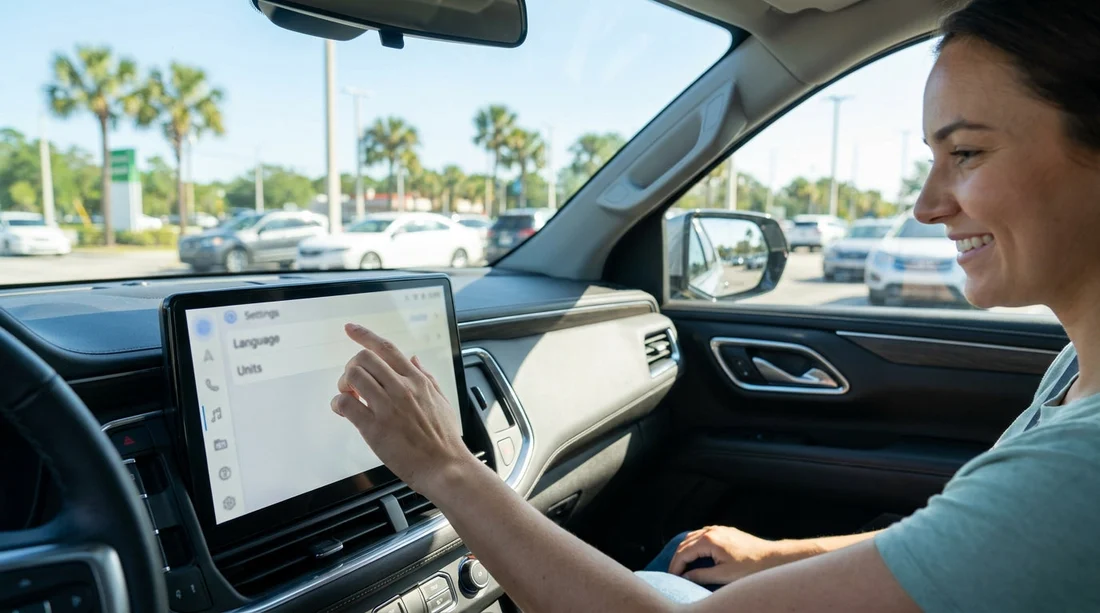
Quick Summary:
- Ask staff to show the settings menu before you exit the bay.
- Change system language in Settings, then restart the screen if required.
- Switch distance and temperature units in Vehicle or Regional settings.
- Confirm dashboard, sat nav, and trip computer match your preferred units.
Picking up a car hire in Orlando is often fast paced, especially at busy airport and theme park locations, so it helps to sort the in-car language and measurement units before you leave the hire centre. Most modern rentals have an infotainment screen (touchscreen) plus a driver display, and both can show different languages, miles versus kilometres, and Fahrenheit versus Celsius. The good news is that changing these settings is usually a two minute job once you know where to look.
This guide focuses on what to do at pick-up and what to check before driving away. If you are collecting around the main terminals, see practical pick-up context on Orlando MCO car rental. If your plans centre on the theme parks, you may also find Disney area car rental helpful for location-specific timing and expectations.
Do this before you roll away from the bay
Before changing any settings, take 30 seconds to get the car into a safe configuration for browsing menus. Put the car in Park, apply the parking brake if fitted, and keep your foot off the accelerator. If the system needs the ignition on but the engine off, use the start button without pressing the brake (varies by model). If it is a traditional key, turn to the accessory position.
Now do a quick scan of what you need to change. Look at three places: the infotainment screen language, the instrument cluster units (speedometer and driver information screen), and the navigation units (distance guidance). These can be separate settings. In a US rental, the default is normally English (US), miles, and °F, but previous renters can alter them.
How to change the infotainment language
In most rental cars you can switch screen language from a Settings menu, often called Settings, Setup, System, or General. The path differs slightly by brand, but the pattern is similar.
1) Home screen, then Settings. Look for a gear icon. If you cannot see it, try swiping down from the top, or press a physical “Menu” or “Settings” button next to the screen.
2) Find System, General, or Device. Language is frequently under System, General, or “Language and keyboard”.
3) Select Language. Choose English (UK), Español, Français, Deutsch, or your preference if available. Some cars split “Voice language” and “Display language”. Change both if you use voice commands.
4) Confirm and restart if prompted. Many systems ask you to confirm, then briefly reboot. If the menu text changes but some labels do not, a restart usually finishes the job.
Tip for Orlando pick-up: if you are at a busy counter, ask the agent or the lot attendant to confirm where the language menu is for that exact model. It is a normal request, and it is easier when you are still parked with staff nearby. If you are hiring a specific brand, you can also reference the supplier pages such as Enterprise car hire in Orlando or Avis car rental in Orlando to align expectations on the type of vehicles commonly supplied.
How to switch miles and kilometres
Distance units can live in one of two places: the infotainment system (regional settings) or the driver display (vehicle settings). In some vehicles, changing one automatically changes the other, but not always.
A) Infotainment “Units” or “Regional” settings. Go to Settings, then System, then Units, or Settings, then General, then “Regional”. Look for “Distance”, “Speed”, or “Measurement units”. Choose Miles (mi) or Kilometres (km) as preferred.
B) Driver display or instrument cluster menu. Use the steering wheel buttons to open Settings on the small driver screen. Look for Units or Measurements. Change speed and distance there too. Some cars offer separate toggles for “Fuel economy” and “Distance”.
C) Navigation guidance units. If the car has built-in navigation, there is often a nav-specific units option, for example in Navigation Settings or Map Settings. If you use Apple CarPlay or Android Auto, your phone settings usually control the units shown in your preferred maps app.
Important safety note: even if you set the display to km/h, the physical speedometer markings on a US-spec car still emphasise mph. Keep that in mind when driving on Florida roads, where speed limits are posted in miles per hour.
How to switch between °F and °C
Temperature units affect at least two readouts: the outside temperature on the dash, and the climate control display. Again, these can be linked or separate.
Common places to change °F/°C include:
Infotainment units menu. Settings, then Units, then Temperature. Select Celsius or Fahrenheit.
Climate control settings. Some cars hide it under “Climate” on the screen, or via a long press on an “Auto” or “Menu” button on the climate panel. If your vehicle has dual-zone climate, you may need to change it once and it applies to both sides.
Driver display settings. Steering wheel controls, then Settings, then Units, then Temperature.
After changing temperature units, verify the outside temperature display makes sense for Orlando. In warmer months you might see around 29°C to 37°C, which is roughly 84°F to 99°F. If the number looks wildly off, it may be due to the sensor warming up after the car sat in the sun, or it may still be showing the old units.
What to check before you leave the car hire centre
Once you have changed language and units, do a quick “all screens” check so you do not discover a mismatch on the first motorway slip road.
1) Dashboard speed and trip. Confirm the speed unit shows mph or km/h as you intended, and the odometer and trip readout match.
2) Infotainment home screens. Confirm menus, audio, and phone prompts are in the chosen language.
3) Navigation and guidance. If using built-in nav, set a short route and ensure the distance callouts are in miles or kilometres. If using CarPlay or Android Auto, open your maps app and verify units.
4) Climate and outside temperature. Ensure the number includes °F or °C and is consistent across displays.
Why settings sometimes will not change
If you cannot find the options, or the system will not let you change them, there are a few common reasons in rental fleets.
Valet or guest mode. Some vehicles have a restricted mode that hides settings. Ask staff to switch to the main profile.
Driver profiles. The car may have multiple profiles (Driver 1, Driver 2, Guest). Units and language can be stored per profile. Choose Guest, then adjust, or create a temporary profile if allowed.
System lag. Infotainment can be slow just after start-up. Give it a minute, then try again, or restart the screen if there is a power/volume knob press-and-hold option.
Extra tips for Orlando-specific pick-ups
Orlando pick-ups can involve a shuttle, a multi-storey garage, and a quick vehicle assignment. Plan an extra five minutes at the car before you load everyone in and leave. If you are travelling with kids or multiple drivers, set the language and units first, then pair phones, then adjust seats and mirrors.
If your group size means you are collecting a people carrier or larger vehicle, menu layouts can differ slightly, and there may be a rear climate display with its own units. For larger vehicle options around the airport, see van hire in Orlando MCO.
Finally, do not forget the simplest solution if you are short on time. If built-in navigation is confusing, using your phone with your preferred language and units can remove most friction immediately, as long as you mount it safely and do not interact with it while driving.
FAQ
Q: Can the car hire staff change the language and units for me at pick-up?
A: Yes, attendants can usually show you the menu path, and in some cars they can change locked settings from the driver profile while you are parked.
Q: Why does the infotainment language change but the dashboard stays in miles?
A: Many cars separate “system language” from “units”. Update units in both the infotainment Units menu and the instrument cluster settings using steering wheel buttons.
Q: Will changing to kilometres affect the legal speed limit display in Florida?
A: Florida speed limits are posted in mph, and most US vehicles prioritise mph on the dial. Even if you show km/h digitally, you must still comply with mph signs.
Q: If I use Apple CarPlay or Android Auto, do I need to change the car units too?
A: Not always. Your phone language and your maps app settings typically control navigation language and distance units, but the dashboard and climate readouts still use the car’s settings.
Q: What should I do if I cannot find the Units menu anywhere?
A: Check for a “Vehicle” settings section, then look for Units or Regional. If it is still missing, ask the lot attendant, as some fleet configurations hide options under a driver profile.































































































