


Quick Summary:
- Choose a US eSIM with enough data for arrival navigation.
- Install it before flying and label it clearly as US Data.
- After landing, switch mobile data to the eSIM line.
- Download offline Los Angeles maps in case signal drops.
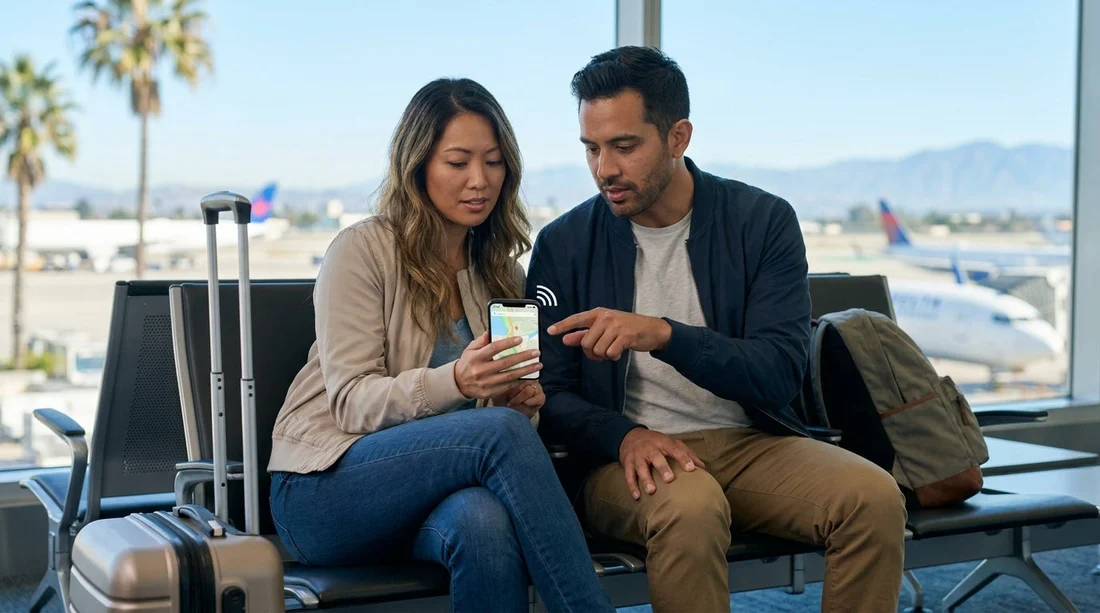
Landing at LAX and heading straight to your car hire pick-up is much easier when maps work instantly. Airport Wi‑Fi can be patchy, captive portals take time, and your phone may not auto-connect when you need directions most. A US eSIM lets you arrive with mobile data ready to go, so you can open Google Maps or Apple Maps, check traffic, and navigate to the right shuttle or pick-up point without delay.
This guide focuses on what to do before you fly, what to tap when you land, and how to avoid the common pitfalls that stop maps working at the worst moment.
What a US eSIM is, and why it helps for LAX navigation
An eSIM is a digital SIM that you add to your phone without swapping a plastic card. Many travellers keep their home SIM active for calls and texts, while using the eSIM purely for data in the United States. For LAX arrivals, that matters because maps and messaging are your essentials, not necessarily voice calls.
With data active right after touchdown, you can confirm the correct car hire collection process for your terminal, check real-time traffic, message your party if you split up, and follow directions to an off-airport lot if needed.
If you are comparing options for car hire around LAX, you can review provider and location details on Hola Car Rentals pages such as car hire California LAX and budget car rental Los Angeles LAX, then keep those pages saved for quick reference on arrival.
Before you buy: quick checks to avoid eSIM surprises
Do these checks at home, ideally a day or two before departure.
1) Confirm your phone supports eSIM. Most recent iPhones and many Android models do, but some region-specific devices do not. On iPhone, look under Settings, then Mobile Service. On Android, look under Settings, then Network and Internet, then SIMs.
2) Confirm your phone is unlocked. If your handset is locked to a carrier, an eSIM may install but fail to activate. If you are unsure, check with your provider before you travel.
3) Plan for battery and charging. Navigation at LAX plus the first hour of driving can drain power. Pack a cable you can use immediately and consider a power bank in your hand luggage.
4) Decide how you will use your home SIM. Many people keep their home SIM enabled for iMessage, WhatsApp, and receiving bank codes, but turn off data roaming on that line to avoid fees.
Choosing the right eSIM plan for maps and car hire day
For maps alone, data usage is usually modest, but arrival day can involve heavier loading if you are searching, switching routes, or downloading updates. A simple approach is to choose a plan that comfortably covers navigation, messaging, and travel admin like confirmations and pick-up instructions.
Avoid plans that only work via an app that needs Wi‑Fi to log in after landing. The goal is to have activation steps completed before you board, so the eSIM can connect as soon as you enable it in the US.
Step-by-step: install your eSIM before you fly
Step 1: Purchase and save the eSIM details. You will receive either a QR code, an activation code, or both. Save them somewhere accessible offline, such as in your photos or printed, so you are not reliant on data to retrieve them.
Step 2: Add the eSIM to your phone while on stable Wi‑Fi. On iPhone, go to Settings, then Mobile Service, then Add eSIM. On Android, go to SIMs, then Add eSIM. Scan the QR code or enter details manually.
Step 3: Label the eSIM clearly. Name it “US Data” or “USA eSIM” so it is easy to select on arrival.
Step 4: Set defaults but do not fully switch yet. Keep your home line as the default for calls. For data, either leave it on your home line until departure, or preselect the eSIM but keep it turned off. For most people, the safest method is to install now and keep the eSIM line off until you land.
Step 5: Turn off data roaming on your home SIM. This avoids surprise charges if your phone tries to use the home SIM for data at LAX.
Landing at LAX: the fast toggle sequence for working maps
Once you land and are allowed to use your phone, turn on the eSIM line, set cellular data to the eSIM, and keep your home line on for texts if needed. If data does not connect within a minute or two, toggle Flight Mode on and off once, then wait again.
When maps are working, save or pin the shuttle and pick-up location you have been given. If your car hire is via a specific provider, it can help to have the rental page ready, for example Enterprise car hire California LAX or National car hire Los Angeles LAX.
Set up maps so they work even if signal drops
Download offline maps before you travel. In Google Maps, you can download a large area including LAX and key neighbourhoods. Offline maps still allow routing, though live traffic and some reroutes may be limited.
Pre-save your first two destinations. Save your car hire pick-up location and your first accommodation. If you are heading out of the city, also save a fuel stop or supermarket near your route.
Enable precise location. Check that Location Services are on and that your maps app has permission for “While using”. In airport areas with multi-level roads, precise location helps.
Common eSIM issues at LAX, and quick fixes
Issue: You have signal but no data. Check that cellular data is set to the eSIM, not the home SIM, and confirm the eSIM line is enabled.
Issue: Activation seems stuck. Some eSIMs only activate once they connect to a US network. If you installed it at home, that is normal. After landing, toggle Flight Mode once and wait a couple of minutes.
Issue: Maps loads slowly. Close background apps, disable any VPN temporarily, and switch 5G Auto to LTE if your phone allows it. LTE can be more stable in congested areas.
How this ties into a smooth car hire pick-up
With data ready, you can handle practicalities that often cause delays, such as checking shuttle stops and messaging anyone meeting you. You can also check your route out of LAX, since traffic in Los Angeles can change quickly depending on time of day.
If you are continuing your trip beyond Los Angeles, the same eSIM setup will help in other Southern California arrivals too, and you can compare options like car rental Santa Ana SNA when planning onward travel.
FAQ
Do I need to activate the eSIM before I arrive in Los Angeles? Install it before you fly, then activate the line for data after landing. Many US eSIMs only fully activate when they first connect to a US network.
Will my home SIM still work for texts if I use an eSIM for data? Usually yes. Keep your home SIM enabled for calls and SMS, but turn off data roaming on that line so your phone does not use it for internet.
What is the fastest way to make maps work as I leave LAX? Enable the eSIM line, set it as your cellular data line, then open maps. If it does not connect, toggle Flight Mode once and retry.
Should I download offline maps if I have an eSIM? Yes. Offline maps are a reliable backup in busy airport areas, tunnels, or if the network is congested, and they are useful if your data runs low.
How much data do I need just for navigation on arrival day? For basic navigation, not much, but allow extra for traffic data, searches, and messages. Choosing a plan with a comfortable buffer reduces stress during car hire pick-up.






























































































