


Quick Summary:
- Bring a data-capable iPhone cable, not a charge-only spare.
- Check whether the car has USB-A or USB-C ports.
- Confirm CarPlay is enabled on the infotainment screen before leaving.
- Ask which USB port supports CarPlay if there are several.
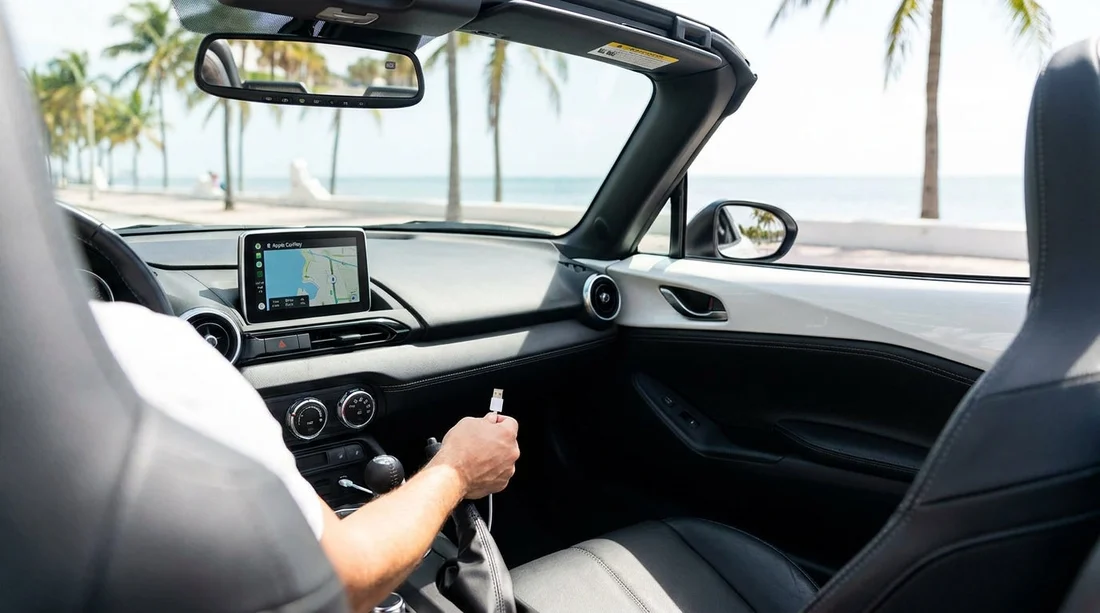
In many Miami car hire vehicles, Apple CarPlay works best when you use your own cable. Some rental cars include a USB lead, but it may be missing, worn, charge-only, or the wrong connector for your iPhone. Because you usually want CarPlay working from the first drive, for navigation, music, and hands-free calls, it is sensible to arrive with a reliable, data-capable cable that matches both your iPhone and the vehicle’s USB port.
The good news is that you can check a few simple things at the counter, or in the car park, to avoid the common setup problems. The most frequent issues are: plugging into a USB port that only provides power, using a cable that does not carry data, or having a connector mismatch, such as USB-C in the car but only USB-A cables in your bag.
Do you actually need your own USB cable?
You do not always need to bring your own, but it is the easiest way to prevent delays. Rental fleets turn over quickly, and cables tend to be the first accessory to disappear or fail. Even if a cable is present, it might be a third-party lead that charges but does not reliably pass data, which means your iPhone will not trigger the CarPlay prompt.
If you are planning a Miami car hire for work, family travel, or a packed itinerary, carrying your own known-good cable is a low-effort backup. It also reduces the temptation to handle the infotainment system while driving, because you can start navigation before you pull out.
USB-A vs USB-C in rental cars, what you are likely to see
Miami rental cars range from older models with USB-A only to newer vehicles that offer USB-C ports, sometimes alongside USB-A. Knowing the difference matters because the port shape determines what you can plug in.
USB-A is the classic rectangular port. Many cars still use USB-A for media input and phone integration. If your iPhone cable ends in USB-A, it will fit these ports.
USB-C is the smaller oval-shaped port commonly found in newer vehicles. If the car has only USB-C, a USB-A cable will not fit without an adapter. USB-C is also increasingly used for faster charging, but fast charging alone does not guarantee CarPlay support.
A common scenario is a car that has multiple ports: one USB-A that supports CarPlay data, plus one or more USB-C ports that are charge-focused. Another scenario is a centre-console USB-A data port, with rear-seat USB-C charging ports. The difference is not always obvious until you try CarPlay.
Which cable you need for your iPhone
The right cable depends on your iPhone model and the car’s port type.
If your iPhone uses Lightning, bring either a Lightning to USB-A cable or a Lightning to USB-C cable, depending on what the car offers. If you are unsure, bringing one of each is the safest approach, especially if you are travelling with others who might drive.
If your iPhone uses USB-C, bring a USB-C to USB-C cable for vehicles with USB-C ports, and consider a USB-C to USB-A cable (or adapter) for older cars.
Data-capable matters: charge-only cables are the silent CarPlay killer
CarPlay requires a data connection, not just power. Many inexpensive or older cables, and some promotional cables, are charge-only. They will power your phone, but the car will never recognise it as a media device, so CarPlay will not start.
Use the cable you normally use for syncing in a computer or for wired CarPlay at home. If it transfers photos or shows up in Finder or iTunes, it is data-capable.
Avoid badly worn connectors. If the plug wiggles, CarPlay may connect and disconnect, especially on Miami roads with frequent stops and turns.
Be cautious with very long cables. Longer leads can be less reliable for data, depending on quality. A standard length cable is usually more stable.
What to check at the counter so CarPlay works from the first drive
You can save time by asking one or two specific questions before you walk away from the desk. This is especially helpful if you are picking up during busy periods or you need navigation immediately.
Ask: “Does this vehicle support Apple CarPlay, and is it wired or wireless?” Some cars support wireless CarPlay, which can work without a cable, but may still require an initial wired pairing. If the agent is unsure, you can verify quickly in the vehicle’s settings menu.
If the car has multiple USB ports, ask: “Which USB port supports CarPlay data?” This avoids plugging into a charge-only port and assuming CarPlay is broken.
If you are collecting near central areas, it can help to plan pickup locations and vehicle types in advance. For example, travellers comparing options around the city often review car hire in Brickell and nearby neighbourhoods where newer fleets are more common, which can increase the chance of USB-C ports and wireless features.
In-car setup checklist: get it working before you leave the car park
Once you are in the driver’s seat, do a quick setup while parked.
Start the car and unlock the phone. CarPlay prompts often require the phone to be unlocked the first time.
Plug into the correct port. Try the front-most USB port first, typically closest to the infotainment system. If nothing appears, try the other port, but keep track of which one you used.
Accept the iPhone prompts. You may see “Allow CarPlay while locked?” Tap allow to make future connections smoother.
Check the infotainment menu. Look for “Phone”, “Projection”, “CarPlay”, or “Smartphone connections”. Some systems require you to enable CarPlay per device.
Confirm audio routing. Play a short track to ensure audio is coming through the car speakers, not the phone.
If you are arriving via the airport area and want fewer surprises, fleets serving airport-adjacent routes often cycle cars quickly. This is why many visitors research car hire near the airport in Coral Gables where you can often expect newer infotainment systems, but still should not assume the right cable will be provided.
Wireless CarPlay in rentals: convenient, but not guaranteed
Wireless CarPlay can be excellent in a rental, because it avoids cable issues completely after pairing. However, not all cars have it, and not all trims within the same model have it. Some systems also prioritise the last connected phone, which can be confusing if the car was used earlier that day.
Even with wireless CarPlay, keep a cable available. You may need it to pair for the first time, to charge on a long Miami drive, or to troubleshoot if wireless drops in areas with heavy Bluetooth and Wi-Fi congestion.
Troubleshooting if CarPlay does not appear
If you plug in and nothing happens, work through these quick checks:
Try a different port if the car has more than one. One may be charge-only.
Swap to another cable if you have one. This is the fastest way to isolate a charge-only or damaged lead.
Restart your iPhone. A quick reboot can fix stuck CarPlay sessions from earlier connections.
Check Restrictions on the iPhone: Settings, Screen Time, Content and Privacy Restrictions, Allowed Apps, make sure CarPlay is allowed.
Forget and re-pair for wireless CarPlay: Settings, General, CarPlay, select the car, forget, then reconnect.
If you are travelling beyond Miami, similar checks apply when picking up in nearby areas. People often compare vehicles at car hire in Fort Lauderdale or Thrifty car hire in Miami Beach, where the fleet mix can vary, so cable readiness remains important.
Why this matters for navigation and driving in Miami
Miami driving often involves quick lane changes, toll roads, and dense urban routes where clear navigation prompts help you stay focused. Getting CarPlay working immediately means you can rely on familiar maps and voice guidance without handling the phone. It also simplifies calling hotels, restaurants, and contacts hands-free, which is particularly useful when you are learning the area.
FAQ
Do Miami rental cars usually include a USB cable for Apple CarPlay? Some do, but many do not, and included cables can be unreliable. Bringing your own data-capable cable is the safest approach.
How do I tell if the car has USB-A or USB-C ports? USB-A is rectangular, USB-C is a smaller oval. Check the centre console and dashboard area before you connect your phone.
Can I use any iPhone charging cable for CarPlay? Not always. CarPlay needs a data-capable cable, and some charge-only cables will power the phone but will not launch CarPlay.
What should I ask the counter staff to avoid CarPlay issues? Ask whether the car supports CarPlay, whether it is wired or wireless, and which USB port is the CarPlay data port.
What if CarPlay still will not connect after I plug in? Try another USB port, swap cables, unlock and restart your iPhone, then check the car’s phone or projection settings for CarPlay permissions.






























































































