


Quick Summary:
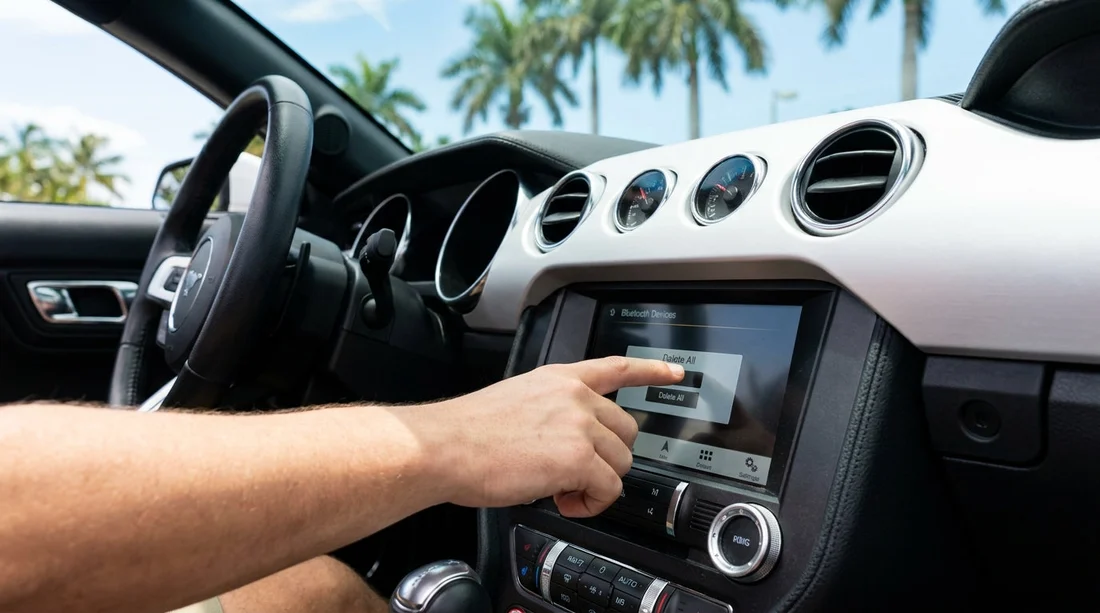
- Open the infotainment Settings menu, then delete all paired Bluetooth devices.
- Remove downloaded contacts, call history, messages, and connected app permissions.
- Clear navigation history, home and work addresses, and recent destinations.
- Confirm privacy by restarting the system, then re-pair only your phone.
When you pick up a car hire in Florida, the infotainment system can still contain someone else’s digital footprint. Previous drivers may have left Bluetooth pairings, synced contacts, recent calls, navigation favourites, or app logins. Even if the car looks clean, the screen and head unit can quietly store personal data that you do not want associated with your trip.
This checklist is designed to be done before you leave the parking area, while you still have time to explore menus without distraction. It also helps you avoid accidental connection to a previous driver’s phone, which can cause confusing prompts, audio hijacking, or private calls showing up on the display.
If you are collecting from a busy hub like Orlando MCO, moving quickly is important, but it is worth taking a few minutes for privacy. The steps below are brand and model agnostic, because Florida fleets include everything from compact cars to SUVs and people carriers. If a menu label differs, look for the closest equivalent such as Connections, Phone, Bluetooth, Privacy, or Reset.
Before you touch the screen, set yourself up safely
Do this while stationary, in Park, with the handbrake on. If you are in a multi-storey car park or a busy exit lane, pull into a safe bay first. Keep the engine running if the system requires it, as some cars limit settings access on accessory power.
Have your own phone unlocked and ready, but do not pair it yet. Pairing first can trigger automatic contact downloads and permissions, which you may prefer to control after you have wiped old data.
Step 1: Delete saved Bluetooth devices and phone profiles
On most systems, go to Settings, then Bluetooth or Connections, then Paired Devices. You are looking for a list of phones or devices with names such as “iPhone”, “John’s Pixel”, or “Galaxy S”. Delete, Remove, Forget, or Unpair every device shown.
Also check for separate categories like “Phone” versus “Audio”, because some systems store a device twice. If the car supports multiple driver profiles, switch profiles and repeat, as devices can be saved under more than one profile.
As a quick confirmation, turn Bluetooth off on the car for a moment, then back on. If the paired list is empty and the car is discoverable, you are in good shape.
Step 2: Remove imported contacts, favourites, and call history
Even after unpairing, many head units retain a cached address book, call list, or favourites. Check menus under Phone, Contacts, Recents, Call History, or Messages. If you see names or numbers that are not yours, find an option to Delete Contacts, Clear Call History, or Remove Downloaded Data.
Some cars have a privacy toggle such as “Auto download contacts” or “Sync contacts”. Turn it off before you pair your phone, especially if you are sharing the car with colleagues or travelling for business. You can still place calls via Bluetooth without transferring a full address book on many systems.
If your car hire includes Apple CarPlay or Android Auto, look for a Connected Apps or Smartphone Projection menu. Remove any remembered devices there too, because some systems save authorisations separately from Bluetooth pairing.
Step 3: Clear navigation history, favourites, and personal places
Navigation data can be surprisingly revealing. Recent destinations might show a home address, a hotel, a clinic, or a workplace. In the Navigation menu, look for Recent, History, Saved Places, Favourites, Home, Work, or Routes. Clear them all.
If the car has built in navigation plus phone based navigation, clear both. Built in systems store history on the vehicle, while phone projection systems may remember a device name and show suggested destinations from the prior user if not removed.
Do not forget the on-screen search history. Many systems have a magnifying glass search that keeps a list of prior entries even if favourites are deleted. Use Clear Search History where available.
Step 4: Log out of in-car accounts and connected services
Some modern vehicles include embedded apps, Wi-Fi hotspots, streaming services, or a manufacturer account login. In Settings, look for Accounts, Users, Profiles, Connected Services, Wi-Fi, or Apps. If you see a signed-in profile that is not yours, sign out.
Also delete saved Wi-Fi networks, as these can include a previous driver’s personal hotspot name. If you plan to use your own hotspot, you can add it after the wipe.
If you are collecting near South Florida locations such as Miami Airport or Fort Lauderdale, you will often see newer fleet vehicles with more connected features. It is worth spending extra time checking for user profiles, because they can store navigation, radio presets, and app tokens together.
Step 5: Use the right reset option, without wiping vehicle settings you need
Many systems offer multiple reset levels. The safest privacy option is usually something like “Clear personal data”, “Delete user data”, or “Factory reset infotainment”. Avoid options that sound like they affect vehicle safety systems or driver assistance calibration.
When in doubt, choose the reset specifically for the infotainment or head unit. After the reset, confirm that Bluetooth pairings are empty, navigation history is blank, and no accounts are signed in.
If the car is a people carrier, for example when you arrange a minivan in Fort Lauderdale, it may have rear entertainment controls. Check those menus as well, because they sometimes store paired headphones or streaming logins independently.
Step 6: Re-pair your phone with privacy in mind
Now pair your phone. When prompted, consider declining contact sync if you do not need it. If you do want contact access, allow it, but review any extra permissions such as message access or notification previews. Turning off message previews can stop private texts appearing on the screen when passengers are present.
For Apple CarPlay or Android Auto, connect once, then confirm that the system shows only your device. If the car displays a second device name, remove it from the projection settings and repeat the earlier steps.
Step 7: Final verification before you drive away
Do a two-minute verification so you can be confident you have removed saved phones and personal data:
First, open the phone device list and confirm only your device appears, or none if you have not paired yet. Second, open Contacts and Recents to ensure they are blank or match your phone. Third, open Navigation and check that Recent Destinations and Saved Places are empty. Fourth, scan Settings for profiles or accounts, and ensure you are logged out of anything you did not add.
If something will not delete, take a photo of the screen and show it at the desk before leaving. This is especially useful if you are picking up through a branded counter such as Budget at Fort Lauderdale, where staff may be able to approve a swap quickly. If you are given a different vehicle, repeat the checklist, because the replacement may have its own stored data.
Why this matters for privacy and convenience
Clearing personal data at pick-up protects you and the previous driver. It also prevents practical annoyances like automatic calls to the wrong contact, audio connecting to a stranger’s phone, or navigation suggestions that are not relevant to your Florida itinerary.
Finally, it keeps your own information from being left behind for the next person. At drop-off, you should also remove your device and clear your own data, but doing the pick-up check first ensures you start with a clean slate.
FAQ
Do I need to factory reset the whole infotainment system at pick-up? Not always. Start by deleting Bluetooth devices, clearing contacts and navigation history, and signing out of accounts. Use an infotainment reset only if old data persists.
Will deleting paired phones remove my own data after I connect? Unpairing removes the link between phone and car, but cached contacts or recents can remain. If you have already connected, clear downloaded contacts and call history separately.
What if the system will not let me delete a previous phone? Try switching user profiles, turning the car off and on, or using a “clear personal data” option. If it still remains, ask for assistance or a different vehicle before leaving.
Does Apple CarPlay or Android Auto store data in the car? The phone stores most data, but the car can remember device authorisations and show prior device names. Remove remembered projection devices and clear Bluetooth lists for best privacy.
How long should this checklist take at a Florida pick-up? Typically five to ten minutes. Allow a little longer for newer systems with profiles, embedded apps, or built in navigation that has multiple history menus.




























































































