


Quick Summary:
- Use a data-capable USB-A or USB-C cable, not charge-only leads.
- Enable Android Auto permissions, notifications, and location prompts before plugging in.
- Test the correct USB port, then confirm maps, audio, and calls.
- If it fails, swap cable, clean ports, reboot phone, and retry.
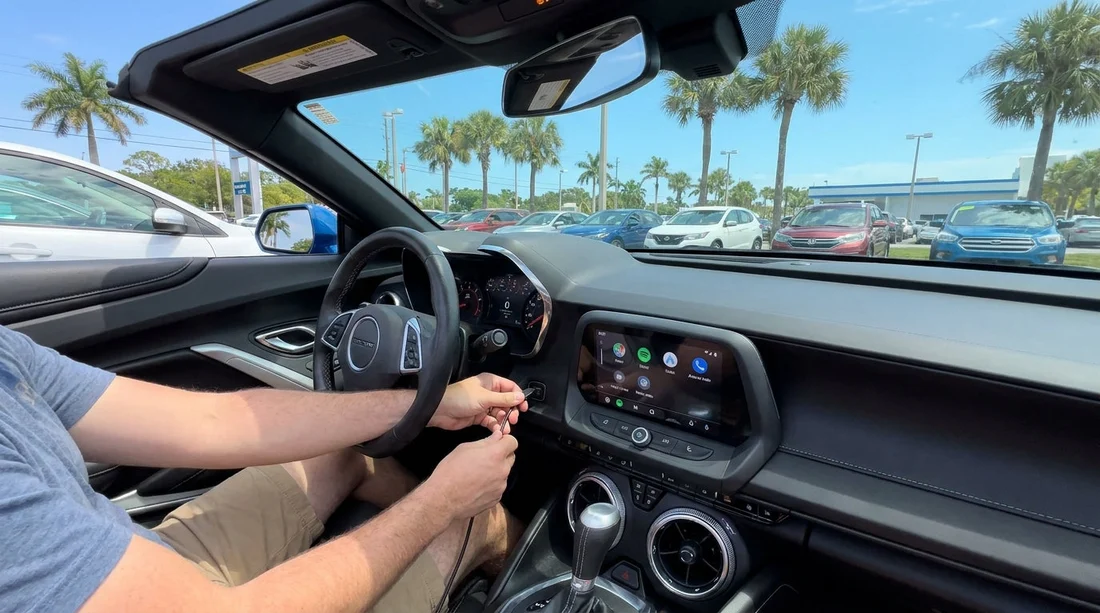
When you pick up a car hire in Florida, wired Android Auto can save time straight away, especially in unfamiliar areas around airports, beaches, and expressways. The trick is to set it up before you drive off, while you still have good light, space, and the option to ask for help. Different rental fleets use different head units, USB ports, and security prompts, so a quick, consistent checklist prevents the usual frustrations like “Android Auto not available”, random disconnects, or silent audio.
This guide focuses on cable types, phone permissions, common connection issues, and the quick checks you can do at the counter or in the car bay. If you are collecting near Orlando or Miami, it also helps to set everything up while stationary, because leaving the car park can be hectic. For location-specific pickup points, you may be comparing options such as car hire near Orlando MCO or car rental in Downtown Miami, where busy exits make a pre-drive check even more worthwhile.
Before you plug in, confirm the car supports wired Android Auto
Most modern rentals offer Android Auto, but not all trims include it, and some only provide wireless support. Before connecting, look for one of these signs on the infotainment screen: “Android Auto”, “Phone Projection”, “Apps”, or “Smartphone Integration”. If you can, ask the agent which USB port is for phone projection, because many cars have multiple ports, and only one supports data.
While you are still in the bay, quickly check the infotainment settings. If there is an option called “Apple CarPlay and Android Auto”, “Projection”, or “USB settings”, ensure it is enabled. Some systems allow Android Auto to be turned off for privacy, and you do not want to discover that after you have merged into traffic.
Choose the right cable, and why it matters
The single biggest cause of wired Android Auto problems in a rental is the cable. You need a cable that supports data transfer, not a charge-only lead, and it needs to be in good condition. In Florida heat, a cable that looks fine can still have a loose connector that disconnects with road vibration.
Match the cable to your phone and the car: many cars still have USB-A ports, while most newer Android phones use USB-C. That means you typically need a USB-A to USB-C cable. Some newer vehicles have USB-C in the console, which needs a USB-C to USB-C cable. Avoid stacking adapters, because every extra connection point increases dropouts.
What to pack: bring two cables if possible, a short one for neat routing and a spare. Look for a reputable USB-IF certified cable, or at least one known to support fast data, not just charging. If your phone case makes the plug fit loosely, remove the case during setup to get a snug connection.
Set phone permissions before connecting
Android Auto is permission-heavy by design, and a rental car’s screen will trigger prompts that can be easy to miss. Before you plug in, unlock your phone and do these quick checks.
Update and enable Android Auto: on most phones Android Auto is built in, but it still updates via Google Play. If you have not used it recently, open Android Auto settings and confirm it is enabled.
Turn on Bluetooth and location: even for wired Android Auto, Bluetooth is usually used for initial pairing and calls. Location access improves navigation accuracy, especially when you first leave a covered car park.
Allow notifications: if you want messages read aloud, ensure notifications are permitted. If you prefer privacy in a shared rental, you can still use maps and music without enabling message previews.
Connect in the right order at the counter or car bay
1) Start the car fully: many head units boot slowly. Wait until the infotainment home screen is responsive.
2) Unlock the phone: keep it unlocked for the first connection, because prompts may appear on the phone and the car screen.
3) Plug into the correct USB port: look for a small phone icon or “data” label near one port. Ports inside the armrest sometimes charge only, while a port below the screen supports projection, or vice versa depending on the model.
4) Accept prompts on both screens: approve “Allow Android Auto to access…” prompts, and if the car asks to enable Android Auto, confirm.
5) Set a safe default: choose whether you want Google Assistant voice prompts, and confirm if you want contacts and call history sync. In a rental, you might choose minimal sharing, then remove permissions later.
Quick checks to do before you drive off
Once Android Auto appears, take 60 seconds to confirm it is actually usable.
Maps: open Google Maps (or your preferred navigation app) and start a short route, even if it is just to a nearby petrol station. Confirm the map moves and the GPS arrow updates.
Audio: play music or a podcast and check volume controls on both the steering wheel and screen. If audio comes from the phone speaker instead of the car, the projection connection did not complete.
Calls: make a quick test call to voicemail or a contact, then confirm the microphone works. If the other person cannot hear you, the system may be using the wrong audio profile.
If you are collecting a larger vehicle, cabin USB placement can differ, so it is worth checking where the phone can sit without tugging the cable. This is particularly useful if you are travelling with family and comparing vehicle types such as minivan hire from Orlando MCO, where multiple ports exist but only one may support Android Auto.
Common connection issues, and fast fixes that work in rentals
Issue: Android Auto option does not appear. Fix: swap to a different USB port, then try a different cable. Confirm Android Auto is enabled in the car settings. If the car supports it but it still does not appear, restart the infotainment system.
Issue: Connection drops when you hit bumps. Fix: clean lint from the phone’s USB-C port, reseat the cable, and avoid dangling tension. A short cable often holds better than a long one routed awkwardly around the gear selector.
Issue: Audio is silent or comes from the wrong source. Fix: on the car, select the Android Auto audio source. On the phone, raise media volume, and ensure Do Not Disturb is not blocking media. Also check that Bluetooth is on, because some cars route call audio via Bluetooth even when data is wired.
If you are picking up near business districts with lots of underground parking, do the first GPS check outside the building. Areas such as Brickell can be signal-challenging at street level between towers, so confirming navigation before you commit to a one-way exit is smart. This is relevant if your plans include locations like Alamo car hire in Brickell.
Privacy and cleanup steps for a rental car
Android Auto can sync contacts, call history, and message notifications. That is convenient, but in a rental you should aim for least access and clean up before drop-off. If you granted contacts and messages, consider turning off message previews, especially if other passengers will use the screen.
Before returning the car, remove your phone from the infotainment system’s paired devices list, and clear Android Auto’s “connected cars” entry on your phone. Also sign out of any media apps you manually opened on the car system. A quick wipe is particularly important if you have been hopping between Florida cities such as Miami and Tampa, where you might use different pickup points like National car rental at Tampa TPA.
FAQ
Do I need mobile data for wired Android Auto in Florida? Android Auto will run without data, but live navigation, traffic, and streaming audio need a connection. If signal is weak, offline maps can keep navigation usable.
Why does the rental car charge my phone but not start Android Auto? Many cars have charge-only USB ports. Try another port closer to the infotainment unit, and switch to a known data-capable cable.
Is Bluetooth required if I am using a USB cable? Often yes, at least for calls and initial pairing. Keep Bluetooth on during setup, then you can test whether the car still handles calls reliably.
What should I check before leaving the car bay? Confirm Android Auto launches, maps update location, audio plays through speakers, and the microphone works on a test call. Fixing it stationary is far easier.
How do I remove my details before returning the car? Delete your phone from the car’s paired devices, clear Android Auto’s connected car entry on your phone, and sign out of any media apps you used.

























































































