


Quick Summary:
- Bring a reliable USB data cable and a 12V charger.
- Pair while parked at pickup, then test maps, calls, and music.
- Review permissions and notification previews before you enter busy traffic.
- Remove Bluetooth and Android Auto profiles from car before returning.
Getting Android Auto working in a rental car sounds simple, but in Texas it is worth doing carefully before you roll out of the lot. A few minutes at the counter can save you missing turns on I-35, fiddling with prompts in heavy traffic, or leaving personal data behind.
If you are collecting a vehicle in a major hub like Austin, Houston, San Antonio, Fort Worth, or El Paso, the steps are broadly the same. The exact screen menus vary between manufacturers, but Android Auto follows a consistent flow: connect, approve prompts, and confirm audio and navigation.
What to bring for Android Auto in a rental
The most common reason Android Auto fails in a rental is the cable. Many cars only support wired Android Auto, and many cheap cables charge but do not carry data reliably.
1) A known good USB data cable
Use the cable that came with your phone, or a high quality replacement labelled for data transfer. If your phone is USB-C and the car has USB-A, bring USB-C to USB-A. If the car has USB-C, bring USB-C to USB-C too, as ports vary by model year.
2) A 12V car charger
Navigation and streaming can drain battery quickly, especially on longer Texas drives. A charger also prevents the phone from limiting performance due to heat or low power.
3) Your phone unlocked and updated
Before you reach the counter, update Android Auto and Google Maps on mobile data or hotel Wi-Fi. Updates during setup can cause repeated prompts or disconnections.
When arranging car hire in Texas, it helps to know your pickup airport ahead of time, because fleet mix affects infotainment. For example, vehicles at Austin airport may differ from those collected at San Antonio airport or Houston IAH.
Pair safely at the counter, before you drive off
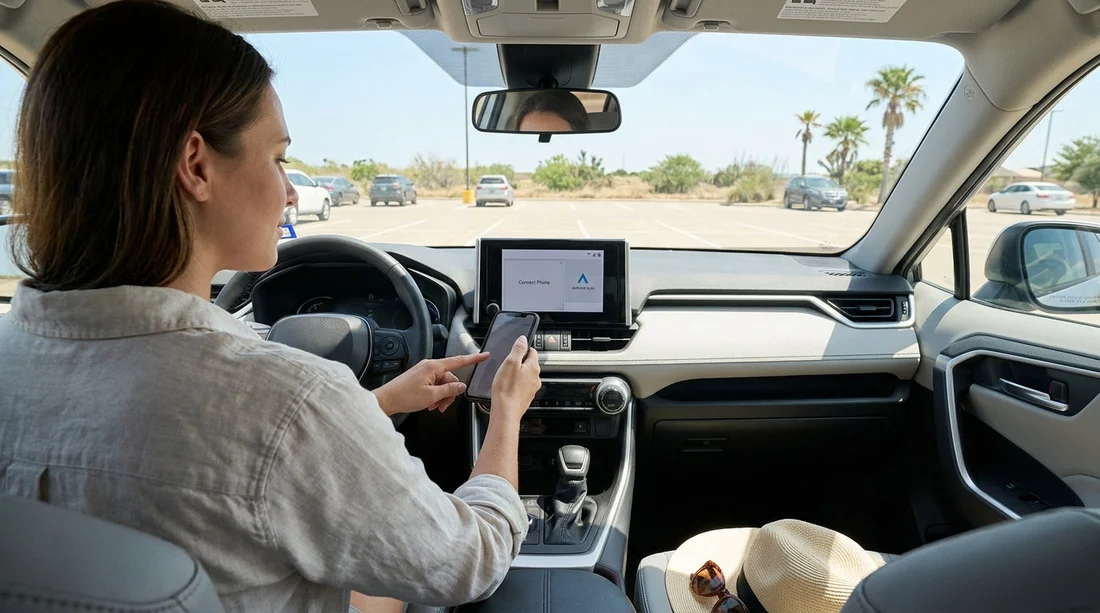
Plan to spend five to ten minutes setting up while the car is parked. Do it at the counter, in the pickup bay, or in a clearly safe area, not at the exit gate. If anything does not work, you can ask staff for a different port, a reset, or a vehicle swap before you leave.
Step 1: Start the car and locate the correct USB port
Some cars have multiple ports, but only one supports Android Auto. Look for a smartphone icon, “USB”, or a label near the infotainment screen. Centre console ports are more likely to support projection than rear passenger ports.
Step 2: Connect via USB first, even if wireless is available
Wired setup is the fastest way to confirm compatibility. Plug in, unlock your phone, and watch for prompts on both the phone and the car screen.
Step 3: Accept the prompts, but read the data options
Android Auto typically requests access to phone functions such as contacts, calls, SMS, and location. You can approve the essentials now, then fine tune later. If you do not want contact sync in a rental, decline contact sharing when prompted, Android Auto will still work for maps and media.
Step 4: Confirm you can do the three essentials
Before leaving, test these while stationary. Maps: set a short destination nearby and confirm voice guidance plays through the car speakers. Calls: place a quick call to voicemail to confirm microphone and audio routing. Music: start a track or podcast and verify steering wheel controls.
If you are picking up around Houston or Fort Worth, allow extra time, those exit lanes can be busy and you do not want to troubleshoot in traffic. Locations tied to large fleets, such as Avis at IAH or Fort Worth DFW, may include several infotainment systems, so your setup steps can vary slightly between vehicles.
Privacy and permission checklist before leaving the lot
Rental cars can retain data even after you disconnect. Take a minute to reduce what is shared and to understand what the car stores.
Limit contact and message access
Android Auto can function without syncing your entire address book. If you rarely place calls from the screen, deny contacts permission. If you want hands free calling but not messages, allow phone permission but disable message access.
Do not add the car as a trusted device
Some Android phones offer Smart Lock or similar features that keep your phone unlocked near a paired Bluetooth device. Avoid enabling this with a rental, because the pairing remains in the car until removed.
Review car profile prompts
Many infotainment systems offer to save a profile, remember a device, or sync favourites. Choose options that do not store personal favourites long term, or use a guest profile if available.
Check for previous driver devices
Open the car’s phone list. If you see old devices, you can ask staff to clear them or do a reset. This also reduces confusion when the car tries to connect to the wrong phone.
Before you return the car: remove your data in one minute
When your trip ends, protect your privacy by cleaning up both sides, the car and your phone. Do this while parked at the return area, before you hand over the keys.
1) Forget the car on your phone
In Bluetooth settings, find the vehicle name and tap “Forget”. In Android Auto settings, remove any saved car entries. This prevents auto connection prompts later and removes stored permissions associations.
2) Delete your phone from the car
On the infotainment screen, go to phone or Bluetooth devices, select your phone, and choose remove, delete, or forget. If you created a user profile, delete it.
3) Clear navigation favourites and recent destinations
If you used the car’s built-in navigation or saved “Home”, remove those entries. Even if you used only Google Maps, some systems display recent destinations.
Done properly, Android Auto makes car hire in Texas feel like your own vehicle, without leaving behind personal information. Bring the right cable, pair while you are still at the counter, and treat permissions like a checklist.
FAQ
Do all rental cars in Texas support Android Auto?
No. Many do, but availability depends on make, model year, and trim. If Android Auto is important, check the infotainment screen for an Android Auto icon or “phone projection” option before leaving.
Is wired Android Auto better than wireless in a rental?
Wired is usually more reliable, faster to set up, and less prone to dropouts. Wireless is convenient but can vary by vehicle, so keep a data capable USB cable as a fallback.
What permissions should I avoid granting in a rental car?
If you are privacy conscious, skip contact sync, message access, and call history download where optional. You can still use navigation and media with location access and basic Android Auto permissions.
Why does Android Auto not recognise my USB cable?
Many cables are charge-only or are worn out. Use a known good data cable, try a different port, and ensure the phone connector is clean so it seats firmly.
How do I make sure my data is removed before I return the car?
Forget the car in your phone’s Bluetooth list, then delete your phone from the car’s device list. Also clear any saved profiles, favourites, and recent destinations on the infotainment system.





























































































