


Quick Summary:
- Check infotainment for paired devices, then delete all phones and profiles.
- Clear recent destinations, favourites, and Home or Work in navigation settings.
- Remove call history, messages access, and contact sync from the car.
- Test by reconnecting nothing, then confirm no personal data remains visible.
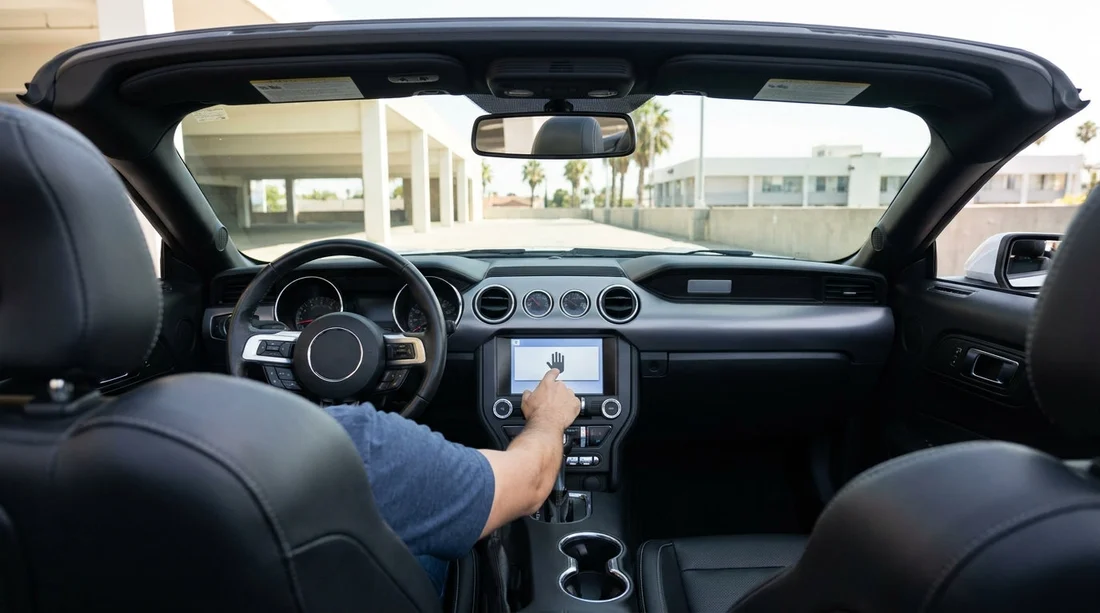
When you pick up a car hire in Los Angeles, the infotainment system may still contain data from previous drivers, and it can also pull in your own contacts, call logs, and destinations as soon as you connect. A few minutes spent checking the screen before you drive away helps protect your privacy, reduces distraction, and prevents your details being shown to the next renter.
This guide gives a practical, model-agnostic checklist you can follow at the kerbside or in the pick-up bay. Menus vary by manufacturer, but the wording is usually similar: Bluetooth, Phone, Devices, Profiles, Privacy, Reset, Navigation, and History.
If you are collecting at LAX, allow an extra five minutes for this step while you get settled. For local context on airport collections, see car hire at Los Angeles LAX.
Before you connect your phone: do a quick scan
Start the car (or switch to accessory mode) and look through the main infotainment tiles. You are checking whether anything already looks personalised.
Look for signs of previous users, such as a named phone, a phonebook icon already populated, a navigation “Home” shortcut, recent destinations, or radio presets with unusual names. If you see any of these, it is worth clearing before you add your own device, because pairing can merge data and make it harder to tell what is yours.
Step 1: Delete paired phones and Bluetooth devices
Open Settings, then Bluetooth or Connections, and find the list of paired devices. Many systems show “Paired phones”, “Known devices”, or “Bluetooth devices”.
Remove everything you do not recognise. Use “Delete”, “Forget device”, or “Remove”. If there is an option called “Delete all devices” or “Clear paired devices”, that is usually the quickest. Confirm the delete when prompted.
Then, if you plan to use your own phone, pair it after the cleanup. If you only need audio, consider pairing for media only and declining contacts or message access.
At LAX and across California, a wide range of vehicles are used for car hire fleets, from compact cars to people carriers. Menu labels can change between trims, so focus on the function, not the exact words. If you are comparing options, this page can help: car rental California LAX.
Step 2: Disable contact sync, call history, and message access
Bluetooth pairing often asks for permissions, especially on iPhone and Android. If you accept everything, the car may import contacts, show recent calls, and display text messages on screen.
To limit what is stored, check both the car and your phone.
In the car: open Phone settings and look for toggles such as “Sync contacts”, “Download phonebook”, “Message access”, “Notification access”, or “Show texts”. Turn off what you do not need. Some systems let you clear “Call history” or “Messages” directly inside the Phone app.
On your phone: open Bluetooth settings, tap the car connection, then disable “Sync Contacts” on iPhone or revoke “Contacts” and “SMS” permissions on Android where available. This reduces what the car can store in the first place.
If the car already imported data, use the system’s “Clear personal data” or “Delete phonebook” option where offered. If you cannot find a phonebook delete option, removing the device and re-pairing with minimal permissions often clears most imported items.
Step 3: Clear navigation history, saved places, and smart suggestions
Navigation can store more than you expect, including recent destinations, favourites, “Home” and “Work”, along with predictive suggestions based on driving patterns. Clear these before your first drive, especially if you plan to navigate to accommodation, a friend’s address, or anywhere you would not want visible later.
Recent destinations: open Recents or History, then delete individual entries or choose “Clear history”.
Favourites and saved places: open Saved, Favourites, or Bookmarks, then remove entries. If there is a “Remove all” option, use it.
Home and Work: check shortcuts on the nav home screen. Set them to blank or delete them entirely.
Search history: some systems store keyboard searches separately from route history. Clear both if available.
If the car supports Apple CarPlay or Android Auto, note that the phone handles most navigation data, but the vehicle may still store recents in its own system if you also used built-in nav. Keeping navigation on your phone can reduce what the car retains, but it does not replace clearing the car’s internal history.
Step 4: Remove garage door codes and saved settings where relevant
Not every rental will have these features, but it is worth checking quickly.
Garage opener (HomeLink): if you see HomeLink buttons, ensure no codes are programmed. Clear them if the menu offers “Reset HomeLink”.
Driver profiles: some cars have named profiles tied to seat positions, mirrors, and infotainment preferences. Delete extra profiles or use “Guest” without saving.
Wi-Fi hotspot or connected services: if the car has a hotspot, ensure no previous network names or passwords are visible. Avoid entering your own hotspot credentials into the car unless necessary.
Families and groups often rent larger vehicles and use more connected features, which increases the chance of data being stored. If you are collecting a people carrier, you may find extra profile options in the menus. For fleet context, see minivan rental California LAX.
Step 5: Consider a full infotainment reset if you see lots of leftover data
If the system is clearly full of previous devices, destinations, and profiles, a full reset can be the quickest, provided you are comfortable doing it at pick-up. Look for “Factory reset”, “Reset infotainment”, “Reset to default”, or “Clear personal data”.
After a reset, re-check Bluetooth, navigation recents, and profiles to confirm everything is blank before pairing your phone.
Step 6: Verify your privacy before leaving the lot
Do a quick proof check. This is the step most people skip, and it is the one that catches missed menus.
Phone: open the Phone app and confirm there are no imported contacts or call lists showing. If anything appears, remove the device and clear data again.
Navigation: open Recents and Saved to confirm they are empty. Check for a Home shortcut.
Settings: scan profiles and connected accounts. If you see an email address or a named user, remove or sign out.
If you are using the car for business travel, this check is especially important, because meeting addresses and client names often appear in recents and suggestions.
Return-day checklist: protect the next driver and yourself
Although this article focuses on pick-up, it is smart to repeat a shorter version before drop-off. Delete your paired phone, clear navigation recents, and remove any favourites you saved. This prevents your details being visible to the next renter and reduces the chance you leave your device connected as you walk away.
Also forget the car from your phone’s Bluetooth list. If you do not, your phone may auto-connect if you rent the same model again or pass near the vehicle later, which can leak contact names or audio unexpectedly.
If you are comparing suppliers at LAX, browsing options like Budget car hire California LAX can help you understand what vehicles are commonly available. If you prefer a specific operator, see National car hire Los Angeles LAX.
FAQ
How long should it take to clear saved phones and navigation history at pick-up? In most cars, 3 to 8 minutes is enough if you know where Bluetooth and Navigation settings are. Allow longer if you choose a full infotainment reset.
Will deleting a paired phone remove my data completely? It removes the Bluetooth pairing and often deletes imported contacts and call logs, but not always. Always check Phone and Navigation apps afterwards, and clear histories separately if needed.
Is Apple CarPlay or Android Auto safer for privacy than built-in navigation? Usually yes, because routes and recents stay on your phone. However, the car can still store Bluetooth device names and some recent items, so you should still remove pairings and clear recents.
What if I cannot find the option to clear navigation history? Try deleting recents from within the Navigation app, then look under Settings, Privacy, or System for “Clear personal data”. If nothing works, ask staff to confirm a reset method before leaving.





























































































