


Quick Summary:
- Confirm Apple CarPlay on the exact car, not just category.
- Find the data USB port and test with your cable.
- Pair by USB or wireless, then approve prompts on iPhone.
- Test maps, calls, and music audio before leaving the facility.
Picking up a car hire in Los Angeles often means jumping straight into freeway traffic, complex interchanges, and strict phone laws. Apple CarPlay can make navigation and calls far safer, but not every trim level includes it, and not every USB port supports it. The easiest time to confirm CarPlay is before you exit the rental facility, while staff can still help, and you can switch cars if needed.
This guide gives you a quick, practical pre-drive checklist for confirming CarPlay availability, finding the correct USB port, pairing your iPhone, and testing that audio and navigation work properly. The steps apply whether you pick up near the terminals or off-airport facilities, including routes commonly used for Los Angeles LAX car rental collections.
1) Confirm CarPlay on the exact car, not just the category
Start by checking what you have actually been assigned, because “compact”, “intermediate”, and even “premium” categories can include multiple model years and trims. Two cars that look identical can differ in infotainment hardware.
At the counter, ask a direct, simple question: “Does this specific vehicle have Apple CarPlay, and is it wired, wireless, or both?” If they are not sure, request that the staff member checks the vehicle notes or confirms with the lot attendant. This matters because some fleets list “Bluetooth” but not CarPlay, and some cars have CarPlay only when connected by USB.
If you are collecting in Southern California but travelling beyond Los Angeles, the same approach helps with any car hire location. For example, if your trip starts in Orange County, you still want the exact-car confirmation used for Santa Ana SNA car rental pick-ups.
2) Do a fast cabin scan for CarPlay clues
Once you are in the driver’s seat, do a 30-second scan before loading luggage. You are looking for indications that the head unit supports smartphone projection.
Check the centre display home screen for an icon or menu entry labelled “Apple CarPlay”, “Phone Projection”, “Smartphone”, or “Apps”. Some systems show a CarPlay tile only after a phone has been paired, but many show the option even before pairing. If the screen is off, press the power or volume knob, then look for a “Setup” or “Settings” button that reveals connectivity options.
Next, look around the dashboard and centre console for USB ports. Many vehicles have multiple ports, but only one is wired to the infotainment unit for CarPlay. Ports used for rear-seat charging will not launch CarPlay and can waste your time.
3) Find the correct USB port, and use the right cable
For most rental fleets, the quickest confirmation is a wired test. Use a known-good cable, ideally an Apple-certified Lightning cable or a reputable USB-C cable if you have a newer iPhone. Avoid frayed cables and very long leads, because they can cause intermittent connection drops.
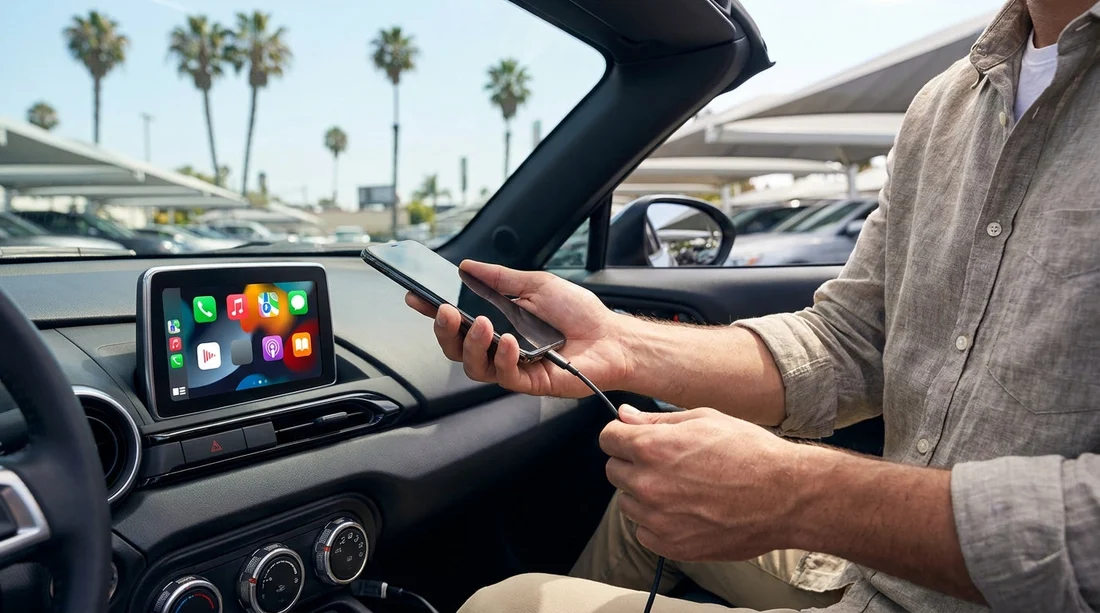
Plug in your iPhone, unlock it, and wait up to 20 seconds. If CarPlay is supported, you should see a prompt on the car screen or on your phone asking to enable CarPlay for that vehicle. If nothing happens, switch to the other front USB port if present, confirm the phone is unlocked, and try a different cable if you have one.
4) Pair step-by-step, wired CarPlay
Use this sequence to avoid the common “charging only” trap: start the car fully, keep it in Park with the handbrake set, unlock your iPhone, connect it to the correct USB port, tap “Allow” when asked, and accept any pairing prompts on the car screen.
When it works, the display should switch to the CarPlay interface with Apple Maps or your last-used navigation app. If the car stays on its native menu, look for a “Projection” or “CarPlay” option to enter the mode.
5) Pair step-by-step, wireless CarPlay
Wireless CarPlay is convenient, but it can be slower to set up at pick-up. If you want it, confirm the car supports it before you leave the bay.
In the car’s Bluetooth or phone menu, choose “Add phone” or “Pair device”. On your iPhone, open Settings, then Bluetooth, and select the vehicle when it appears. You will likely see a code on both screens, confirm it matches, and accept. After Bluetooth pairing, many vehicles automatically prompt you to enable Apple CarPlay.
If you are still stuck, ask staff for a quick swap or a different model within the same category. Doing this before you exit is far easier than returning later. This is especially helpful when collecting a busy airport car hire, including partner options such as Avis car hire at LAX or Payless car hire at LAX, where stock changes quickly.
6) Do a two-minute functional test before driving off
Before leaving the lot, confirm that CarPlay is not just launching, but usable. A quick functional test can save you from discovering issues on the 405 or in Downtown traffic.
Test navigation by starting a short route in Maps and listening for voice guidance. Test audio with a track in Apple Music or Spotify, and make sure sound comes from the car speakers. Test calls with a brief call or Siri request, and try steering wheel controls and the volume knob in CarPlay mode.
7) Fix common CarPlay problems at the pick-up point
If CarPlay does not appear, it is often a simple setting or cable issue rather than missing hardware. Swap USB ports and cables, restart the iPhone, remove and re-add the car in iPhone CarPlay settings, and make sure Siri is enabled for hands-free control.
Also check whether a restricted mode is active on the vehicle profile, which can limit phone features. If the infotainment has multiple user profiles, switch to the default profile.
8) A quick CarPlay checklist you can repeat at any Los Angeles pick-up
Use this repeatable checklist every time you collect a car hire in Los Angeles: confirm with staff that the assigned car supports Apple CarPlay and whether it is wired or wireless, check the infotainment menu for a projection option, identify the front data USB port, test with your own cable and an unlocked iPhone, accept prompts on both screens, then test maps, music, and call audio before you leave.
If you are picking up outside Los Angeles and continuing into LA later, the same process helps. Travellers flying into Orange County can apply the same routine for car hire at Santa Ana SNA before heading north.
FAQ
How do I know which USB port supports CarPlay in a rental car? Try the front-most USB ports first, especially those near the screen or labelled with a phone or USB symbol. Rear-seat ports often provide charging only and will not launch CarPlay.
Can I use Apple CarPlay without mobile data in Los Angeles? Yes, CarPlay will still run, but maps and streaming may be limited. Download offline maps or keep key addresses saved, and expect live traffic features to be reduced.
Why does my iPhone charge but CarPlay will not start? The cable may be charge-only, the port may be power-only, or the phone may be locked. Use a data-capable cable, unlock the phone, switch USB ports, and approve the CarPlay prompts.
Does wireless CarPlay always mean the car has a wireless charger? No. Some cars support wireless CarPlay but have no wireless charging pad. If you plan to use wireless CarPlay, check you can charge via USB or 12V while driving.
What should I do if CarPlay disconnects repeatedly during the first drive? Replace the cable, clean lint from the iPhone port, and remove and re-add the car in iPhone CarPlay settings. If it persists, ask to change vehicles before you travel far.





























































































