


Quick Summary:
- Pair only when parked, confirm the car name, then disable sync.
- Use CarPlay or Android Auto, but deny contacts and message previews.
- Turn off call history, calendar, and favourite syncing in the car.
- Before leaving the bay, delete your phone profile and paired devices.
Pairing your phone to a rental car can be genuinely useful for navigation, hands-free calling, and music, but it can also copy personal data into the vehicle’s infotainment system. In Texas, where airport pick-ups can feel rushed, it helps to treat phone pairing as part of your pre-drive checklist, just like adjusting mirrors. The goal is simple, get the convenience without leaving behind contacts, recent destinations, messages, or call logs for the next driver.
If you’re collecting a vehicle via Hola Car Rentals in major Texas hubs, you may see different infotainment brands, each with its own menus and wording. For pick-ups around San Antonio, start with the location details and allow extra time to do your privacy steps before moving off. See San Antonio Airport car rental or San Antonio car rental for local collection context, then use the checklist below regardless of vehicle model.
Why pairing can expose data
When you connect through Bluetooth, CarPlay, or Android Auto, the car may request permissions such as contacts, call history, messages, calendar, and sync features. Some systems also store recent navigation searches, home and work shortcuts, and recently played media. Even if your phone is gone, the car can retain a list of paired devices and your profile name. That stored information can be visible to the next renter, or to anyone browsing menus while the car is parked.
The safest approach is to share the least possible data, for the shortest time, and then remove your profile before you return the car.
Pre-drive checklist at pick-up, before you leave the bay
1) Start with a “clean” phone state. Turn on your phone’s screen lock, ensure Face ID, Touch ID, or a strong PIN is enabled, and lock your notification previews. If your lock screen shows message content, anyone glancing through a car window can read it when a message arrives.
2) Prefer USB for CarPlay or Android Auto when possible. A cable connection reduces accidental auto-reconnects later and can be easier to control. Wireless CarPlay or wireless Android Auto is convenient, but it also makes it more likely your phone reconnects when you walk near the car, such as at a hotel car park.
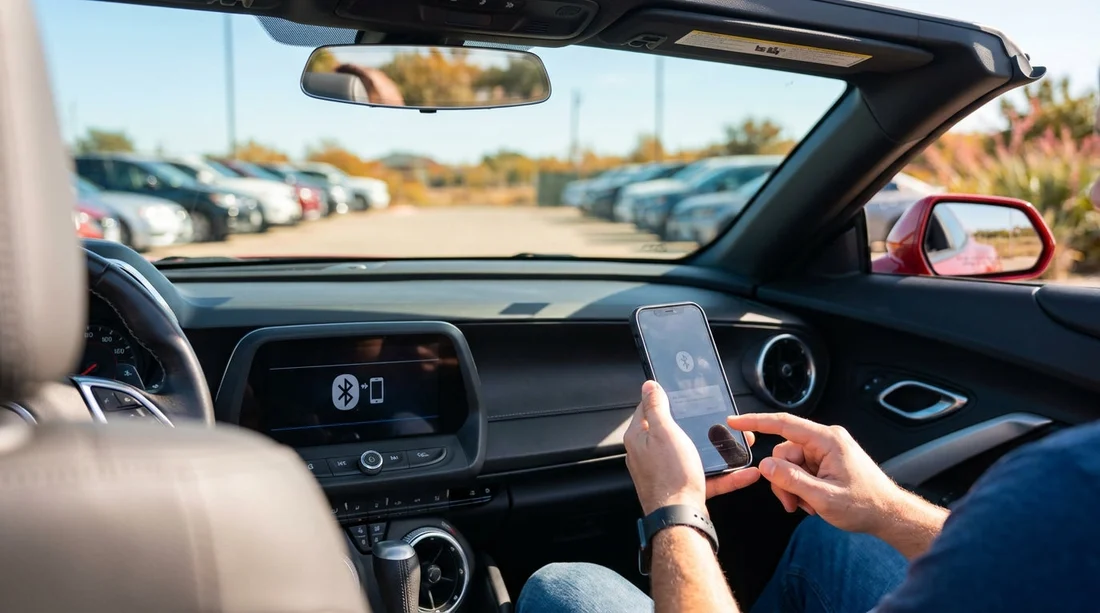
3) Pair slowly and verify the car’s identity. In busy Texas airport garages, nearby cars can appear in the Bluetooth list. Confirm the exact vehicle name shown on the infotainment screen matches the pairing prompt on your phone. If you see multiple similar entries, cancel and start again.
4) Deny anything you do not need. When your phone asks to “Sync Contacts” or “Share Contacts”, select Don’t Allow if navigation and music are all you need. If you do need hands-free calling, you can still allow calls while keeping contact syncing off on many systems. If the car requests message access, deny it so texts are not read out and previews are not shown on the dashboard.
5) Turn off “favourites” and recent history syncing inside the car. After pairing, open the infotainment settings and look for Privacy, Connections, Phone, Bluetooth, or Projection settings. Disable options that store call history, import contacts, sync calendar, or save message previews. Some systems default to “download phonebook”, which you should switch off.
6) Use the car’s built-in “guest” profile if available. Some infotainment systems offer driver profiles, including guest mode. Choose guest so the system is less likely to save personal shortcuts. If the system asks you to name a profile, avoid using your full name.
7) Be careful with navigation destinations. If you use the car’s built-in navigation rather than your phone, it may store “Recent” and “Saved” locations. Prefer phone-based navigation via CarPlay or Android Auto so your searches remain on your handset. If you must use built-in navigation, avoid saving home, work, or frequent locations.
8) Decide how you will handle charging stops. Public USB ports can sometimes offer data connections, not just power. In the rental car, use your own cable and plug into a known charging-only port if the vehicle has one, or use a 12V charger. If a prompt appears asking to “Trust this device” or “Allow data access”, decline unless required for CarPlay or Android Auto.
9) Avoid sharing the car’s Wi-Fi with your phone unless needed. Some vehicles offer in-car Wi-Fi, and you may be prompted to join it. Joining can leave network names and connection history. If you do not need it, skip it.
What to check specifically for Bluetooth vs CarPlay vs Android Auto
Bluetooth only: The main risk is contact and call-history transfer. After pairing, check the phone settings on the car display and disable contact download, message access, and call history if those toggles exist. On your phone, review Bluetooth device settings and switch off “Sync Contacts” if presented.
Apple CarPlay: CarPlay generally keeps apps running on the phone, but the car can still display messages and call info if you allow it. On iPhone, open Settings, Notifications, and adjust preview behaviour. Then go to Settings, General, CarPlay, select the car, and set a stricter profile. Keep Siri suggestions and message announcements off if you prefer less exposure.
Android Auto: Android Auto can show notifications and recent places in Maps depending on settings. In Android Auto settings, reduce notification detail and turn off any options that display message content on the car screen. Also review which apps are allowed to run in Auto, then disable anything you would not want visible in a shared vehicle.
For travellers collecting a car hire in Houston or Austin, this matters because pick-ups can be fast-paced, and the easiest moment to lock down permissions is right at the start. Location pages such as car hire at Houston IAH and car hire at Austin AUS can help you plan your timing so you are not adjusting privacy settings in traffic.
How to remove your profile before leaving the bay, and again before return
The safest habit is to clean up twice, once immediately after you confirm everything works, and once at the end of your trip. The first clean-up is about preventing the car from storing extra data as you drive. The second is about ensuring nothing remains for the next renter.
Before you drive off: After confirming audio and navigation work, go back into the car’s Phone or Connections menu and check what it has stored. If it shows a contact list or recent calls already, look for options like “Delete downloaded contacts”, “Clear call history”, or “Clear personal data”. If a guest profile exists, switch to it.
Before you return the car: Park, then delete your phone from the car’s paired devices list. Also remove the car from your phone’s Bluetooth list, and delete it from CarPlay or Android Auto settings so it cannot auto-connect in future. Finally, clear navigation recents, garage door codes, and any voice assistant training data if the car has those features.
If your rental is from a branded fleet at an airport, menus differ, but the principle is the same: remove devices, clear personal data, and reset profiles. If you are picking up around Fort Worth and using an on-site counter, allow two extra minutes at drop-off to do this properly, especially if you used hands-free calling frequently. See Dollar car rental at Fort Worth DFW for the location context where returns can be busy.
FAQ
Will a rental car keep my contacts after I disconnect? It can. Some systems download contacts and call logs, so disconnecting alone may not remove stored data. Delete the phone profile and clear imported contacts in the car’s settings.
Is CarPlay or Android Auto safer than plain Bluetooth? Often, yes, because many apps run on your phone rather than the car. However, notifications and call information can still appear if you allow message access or previews, so adjust permissions first.
What should I do if the car forces contact syncing to enable calling? Allow only what you need, then clear the phonebook and call history before return. If there is a guest profile option, use it to reduce what the system stores.
How do I stop the car reconnecting to my phone later? Remove the car from your phone’s Bluetooth devices list and from CarPlay or Android Auto settings. Also turn off Bluetooth when you are not actively using it around the vehicle.
What if I cannot find a “delete device” option on the screen? Look for menus labelled Settings, Connections, Bluetooth, Phone, or Privacy. If there is a “factory reset” or “clear personal data” option for the infotainment system, use it at the end of your rental.































































































