


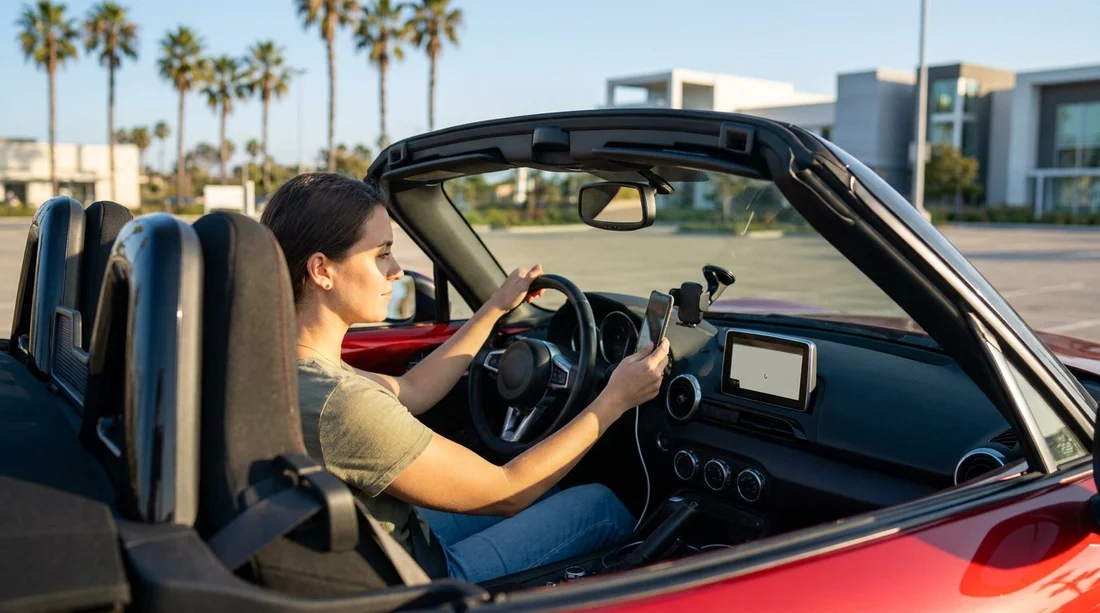
Quick Summary:
- Enable Siri or Google Assistant, and test voice navigation commands.
- Pre-approve CarPlay or Android Auto permissions before you collect keys.
- Choose a vent or dash mount that fits your phone case.
- Download offline maps, set toll preferences, and check audio volume.
Arriving at the counter is not the moment to be hunting through settings while juggling luggage, paperwork, and a new vehicle. In California, where motorways split quickly and junctions can arrive fast, a hands-free sat nav setup helps you get moving calmly and legally. Whether you plan to use the car’s screen via CarPlay or Android Auto, or rely on your phone, most of the work can be done before you collect your car hire.
The aim is simple: mount the phone securely, keep your hands on the wheel, and make sure your navigation app can speak directions clearly without you tapping around. Below is a practical checklist you can complete at home, in your hotel, or on the plane, so you only need a quick cable plug-in or Bluetooth pairing at pick-up.
1) Pick the right phone mount for your vehicle and phone
A mount is the foundation of hands-free navigation, because if the phone shifts, falls, or blocks vents, you will end up adjusting it while driving. Choose the mount type first, then check it suits typical rental interiors.
Vent mounts are compact and fast to fit, but some modern cars have delicate or oddly shaped vents. If you use a vent mount, pick one with a stabilising hook or clamp that grips the vent blade securely. Also consider heat, in California your phone can overheat if it sits in the path of hot air.
Dash mounts avoid vent issues, but rely on adhesives or suction. For rentals, a suction cup mount is usually better than a permanent adhesive pad, because you can remove it cleanly. If you plan to use suction on the windscreen, check local rules and keep it low enough not to obstruct your view.
Magnetic mounts are convenient, but require a metal plate in or on your case. Test it before you travel to confirm it holds over bumps. Also check that wireless charging still works if you use it.
Finally, plan your cable routing. A short, high-quality cable reduces clutter. Pack both USB-C and Lightning cables if your group has mixed devices, plus a 12V charger as a backup for cars with limited USB ports.
2) Turn on voice control and tune it for driving
Hands-free navigation is only as good as your voice assistant. Before pick-up, confirm your assistant is enabled and can be triggered reliably.
On iPhone, ensure Siri is turned on, “Hey Siri” is enabled, and your language and accent settings match your normal speech. On Android, confirm Google Assistant voice match is enabled and that it responds from the lock screen if you want to start routes without touching the device.
Do a quick test with the exact phrases you will use while driving, such as “Navigate to the nearest petrol station” or “Take me to Los Angeles International Airport”. If your assistant struggles with place names, add a couple of key destinations to your favourites in your maps app, then you can say “Navigate to Home” or “Navigate to Hotel” instead.
Also check audio behaviour: set your navigation to interrupt music at a sensible volume, and enable spoken alerts for turns and speed limit changes if you find them helpful. If you wear hearing aids or use accessibility features, confirm they work with in-car audio and voice prompts.
3) Pre-configure CarPlay and Android Auto permissions
If your rental supports CarPlay or Android Auto, it can be the safest experience because directions appear on the car’s display with larger controls and better audio integration. The time sink is usually permissions, especially if your phone asks multiple questions after you plug in.
Before you travel, go into your phone’s settings and make sure CarPlay or Android Auto is enabled. For iPhone, check any restrictions that might block CarPlay, and allow CarPlay while the phone is locked. For Android, ensure Android Auto is updated and allowed to run in the background.
Next, consider permissions. Navigation typically works without contacts, but voice calling and message readouts may require access. Decide what you are comfortable sharing in a rental environment. A sensible middle ground is to allow microphone, Bluetooth, and location, but keep message previews hidden on the lock screen.
If you are picking up near major hubs, these pages can help you align expectations for airport collection and typical car equipment in California: car rental at Los Angeles Airport (LAX) and car rental at Santa Ana (SNA).
4) Set up maps for California driving before you land
Your navigation app can be made calmer and more accurate with a few settings changes.
Download offline maps for the areas you will drive. Coverage can drop in mountains, desert stretches, and multi-level car parks. Offline maps also reduce roaming data use for visitors. Download the Greater Los Angeles area if you are starting there, and any national parks or coastal segments on your plan.
Choose toll preferences. California has toll roads and express lanes, and your rental may offer toll programmes. In your maps settings, decide whether to avoid tolls or allow them. If you do allow tolls, turn on toll cost estimates where available, so you can choose knowingly between a faster route and a free route.
Enable speed limit display and spoken alerts if you find them useful, but keep alerts limited. Too many beeps can be distracting in unfamiliar traffic patterns.
Lastly, set your default map view. A north-up view is great for orientation, while a heading-up view is easier for turn-by-turn driving. Pick one you like before you are moving.
6) Know what to do at pick-up, quickly and safely
Even with preparation, you will still do a short setup in the car. Keep it simple: position the mount, connect the cable, accept any final prompts, and confirm audio. Do this in the rental lot, not while moving.
If the car supports it, pair Bluetooth for calls and audio. Then test one route while stationary to confirm the voice prompt volume is audible over the air conditioning. If you are travelling with family or lots of luggage, consider the vehicle type, a larger cabin can make it easier to hear prompts and keep cables tidy. For group trips, you may find these guides useful: minivan rental in Sacramento (SMF) and SUV rental in San Jose (SJC).
Finally, think privacy. When you return the car, remove the mount and cable, and delete the car from your phone’s CarPlay or Bluetooth list. That reduces the chance your phone reconnects automatically to a vehicle you no longer have.
FAQ
Do I need a phone mount for hands-free sat nav in California? A mount is not strictly required if you are using the built-in screen, but it helps if you rely on your phone. It keeps the display stable and reduces temptation to hold the phone.
Will my rental car definitely have Apple CarPlay or Android Auto? Not always. Availability varies by vehicle and trim level, even within the same category. Preparing both a mount setup and CarPlay or Android Auto means your navigation still works either way.
Should I download offline maps even if I have unlimited data? Yes. Offline maps help when coverage drops in car parks, rural areas, or on mountain drives. They also load faster and reduce battery drain from constant data use.
How can I avoid surprise tolls when using sat nav? In your maps settings, choose “avoid tolls” if you prefer. If you allow tolls, enable toll price estimates where available, and check your rental’s toll policy at pick-up.
What should I remove from the car before returning it? Take your mount, cables, and any charging adapters. Also remove the car from your Bluetooth and CarPlay or Android Auto list, and delete any saved addresses you entered on the car’s system.






























































































