


Quick Summary:
- Pair your phone on-site, confirm calls and audio play clearly.
- Test sat nav routes, voice guidance, and correct local time settings.
- Check each USB port charges quickly and supports audio where needed.
- Confirm CarPlay or Android Auto works before accepting paid upgrades.
After a flight into Orlando, it is tempting to rush out of the car park and start the holiday. A two minute connectivity check at pick-up can save frustration later, especially if you rely on your phone for navigation, music, and hands-free calls. It can also help you avoid agreeing to paid add-ons that you do not actually need.
If you are comparing options for arrivals and pick-up logistics, these pages can help with the location context: Orlando Airport to Disney car rental information and car hire at Orlando MCO. Once the keys are in your hand, use the steps below before you leave the rental bay.
Before you even start, confirm what system the car actually has
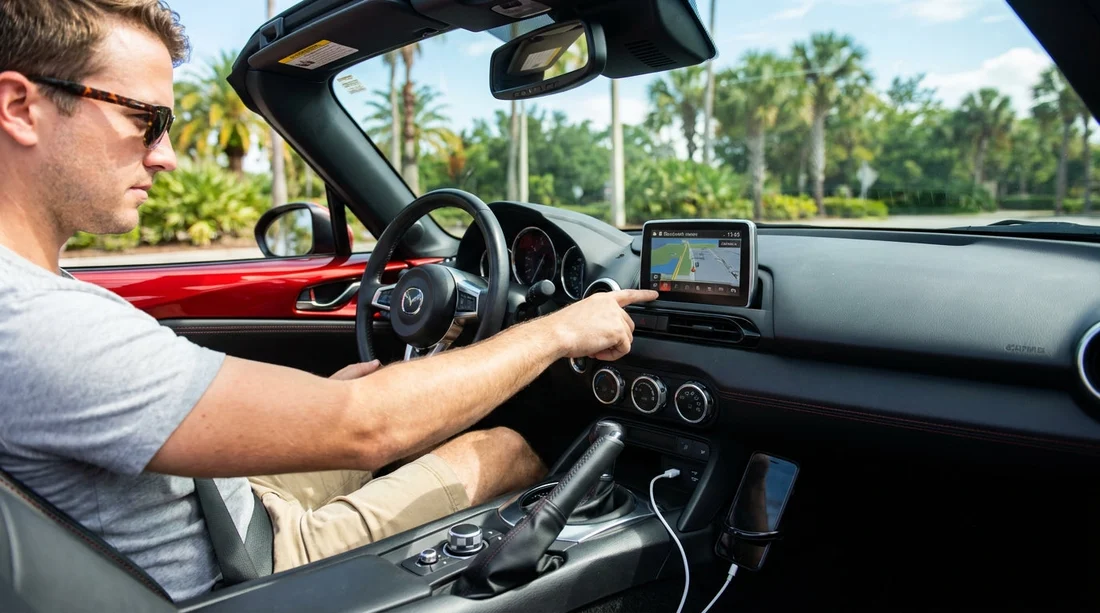
Different vehicles at Orlando airports can have very different infotainment. Some have built-in sat nav, some only support Apple CarPlay or Android Auto, and some only offer basic Bluetooth calling. Before you plug anything in, look for:
A sat nav button or map app on the screen, which suggests built-in navigation.
CarPlay or Android Auto icons, either on screen or printed near the USB ports. Some cars support them only via cable, not wireless.
Multiple USB ports, which can be charge-only or charge plus data.
Any paid upgrade mentions on paperwork or screen prompts. If the system offers connected navigation or hotspot features, make sure you understand what is included and what is billable.
Bluetooth checklist: pair, call, and audio test
Bluetooth is still the simplest backup if CarPlay or Android Auto will not connect. Do this while the vehicle is parked, with the engine on if needed to power the system.
1) Clear old pairings. In the infotainment settings, look for “Bluetooth devices” and delete any previous phones. Rental vehicles often have a long list, and old profiles can cause pairing failures or audio dropouts.
2) Pair your phone fully. Accept both prompts, pairing and contacts. If you decline contacts, some systems will not show caller ID or allow voice dial properly.
3) Make a quick test call. Call a number you can hang up on quickly, such as your voicemail. Confirm the other person can hear you, and you can hear them through the car speakers.
4) Play audio for 10 seconds. Start music or a podcast and confirm sound comes from the speakers, not the phone.
5) Verify auto reconnect. Turn Bluetooth off and on, or switch the car off and back on if time allows. Your phone should reconnect without repeating the entire setup.
Sat nav checklist: avoid surprises and set your first destination
If your car has built-in navigation, it can be useful when mobile signal is weak or you want to save phone battery. However, built-in sat nav can be out of date, set to the wrong region, or missing key settings that matter in Florida.
1) Confirm maps actually load. Open the map screen and zoom in and out. If it displays a blank grid or requests a subscription, you will know you need to use your phone instead.
2) Check location accuracy. The arrow should match the direction the car is facing. If it is spinning, the GPS may need time, or it may not be working properly.
3) Set the language and voice volume. Ensure guidance is in English and loud enough to hear over air conditioning.
4) Set the correct time zone. Orlando is Eastern Time. A wrong clock can affect arrival time estimates and can be confusing when planning park reservations or restaurant bookings.
5) Enter your first stop before leaving. Put in your hotel, villa, or first supermarket stop while stationary. Confirm it finds the correct address and shows a reasonable route out of the airport area.
6) Check toll route preferences. Florida has many toll roads. If the sat nav offers “avoid tolls”, decide what you prefer.
For more context on Orlando pick-up locations and typical routes, see Orlando MCO car rental details. Knowing your exit route helps you judge whether the sat nav is giving sensible directions.
USB ports checklist: charging speed, data, and rear passengers
USB ports are where people lose the most time. A port can provide power but not support media playback, and some front ports are “data” while others are “charge only”. Do a quick test using your own cable.
1) Find every port. Check the centre console, dashboard cubby, armrest storage, and rear of the centre console for back seat passengers.
2) Confirm power delivery. Plug in and verify charging starts immediately. If charging is slow, try a second port.
3) Test data and audio. If you use a USB stick with music, try it briefly. If you prefer phone audio via USB, confirm the car recognises the device as an audio source.
4) Check for loose sockets. Wiggle the connector gently. If charging cuts in and out, try another port and consider noting it before departure.
Apple CarPlay and Android Auto: confirm availability and how it connects
Many travellers expect CarPlay or Android Auto and only discover later that it is not enabled, not supported, or needs a specific port. This is where you can avoid unnecessary add-ons because your phone can provide navigation and apps through the screen.
1) Identify whether it is wired or wireless. If wireless is supported, the screen usually shows a wireless CarPlay or Android Auto option. If not, you will need a cable and the correct USB port.
2) Use the right port. Often only one front USB port supports data for CarPlay or Android Auto. If you plug into a charge-only port, nothing will happen apart from charging.
3) Accept permissions on your phone. CarPlay and Android Auto require prompts to be accepted. If you miss them, the connection may fail silently.
4) Confirm key apps work. Open your maps app, start a test route, and confirm guidance plays through the car. Start one track in your music app.
Ask and verify: avoiding paid add-ons you might not need
At Orlando car hire desks, you may be offered extras related to connectivity, such as built-in navigation, Wi-Fi hotspot, or phone holders. The best way to decline confidently is to verify what already works in the vehicle you are actually taking.
If you are travelling with a bigger group, the type of vehicle can change the number and location of ports and the overall infotainment setup. These pages are helpful for planning expectations: minivan rental at Orlando MCO and van rental at Orlando MCO.
FAQ
Q: What if Bluetooth pairs but there is no sound through the speakers?
A: Check the audio source is set to Bluetooth, increase media volume, and confirm your phone is not outputting to its own speaker. Try deleting the pairing and reconnecting.
Q: The car has sat nav, but it asks for a subscription. What should I do?
A: Use your phone navigation via CarPlay, Android Auto, or a phone mount, and confirm you are not agreeing to any connected navigation charges on the spot.
Q: How can I tell if a USB port supports CarPlay or Android Auto?
A: Plug into each front port one at a time with a data-capable cable. The correct port usually triggers a CarPlay or Android Auto prompt within a few seconds.
Q: Why do some USB ports charge so slowly?
A: Many vehicles have low-power USB outlets designed for basic charging only. If yours is slow, use a different port or a 12V adapter to keep navigation running.






























































































