


Quick Summary:
- Update Android Auto, Google Play services, and your phone software before travelling.
- Pack a short data USB cable and adapters for USB-A or USB-C.
- Enable Bluetooth, Location, and notifications, then approve key permissions in advance.
- At pick-up, confirm Android Auto support, the correct port, and activation steps.
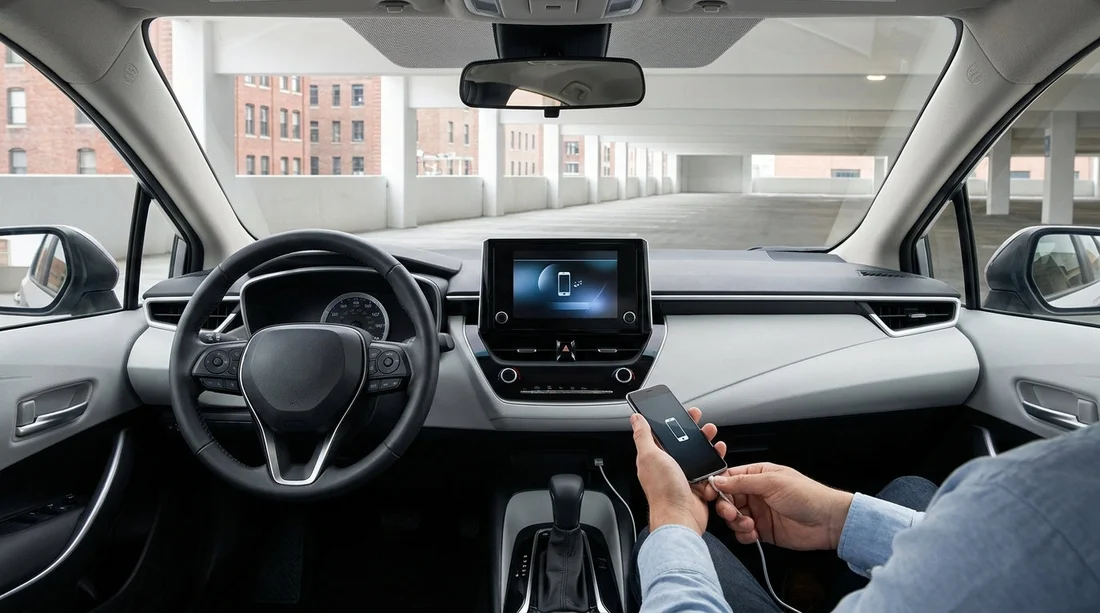
When you arrive for car hire in New York, you want Android Auto working within minutes, not after half an hour of menus, pop-ups, and cable swapping. The best approach is to do most of the preparation before you travel, then run a quick compatibility check at pick-up. That way, whether you are collecting at JFK airport car hire or crossing over to collect near Newark, you can plug in and get reliable navigation, calls, and music from the first mile.
This checklist focuses on what you can control before pick-up, plus what to verify at the rental counter so you do not get caught out by a port mismatch, disabled data settings, or a head unit that needs an extra confirmation step.
1) Phone and app prep, done before you travel
Start with your phone. Android Auto issues in a rental car are often caused by outdated components, battery-saving restrictions, or a phone that is set up for privacy so strictly that it blocks the handshake with the vehicle.
Update the essentials. On your handset, update Android Auto, Google Maps, and any preferred media apps. Also ensure Google Play services is current, because it underpins sign-in, permissions, and background services. If a system update is pending, install it at home on Wi-Fi, then restart the phone. A clean reboot solves a surprising number of connection problems.
Sign in and pre-load what you need. Confirm you are signed in to the correct Google account, and that Google Maps opens without additional prompts. If you use multiple accounts, make sure the one you want for navigation and contacts is set as default. Download offline maps for New York and surrounding areas if you expect patchy data or want to reduce roaming costs.
Check battery and background settings. Many phones aggressively limit background activity. If Android Auto disconnects, audio stutters, or the connection drops when the screen turns off, battery optimisation is a common culprit. In your battery settings, allow Android Auto, Google Maps, and your music app to run without restriction. Also disable any “data saver” mode that could pause background data during navigation.
Clean up Bluetooth pairings. You do not need to delete everything, but if your phone has a long list of old cars and accessories, it can try to reconnect to the wrong device. Remove any stale car entries you no longer use. This makes first-time pairing in a rental faster and reduces conflicts.
2) Cables, adapters, and why they matter
For rental vehicles, the biggest difference between a smooth set-up and a frustrating one is often the cable. Wireless Android Auto is not guaranteed, even in newer cars, and some fleets disable it. Plan for a wired connection and you will usually be covered.
Bring a short, data-capable USB cable. Charging-only cables can power the phone but fail to pass data, which means Android Auto will never appear. Choose a good-quality cable you trust and keep it 0.5–1 metre so it does not snag the gear selector or get knocked loose.
Pack the right ends. Many newer Android phones use USB-C, while rental cars can have USB-A, USB-C, or both. Carry a USB-A to USB-C cable, plus a small USB-A to USB-C adapter if you already have a USB-C to USB-C lead you prefer. Also consider a spare cable. In busy terminals, it is easy to misplace one.
3) Permissions and settings to enable before pick-up
Android Auto will ask for several permissions the first time it connects to a car. Doing this at the kerb, with traffic behind you, is stressful. You can reduce delays by pre-checking the key settings.
Turn on Bluetooth and Location. Even for wired Android Auto, Bluetooth is frequently used for initial pairing and calls, while Location improves navigation accuracy. Ensure Location is enabled and set to a mode that allows high accuracy if available on your device.
Allow notifications and contacts access. If you want hands-free calling and message readouts, Android Auto needs access to contacts, phone, and notifications. You can allow these and still keep control by reviewing notification access for individual apps. Also ensure Do Not Disturb is configured so calls can come through when driving, if that is your preference.
Enable Google Assistant voice match. If you use “Hey Google” for navigation and messaging, confirm voice match is set up and working before you travel. In a rental, voice control is the quickest way to stay focused on the road and avoid tapping screens.
Set your default apps. If you prefer Waze over Google Maps, or Spotify over another player, set defaults in advance. Android Auto can otherwise prompt you to choose an app during first connection, which slows things down.
4) Plan for connectivity in New York
Android Auto relies on mobile data for live traffic, search, and streaming. New York coverage is generally strong, but roaming, plan limits, or a congested area can still affect performance.
Check your data plan. If you are visiting from abroad, confirm your roaming package or local SIM/eSIM is active and topped up. If you expect limited data, download offline maps for Manhattan and nearby boroughs, and consider downloading playlists or podcasts for offline playback.
5) How to confirm compatibility at the counter, fast
Before you leave the desk, take one minute to confirm the car supports Android Auto and to clarify how it is enabled. This is especially useful when picking up at busy hubs like Newark EWR car rental locations, where you want to get moving without returning to the counter.
Ask whether Android Auto is available and whether it is wired or wireless. Some trims have Apple CarPlay only, or Android Auto only via USB. If wireless is available, ask if it is enabled for that vehicle, because fleet settings sometimes vary.
Confirm which USB port to use. Cars can have multiple ports, but only one may support data for Android Auto. Ask which port is “for data” or “for smartphone integration”. If the agent is unsure, check the centre console ports, the port near the infotainment screen, and any port marked with a smartphone icon.
Check the port type. Verify whether the vehicle uses USB-A or USB-C so you do not discover the mismatch after leaving. This matters if you are collecting from across the river for car rental near New Jersey EWR, where a quick return for an adapter could cost time.
Ask about any on-screen acceptance steps. Many systems require you to accept a safety prompt, allow data sharing, or confirm a pairing code. Knowing this in advance helps you complete the steps while parked in a safe spot, not in the exit lane.
6) First connection steps in the car, in the right order
Once you are seated and safely parked, use a consistent sequence.
1) Start the car and wake the infotainment screen. Let the system fully boot before plugging in.
2) Unlock your phone. Some devices will not complete the first handshake while locked.
3) Plug in with your best cable. Wait for the Android Auto prompt on the car screen, then accept any permissions on the phone.
4) Pair Bluetooth if prompted. Confirm the pairing code matches on both screens.
5) Set audio output and test a call. Play a short audio clip and start a brief call to confirm microphone and speakers work. If you are in a larger vehicle category, such as those listed under van hire at Newark EWR, cabin acoustics can be different, so it is worth checking the mic early.
FAQ
Do all rental cars in New York support Android Auto? No. Many do, but it depends on the model year and trim. Confirm Android Auto support and whether it is wired or wireless at the counter before you leave.
Will Android Auto work if my phone is locked? Sometimes, but first-time set-up often requires an unlocked phone to approve prompts. Unlock your phone during initial pairing, then you can lock it once Android Auto is running.
What cable should I bring for Android Auto in a hire car? Bring a short, high-quality data-capable USB cable. Also bring an adapter for USB-A or USB-C, because rental vehicles vary in port type and location.
Why does Android Auto connect, then disconnect after a minute? Common causes are a poor cable, a loose USB port, or battery optimisation restricting Android Auto or Maps. Swap cables first, then adjust battery settings to allow background activity.
Can I use Android Auto without mobile data in New York? You can use offline maps for basic navigation, but live traffic, search, and streaming need data. Download offline maps and media in advance if you expect limited connectivity.






























































































