


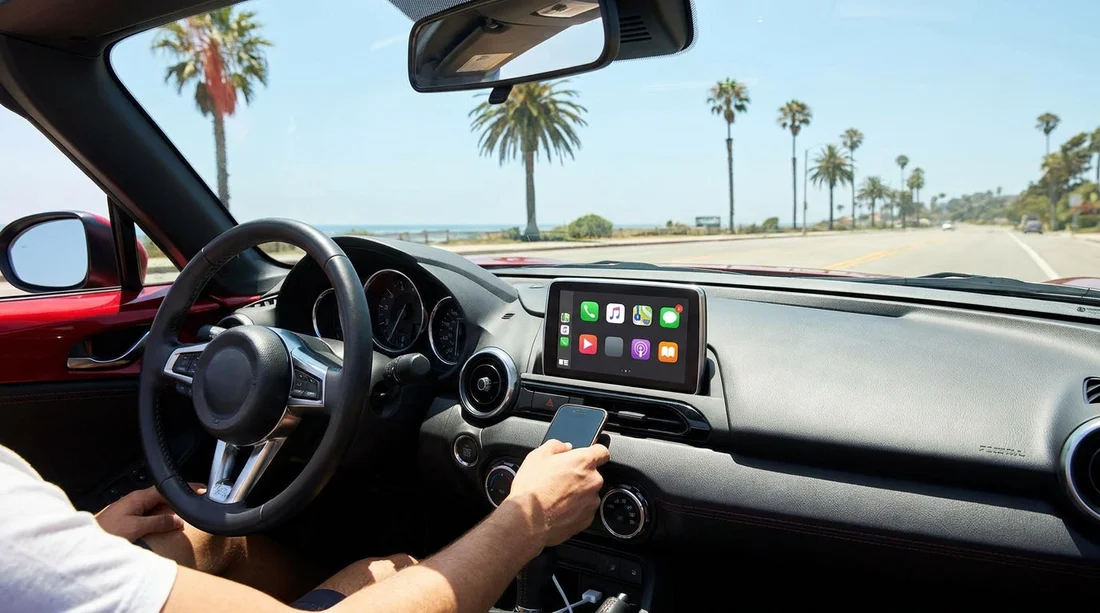
Quick Summary:
- Confirm CarPlay support on the infotainment screen before leaving the lot.
- Choose wired or wireless setup, and bring a certified Lightning cable.
- Approve iPhone prompts for CarPlay, contacts, and notifications when asked.
- Delete old pairings on both devices to prevent connection conflicts.
Picking up a car hire in California often means driving straight into busy roads and unfamiliar interchanges where hands free navigation really matters. Apple CarPlay can make your first hour far less stressful, but only if you set it up before you roll away from the pick up area.
Before you connect: do a two minute CarPlay readiness check
Start with the basics while the agent is still nearby. Turn the car on fully, not just accessory mode, because some systems only initialise Bluetooth and Wi Fi once the infotainment unit is fully booted. On the screen, look for a Phone, Projection, Smartphone, Apple CarPlay, or Apps icon.
Also confirm the USB ports. Some cars have multiple USB sockets, but only one supports data. Look for a small phone icon or the word USB next to the correct port. If you only plug into a charge only port, wired CarPlay will never appear.
If you are collecting near Los Angeles, it helps to check this before you join airport traffic. Planning pages like car rental California LAX and Hertz car rental Los Angeles LAX can help you confirm location details in advance.
Wired vs wireless CarPlay: choose the fastest reliable option
Wired CarPlay is the most consistent choice for a rental. It tends to connect faster, drop less often, and avoids Wi Fi handshake issues between different users. The trade off is that your iPhone must stay plugged in, and some cheap cables cause disconnects.
Wireless CarPlay is convenient for short drives and keeps the centre console tidy. However, it relies on both Bluetooth and Wi Fi, and rental cars often have leftover pairings that can confuse the system. Wireless also uses more battery, so you still may want to charge with a separate port if the vehicle supports it.
iPhone checklist: settings that prevent frustrating prompts
Before you even plug in, unlock your iPhone and confirm Siri is enabled, because CarPlay depends on it for voice control. Go to Settings, Siri, and ensure Listen for Siri and Allow Siri When Locked are on.
Next, check that CarPlay is allowed. Open Settings, General, CarPlay, and see if any cars are already listed. If you see a previous rental or your home car, that is fine, but a long list can increase confusion when wireless pairing begins.
During pairing, the iPhone may ask whether to allow notifications while driving, whether to sync contacts, and whether to allow CarPlay while locked. For a rental, allowing CarPlay while locked is the key to avoiding repeated prompts at every restart.
How to set up wired CarPlay at pick up
Use a known good cable, ideally an Apple certified Lightning cable if your iPhone uses Lightning. USB C iPhones should use a quality USB C to USB C cable where possible. Plug into the data USB port you identified earlier and keep the phone unlocked.
Watch both screens. On your iPhone, you may see a prompt asking you to allow CarPlay when the phone is locked. Tap Allow. If nothing happens after 20 seconds, try a different port or a different cable.
When it loads, verify three essentials before leaving: your map app opens, audio plays through the speakers, and the steering wheel voice button triggers Siri.
How to set up wireless CarPlay without pairing headaches
Wireless set up varies by manufacturer, but the usual pattern is: open the car’s phone menu, choose Add Device, then choose Apple CarPlay. The car will either show a Bluetooth pairing request or a list of discoverable phones.
On your iPhone, ensure Bluetooth and Wi Fi are on. Accept the Bluetooth pairing code, then approve the iPhone CarPlay permission prompts as they appear. Many systems use Bluetooth only to start the connection, then switch to Wi Fi for the CarPlay session.
Avoiding pairing problems common with rental vehicles
Rental cars often carry digital residue from previous drivers. That can cause the car to connect to the wrong phone or refuse to connect at all. The cleanest fix is a quick reset on both sides.
On the car infotainment system, find the Bluetooth devices list and delete old phones, or use a Clear Personal Data option if available. Be cautious with full factory resets if they affect vehicle settings.
On your iPhone, go to Settings, Bluetooth, tap the info icon next to the car name, then choose Forget This Device. Also go to Settings, General, CarPlay, select the car, and tap Forget This Car. Then restart the iPhone and try pairing again.
If you are travelling through multiple cities, you may swap vehicles. Useful planning pages include car rental San Diego and Enterprise car hire San Francisco SFO.
Before returning the vehicle: disconnect cleanly
To protect your privacy, forget the car before drop off. Remove the CarPlay pairing on the iPhone, then delete your phone from the car’s device list. This reduces the chance your phone auto connects if you are nearby later.
Also remove any garage door integrations, saved addresses, or navigation favourites you entered into the car’s own system.
FAQ
Do all car hire vehicles in California have Apple CarPlay? No. Many newer cars do, but availability varies by model and trim. Check the infotainment menu at pick up, and confirm the correct USB data port is present.
Why does CarPlay only work with the phone unlocked? You likely declined the prompt to allow CarPlay while locked. Reconnect, accept the prompt on the iPhone, or go to Settings, General, CarPlay, select the car, and enable the relevant permissions.
My iPhone charges but CarPlay will not start, what is the cause? The cable or USB port may be charge only. Try another USB socket, use a certified data cable, and check the car screen for a Smartphone Projection or CarPlay toggle.
Wireless CarPlay keeps disconnecting, how do I stabilise it? Delete old pairings on the car and iPhone, then re pair. Keep Wi Fi and Bluetooth enabled, and avoid connecting the car to multiple phones at once.
How do I clear my data before returning the rental? Forget the car in iPhone CarPlay settings and Bluetooth, then delete your phone from the car’s device list. If offered, use the car’s clear personal data option for phones and recent history.






























































































