


Quick Summary:
- Confirm whether CarPlay is wireless, wired only, or available on select ports.
- Use a reliable Lightning cable and the correct CarPlay USB port.
- Approve prompts on the car screen and iPhone to complete pairing.
- Test maps, music, calls, Siri and charging before leaving the bay.
Setting up Apple CarPlay before you drive off is one of the quickest ways to make a Texas road trip feel familiar, especially when you are navigating multi-lane interstates, toll roads, and busy airport exits. Because every vehicle trim can differ, treat CarPlay setup as a pick-up checklist item, not something to figure out at the first traffic light.
This guide explains what you need for USB versus wireless CarPlay, the fastest pairing steps, and exactly what to test while you are still parked at the car hire location.
What you need for Apple CarPlay in a Texas rental
Start with two questions, does the car support CarPlay, and is it wired, wireless, or both. Many newer rentals offer wireless CarPlay, but plenty still require a cable, and some have CarPlay only on certain USB ports.
For wired CarPlay: bring a reliable Lightning to USB-A or Lightning to USB-C cable, depending on the vehicle. A short, Apple-certified cable reduces dropouts. You also need an unlocked iPhone with Siri enabled.
For wireless CarPlay: your iPhone needs Bluetooth and Wi-Fi on. Wireless CarPlay uses Bluetooth for initial handshaking and Wi-Fi for the data connection, so both radios matter. If you often use Personal Hotspot, be aware some cars fight for the Wi-Fi connection, so you may need to toggle hotspot off during setup.
At major airport counters, you may be collecting a vehicle quickly and heading out into complex junctions. If you are picking up around Houston Intercontinental, the exit lanes can split quickly, so it helps to have navigation ready before you roll. If you are arranging car hire through Hola Car Rentals near Houston, see car hire at Houston IAH for location context, then focus on the in-car steps below.
Quick pairing steps for wired Apple CarPlay
Wired CarPlay is usually the fastest and most stable option in rental cars, particularly when the vehicle has a crowded Bluetooth history from previous drivers.
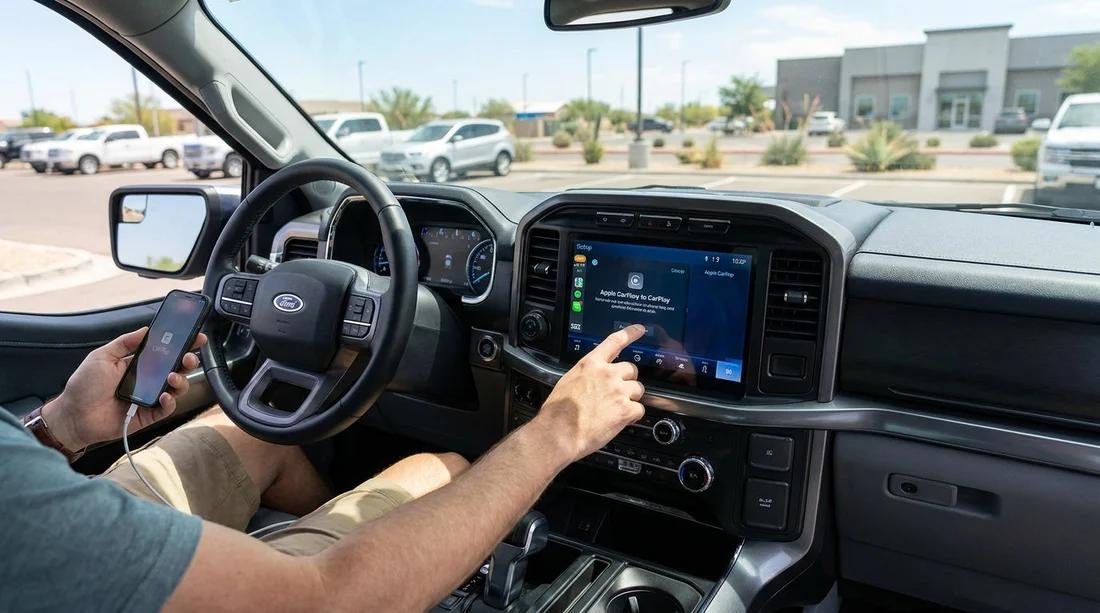
Park safely, set the handbrake, and keep the car in Park. Unlock your iPhone, plug into the USB port labelled for CarPlay, and accept prompts on both screens to enable CarPlay.
If nothing happens after 20 to 30 seconds, try a different USB port, then try a different cable. Cable faults are the most common cause of a failed setup.
If you are collecting at Dallas Fort Worth, the pick-up bay can be noisy and rushed, so get the USB port question sorted early. Hola Car Rentals options around DFW are covered at car rental in Dallas DFW.
Quick pairing steps for wireless Apple CarPlay
Wireless CarPlay can be excellent for short stops, but the initial setup takes a little more attention. Plan to do this before leaving the space.
Enable Wi-Fi and Bluetooth on your iPhone, then use the car screen to add or pair a new phone. Confirm the pairing code, accept CarPlay prompts, and wait up to a minute for CarPlay to appear.
If wireless CarPlay refuses to show up, use wired CarPlay as a fallback. In some models, plugging in once also authorises CarPlay and makes future wireless pairing easier.
What to test at pick-up before leaving
Once CarPlay launches, do not assume everything works. Spend two minutes verifying the essentials while you are still near staff and within safe parking. This is especially useful in unfamiliar Texas cities where a missed exit can mean a long loop.
Audio routing: play a song or podcast and confirm it comes through the car speakers, not your handset. Adjust volume on the car knob and the steering wheel buttons.
Navigation clarity: start a short route and confirm voice guidance works and the map follows your position. If guidance is muted, check the maps mute setting and the car’s media volume while the voice is speaking.
Call handling and Siri: place a quick test call to voicemail, then press and hold the voice control button and ask Siri for a simple route. This confirms the car microphone and steering wheel controls work as expected.
Charging: if you are using wired CarPlay, confirm the phone is charging and place it so the cable does not snag controls.
Common issues in rental cars and quick fixes
CarPlay option is missing: the vehicle may not have CarPlay on that trim, or it may be disabled in settings. Look for “Projection”, “Apps”, or “Smartphone connections”. If it truly is not available, use a Bluetooth connection for calls and audio, and mount your phone safely.
Only charging, no CarPlay: you are likely in a charge-only USB port. Try the port closest to the infotainment screen, or one marked with a phone icon. Swap to a known good cable.
Wireless keeps dropping: delete the pairing on both sides, then pair again. Also turn off VPN apps temporarily, as some interfere with connectivity.
Previous driver’s phone appears: ask staff to help clear paired devices if you cannot access the settings. It is reasonable to request a quick reset at the counter so your phone becomes the priority connection.
Texas-specific driving considerations when using CarPlay
CarPlay is most helpful when it reduces distraction, not when it adds decisions. Before pulling out, set your first destination, such as your hotel or the nearest fuel stop. In Texas metro areas, exits can arrive quickly, and frontage roads can be confusing if your navigation is not locked in.
If you are picking up in Austin for a larger group, you might be in a van where USB ports are scattered across rows. Confirm the driver’s USB port is the one that supports CarPlay, and do not assume the rear charging ports can run it. For Austin options, see van rental in Austin AUS.
If you are arriving through San Antonio International, do your setup before joining the busier airport access roads. You can review location details via car hire at San Antonio SAT, then prioritise the test steps above while still stationary.
Privacy and data tips before you return the car
Rental cars often store connection histories. Before drop-off, delete your phone from the car’s Bluetooth and CarPlay lists, and remove the car from iPhone Settings, General, CarPlay. This reduces the chance of your phone connecting later and helps keep your data tidy.
FAQ
Do all rental cars in Texas have Apple CarPlay? No. Many newer models do, but availability depends on make, model, and trim. Confirm on the infotainment screen or ask staff before leaving.
Is USB CarPlay better than wireless in a car hire vehicle? Often yes. USB tends to be more stable, charges your phone, and avoids issues caused by old Bluetooth pairings. Wireless is convenient once it is working.
Which USB port should I use if the car has several? Use the port marked with a CarPlay or phone icon, usually near the main screen. Some ports are charge-only, so try another port if CarPlay does not launch.
Why can I hear music but not navigation voice prompts? Many cars store a separate volume for guidance. Start a route, wait for a prompt, then turn the car volume up while the prompt is speaking.
How do I remove my iPhone from the rental car before returning it? In the car settings, delete or forget the phone under Bluetooth or connected devices. On iPhone, go to Settings, General, CarPlay, select the car, then tap Forget This Car.






























































































