


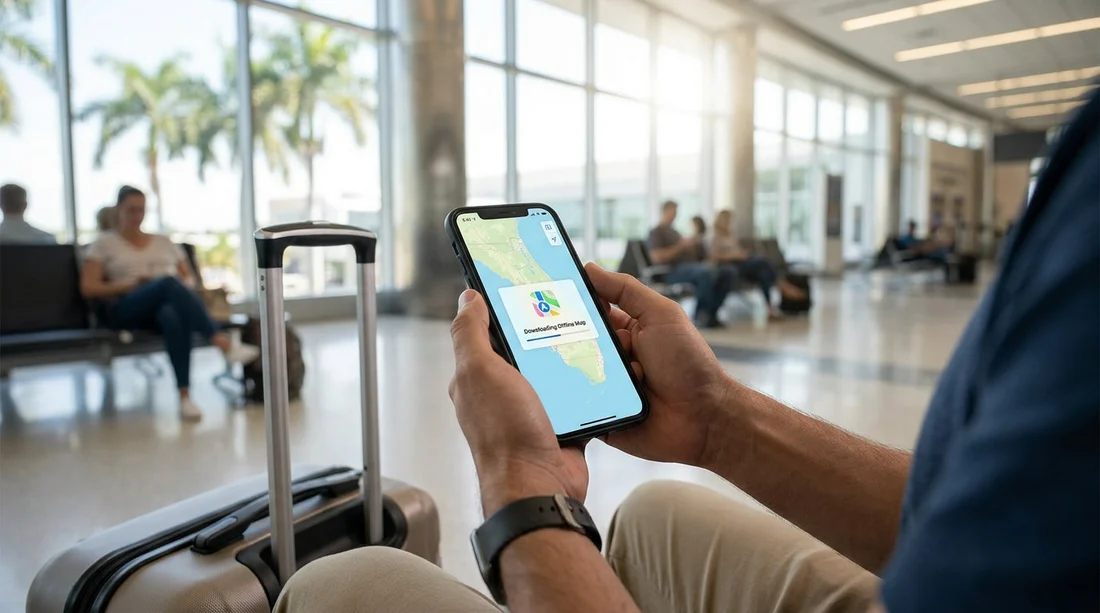
Quick Summary:
- Open Apple Maps, search your pick-up area, then choose Download.
- Resize the map box to include airports, hotels, and key highways.
- Enable Offline Maps updates on Wi‑Fi, and confirm storage space.
- Test a route in Airplane Mode before collecting your rental car.
If you are landing in Florida for a car hire, the last thing you want is to rely on patchy mobile signal, expensive roaming, or congested airport Wi‑Fi just to find your way out of arrivals. Apple Maps on iPhone now supports offline maps, which lets you download specific areas in advance so you can still search and navigate when data is limited.
This guide walks you through downloading offline Apple Maps before you collect your vehicle, plus a few Florida specific tips for airport exits, toll roads, and battery friendly navigation.
What offline Apple Maps can, and cannot, do
Offline maps are designed to keep core navigation working without a data connection. After downloading an area, Apple Maps can usually handle turn by turn driving directions, search for many places, and show the map with roads and landmarks. What may not work fully offline includes live traffic, incidents, road closures, and some business details such as opening hours that change frequently.
For car hire in Florida, the practical takeaway is simple, download the areas you will drive through so you always have a usable route, then treat live traffic as a bonus when signal returns.
Before you start, update iOS and connect to Wi‑Fi
Offline Maps features depend on iOS version, so update your iPhone before travel if you can. Then use a reliable Wi‑Fi connection, hotel, home broadband, or airport lounge Wi‑Fi, because map downloads can be large, especially if you include several counties and coastal areas.
Also check storage. Maps for a city area may be modest, but covering long corridors like Miami to Orlando, plus alternatives, can take more space. If your phone is tight on storage, remove old videos or downloads first so the map does not fail halfway through.
Step by step, download offline Apple Maps for your pick-up area
1) Open Apple Maps and search for your pick-up location area. You can search for the airport, neighbourhood, or city you will collect from. For example, if you are arriving into Miami International, searching the airport name helps you centre the download where you need it.
If you are planning pick-up in Miami, you may find it useful to review the location details on Miami Airport car rental so you know roughly where you will be driving first, such as to your hotel or to the expressway network.
2) Tap the location card, then look for the option to download offline maps. Depending on iOS version, you may see “Download” or “Download Offline Map”. Choose it.
3) Resize the download area. Apple will show a box you can zoom and drag. Make it large enough to include the first hour or two of driving. In Florida, that often means including airport exits and a few major routes such as I‑95, I‑75, Florida’s Turnpike, or SR‑836 in Miami. If you are heading to a beach neighbourhood or a cruise terminal, include that as well.
4) Start the download on Wi‑Fi. Keep Apple Maps open, or leave your phone unlocked for a moment, until the progress bar completes. Once downloaded, the area will be stored and available even when you have no signal.
5) Repeat for every region you will drive through. If your trip includes multiple cities, do separate downloads around each destination, plus the corridor between them if you will be navigating en route.
Recommended offline map areas for common Florida routes
To avoid gaps, download in chunks that match your itinerary. Here are practical coverage suggestions for typical car hire plans.
Miami and nearby, download a box that includes Miami International, Downtown, Brickell, Miami Beach, and the major expressways feeding them. If you will collect nearer the city centre, scan the directions around Downtown Miami car rental and include that grid too, because one way streets can be confusing if your map has not loaded properly.
Fort Lauderdale area, include FLL, the beach strip, and I‑95 plus US‑1. This is especially helpful if you arrive late and simply want a reliable route to your accommodation. If your plans involve Fort Lauderdale pick-up, Fort Lauderdale airport car hire pages can help you estimate where you will drive out of the terminal area.
Orlando and theme parks, download Orlando International, International Drive, Lake Buena Vista, and the key toll roads. Orlando has several toll routes, and offline maps help you stay on the correct ramps even if data drops. For MCO pick-up planning, see Orlando airport car rental to orient your first drive.
Long drives, if you are driving Miami to Orlando or beyond, download an extra large corridor around the Turnpike or I‑95 plus the alternative. You do not need to cover the entire state at maximum zoom, just make sure there is continuous coverage along your chosen route and a sensible detour option.
Turn on Offline Maps settings that reduce surprises
Once you have downloaded at least one map area, review your Offline Maps settings so they stay current.
Open Settings, then Maps, then Offline Maps. Look for options such as automatic updates and downloads over Wi‑Fi only. Automatic updates are useful because roads and points of interest change, but you generally want updates limited to Wi‑Fi so you do not accidentally use roaming data.
Also check whether your iPhone can delete offline maps after a period of inactivity. If you travel often, you might prefer keeping them longer, but if storage is limited, you can allow automatic cleanup and re-download before each trip.
Test your offline navigation before pick-up
A simple test prevents stress at the rental counter. After downloading, switch your iPhone to Airplane Mode, then open Apple Maps and try these checks.
First, search for a destination within your downloaded area, such as your hotel or a nearby petrol station. If results appear and the map renders, your download is working. Second, start a route and preview a few steps to ensure turn by turn directions load. Third, zoom in and out to confirm the map tiles are stored and not blank.
If something does not work, expand the download area slightly and re-download on Wi‑Fi. It is better to fix it before you are driving out of the airport complex.
Florida driving tips that make offline maps more effective
Include toll alternatives. Florida has many toll roads, particularly around Miami and Orlando. Even if you plan to use tolls, download areas that include toll free alternatives, because you might decide to avoid tolls depending on your rental agreement or local conditions.
Download airport exits. Airports can have complex one way loops and split ramps. Make sure your offline box includes the full airport road network, plus at least 10 to 15 minutes of driving beyond it. This helps if your phone loses signal inside concrete garages or on crowded approach roads.
Use a car charger and low power habits. Offline maps reduce data use, but GPS still uses battery. Bring a proper in-car charger and consider lowering screen brightness. If you use a dashboard mount, keep the phone cool, Florida sun through the windscreen can overheat devices, causing dimming or temporary shutdown.
Set your region units and voice guidance. Make sure your iPhone is set to miles, and pick a voice guidance volume you can hear over motorway noise. Do this before you start driving, not while merging onto I‑95.
FAQ
Q: How far in advance should I download offline Apple Maps for Florida car hire?
A:Download them the day before pick-up, or while on reliable Wi‑Fi. That gives time to expand areas and re-download if anything is missing.
Q: Will offline Apple Maps work if I do not buy a US SIM or eSIM?
A:Yes. Offline maps store the map data on your iPhone, so navigation can still work without mobile data, as long as GPS is available.
Q: Do offline maps include live traffic and speed camera alerts?
A:Live traffic typically requires a data connection. Offline maps focus on road layout and routing, so expect fewer real time updates until signal returns.
Q: How big should the offline map area be for leaving an airport?
A:Include the whole airport road system plus the first 10 to 20 miles of your route. Add nearby alternative roads in case of missed exits.
Q: What is the quickest way to confirm my download worked?
A:Switch to Airplane Mode, open Apple Maps, search for a nearby place, and start a route. If the map loads and directions appear, you are set.






























































































