


Quick Summary:
- Update Android Auto, Google Maps, and Play Services before you travel.
- Pack a data-capable USB cable, plus a reliable 12V charger.
- Download offline maps for Las Vegas and key routes while on Wi-Fi.
- Pre-approve permissions and data-saving settings to avoid delays at pick-up.
Setting up Android Auto with offline maps before your rental car pick-up in Las Vegas saves time at the kerb, reduces mobile data use, and helps you navigate even if reception drops in parking garages or on desert stretches. The goal is simple, do the fiddly steps on stable Wi-Fi and with plenty of battery, so you can plug in and drive when you collect the keys.
For context on pick-up points and local options, see car hire at Las Vegas airport and car hire in Las Vegas. This article focuses on the practical Android Auto and offline maps checklist you can complete before you arrive.
Before you fly, confirm your phone and apps are ready
1) Check compatibility and update everything. On most Android phones, Android Auto is built in, but you still need current versions of Google Maps and Google Play services. Open the Play Store, update Android Auto (if it appears), Google Maps, Google app, and any music or podcast apps you intend to use. Updates can change permissions and background settings, so do them before travel, not at the rental counter.
2) Clear out storage space for offline maps. Offline maps can be large, especially if you include wider areas outside Las Vegas. In Google Maps, you can see how much space offline maps use and remove old regions. Aim to keep at least 2–3 GB free so downloads and updates do not fail.
3) Turn on location accuracy. Offline navigation still relies on GPS. In Android settings, enable Location, then ensure Wi-Fi and Bluetooth scanning are allowed (these can improve accuracy in built-up areas). If you prefer privacy settings, you can enable them temporarily for the trip and switch back later.
Your cable and power checklist for Android Auto
Most Android Auto setups in rental cars work best over USB. Wireless Android Auto exists, but it is not guaranteed in every vehicle, and it can drain battery faster. A cable that charges is not always a cable that carries data, so packing the right one matters.
Choose a short, quality data cable. Ideally bring a 0.5 to 1 metre cable with a snug connector. If your phone uses USB-C, take USB-C to USB-A and USB-C to USB-C if you have both. Some cars have USB-A only, others include USB-C. Avoid frayed cables, loose connectors, and very long cables that can drop connection.
Bring reliable power. Navigation, screen use, and background GPS can drain the phone even while plugged in. Pack a 12V charger that supports fast charging and has a spare port for a passenger. A small power bank is also useful for airport collection and hotel check-in time.
Pre-approve permissions so Android Auto starts instantly
Many delays come from pop-ups that appear only when Android Auto first connects to a new car. Accepting them while stationary is fine, but it is better to handle them in advance.
Enable key permissions. On your phone, go to Settings, Apps, Android Auto, Permissions. Allow Location and Phone. For Messages and Notifications, allow them if you want hands-free reading and replies. If you prefer fewer distractions, you can leave message access off and still navigate.
Allow Android Auto to run in the background. Battery optimisation can kill the connection. In Settings, Battery, Battery optimisation (or App battery management), set Android Auto and Google Maps to “Not optimised” or “Unrestricted”, depending on your device. Also allow Background data for both apps if your phone has that toggle.
Download offline maps for Las Vegas and beyond
Google Maps offline downloads are the simplest approach because they integrate with Android Auto navigation. The key is to download the right areas and keep them current.
Download the core Las Vegas region. In Google Maps, tap your profile icon, then Offline maps, Select your own map. Zoom to cover the Strip, Downtown, Harry Reid International Airport, and your likely hotel area. Expand coverage to include major junctions you will use.
Add the routes you may actually drive. Consider adding Henderson, Summerlin, and the key freeway corridors. If you are doing day trips, expand to include the path towards Hoover Dam and Boulder City, and the start of routes towards Red Rock Canyon. Offline maps help most with road geometry and basic routing, but live traffic will not be available offline, so allow extra time.
Verify offline navigation works. Switch your phone to Aeroplane mode, then turn GPS back on. Open Google Maps and try searching for a known place in Las Vegas. Start a route and confirm it begins without asking for data. If it fails, your map area may be too small or not fully downloaded.
At pick-up in Las Vegas, connect quickly and safely
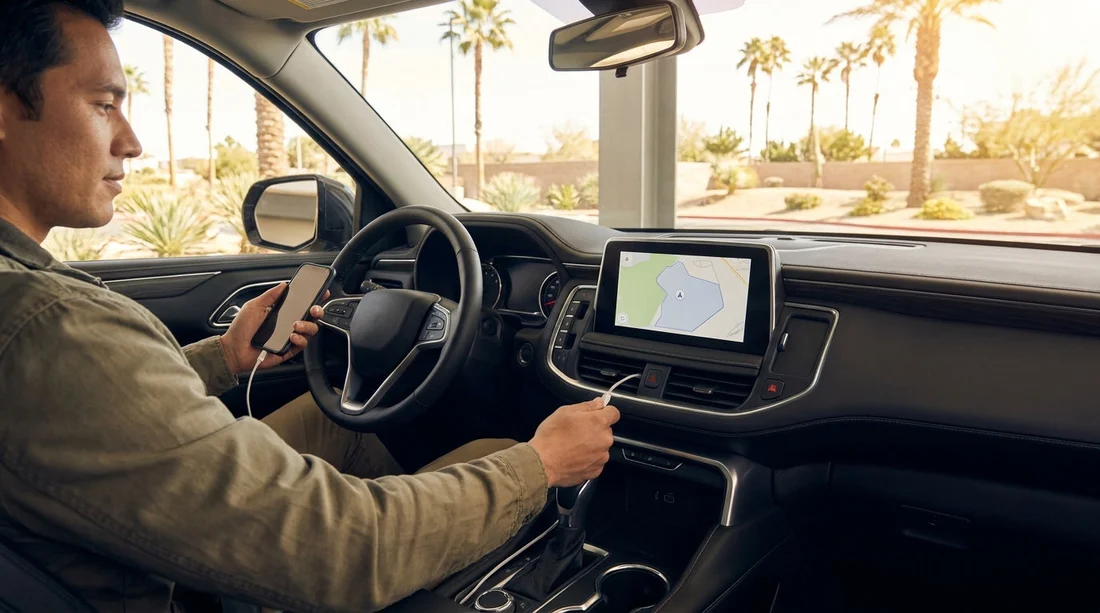
When you collect your vehicle, do the first connection while parked. Start the car, locate the main USB port (some vehicles have multiple ports but only one supports Android Auto), then connect the phone.
Accept the prompts once. You may see prompts on both the phone and the infotainment screen about data access, contacts, and Android Auto permissions. Approve what you are comfortable with. If the car asks to enable Android Auto, do so. If it offers Bluetooth pairing, accept that as well, many systems use Bluetooth for calls even when navigation runs over USB.
If Android Auto does not appear. Try a different USB port, swap cables, and unlock your phone. Some devices require the phone to be unlocked the first time. Also check that USB preference is not set to “Charge only” in the USB connection notification shade.
Planning the broader driving logistics in Nevada can also help you decide which areas to download. If your trip includes people-carrier needs, see minivan rental in Las Vegas. For state-wide context and pickup variations, Nevada car rental information can be useful when mapping day trips and return locations.
Final pre-pick-up checklist you can tick off in 10 minutes
On Wi-Fi: update apps, download offline map areas, download music and podcasts, and confirm offline routing works in Aeroplane mode with GPS on.
On the phone: allow Location permission, allow Android Auto and Maps to run in background, and disable battery optimisation for them.
In your bag: pack two data-capable cables (different ends if possible), a 12V fast charger, and a power bank.
On collection: connect while parked, accept prompts once, set your destination, then stow the phone and drive.
FAQ
Can Android Auto use Google Maps offline in Las Vegas? Yes. If you download the Las Vegas area in Google Maps offline maps, you can navigate using GPS without mobile data. You will miss live traffic and some reroutes may be limited.
What is the most common reason Android Auto will not connect in a rental car? A charge-only USB cable or the wrong USB port is the usual cause. Use a known data cable, try the port marked for smartphone projection, and unlock the phone on first connection.
Do I need mobile data at all if I have offline maps? Not for basic navigation, but data helps with live traffic, searching newly opened places, and updates. If you want to save data, keep offline maps current and download your media over Wi-Fi.
How large should my offline map download area be for a Las Vegas trip? Cover the airport, the Strip, Downtown, and the freeways you will use, then expand for day trips such as Hoover Dam routes. It is better to download a slightly larger area than to miss a key junction.
Should I use wired or wireless Android Auto for car hire? Wired is more reliable across different vehicles and usually charges your phone at the same time. Wireless can be convenient but may not be supported, and it can drain battery faster.






























































































