


Quick Summary:
- Bring a certified Lightning cable, avoid charge-only leads and adapters.
- Try every front USB port, and note which one supports data.
- Unlock iPhone, accept CarPlay prompts, and keep Bluetooth and Wi-Fi on.
- Test Maps, music, and calls, then reboot phone and screen if needed.
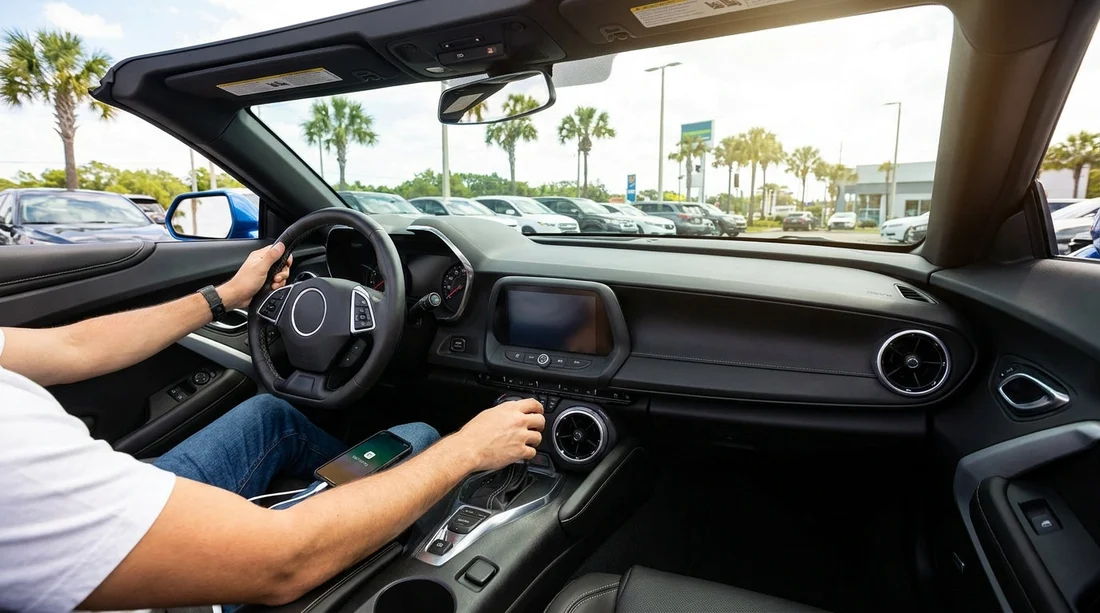
Setting up wired Apple CarPlay in a rental car is easiest when you do it before leaving the car park in Orlando. You will save time, avoid distractions on busy roads, and spot simple issues like the wrong USB port or a cable that only charges. The goal is to confirm that your iPhone connects reliably, audio routes correctly, and navigation appears on the centre screen.
This counter-side checklist is written for typical Orlando car hire scenarios, including airport pick-up, hotel pick-up, and theme-park area branches. Vehicles vary by make and trim, but the same principles apply: correct cable, correct port, the right permissions, then a quick functional test.
If you are collecting at MCO, these Orlando pages can help you check the pick-up context for different vehicle types and suppliers: Orlando MCO car rental info, Orlando car hire at MCO, van rental options at MCO, and airport to Disney area rentals.
1) Start with the right cable, because most “CarPlay issues” are cable issues
For wired Apple CarPlay, you need a data-capable cable. Many spare leads in luggage are charge-only, or the plug ends are worn. In a rental, you cannot assume the in-car USB port is strong enough to compensate for a poor cable.
What to use: a certified Lightning to USB-A cable, or Lightning to USB-C, depending on the vehicle. If your iPhone uses USB-C, use a USB-C to USB-C or USB-C to USB-A data cable. Keep the cable length sensible so it does not pull when you shift or turn.
What to avoid: cheap adapters, loose extension cables, and hubs. If the car has both USB-A and USB-C, try a direct connection rather than an adapter chain.
Quick counter-side check: plug in and gently wiggle each connector. If the connection cuts in and out, swap the cable immediately.
2) Find the correct USB port, not just any USB port
Many cars include multiple USB ports, but only one supports CarPlay data. The rest may be charge-only, intended for rear passengers, or designed for media playback without CarPlay.
Where to look: centre console bin, below the climate controls, inside a small cubby near the gear selector, or under the infotainment screen. Some vehicles label the right port with a CarPlay icon, a phone icon, or “USB”. If there are two adjacent ports, try each one with the same cable before changing any settings.
What to do at the counter-side: once you find the working port, note its location and keep it clear. If you have a passenger, ask them to keep the cable from snagging when opening the console lid.
3) Prepare your iPhone first, then connect with the car powered properly
Before you connect, unlock your iPhone and keep it awake. If Face ID or Touch ID is waiting, the car may not complete the initial handshake.
On iPhone: ensure Bluetooth and Wi-Fi are switched on. Even for wired CarPlay, some vehicles use Bluetooth for initial pairing and Wi-Fi for certain functions. Also check that CarPlay is allowed: Settings, General, CarPlay. If the vehicle appears, tap it and allow CarPlay while the phone is unlocked.
In the car: start the engine or switch ignition fully on. Accessory mode can be inconsistent in some models, and the infotainment may reboot when the engine starts, interrupting the first connection.
Permissions to accept: when prompted, tap “Allow” for CarPlay. If asked whether to allow CarPlay while the phone is locked, choose allow, so it reconnects each time you start the car.
4) Check the car’s infotainment settings if CarPlay does not pop up automatically
Some systems require you to enable smartphone projection, select a source, or approve a device on the screen.
Look for menu items like: Phone, Projection, Apps, Smartphone, Connections, or Apple CarPlay. If the car shows a list of devices, select your iPhone and confirm “Use CarPlay”. If the car asks to enable Siri, you should enable it, because voice control is a core CarPlay feature and it can affect setup.
Tip: if the system offers both Android Auto and CarPlay, ensure it has not defaulted to Android Auto, especially in vehicles previously used by other renters.
5) Run a 60-second functional test before you leave the pick-up area
Once CarPlay appears, do a quick test while stationary. This is the best way to catch issues like silent audio, delayed directions, or calls routing to the handset speaker instead of the car.
Test in this order: open Apple Maps or Google Maps in CarPlay, start a short route, then play audio from your preferred app. Next, place a short call to voicemail or a known contact and confirm microphone clarity. Finally, try Siri by pressing and holding the voice button on the steering wheel or the CarPlay icon, then ask for directions.
Audio routing check: on the iPhone, confirm the output is set to the car, not the phone speaker. On the car, confirm media volume is up, because the phone call volume and media volume can be separate.
6) Fix common problems fast using this counter-side troubleshooting flow
If CarPlay does not start, do not keep re-plugging randomly. Use a short flow so you can isolate the cause quickly.
Step 1, swap the USB port: try the second front USB port, if present. Wait up to 10 seconds after plugging in, as some systems are slow to detect devices.
Step 2, swap the cable: even if the phone is charging, the data lines may be faulty. A fresh cable often resolves a “charging but no CarPlay” situation.
Step 3, reboot the infotainment: many cars restart by holding the power or volume knob for around 10 seconds until the screen goes dark. This varies by make, so if you cannot find the option, turn the car off, open and close the driver door, then restart.
Step 4, reboot the iPhone: a quick restart clears stuck CarPlay sessions. After rebooting, unlock the phone before plugging in again.
Step 5, forget and re-add: on iPhone, Settings, General, CarPlay, select the car, then Forget This Car, and reconnect. In the car menu, delete the phone from the device list if it is stored there.
FAQ
Why does my iPhone charge but CarPlay will not start? Charging does not prove the cable or port supports data. Try a different front USB port and a certified data cable, then accept any on-screen CarPlay permission prompts.
Do I need Bluetooth on for wired Apple CarPlay? Often yes. Many vehicles use Bluetooth for initial pairing and some call functions, even when the main CarPlay connection is via USB.
Which USB port in a rental car usually supports CarPlay? Typically a front USB port near the infotainment area or centre console. Rear-seat USB ports are frequently charge-only and will not launch CarPlay.
How do I reset CarPlay quickly if it stops working mid-trip? Safely park, unplug the cable, restart the iPhone, then reconnect. If needed, reboot the infotainment by holding the power or volume knob until it restarts.
Can I set up CarPlay while the car is still in the pick-up bay? Yes, and it is recommended. You can confirm permissions, audio routing, and navigation before joining Orlando traffic, which reduces distractions later.




























































































