


Quick Summary:
- Check listings for Apple CarPlay, then save screenshots of feature details.
- Request written confirmation that CarPlay is included in your vehicle class.
- Confirm whether CarPlay is wired or wireless, and bring the right cable.
- At pickup, test CarPlay in the car park before driving away.
Apple CarPlay can make driving in Miami far easier, especially if you rely on maps, calls, messages, and music without handling your phone. The problem is that CarPlay is not always guaranteed just because a car looks modern. Different trims, model years, and even screen options can vary within the same rental class, so you need a repeatable way to check before you commit to car hire, and then verify again when you collect the keys.
This guide walks through practical steps you can take at three points, while browsing, after you’ve chosen a deal, and at the counter. The aim is to reduce uncertainty and make sure you drive away with the connectivity you expect.
1) Start by understanding what rental listings can, and can’t, guarantee
Most car hire websites sell vehicle classes, not a specific car. A “Compact” or “Intermediate SUV” might include several makes and models, and only some of them may have Apple CarPlay, or they may have it only via a USB cable. Even if the listing shows an infotainment screen in a photo, the photo may be generic.
When you are comparing options for Miami, treat any mention of “Apple CarPlay” as a feature that needs confirmation, not a promise. The more the listing ties the feature to the actual car you will receive, the safer it is, but you still should confirm directly.
If you’re reviewing providers and locations, it can help to compare inventory and pickup points across the city, for example on car rental Florida and car rental Brickell. Different branches can carry different model years, which affects CarPlay availability.
2) Use smart checks while browsing to identify likely CarPlay-equipped options
Before you contact anyone, squeeze as much certainty as possible from the listing details. Look for an “Infotainment” or “Connectivity” section and scan for exact wording like “Apple CarPlay” rather than vague phrases such as “Bluetooth” or “smartphone integration.” If the listing includes icons, check whether there is an Apple CarPlay logo, not just a generic phone symbol.
Next, look for the typical model year range. In many common rental models, CarPlay became more consistent from roughly 2017 onward, but it still varies by trim level. If the listing allows you to choose “guaranteed model” or shows a specific make and model rather than “or similar,” those are good signs, but you still need confirmation.
As you compare Miami pickup areas, consider whether you are collecting near your accommodation or near the airport corridor, since you may want extra time at pickup to test the system. Options like car hire airport Brickell can be convenient if you want a predictable pickup flow and enough space to check the car before heading onto busy roads.
3) Ask for written confirmation, and use precise wording
The single most effective step before booking car hire is to ask the supplier to confirm Apple CarPlay in writing for the class you plan to reserve. Phone calls can be helpful, but written confirmation via email or in-app message is easier to reference later if there is confusion at pickup.
When you ask, avoid “Does the car have CarPlay?” because the response may be a general statement. Instead, ask two specific questions.
First: “Can you confirm the vehicle class includes Apple CarPlay as a guaranteed feature, not subject to model variation?” If they say it is not guaranteed, you have learned something important, and you can decide whether to switch class, switch location, or accept the risk.
Second: “Is Apple CarPlay wired, wireless, or either depending on vehicle?” Wireless CarPlay is convenient, but wired CarPlay is more common in many fleets. Knowing this in advance helps you prepare with the right cable and avoids surprise at the counter.
If you are choosing between branches, it can be useful to check locations known for larger inventories, such as Hertz car rental Doral. More inventory can mean more variation, so the written confirmation becomes even more valuable.
4) Verify what you will need, cable type, iOS version, and restrictions
Even if the car has Apple CarPlay, you still need the connection to work quickly. Most issues at pickup come down to cables, settings, or restrictions on the infotainment system.
Bring a high quality cable that matches your iPhone. Many newer iPhones use USB-C, but plenty of rental cars still have USB-A ports. A USB-C to USB-A cable or an adapter can save time. If you prefer wireless CarPlay, still bring a cable in case wireless pairing fails or is not available on your assigned vehicle.
Check your iPhone ahead of time, ensure iOS is up to date, Bluetooth and Wi-Fi are enabled, and any corporate management profiles are not blocking CarPlay. If you use Screen Time restrictions, make sure CarPlay is allowed. These checks are quick at your hotel, but frustrating in a queue at a counter.
5) What to confirm at the counter before you take the keys
When you arrive to collect the car, restate the requirement clearly and early. Mention that Apple CarPlay is a must-have feature for you, and ask the agent to note it on the rental agreement or in the booking notes if possible. The objective is not confrontation, it is clarity.
Ask to see the assigned car details before you head out. If you are given a bay number, confirm the make and model. If the branch offers a choice from several vehicles in the class, you can quickly prioritise those most likely to include CarPlay based on model year and trim cues.
Also confirm whether the car has a USB port that is accessible and working. Some vehicles have USB ports inside the centre console or below the dash, and it helps to know where to look when you start testing.
6) Do a two-minute CarPlay test in the car park
Before leaving the lot, test CarPlay. This is the step that prevents you from discovering a problem after you have merged into Miami traffic.
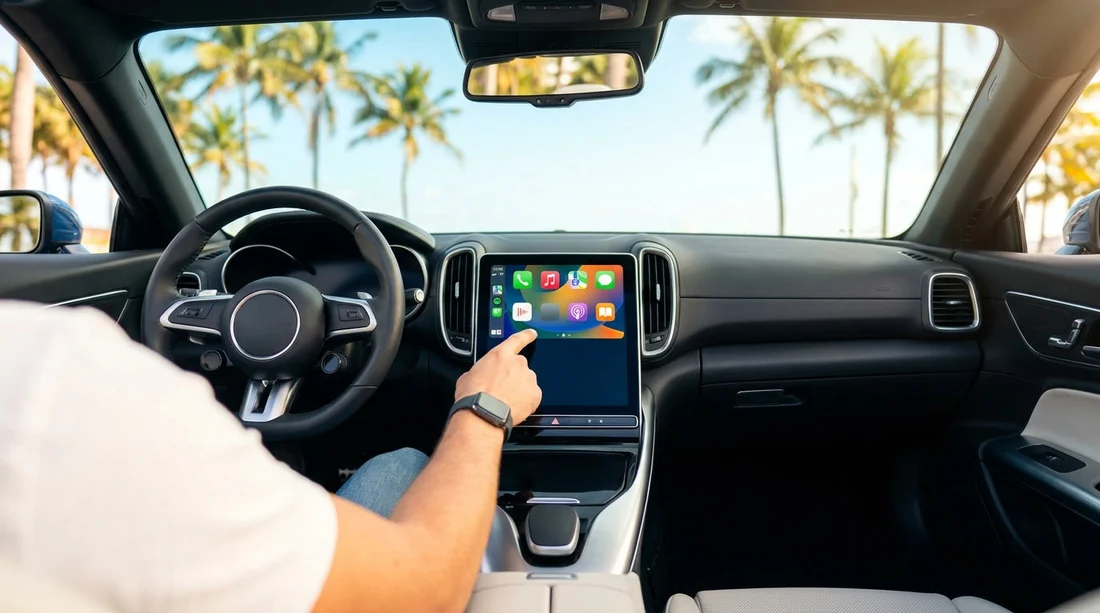
Start the car and wait for the infotainment system to boot fully. For wired CarPlay, plug in your cable and watch for the CarPlay prompt. You may need to approve a pairing request on the screen and on your iPhone. For wireless CarPlay, initiate pairing via the car’s phone menu, then follow the prompts on your iPhone under Bluetooth, and confirm that Wi-Fi also connects automatically.
Confirm the essentials, maps launches, audio plays, steering wheel controls work, and calls route through the car. If the car supports both Bluetooth audio and CarPlay, make sure CarPlay is actually active, not just Bluetooth streaming, because the two experiences are different.
If it fails, try a second cable, restart the iPhone, and delete any existing CarPlay pairing under Settings. If it still fails, return to the counter straight away and request a different vehicle that supports CarPlay. The earlier you do this, the easier it is for staff to help.
FAQ
Is Apple CarPlay guaranteed when a listing says “or similar”? Not usually. “Or similar” means the model can change, and features can vary by trim and year. Always ask for written confirmation that CarPlay is included for the class.
How do I tell if the car has wired or wireless CarPlay? Ask the supplier before arrival, then test at pickup. Wired CarPlay appears when you connect a USB cable, while wireless requires Bluetooth pairing and then uses Wi-Fi.
What cable should I bring for CarPlay on car hire in Miami? Bring a reliable cable that matches your iPhone plus an adapter for USB-A or USB-C. Even if you expect wireless CarPlay, a cable is a useful backup.
Can the counter staff swap my car if CarPlay does not work? Often yes, if another suitable vehicle is available. This is why testing in the car park is important, it gives you time to resolve the issue before you leave.
Does Bluetooth audio mean Apple CarPlay is available? No. Bluetooth lets you stream audio and take calls, but CarPlay adds app-based navigation and a full interface. Confirm “Apple CarPlay” specifically, not just Bluetooth.




























































































