


Quick Summary:
- Confirm CarPlay works, wired or wireless, from the driver’s seat.
- Test every USB port using your own cable, not assumptions.
- Verify charging speed with navigation running, not just the icon.
- Check pairing prompts, audio routing, and clear personal data before leaving.
In Los Angeles, your phone often becomes the real sat nav, music system, and hands-free hub. That is why Apple CarPlay and reliable USB charging are not “nice to have” features, they are practical essentials before you leave the rental car bay. A quick test at the counter can save you from discovering a dead phone on the 405, a confusing infotainment menu at a tricky merge, or a cable that only works at certain angles.
This checklist is designed for car hire pick-ups where you have a few minutes with the vehicle and can ask staff questions. If you are collecting near the airport, it is worth doing the checks before you join the shuttle queue back, or before you head into heavy traffic. For LAX area pick-ups, you can also compare car hire options and inclusions on car hire Los Angeles LAX and confirm what your selected category typically supports.
1) Identify which CarPlay type the vehicle supports
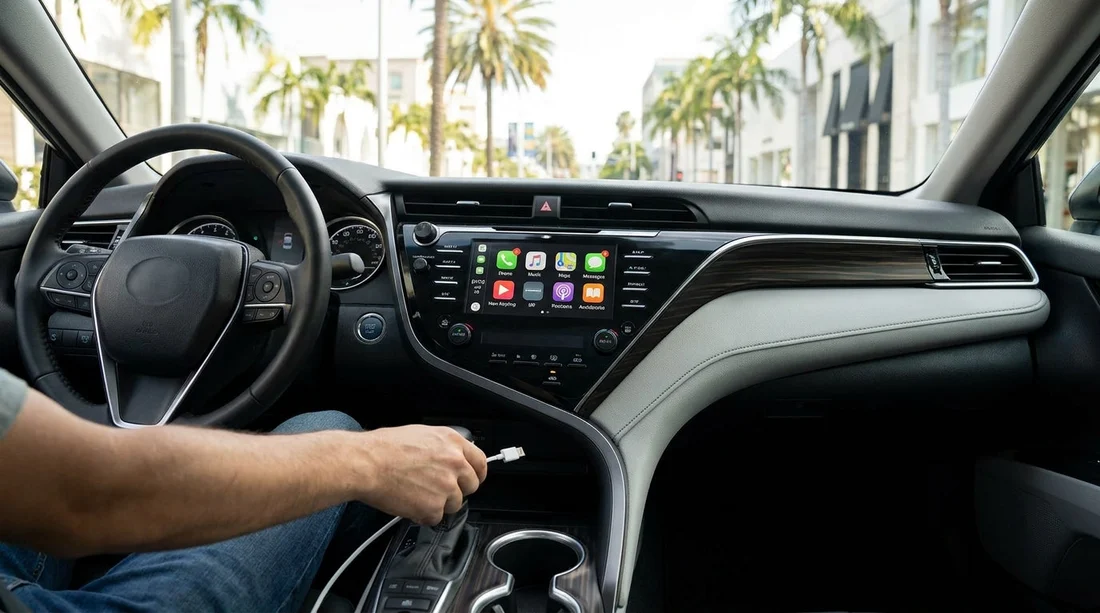
Start by finding out whether the car supports wired CarPlay, wireless CarPlay, or both. Many rentals support wired only, even on newer models, and the port you need may not be obvious. Ask the agent if CarPlay is enabled on that trim level, then verify yourself in the driver’s seat.
Look for a CarPlay or smartphone icon in the infotainment home screen, or check Settings, Connections, Phone, or Projection menus. Some systems require you to accept a prompt on the screen the first time. If the car is from a fleet where settings are frequently reset, expect to step through a few prompts.
2) Locate all USB ports and confirm data versus charge-only
Before plugging anything in, do a quick visual sweep. In many cars, there are multiple ports: one in the centre console, one under the dash, and possibly rear-seat ports. Only some are data-enabled for CarPlay. Others are charge-only, which will not launch CarPlay even though the phone shows it is charging.
Check for labels like “USB”, a smartphone icon, “USB-C”, “USB-A”, or “SS” (sometimes indicating faster data). If there is a single front port that supports data, it is often the one nearest the infotainment screen controls. If you are picking up an SUV class for family travel, expect more rear charging ports, but do not assume they support CarPlay. Hola options like SUV rental Los Angeles LAX can be useful when you want extra passenger charging, but you still need to verify which port actually runs CarPlay.
3) Use your own cable, and test both directions
Bring at least one known-good Apple or certified cable. If you only have USB-C to Lightning and the car only has USB-A, you will need an adapter or a different cable. If the car has USB-C only, older cables may not fit. Plug in firmly, and if CarPlay does not appear, try another port and rotate the connector, as worn ports can be sensitive.
Do not rely on a cable thrown into the glovebox unless you test it. Cables fail more often than ports, and a damaged cable might charge slowly but fail data, which blocks wired CarPlay.
4) Confirm the car can actually charge fast enough for LA driving
Charging “on” is not the same as charging “enough”. With maps, music, and screen brightness up, a phone can barely maintain battery on low-power ports. After you connect, unlock your iPhone and check the battery icon. If possible, view battery percentage for a minute while running Apple Maps or Google Maps. If the percentage still drops, the port output may be too low or your cable may be poor.
As a rough guide, 5W charging can struggle with active navigation, while higher output USB-C ports do much better. If the vehicle supports 12V sockets, a 12V USB adapter you already own can be a good backup. Just ensure it does not interfere with gear selection or handbrake access.
5) Pairing steps at the counter, and common reasons CarPlay fails
For wired CarPlay, the usual path is: start the car, unlock iPhone, connect cable to the data USB port, accept prompts on both iPhone and infotainment. For wireless CarPlay, you often need Bluetooth on, Wi-Fi on, then follow an on-screen pairing prompt. Some cars require you to press and hold a voice or phone button on the steering wheel to start pairing.
First, confirm Siri is enabled on your iPhone, CarPlay typically requires it. Second, remove old pairings in the car’s phone list, fleet vehicles can be full of previous devices. Third, on your iPhone, go to Settings, General, CarPlay, and remove the car if it appears, then reconnect. Finally, check whether the vehicle has a “Valet mode” or restricted profile that blocks phone projection.
If you are collecting from the wider LAX area, pages like car rental California LAX are useful for understanding category expectations, but the final confirmation should always be hands-on in the driver’s seat.
6) Audio routing, microphone, and call quality checks
CarPlay can connect but still be frustrating if audio routing is wrong. Play a short track and confirm it comes through the car speakers, not your phone. Then place a quick test call to voicemail or a contact you can warn in advance. Confirm the microphone works, and that you can hear the caller clearly at typical LA cabin noise levels.
Also check steering wheel controls: volume, track skip, and voice assistant. If a button is not responding, it may be a settings issue, or it may indicate a fault worth swapping vehicles for before you depart.
8) Privacy and reset checks before you drive away, and when you return
Rental cars often retain personal data if you do not clear it. Before leaving, confirm you can remove devices easily, and note the menu path to delete paired phones. If you are signing into any apps on the infotainment system, avoid entering passwords unless you can reliably log out later.
At return time, delete your phone from the car’s Bluetooth and CarPlay lists, clear recent destinations if possible, and ensure your garage door, contacts, and messages are not accessible. This is particularly important if multiple drivers used the vehicle during your trip.
9) A practical two-minute counter-and-bay routine
If you want the fastest possible routine, do it in this order: sit in the driver’s seat, locate the likely data USB port, connect your known-good cable, accept prompts, start navigation, play audio, then test call quality. Next, unplug and quickly check the second front port if there is one, then confirm rear-seat ports if you have passengers who need charging. If anything fails, resolve it on the spot, asking for a different cable, a quick infotainment reset, or a vehicle swap.
When your trip may include driving between airports or counties, it can help to know your pick-up location options. For example, some travellers compare LAX with Orange County pick-ups using car rental airport Santa Ana SNA, especially when trying to reduce congestion or align with flight schedules. Wherever you collect, the CarPlay and charging checks are the same.
10) What to do if the vehicle has no CarPlay
If the car does not support CarPlay, confirm you can still connect via Bluetooth for calls and music, and that the USB ports charge reliably. In that case, plan a safe phone mounting solution and download offline maps or ensure your data plan is suitable for heavy navigation use. The key is to identify this limitation before you leave, not after you have merged onto a busy freeway.
FAQ
How can I tell if a USB port supports Apple CarPlay or only charging? Plug your iPhone into each front USB port with a known-good data cable. If CarPlay launches or a “projection” prompt appears, it is data-enabled, otherwise it may be charge-only.
Why does my iPhone charge but CarPlay will not start? The most common causes are using a charge-only port, a faulty cable, Siri disabled, or too many saved devices in the car’s pairing list. Try another port, another cable, then remove old pairings.
Is wireless CarPlay guaranteed in newer rental cars? No. Many vehicles have wireless capability only on certain trims, or it may be disabled. Test pairing at the counter and confirm it reconnects after turning the ignition off and on.
What charging setup is best for long drives around Los Angeles? A data-capable USB port for CarPlay plus a higher-output USB-C port or 12V adapter for faster charging. Test with navigation running to ensure the battery percentage rises, not falls.
Should I delete my phone from the rental car before returning it? Yes. Remove Bluetooth and CarPlay connections, clear recent destinations if possible, and log out of any infotainment apps to protect your privacy.




























































































