


Quick Summary:
- Enable Bluetooth and Wi-Fi, then select CarPlay on the car screen.
- Match the pairing code, then allow CarPlay and required permissions.
- Set your preferred map, enable Location Services, and test a route.
- At pick-up, confirm CarPlay support, USB data ports, and signal.
When you collect a car hire in Florida, you usually want navigation working before you leave the lot. Wireless Apple CarPlay can make that easy, but rental fleets vary by model year, trim level, and how the infotainment has been reset. The good news is that most issues are predictable and fixable in a couple of minutes if you know what to check.
This guide covers a quick, repeatable set-up routine you can do while parked at pick-up, plus the most common pairing failures and how to solve them without losing time.
Before you start, do a 30-second readiness check
Wireless CarPlay needs three things: the car’s system must support it, your iPhone must have Bluetooth and Wi-Fi on, and the car must not be locked to a previous phone. Do this before you try to pair.
1) Confirm the car supports wireless CarPlay. On the infotainment screen, look for Apple CarPlay under Phone, Projection, Connectivity, or Apps. If you only see CarPlay when a USB cable is plugged in, the car may be wired-only. That is still usable, but you will want a cable ready.
2) Check your iPhone basics. Use iOS settings to confirm Bluetooth and Wi-Fi are enabled, and Airplane Mode is off. If you use a VPN or a work device management profile, be aware it can sometimes block CarPlay prompts.
3) Start with a clean slate. If you have paired with many cars before, it helps to remove old connections. On iPhone, go to Settings, Bluetooth, tap the car name if present, then Forget This Device. Also check Settings, General, CarPlay, and remove any profile for that car if it already exists.
If you are collecting near Orlando International, it can help to do these checks while you are still on the rental facility Wi-Fi or before the queue, especially when arranging car hire at Orlando Airport (MCO).
Quick in-car steps to set up wireless CarPlay
The exact menu labels vary, but the flow is consistent across most brands.
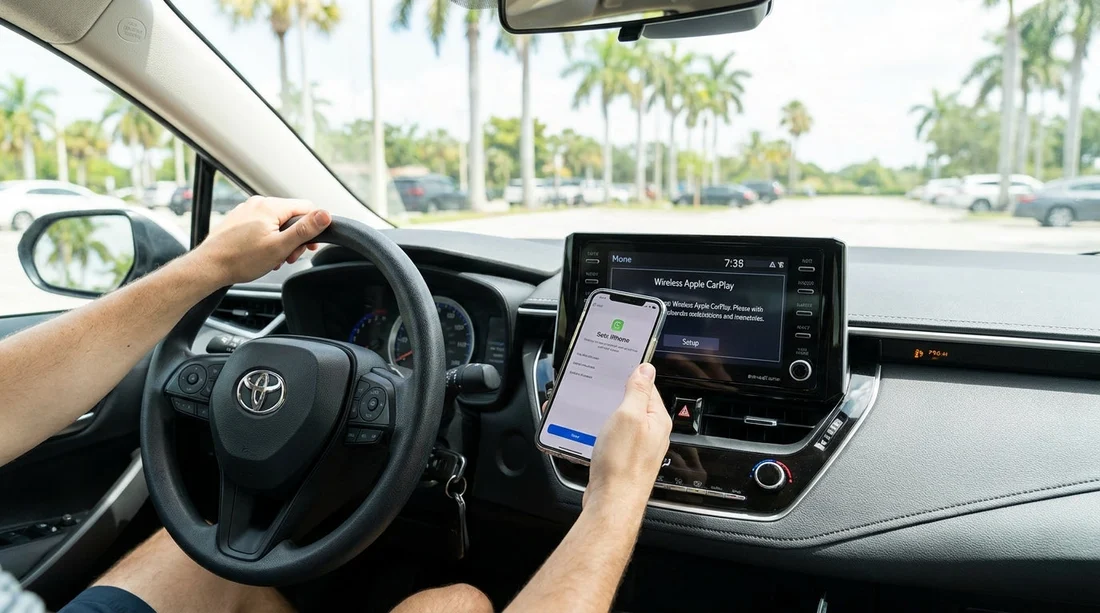
Step 1: Put the car into pairing mode. On the car screen, open Phone or Connectivity, then choose Add Phone or Pair Device. If you see a Projection menu, select Apple CarPlay and then choose Connect New Device.
Step 2: Pair Bluetooth first. On your iPhone, open Settings, Bluetooth, and select the car’s name. Confirm the pairing code matches on both screens, then accept. This is where wireless CarPlay normally hands off to Wi-Fi.
Step 3: Approve the CarPlay prompts. Your iPhone will ask if you want to use CarPlay with this car and whether to allow contacts and notifications. Tap Allow for CarPlay. Contacts and notifications are optional, but if you block them you may miss navigation alerts or call display details.
Step 4: Let the Wi-Fi connection complete. Many cars create a private Wi-Fi link to your phone. Keep your iPhone unlocked for a moment, and do not switch apps during the initial connection. If a message appears asking to join a network for CarPlay, accept it.
Step 5: Confirm CarPlay launches. Look for the CarPlay icon on the car screen, or press Home and select Apple CarPlay. You should see the familiar grid of apps.
Step 6: Test navigation before you move. Open Apple Maps or Google Maps, set a destination, and confirm the voice guidance volume. It is worth running a short test route while stationary to ensure GPS positioning is correct.
If you are heading to the Miami area, you may want to test your first route while you still have time to adjust settings, particularly when arranging car rental in Florida via MIA and planning the initial merge onto busy roads.
What to check at pick-up so navigation works immediately
Confirm the phone is not already connected. If the car shows another device as primary, ask the agent or attendant to clear saved devices. In some cars you can do it yourself under Settings, Connections, Paired Devices, then Delete All. This prevents auto-connection conflicts.
Make sure audio and prompts are routed correctly. In CarPlay maps, start guidance and turn up the car volume while the voice prompt is speaking. Some vehicles have separate volumes for media and navigation, and you can only change navigation volume while a prompt plays.
Identify the right USB port, even for wireless. Some cars require the phone to be plugged in once to authorise CarPlay, then work wirelessly afterward. Also, a USB port marked with a phone icon is more likely to support data, while charge-only ports will not.
Check mobile data signal, not just CarPlay. CarPlay mirrors apps from your phone, it does not create internet access. In parts of Florida, signal can fluctuate. Download offline areas in your chosen map app if you are heading to places with weaker coverage.
Disable Focus modes that silence prompts. Driving Focus can be helpful, but if it is set to silence navigation or block banners, you may think guidance is not working.
Common wireless CarPlay pairing issues and quick fixes
Problem: CarPlay option does not appear. First, confirm the car supports CarPlay at all. Some trims only have it with a package, and some rentals may have it disabled in settings. Look for a menu item such as Projection Manager, Smartphone Integration, or an Apple CarPlay toggle. If it is missing entirely, use Bluetooth audio plus a phone mount, or plug in for wired CarPlay if available.
Problem: Bluetooth pairs, but CarPlay never starts. Toggle Wi-Fi off and back on, then try again. If the car shows a CarPlay device list, remove your phone from that list, then re-add. On iPhone, go to Settings, General, CarPlay, remove the car, and reconnect.
Problem: CarPlay connects, then drops after 30 to 60 seconds. This is often a Wi-Fi handshake issue. Restart the infotainment system if there is a power or volume knob press-and-hold reset. Also restart your iPhone. If it keeps dropping, switch to wired CarPlay for reliability on day one, then revisit wireless later.
Problem: There is a CarPlay is restricted message. Screen Time restrictions can block CarPlay. On your iPhone, check Settings, Screen Time, Content and Privacy Restrictions. If the phone is managed by an employer, device policies may prevent CarPlay altogether.
Problem: The car connects to the wrong phone. Rental vehicles sometimes remember the last driver. Delete other devices from the car’s paired list, or set your phone as Priority, Favourite, or Primary if the menu allows. This is common in larger family vehicles, such as when selecting minivan hire in Orlando (MCO) where multiple travellers have phones present.
Problem: No voice guidance or callers cannot hear you. For navigation, adjust volume during a spoken prompt. For calls, confirm the correct microphone source and that the call audio is routed to CarPlay, not handset or speaker. Also check that Siri is enabled, because many systems use Siri for voice controls.
Best practice routine before you leave the rental facility
1) Pair once, then lock it in. After CarPlay appears, set your preferred map app, log in if needed, and accept any permissions. Do not wait until you are on the highway.
2) Save your first destination. Add your hotel or first stop as a favourite. That way, if signal drops, you can quickly re-route with less typing.
If you are collecting around Tampa and heading straight onto fast roads, this pre-departure routine is especially useful when organising Payless car rental at Tampa (TPA) and you want guidance working from the first turn.
FAQ
Does every car hire in Florida include wireless Apple CarPlay? No. Many rentals have CarPlay, but some are wired-only, and some trims do not include it. Check the infotainment menu at pick-up and be ready to use a cable if needed.
Why does my iPhone connect with Bluetooth but not show CarPlay? Wireless CarPlay also relies on Wi-Fi. Toggle Wi-Fi on your iPhone, remove the car from Settings, General, CarPlay, then pair again from the car’s Add Phone screen.
Can I set up CarPlay before leaving the airport rental garage? Yes, and you should. Pairing, permissions, and volume checks take a few minutes and prevent wrong turns when exiting busy airport roads.
Will wireless CarPlay use my mobile data? CarPlay itself is a display link, but your map and music apps use your phone’s data connection. If you are concerned about coverage, download offline maps before your drive.
What is the fastest fix if wireless CarPlay keeps dropping? Switch to wired CarPlay using a data-capable USB cable. After you are settled, you can delete old devices and try wireless again when you have time.




























































































