


Quick Summary:
- Confirm the car supports wireless Android Auto in the infotainment menu.
- Enable Bluetooth and Wi‑Fi, then pair using the car’s phone setup.
- Grant Android Auto, Location, and notification permissions before moving off.
- Test Maps voice guidance and calls while still parked at pick-up.
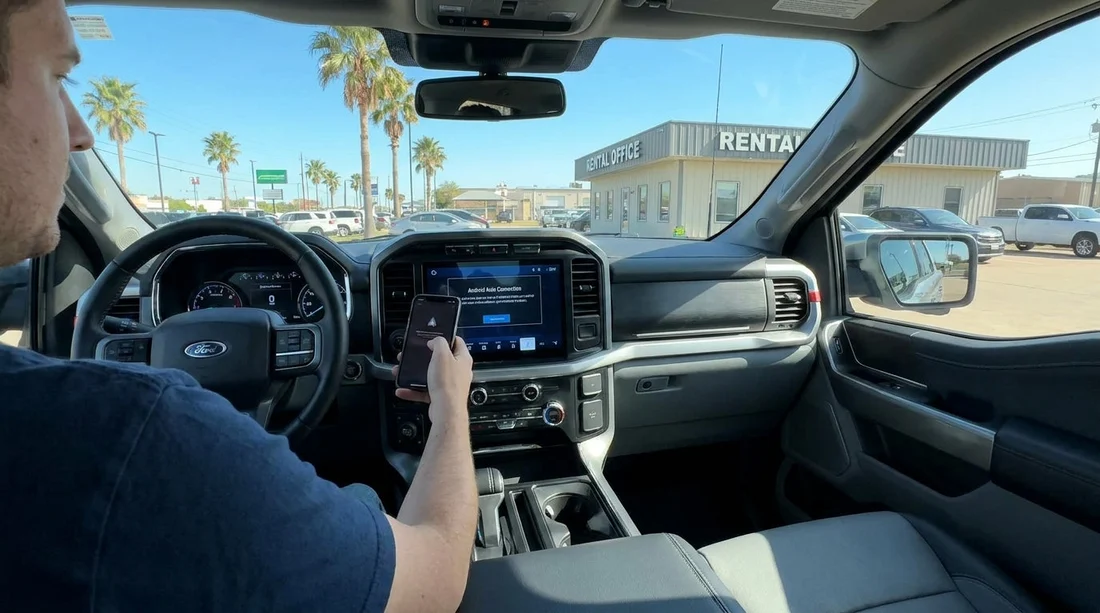
Getting wireless Android Auto working before you leave the car hire car park in Texas saves time, avoids missed turns, and means you can keep your focus on driving. The key is to treat pick-up like a quick tech check, just like checking fuel level and existing damage.
If you are collecting at a major airport location, allow an extra five minutes for setup while you still have a good signal and can ask staff for help. For travellers arriving at Dallas DFW or collecting in the city, the steps below help you drive off with navigation and hands-free calling already working.
1) Check the car supports wireless Android Auto
Start in the vehicle, ignition on, infotainment screen fully booted. Look for an “Android Auto” icon, or navigate to a Connections, Phone, or Projection menu. Some cars support Android Auto only via USB, even though they have Bluetooth for calls.
If you do not see Android Auto anywhere, confirm you are not in a restricted “Guest” mode. Some vehicles need you to accept a safety notice, choose a language, or confirm privacy settings before phone features appear. If you are comparing options across Texas, Hola Car Rentals pages for locations like Houston IAH can include vehicle class details that hint at newer infotainment systems, but always verify on the screen at pick-up.
2) Confirm your Android phone is ready for wireless use
Wireless Android Auto needs a compatible Android phone, a recent Android Auto version, and working Bluetooth and Wi‑Fi. Before you pull out of the bay, do a quick readiness check.
Update basics: Turn on mobile data, make sure Google Play Services is up to date, and update Android Auto (or ensure it is enabled in system apps on newer Android versions). A pending OS update can sometimes block pairing prompts or permission pop-ups.
Enable radios: Switch on Bluetooth and Wi‑Fi. Wireless Android Auto uses Bluetooth for initial handshake and calls, plus Wi‑Fi Direct (or a similar Wi‑Fi link) for the main data connection.
Disable blockers temporarily: If you use a VPN, battery saver, or aggressive power management, consider disabling them until you confirm the connection is stable. Some phones also need Location services on to discover the car’s Wi‑Fi link.
3) Clean up old pairings to avoid the most common failure
The most common reason wireless Android Auto fails in a rental is old device history on either the phone or the car. Rental vehicles may have several previous phones saved, and your phone may still remember other cars.
On the infotainment unit, open Bluetooth or Paired Devices and delete old phones if possible. On your phone, remove the car from Bluetooth settings if it appears, and clear Android Auto saved cars under Android Auto settings.
This two-way reset prevents the car from trying to connect to a previous profile while your phone waits for a new pairing code.
4) Pair Bluetooth first, then follow the on-screen Android Auto prompts
With Bluetooth and Wi‑Fi enabled, begin pairing from the car screen rather than the phone, because the car often triggers the Android Auto setup flow. Select Add Phone or Pair New Device, then choose Android Auto when prompted.
Accept the Bluetooth pairing request, including contact and call permissions if you want hands-free calling. Immediately after Bluetooth pairing, the car may ask to start Android Auto and may request permission to use Wi‑Fi. Approve this, even if it looks like the car is asking to connect to a new Wi‑Fi network without internet.
If the car asks you to plug in a USB cable for first-time setup, do it if you have a cable. Some systems require a one-time wired handshake, then switch to wireless on future starts.
5) Grant the right permissions so navigation works immediately
Permissions are where many drivers lose time, especially if pop-ups are dismissed quickly while juggling luggage. For reliable navigation and voice guidance, make sure these are allowed.
Location: Allow location access for Google Maps and Android Auto. If you use “While in use” only, that is typically fine, but make sure it is not set to “Ask every time”.
Notifications: Allow notification access if you want message readouts and call alerts. This also helps with turn-by-turn prompts.
Microphone: Grant microphone permission for Google Assistant voice commands.
In a Texas car hire context, this matters because you may be joining fast-moving traffic quickly, and sorting permissions while driving is unsafe and often illegal. Do it while parked.
6) Make sure audio, maps, and voice are all working before leaving
Before you drive off, run three quick tests that take under a minute.
Maps: Open Google Maps on the car screen, set a short route to a nearby landmark, and confirm the map loads and moves as your GPS updates.
Voice guidance: Increase the infotainment volume while the navigation voice is speaking. Many cars have separate volume levels for media versus guidance, and you need to adjust it during the spoken prompt.
Calls: Make a brief call (or use your voicemail) to confirm the microphone picks up your voice and the car speakers play audio clearly.
If you are setting out on longer city drives, such as heading out after collecting a van at Austin AUS, this prevents the frustration of discovering silence on the highway or missing a crucial exit.
7) Fix common wireless Android Auto issues on the spot
Android Auto icon is greyed out: Restart the infotainment system if the option exists, or turn the car off, open and close the driver door, then restart. Some units need a full sleep cycle.
It connects, then drops: Disable battery optimisation for Android Auto and Google Maps. Also check that your phone is not auto-joining a public Wi‑Fi network nearby, which can disrupt the Wi‑Fi Direct link.
No GPS or wrong location: Turn on high accuracy location on your phone, and confirm the app has permission. In some vehicles, placing the phone in a different spot improves reception.
Audio delay or echo on calls: End the call and switch Bluetooth off and on. If the car offers an “Echo reduction” setting, enable it. If the issue persists, remove the pairing and re-pair cleanly.
9) A simple pick-up checklist you can follow in Texas
While still parked, run through this sequence in order: confirm wireless Android Auto exists on the screen, delete old devices, enable Bluetooth and Wi‑Fi on your phone, pair from the car, approve Wi‑Fi use, grant location and microphone permissions, then test Maps voice guidance and a short call.
With this done, you can leave the car park with navigation already visible, safer hands-free controls, and fewer distractions as Texas roads open up ahead. If you need a different pick-up point later, you can compare options like El Paso ELP before you travel.
FAQ
Will wireless Android Auto work in every car hire vehicle in Texas? No. Many rentals have Android Auto, but some models require USB, and older trims may not support Android Auto at all. Check the infotainment “Projection” or “Android Auto” menu at pick-up.
Why does the car connect Bluetooth but Android Auto still will not launch? Bluetooth alone supports calls and audio, but Android Auto wireless also needs a Wi‑Fi link and permissions. Approve the Wi‑Fi prompt, enable Location, and remove old pairings on both phone and car.
Do I need mobile data for Google Maps on Android Auto? For live traffic and searching places, yes. If you have limited data, download offline maps on your phone in advance, then Android Auto can still show navigation without constant data use.
How do I stop my details staying in the rental car after my trip? Before returning the vehicle, delete your phone from the car’s paired device list and clear personal data in the infotainment settings. Also remove the car from your phone’s saved Bluetooth devices.
What if the wireless connection keeps dropping while driving? Disable battery optimisation for Android Auto and Maps, ensure Wi‑Fi stays on, and avoid joining nearby public Wi‑Fi. If it continues, switch to a USB cable for a stable wired session.




























































































