


Quick Summary:
- Use an Apple-certified USB cable and plug into the CarPlay-labelled port.
- Unlock iPhone, approve CarPlay prompts, and allow contacts for calling.
- Set your navigation app, download offline maps for Orlando, and enable location.
- Test audio, steering controls, and charging before leaving the pick-up bay.
Picking up a car hire in Orlando often means you want navigation working instantly, especially if you are heading straight from the terminal towards International Drive, Lake Buena Vista, or the parks. Wired Apple CarPlay is usually the most reliable option in rental vehicles because it avoids pairing quirks and uses a direct cable connection for data and power. The goal is simple, do a two-minute setup while parked at pick-up so you are not troubleshooting at the first junction.
If you are collecting at the airport, the in-terminal car hire desks and the garages can be busy and noisy, so it helps to follow a repeatable checklist. For location-specific details on picking up around the terminals, see Orlando MCO car rental and the wider airport area guide at car rental airport Disney Orlando MCO.
Before you plug in: quick checks at the driver’s seat
Start by settling into the seat, adjusting mirrors, and turning the ignition on or starting the vehicle so the infotainment system boots fully. Keep the gear selector in Park and apply the handbrake. Turn down the cabin fan if it is loud, you will hear connection chimes and can quickly confirm audio routing.
On your iPhone, unlock it and turn on Bluetooth and Wi-Fi. Even for wired CarPlay, many head units use Bluetooth for initial handshakes and Wi-Fi for certain features, so having both enabled helps. Also confirm your phone is not in Low Power Mode, as that can slow background tasks like map downloads and voice assistant responses.
Cable and USB port checklist (the most common CarPlay failure point)
Use a cable you trust. Ideally, use an Apple-certified cable and avoid very long cables, as cheap or damaged ones commonly charge but fail data transfer. If your iPhone uses USB-C (iPhone 15 series and newer), make sure you have a USB-C to USB-A or USB-C to USB-C cable that matches the car’s port. If your iPhone uses Lightning, use a Lightning cable in good condition.
Next, find the correct USB port. Many rental vehicles have multiple ports, but only one is wired for CarPlay. Look for a CarPlay icon or a phone icon near the port, often in the centre console, under the climate controls, or inside a storage cubby. If you plug in and only get charging, move to the other port.
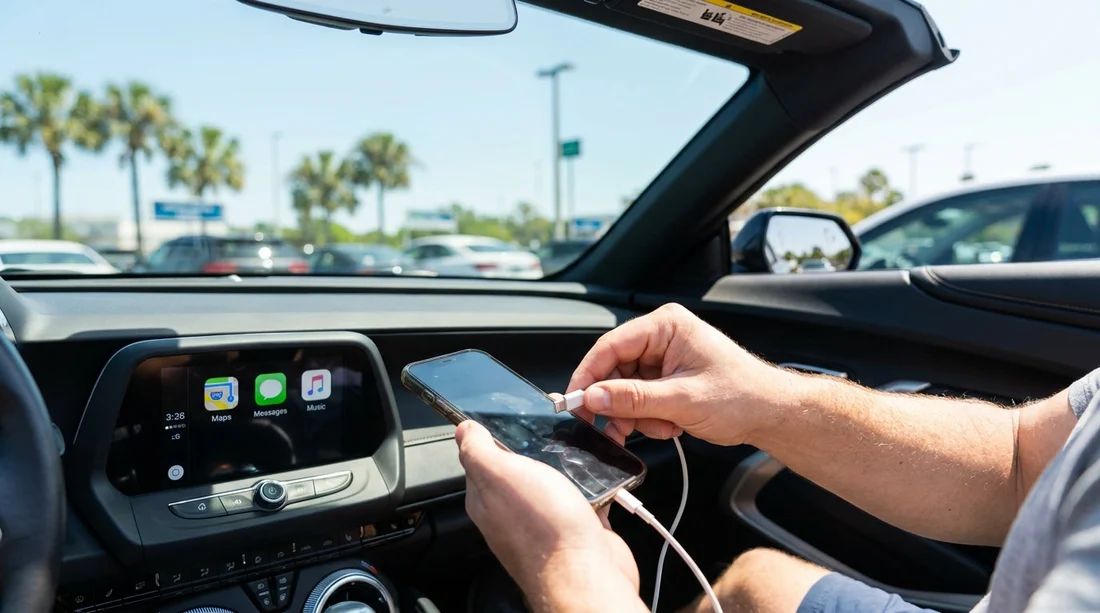
Once plugged in, wait 10 to 30 seconds. Some systems show a pop-up asking to enable CarPlay, others require you to press a “Phone”, “Projection”, or “CarPlay” tile on the screen. If the screen is asking for a device to be selected, pick your iPhone name.
Permissions you must approve before you drive off
The first time you connect to a new vehicle, iOS will ask “Allow CarPlay while locked?” Choose Allow so you can use navigation and music controls without repeatedly unlocking. The car may also ask you to accept terms or enable CarPlay for the device. Approve these prompts now while stationary.
Then check Siri. CarPlay is far easier and safer with voice control. On the iPhone go to Settings, Siri, and ensure “Listen for ‘Siri’” and “Allow Siri When Locked” are enabled. If the steering wheel voice button does nothing, Siri permissions are often the reason.
Decide what to share. If you want hands-free calling and to see recent contacts, allow Contacts. If you prefer less data exposure in a car hire, you can deny contacts and still use navigation and audio, but calling by name will be limited.
Set your navigation up so it works immediately
Choose the app you will actually use, such as Apple Maps or Google Maps, then open it once on the phone so it is fully initialised. Confirm Location Services are enabled for that app, ideally “While Using the App”. In iOS Settings, Privacy and Security, Location Services, check that the app is not set to “Never”.
Now make the offline plan. Orlando coverage is usually strong, but airport parking structures and certain stretches can be patchy, and you may not want to burn roaming data. For Apple Maps, you can download offline maps by searching for “Orlando” on your iPhone, selecting the area, and downloading. For Google Maps, tap your profile icon, Offline maps, and download an area that covers MCO, your hotel zone, and likely routes.
If you are travelling to the parks or a resort area, consider saving key destinations as favourites before leaving the car park, such as your hotel, a supermarket, and the return address for the airport. This speeds up voice directions and reduces typing on the screen.
Audio, microphone, and control checks in under 60 seconds
Play a short audio track and confirm the sound is coming from the car speakers, not the iPhone. Then test the volume buttons and steering wheel controls. Some cars have separate volume levels for media, navigation prompts, and phone calls, so briefly start a route and listen for the guidance voice at a comfortable level.
Make a quick hands-free test. Ask Siri “What’s my current location?” or “Navigate to the nearest petrol station” and confirm the car microphone picks you up. If Siri hears you poorly, lower the fan speed, close windows, and try again.
Finally, confirm the phone is charging. CarPlay will work while the phone slowly drains, especially when running navigation, so you want steady charging from the port you are using.
Common wired CarPlay issues at pick-up, and fast fixes
CarPlay does not appear at all: change USB port, then swap cable. If it still fails, reboot the infotainment system if the car supports a power or volume hold reset, and restart the iPhone. Also check that CarPlay is not restricted on the iPhone in Settings, Screen Time, Content and Privacy Restrictions.
CarPlay connects but drops repeatedly: this is almost always a cable issue or a loose connection in the port. Re-seat the connector firmly, remove any debris from the phone port, and avoid angled adapters.
Navigation has no GPS position: confirm Location Services are on, and make sure the phone is not stuck in Airplane Mode. Also allow the app to use location “While Using”. If you are inside a multi-storey garage, roll closer to an exit for a clearer satellite lock.
No audio for maps but music works: raise the navigation prompt volume while a prompt is speaking. If no prompt is playing, start a route and wait for the first instruction, then adjust volume immediately.
Orlando-specific pre-drive considerations for car hire
In Orlando, the first few miles after pick-up can include complex junctions and heavy traffic, so it helps to simplify the cockpit before you merge. Set your preferred route type in your maps app, such as avoiding tolls if you are not using toll roads, or allowing tolls if you want the fastest route. If you are uncertain about toll handling in your car hire, settle that with the counter before leaving, then match your navigation settings to your choice.
If you are travelling with family or extra luggage, you might be in a larger vehicle where the USB port is in a different place or there are extra screens. For larger groups, information around vehicle options can be found at van rental Disney Orlando MCO. If your rental is through a specific brand desk at MCO, these pages can help you orient yourself: Enterprise car rental Orlando MCO and National car rental Orlando MCO.
Once CarPlay is running, mount the phone out of sight if possible and rely on the car screen. Keep the cable routed so it does not interfere with gear selection or climate controls. A tidy setup makes it easier to focus on lane signs and exits as you pull away.
FAQ
Do I need mobile data for wired Apple CarPlay in a rental car in Orlando? No, CarPlay itself does not require data, but live traffic, search, and streaming do. Download offline maps on your iPhone so navigation still works if coverage drops.
Which USB port should I use for wired CarPlay? Use the port labelled with a CarPlay or smartphone icon, usually the main data port. Other USB ports may only provide charging and will not launch CarPlay.
Should I allow CarPlay while my iPhone is locked? Yes, allowing it avoids repeated unlock prompts and lets you use navigation and audio controls reliably. You can still control what personal data, such as contacts, is shared.
Why does CarPlay connect but keep disconnecting? The most common cause is a worn or non-certified cable, or a loose connection at the phone or USB port. Swap to a known-good cable and re-seat both ends firmly.
How can I check CarPlay is ready before leaving the pick-up bay? Start a short route, play audio, and test Siri with a navigation command. Confirm the phone is charging and that guidance prompts are audible through the car speakers.




























































































