


Quick Summary:
- Confirm the car supports Android Auto and locate the data USB port.
- Use a short, data-capable USB cable, not charge-only leads.
- Unlock your phone, accept prompts, and allow location and microphone access.
- Test audio, navigation, and steering controls while still parked safely.
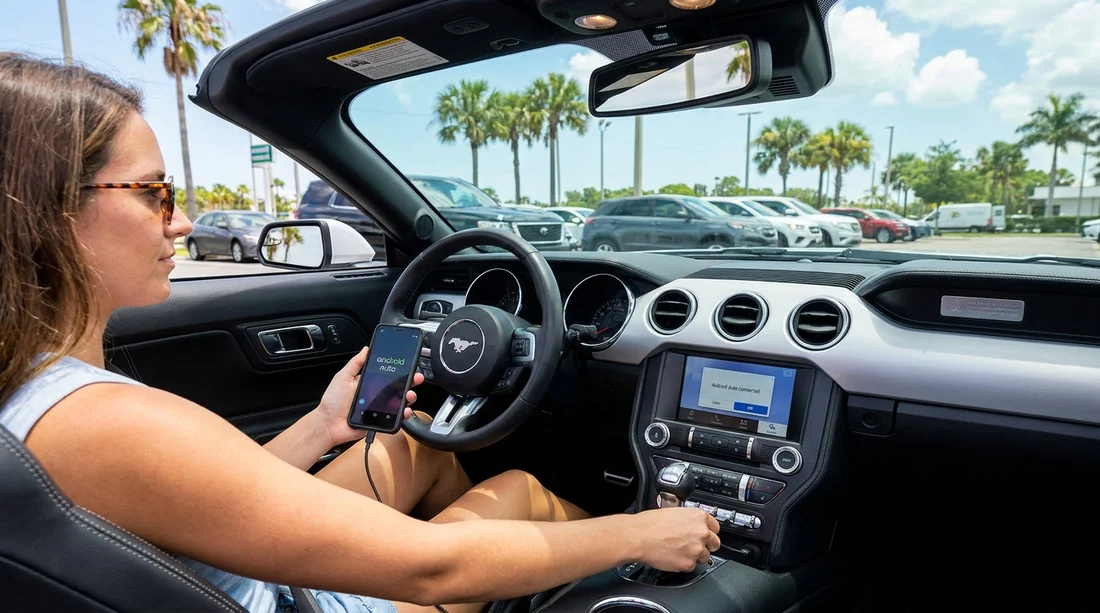
Setting up wired Android Auto at a Florida car hire pick-up is easiest when you split it into two stages, a quick counter check and a car-park check before you join traffic. Most issues come down to using the wrong USB port, a charge-only cable, or missing phone permissions. The goal is to confirm compatibility, connect once, approve the right prompts, and verify that sound, maps, and controls work while you are still parked.
If you are collecting in a busy location such as Miami Airport and Downtown or Tampa Airport, those two minutes can save you a detour later. The steps below assume a wired connection, which is still the most reliable option across many rental fleets.
Before you reach the keys, do three counter checks
1) Confirm the car actually supports Android Auto. Do not assume. Ask whether the specific vehicle has Android Auto and whether it is wired, wireless, or both. Some trims have Bluetooth hands-free only, which is not the same thing. If the agent is unsure, ask them to note it and suggest a different car in the same class if available.
2) Ask where the data USB port is located. Many vehicles have multiple ports, only one may support smartphone data. Common places include the centre console, under the climate controls, inside an armrest, or near the gear selector. You can also ask whether the port is USB-A or USB-C so you can match your cable.
3) Check your phone basics before you walk away. On Android, make sure you have a working screen lock, enough battery, and that Android Auto is updated. If you rely on Google Maps with live traffic, check you have data coverage or an offline map saved for the first part of your route out of the airport area.
Car-park checklist, ports, cables, and the first connection
Step 1, find the correct USB port. Look for a port labelled with a phone icon, “USB”, or a small screen icon, rather than the ones marked “charge”. If there are two ports together, try the one closest to the infotainment controls first. Plugging into the wrong port is the number one reason Android Auto does not appear on the screen.
Step 2, use the right cable, short and data-capable. A surprising number of cables are charge-only. If Android Auto does not prompt within 15 to 30 seconds, swap cables before you change settings. Best practice for car hire is a 30 to 100 cm cable to reduce connection wobble in the console. If your phone is USB-C, you may need USB-C to USB-A, or USB-C to USB-C depending on the car. Adapters can work, but they add another failure point.
Step 3, prepare the phone properly. Unlock your phone before connecting. Keep it unlocked until the head unit finishes setup. If your phone asks what the USB is used for, choose file transfer or Android Auto, not “charge only”. If you have Developer options enabled, check your default USB configuration is not forced to charge only.
Step 4, accept prompts on both screens. The car may show an Android Auto terms screen, and your phone will usually ask for permissions. Allow what you need for safe driving, calls, contacts (optional), location (recommended), microphone (for voice), and notifications (optional). If you deny location, maps can still run but may not centre correctly or give timely turn prompts.
Step 5, set Android Auto to start automatically. On your phone, open Android Auto settings and set it to start when connected to a car. This helps if you stop for fuel and reconnect later. If the car offers “always allow” for this vehicle, that is useful for the duration of your rental.
Safety and usability checks before you drive off
Once Android Auto appears, do a quick functional test while stationary. This is especially important if you are leaving a busy pick-up area in Florida, where missing a turn can add time in heavy traffic.
1) Test navigation audio and route guidance. Enter a nearby destination first, such as a petrol station, to confirm voice prompts and that the map follows your position. Make sure the correct side of the road and orientation look right, and that the GPS dot moves when you roll slowly in the car park.
2) Test a phone call and microphone. Call your voicemail or a contact and confirm the other party can hear you. This is the fastest way to confirm the car microphone is being used, not your phone speaker.
3) Check steering wheel controls. Confirm volume, track skip, and the voice button work. If the voice button triggers the car’s built-in assistant instead of Google Assistant, look for an Android Auto settings option on the head unit to prioritise Android Auto voice.
4) Decide where the phone will live. Even with wired Android Auto, place the phone securely so the cable is not under tension. A loose phone sliding in the console can momentarily disconnect the USB connection and drop Android Auto.
What to do if the car only has USB-C, or you forgot your cable
Florida rental fleets increasingly include USB-C ports, sometimes without USB-A. If your cable does not match, the simplest option is a dedicated USB-C to USB-C data cable or a high-quality USB-C to USB-A data cable if the car has USB-A. Try to avoid stacking adapters. If you realise at pick-up that you have only a charge lead, it is worth solving before you leave the airport area because Android Auto troubleshooting is much harder once you are on the road.
If you are collecting near the city and plan to drive mostly locally, you might also see a mix of models across branches. For example, if you are starting from Brickell or heading towards Miami Beach, you may swap cars later in the trip. In that case, keep both a USB-A and USB-C compatible data cable in your day bag so you can connect quickly after any vehicle change.
Android Auto permissions, privacy, and rental car etiquette
Android Auto can import contacts, call logs, and message previews. In a car hire, it is sensible to enable only what you need. Location and microphone are the key permissions for navigation and voice control. Contacts and messages are optional, you can disable message previews if passengers might see sensitive notifications. If the car asks to “download contacts”, you can say no and still place calls by number or by using recent calls on your phone.
Before returning the vehicle, remove the phone from the car. On many head units, open phone settings and delete the connected device. On your phone, remove the car from Bluetooth too. This helps protect your privacy for the next driver and avoids auto-connection prompts if you return to the same branch. If your trip involves a cost-focused branch such as Budget Downtown Miami, the same privacy steps apply regardless of vehicle class.
FAQ
Q: Why does my phone charge but Android Auto will not start?
A: You are usually in a charge-only USB port or using a charge-only cable. Switch to the port meant for data and try a known data-capable cable.
Q: Do I need mobile data for Android Auto in Florida?
A: Android Auto itself can run without data, but live traffic, streaming music, and some search features need data. Offline maps are useful for airports and dead spots.
Q: The car asks for permissions, which ones are essential?
A: Location and microphone are the most important for navigation and voice commands. Contacts and notifications are optional, depending on your privacy preferences.
Q: Can I use Android Auto if the car supports only Apple CarPlay?
A: No, they are separate systems. If the vehicle does not list Android Auto in the infotainment menu or manual, you will need to use Bluetooth audio and a phone mount instead.
Q: How do I remove my phone from the rental car at the end?
A: In the car’s phone settings, delete or forget your device. Then remove the car from your phone’s Bluetooth list to prevent future auto-pairing.




























































































