


Quick Summary:
- Bring a data USB cable and confirm the car supports Android Auto.
- Accept permissions and set the correct default USB connection preference.
- Download offline maps on Wi-Fi, then test a route with data off.
- Before leaving, confirm GPS lock, guidance audio, calls, and microphone performance.
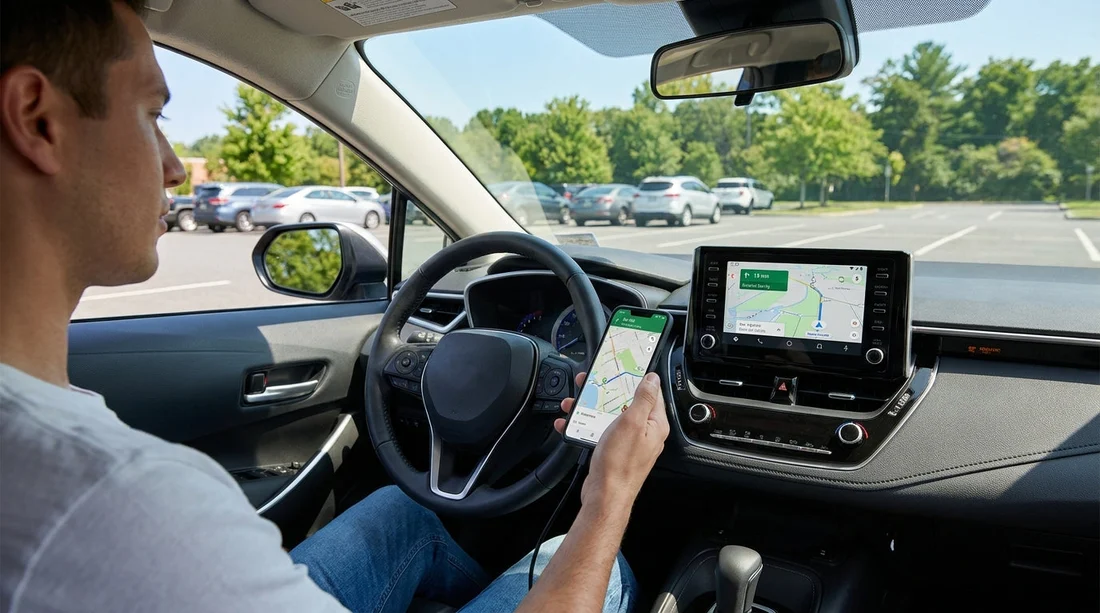
When you collect a car hire in Pennsylvania, it is worth spending five minutes setting up Android Auto and downloading offline maps while you are still parked. Mobile coverage can dip in rural areas, tunnels, multi-storey car parks, or simply during peak travel, so offline navigation helps you stay on course without relying on signal. The goal is simple: confirm your phone connects cleanly, grants the right permissions, and has maps stored locally before you drive off.
Step 1: Confirm the car and your phone are ready
Start with the basics, because most Android Auto issues come down to compatibility, cable quality, or phone settings. Many rental vehicles offer Android Auto, but some trims require a wired connection, and some infotainment systems only enable it after you accept prompts on the car screen.
If you are picking up around Philadelphia, you can also compare car options and typical in-car tech while arranging transport through pages like Philadelphia Airport car rental or Philadelphia car rental. The key in any case is to test the specific vehicle you are handed, not just the model name on the booking.
Step 2: Do quick connectivity checks, cable, port, and prompts
Use the right USB cable. A charging-only cable often powers the phone but cannot pass data, so Android Auto never launches. Use a short, good-quality cable that you know can transfer data. If the car has both USB-A and USB-C ports, try the port marked with a smartphone or “data” icon first. Some vehicles have multiple ports, but only one supports Android Auto.
Unlock the phone and watch for permission pop-ups. On first connection, Android will ask you to allow data access, allow Android Auto to run, and sometimes allow contacts, calls, microphone, and location. If you miss a prompt, Android Auto may partially work (for example, maps but no calls). Keep the phone unlocked until the car screen fully loads Android Auto.
Try a different port or cable once. If it does not work within 30 to 60 seconds, swap the cable or use another USB port. This is faster than changing a dozen settings blindly.
Step 3: Fix permissions and phone settings that commonly block Android Auto
If the connection is intermittent or Android Auto launches but key features are missing, review these settings before you leave the car park:
Location permissions: Ensure location is turned on and Android Auto or Google Maps has permission for “While in use” or “Always”. If location is off, your blue dot may drift or fail to lock, especially when you first set off.
USB preference: On some phones, you can choose what USB does when connected. With the cable plugged in, pull down the notification shade, tap the USB notification, and make sure it is set to “File transfer / Android Auto” rather than “Charge only”.
Battery optimisation: Aggressive battery settings can suspend Android Auto or maps in the background. In your phone settings, exclude Android Auto and Google Maps from battery optimisation if you notice dropouts. This is particularly useful on longer drives across Pennsylvania.
Wireless Android Auto (if available): If the car supports wireless Android Auto, you may still need an initial wired setup. After it works over USB once, you can explore the wireless option, but do not rely on it until you have tested it, because wireless can be sensitive to interference and phone power saving.
Step 4: Download offline maps before you drive off
Offline maps are your safety net when signal drops, and they are especially useful if your car hire plan includes long motorway stretches, state parks, or smaller towns. The most common approach is Google Maps offline areas.
Use Wi-Fi if you can. If you are at your hotel or the rental desk offers Wi-Fi, download offline maps there to avoid using your mobile allowance. Downloads can be hundreds of megabytes, depending on the area.
In Google Maps: Open the app, tap your profile icon, choose “Offline maps”, then “Select your own map”. Zoom and drag to cover the places you expect to drive, such as Philadelphia, Harrisburg, the Poconos, or Pittsburgh, plus buffer space around your route. Save it and wait for the download to complete.
Confirm offline behaviour. After downloading, put your phone into aeroplane mode (or temporarily disable mobile data) and try a sample route. You should still get turn-by-turn navigation. You may not receive live traffic, alternative routes based on current congestion, or up-to-the-minute business hours, but core navigation should work.
Step 5: Run a parked test, audio, calls, and voice control
Before moving the vehicle, do a quick end-to-end test. This is the part that prevents “it worked yesterday” surprises at the first junction.
Navigation: Start a route to a simple destination nearby. Confirm the map appears on the car screen, the position updates, and you can zoom or switch views. If the location is stuck, ensure the phone has a clear view of the sky for initial GPS lock, and confirm location permissions again.
Audio: Play a song or podcast and check audio routing. Then start navigation and confirm the guidance voice is audible. If guidance is too quiet, adjust the voice volume while the guidance is speaking, as many systems store separate volumes for media and navigation prompts.
Calls and microphone: Place a quick call to voicemail or a friend to confirm the microphone works and the audio routes through the car. If callers cannot hear you, the car may be using a different Bluetooth profile, or the microphone permission was denied on the phone.
If you want to understand typical vehicle classes and features before your trip, you can browse options like car hire in Philadelphia or people-carrier choices such as minivan hire in Philadelphia. Regardless of vehicle type, the same setup checks apply.
Step 6: Smart driving-off checklist for Pennsylvania
Pennsylvania driving often includes a mix of city streets, turnpikes, and stretches where services are sparse. Before you leave the rental lot, make sure you can navigate even if your connection changes.
Save key addresses: Add your hotel, the return location, and one alternate stop (like a petrol station) as saved places. Offline maps help, but saved places reduce typing while parked.
Understand what offline maps do not include: Expect limited live traffic, fewer dynamic reroutes, and sometimes reduced search results. Plan major route choices when you have good signal or Wi-Fi.
Have a fallback: If Android Auto fails mid-trip, you can still use the phone screen safely when parked, or follow road signage to the next safe stop. A second cable in your bag can also save time.
FAQ
Q: Why does Android Auto charge my phone but not start? A: The most common cause is a charging-only USB cable or a USB port that does not support data. Try a known data cable and the primary data-marked port.
Q: Do offline maps work with Android Auto on the car screen? A: Yes, once the offline area is downloaded in Google Maps, navigation can continue through Android Auto. You may lose live traffic and some search features without data.
Q: Which permissions matter most for a smooth setup? A: Location, microphone, contacts, and phone permissions are the big ones. Without them, you can see maps but lose voice control, calling, or accurate positioning.
Q: Should I use wireless Android Auto in a rental car? A: Use it only after a successful wired test. Wireless can be less consistent if battery optimisation is strict or the car’s system is slow to reconnect.
Q: What is the quickest way to test everything before leaving? A: Connect via USB, start a short route, play audio, and place a brief call while parked. Then toggle mobile data off to confirm offline navigation still runs.




























































































