


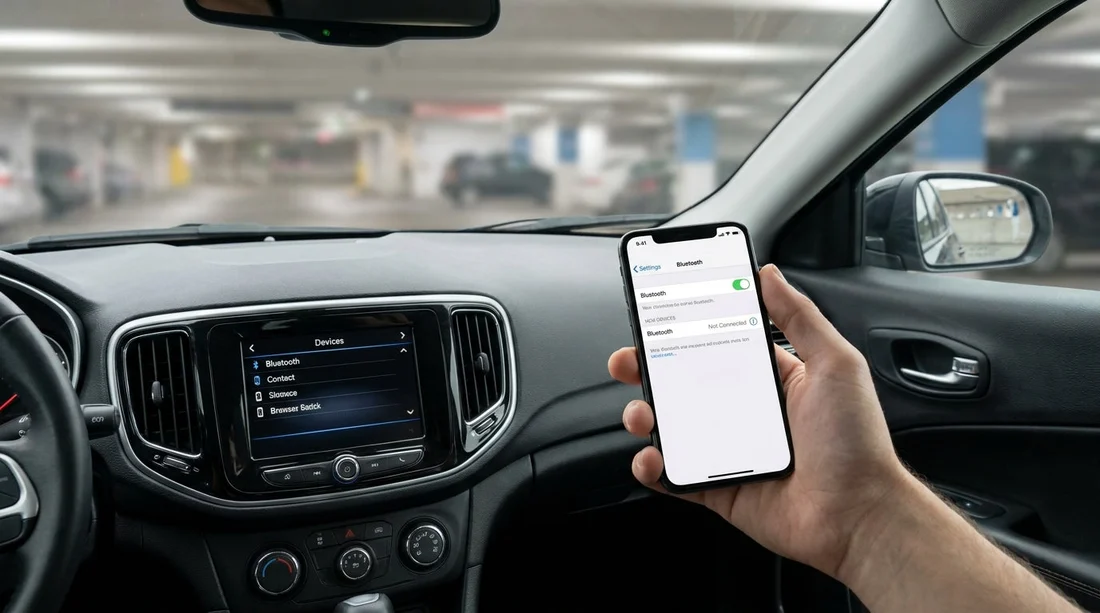
Quick Summary:
- Open the car Bluetooth menu, remove unfamiliar devices, and confirm changes saved.
- Turn on Bluetooth, pair from the car screen, and confirm the code.
- Select the right audio source, test a call, and check microphone clarity.
- Start navigation, confirm voice guidance plays through speakers, then adjust volume.
When you pick up a car hire in New York, the first few minutes in the bay can make the rest of your drive far easier. Modern rental cars often keep a memory of previous drivers’ phones, and that can cause connection failures, mixed-up audio routing, or privacy concerns. A quick, repeatable checklist helps you clear old Bluetooth devices, pair your own phone cleanly, and confirm audio and navigation are working before you leave the car hire bay.
Different makes and infotainment systems vary, but the workflow is almost always the same: review paired devices, delete what you do not recognise, add your phone, then test calls and media. Allow yourself a few minutes before pulling into busy airport roads or Manhattan traffic, especially if you have just collected keys from an airport desk such as car rental at New York JFK.
Before you touch the screen, make it safe to set up
Set-up should happen while stationary. Put the vehicle in Park, apply the parking brake if fitted, and keep your foot off the accelerator. If you are in a multi-storey or a tight pick-up lane, wait until you are in a safe bay. If the car has a start button, run accessory mode or start the engine so the infotainment system does not shut off mid-pairing.
Step 1, find the Bluetooth and device list
On most systems, tap Settings, Connections, Phone, or Bluetooth. Look for a section labelled Paired Devices, Device List, or Manage Devices. If Apple CarPlay or Android Auto prompts immediately, dismiss it for the moment and first check what is already stored. Some cars will connect to the closest remembered device automatically, which can be awkward if it is not yours.
If you have collected a larger vehicle, menus can be deeper and sometimes split between a main screen and a steering-wheel phone button. Take your time and use the on-screen prompts rather than guessing while in a queue, particularly if you have chosen a bigger option like an SUV rental at New York JFK.
Step 2, clear old Bluetooth devices properly
In the paired device list, you may see names like “John’s iPhone” or “Galaxy S23”. Delete anything you do not recognise. Look for options such as Remove, Forget, Delete Device, or Unpair. On some cars, you must highlight a device and then press an on-screen bin icon or a physical “OK” button to confirm.
Delete in the car first. If the car still remembers an old phone, it may try to reconnect and steal audio focus even after you pair your own.
Watch for multiple profiles. A device may have separate entries for Phone and Audio. If you see both, remove both.
Consider wiping personal data where allowed. Some infotainment systems store recent contacts, call logs, and nav history. If you spot a “Clear Personal Data” or “Reset” option, use it only if you are comfortable re-doing settings like radio presets. If you are unsure, stick to removing Bluetooth devices, which is usually quick and low-risk.
Step 3, pair your phone to the rental car
Now add your device. In the car’s Bluetooth screen, choose Add Device, Pair New Device, or Search. Your phone should appear in the car list within a few seconds. Select it and confirm the pairing code on both the car screen and your handset. If a PIN is shown, ensure the digits match exactly.
When prompted for permissions, accept the ones you actually need for the drive, such as calls and media audio. Contacts and messages are optional, and you can decline them for privacy.
Step 4, stop the “connected but no sound” issue
In a car hire, the most common complaint is that the phone shows connected but audio plays from the handset speaker. Fix this before you leave.
Confirm the audio source. On the car screen, select Media, Source, or Audio and pick Bluetooth, CarPlay, or Android Auto, whichever you are using.
Disable competing connections. If your phone is still connected to earbuds or a smartwatch, it can route audio away from the car. Disconnect other Bluetooth audio devices during the drive.
Step 5, test calls, microphone, and steering-wheel controls
Place a short call to voicemail or a contact who will not mind a quick test. Confirm you can hear clearly through the speakers and that the other person can hear you without echo. If there is echo, lower the call volume slightly and ensure you are not using speakerphone on the handset.
Step 6, test navigation and voice guidance before leaving
Open your preferred maps app and set a route, even if it is just to your first stop. Confirm GPS is accurate, voice guidance comes through the car, and the screen view is usable before you pull out.
If you are heading out via a major airport corridor, it helps to have nav ready before you approach the ramps and toll signage. This is especially true if you have collected from Newark and will cross into New York City. The pick-up process around car hire at Newark Airport (EWR) can involve tight lanes where last-second screen tapping is not ideal.
Step 7, a fast privacy sweep before you drive away
Even after you pair successfully, do a final check for privacy and future convenience. Set your phone as the primary device if the car allows it, and remember to remove your phone at drop-off.
If you are using a rental route that includes New Jersey and New York, you may switch cars on different legs. Keeping your Bluetooth set-up routine consistent is useful whether you collected via car hire in New Jersey (EWR area) or picked up closer to the city.
What to do if pairing still fails in the bay
If the car will not find your phone, or it keeps dropping connection, remove the car from your phone’s Bluetooth list and remove your phone from the car, then pair again. If it is still unreliable, a wired USB connection for CarPlay or Android Auto can be more stable in some vehicles.
Once everything is working, you can focus on the drive itself, toll roads, and finding fuel stops. The goal is simple: in a New York car hire, clear unknown devices, pair cleanly, confirm audio routing, then roll out with navigation already speaking through the speakers.
FAQ
How do I delete old phones from a rental car’s Bluetooth? Open Settings or Connections on the car screen, find Paired Devices, select each unfamiliar device, then choose Remove, Forget, or Delete. Confirm the change, then restart Bluetooth if the list does not update.
Should I allow contact and message access when pairing? Contacts are helpful for caller ID and voice dial, but not required. Messages are optional and you can decline for privacy, while still using calls and media audio.
Why is my phone connected but music plays from the phone speaker? The car may be set to the wrong source, or the phone is routing audio to another device like earbuds. Select Bluetooth or CarPlay/Android Auto as the media source, disconnect other audio devices, then retry.
What is the quickest way to test Bluetooth before leaving the car hire bay? Make a short call to voicemail, play a music track, and start a navigation route. Confirm microphone clarity, speaker output, and that voice guidance volume is audible.
Do I need to remove my phone from the car at drop-off? Yes. Before returning the vehicle, delete your phone from the car’s paired list and, if possible, clear recent data. This helps protect privacy and prevents issues for the next driver.




























































































