


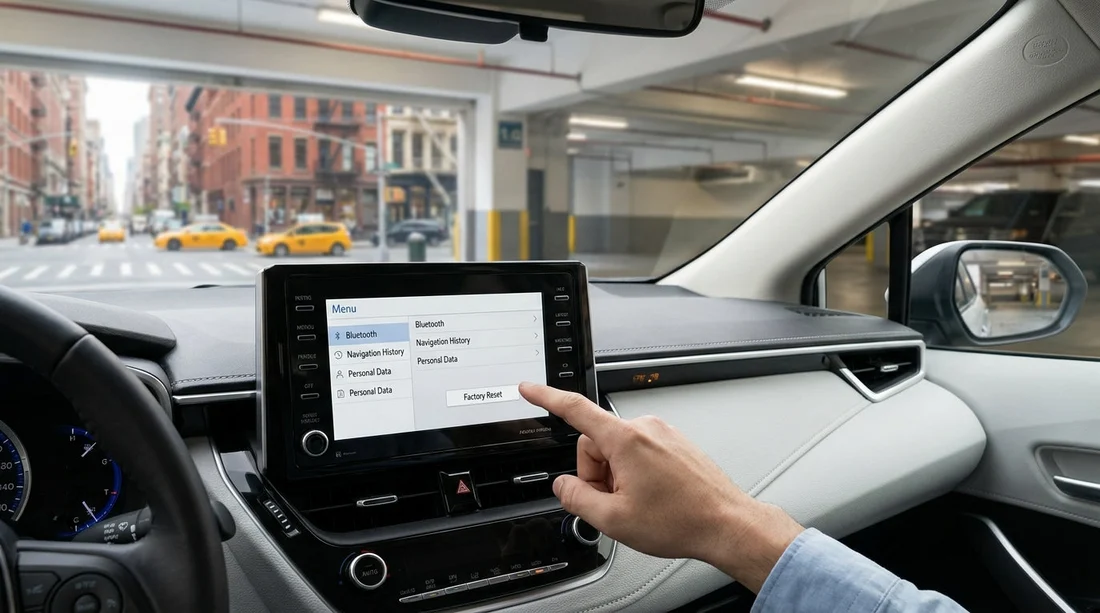
Quick Summary:
- Delete old paired phones, contacts, and call history before driving.
- Clear navigation history, Home and Work, and saved addresses.
- Sign out of apps, reset privacy permissions, and disable data sharing.
- Check driver-assist, alerts, camera guidance, and screen brightness settings.
Modern rental cars in New York often feel like rolling smartphones. The touchscreen can store more personal data than you expect, and it also controls settings that affect how safely and confidently you drive away. Before you pull out of the car park, spend a few minutes running a simple privacy and safety reset.
This checklist focuses on what to reset on the infotainment screen and connected systems for car hire in New York, including what to clear and which settings are worth double-checking. If you are collecting at an airport location, you can do most of this while the agent finishes the paperwork.
If you are picking up around JFK, do the digital reset first, then pair your own devices. For pick-up logistics, see car hire at New York JFK and car hire at Newark EWR.
1) Remove the previous driver’s phone and personal profiles
Your first job is to make sure you are not inheriting someone else’s digital footprint, and that they cannot reconnect to the car while you are using it.
Bluetooth and phone pairing: Open the Phone, Bluetooth, or Connections menu and look for a list of paired devices. Delete every device you do not recognise, then add only your own later.
Driver profiles: Many vehicles store user profiles tied to seat position, mirrors, radio presets, and navigation favourites. If you see names you do not know, delete them or switch to a Guest profile.
Contacts, call history, and messages: If the car shows contacts, recent calls, or texts, clear them. Depending on the model, this might be under Phone settings, Privacy, or a Reset menu.
2) Clear navigation history and saved places
Navigation is the most common place for lingering data, and it can reveal a lot. Clear it before you enter any of your own destinations.
Recent destinations: Delete the full list of recent searches and routes. Some systems have separate lists for recent destinations, recent routes, and recent voice searches, so clear them all.
Saved addresses: Remove any favourites, starred places, and especially Home and Work entries. Even if you will not use built-in navigation, this step prevents accidental disclosure to a future driver.
3) Sign out of apps and wipe cloud accounts
Some infotainment systems let the prior driver sign into music, maps, or car brand accounts. These can persist between rentals.
Music and podcast apps: Check for logged-in accounts in Spotify, Apple Music, Amazon Music, or similar. Sign out rather than simply closing the app.
Maps accounts: Some built-in maps allow user sign-in to sync saved places. Sign out, then clear map data and recent searches.
If you have a larger group and need extra seating, account clean-up matters because multiple people may connect devices. For vehicle context at JFK, see minivan rental at New York JFK.
4) Reset privacy permissions and data sharing
Even when no apps are signed in, cars can still collect and share data. Look for Privacy, Data, Consent, or Connected Services menus.
Location sharing: Disable unnecessary location sharing and “send vehicle location” settings. If the system offers a toggle for “share driving data” or “analytics”, turn it off where possible.
Wi-Fi hotspot settings: If the car has built-in Wi-Fi, clear saved networks and passwords. Confirm it is not set to auto-connect to a previous network.
5) Pair your phone safely (and only after the reset)
After clearing old devices, pair your own phone in a privacy-first way.
Use Apple CarPlay or Android Auto when available: These typically keep most app data on your phone rather than in the vehicle. If the car supports wireless projection, confirm you are pairing to the correct car name.
Limit permissions: When your phone asks to share contacts and favourites, consider declining if you only need audio and navigation. You reduce the amount stored in the vehicle.
6) Check key safety settings that live on the touchscreen
In many newer cars, safety and driver-assist features are controlled through menus rather than physical buttons. You want them configured for New York conditions, including dense traffic, pedestrians, cyclists, and frequent lane changes.
Forward collision warning and automatic emergency braking: Confirm they are enabled. If the system allows sensitivity, choose the default or a medium setting unless you have a reason to change it.
Blind spot monitoring and lane keeping: Verify lane assist is on and set to warning rather than steering intervention if you prefer a lighter touch in tight lanes.
Parking sensors and camera guidelines: Turn on camera guidelines if available, and check brightness for garage lighting. A too-dim screen makes reversing harder.
7) Confirm essential driving settings before leaving the lot
Units and language: Make sure distance is in miles and the language is clear, especially if the previous driver changed settings.
Time zone: Set the clock to local time. This affects ETA accuracy and reminders.
If you are collecting from Newark and heading into New York, it is worth doing these checks before you join faster traffic. See car rental in New Jersey EWR and Dollar car rental in New Jersey EWR.
FAQ
Q: Do I really need to clear the touchscreen on car hire in New York?
A: Yes, it is worth it. The system can store paired devices, contacts, recent destinations, and app logins, which are all personal data and easy to remove at pick-up.
Q: What is the single most important reset before I drive off?
A: Delete any unknown paired phones and clear the navigation recent destinations. Those two areas most commonly expose private information and cause unwanted auto-connections.
Q: Is Apple CarPlay or Android Auto safer than built-in apps?
A: Generally yes. They keep most data on your phone, but you should still remove your device from the car before return and avoid sharing contacts if you do not need to.
Q: What should I do if I cannot find the reset or privacy menu?
A: Look for Settings, System, Privacy, Connections, or Users. If it is still unclear, ask the lot attendant to show you where paired devices and personal data removal are located.
Q: Should I change driver-assistance settings for city driving?
A: Keep core safety features enabled, then adjust comfort options like lane-keeping intensity or speed warning chimes to reduce distraction in dense New York traffic.





























































































