


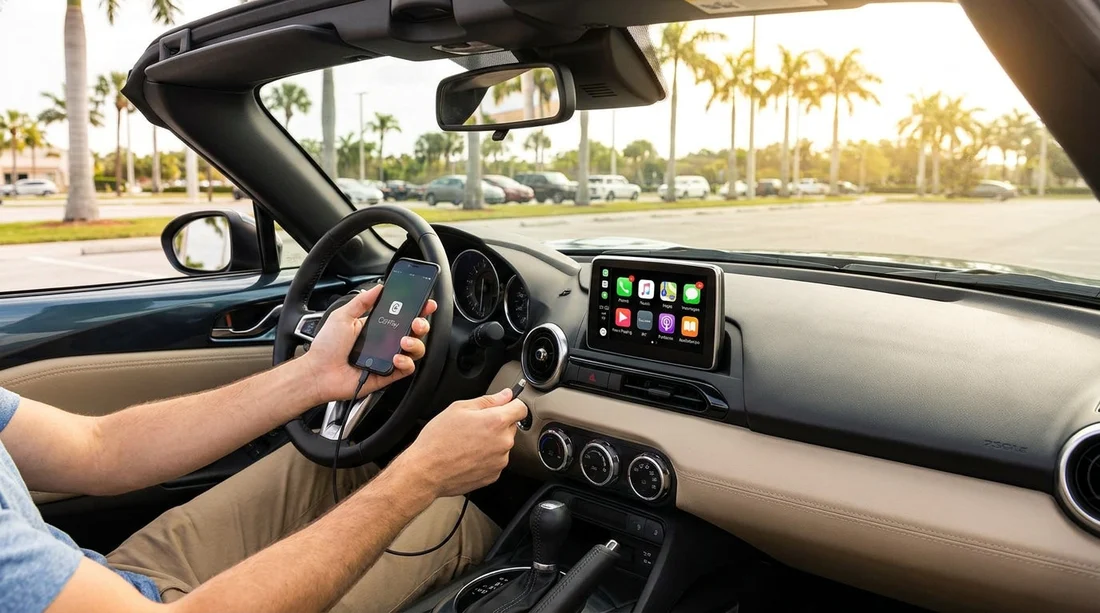
Quick Summary:
- Bring a reliable USB data cable, or confirm wireless CarPlay works first.
- Approve CarPlay, contacts, and notifications permissions on your iPhone first.
- Set audio source, test a call, and confirm navigation voice prompts.
- Verify charging, steering wheel controls, and volume before leaving the bay.
When you pick up a car hire in Florida, the few minutes you spend setting up Apple CarPlay before leaving the lot can prevent wrong turns, silent navigation, or a phone battery dropping fast in traffic. The goal is simple, connect cleanly, allow the right permissions, then test audio, maps, and controls while you are still parked.
This counter-ready checklist is written to work whether you are collecting at an airport desk or a downtown location. If you are arriving through Orlando International, you can also check location details for car hire at Orlando MCO. For Miami pick-ups, see car hire in Brickell or car hire in Miami Beach so you know what to expect at collection.
Before you touch the screen, do a 60-second prep
Start with your iPhone. Good prep reduces the chance CarPlay fails mid-setup.
1) Turn on the essentials. Enable Bluetooth and WiFi. Wireless CarPlay typically uses both, even if you think it is only Bluetooth.
2) Check Screen Time and restrictions. If CarPlay has been restricted, it will not appear. On your iPhone, go to Settings, Screen Time, Content and Privacy Restrictions, Allowed Apps, and ensure CarPlay is allowed.
3) Bring the right cable. A high-quality USB-A to Lightning or USB-C to Lightning cable matters. Many rental cars have data-capable ports, but a charge-only cable will fail. If you are unsure, try a cable that reliably transfers photos to a computer.
At the counter or lot, confirm what the car supports
Before you drive off, ask or quickly check whether the vehicle has wired CarPlay, wireless CarPlay, or both. The car’s infotainment screen may show a CarPlay logo, or a menu item under Phone, Projection, or Smartphone Integration.
If you are collecting from a busy location such as Enterprise in Brickell, it helps to do these steps in the bay while staff are nearby, because some head units have different menus by trim level.
Also note the port layout. Some cars have multiple USB ports, only one of which supports CarPlay. Look for a port label like a phone icon, CarPlay, or “USB data”.
Step-by-step: Wired Apple CarPlay setup
Wired CarPlay is usually the quickest and most dependable for a car hire, especially if you will have multiple drivers.
1) Start the car fully. Some systems only initialise after ignition is on, not just accessory power.
2) Unlock the iPhone. Keep it unlocked for the first connection so permission prompts appear.
3) Plug into the correct USB port. If nothing happens after 10 seconds, try the other port. Avoid USB ports inside the centre console if there is a clearly marked media port elsewhere.
4) Approve prompts on the iPhone. You may see “Allow CarPlay while phone is locked?” Choose Allow. If asked to trust the accessory, choose Trust. If prompted for Siri, enable Siri because CarPlay uses it for voice control and safer messaging.
5) Approve prompts on the car screen. Some vehicles ask you to accept terms or enable Apple CarPlay. Confirm, then wait for the CarPlay home screen.
6) Set the audio source. Select CarPlay or iPhone as the media source. This prevents the common issue where CarPlay is visible but navigation voice stays silent because the system is still using FM or a different Bluetooth profile.
Step-by-step: Wireless Apple CarPlay setup
Wireless CarPlay is convenient, but initial pairing can take longer. Do it before you join Florida traffic.
1) Remove old pairings. Rental cars may have previous phones saved. On the car screen, delete old devices if you can. On your iPhone, go to Settings, Bluetooth, and forget the car if it appears from a prior rental.
2) Put the car in pairing mode. Look for Add Phone, Pair Device, or Apple CarPlay setup in the infotainment menu.
3) Pair Bluetooth first. Many systems require Bluetooth pairing, then they prompt to use CarPlay. Accept the pairing code on both devices.
4) Accept the CarPlay prompt on your iPhone. When asked to use CarPlay with this car, tap Use CarPlay. Also tap Allow for notifications if you want message alerts shown on screen.
5) Confirm WiFi connection. Wireless CarPlay often creates a direct WiFi link. If CarPlay drops, check whether your iPhone has joined the car’s WiFi network automatically.
Permissions to enable before you leave the bay
Many CarPlay problems are permission problems. While parked, make sure these are set the way you want.
Location Services. For reliable turn-by-turn, your iPhone should have Location Services on, and your chosen map app set to While Using. If location is denied, your position can lag or jump, which is frustrating on complex interchanges.
Notifications. Allow notifications if you want message previews and call prompts. If you want fewer distractions, keep notifications limited and rely on voice commands.
Siri. Siri is the safest way to start navigation, play music, and send messages in CarPlay. If Siri is off, many cars will still show CarPlay but with reduced functionality.
Two-minute test drive checklist, done while stationary
Do these checks in the parking bay, not at the first junction.
1) Maps test. Open Apple Maps or your preferred app and start a short route, for example to the nearest fuel station. Confirm the route appears on screen, and the first spoken instruction plays through the car speakers.
2) Audio test. Play one track or a podcast. Raise volume using the steering wheel controls and the head unit knob. Some cars have separate volumes for media and navigation, so test both.
3) Call test. Place a quick call to voicemail. Confirm the microphone works and audio comes through the speakers. If the caller cannot hear you, look for a microphone mute icon on the car screen, or switch the call audio source back to CarPlay.
4) Charging check. Confirm the phone is charging. If it is not, you might be plugged into a power-only port with no data, or the cable is faulty. In a long Florida drive with maps and music, charging matters.
Common issues in rental cars, and quick fixes
CarPlay does not appear at all. Try a different USB port, swap cable, and reboot the infotainment system if there is a power or volume button that performs a reset when held. Also restart your iPhone. If you are at a location like Budget in Downtown Miami, staff may know which port is the correct one for that model.
CarPlay appears but no sound. Increase volume during a navigation prompt, not while music is paused. Verify the car audio source is CarPlay, not radio. Check the iPhone is not connected to a separate Bluetooth profile at the same time.
Maps shows the wrong place. Ensure Location Services are on, then open Maps on the phone once to refresh. If using a VPN, disable it as it can occasionally interfere with location accuracy.
Handing the car back, protect your privacy
Before returning your Florida car hire, take one minute to clean up your data. In the infotainment settings, remove your phone from paired devices and delete any downloaded contacts or call history if the system offers the option. On your iPhone, forget the car from Bluetooth and CarPlay settings. This helps prevent the next driver seeing your recent locations or contacts.
If you are collecting or returning near Doral, note that some vehicles rotate frequently between customers at Alamo in Doral, so removing your device at drop-off is a sensible habit.
FAQ
Do I need mobile data for Apple CarPlay in Florida? CarPlay itself does not require data, but navigation, live traffic, and streaming audio typically do. Download offline maps where possible and expect higher data use on longer drives.
What is the fastest way to get CarPlay working before leaving the rental lot? Use a known-good cable, unlock your iPhone, plug into the correct data USB port, then accept prompts on both the phone and the car screen.
Can I use CarPlay if the rental car already has another phone paired? Yes, but it can interfere with auto-connection. Delete old devices in the car menu, or turn off Bluetooth on the other phone to stop it stealing the connection.
Why can I hear music but not map directions? Many cars separate media volume and navigation prompt volume. Start a route, wait for a spoken instruction, then adjust volume during the prompt so it changes the correct channel.
Should I remove my phone from the car when I return it? Yes. Delete your phone from the car’s paired list and forget the car on your iPhone to protect privacy and prevent accidental reconnection later.





























































































