


Quick Summary:
- Ask if Wi‑Fi is enabled, priced per day, and has a data cap.
- Confirm the hotspot network name and password, plus where they’re printed.
- In the car, find Wi‑Fi settings, switch hotspot on, and note the SSID.
- Connect your phone, test a webpage, and verify signal before leaving.
Connecting to a rental car’s built-in Wi‑Fi hotspot in Orlando is straightforward, but only if you confirm a few details before you pull away. Some vehicles have a factory hotspot that must be activated, others use a separate device, and a few fleets disable the feature unless you add it at the counter. The best approach is to handle the paperwork questions first, then do a two-minute in-car check while you are still in the garage or bay.
If you are arranging car hire at the airport, allow a couple of extra minutes at pick-up to get the hotspot working on your phone. It is much easier to fix a missing password or an activation issue while staff are nearby than once you are on the 528 or I‑4. For Orlando pick-ups, these steps apply whether you are collecting from an airport desk or a nearby lot, including options like Orlando MCO car rental or car hire at Orlando airport.
What to ask at the counter before you take the keys
Start by confirming what type of Wi‑Fi you are getting. Say you want to connect to the car’s built-in hotspot before leaving, then ask if the vehicle has an integrated system or if they provide a separate hotspot device. This matters because the setup steps and passwords differ.
Next, check pricing and limits. Ask whether Wi‑Fi is included, charged per day, or billed through a third party, and whether there is a data allowance. Some plans throttle speeds after a threshold, which can affect video calls or streaming for passengers.
Ask exactly where the login details are shown. Depending on the vehicle, the network name (SSID) and password might be on a sticker in the glovebox, printed on a key tag, shown in the infotainment screen, or available via a QR code in a connected-car menu. If the staff can write the SSID and password on your rental agreement notes, it can save time later.
Then confirm whether the hotspot is already activated. Some fleets require an activation step in the car, such as accepting terms on the screen, creating a PIN, or toggling a subscription setting. Ask if the previous renter’s settings are cleared, and whether you should perform a reset of the Wi‑Fi settings. If you are collecting from a specific provider page, it can help to know typical processes for that operator, such as Alamo at Orlando MCO or Avis at Orlando MCO.
Finally, clarify whether the hotspot works while driving and whether it requires strong cellular coverage. Orlando is generally well covered, but dead spots can happen in multi-storey car parks, near some resort garages, or during the first minute after you start the engine.
Quick in-car steps to connect before driving off
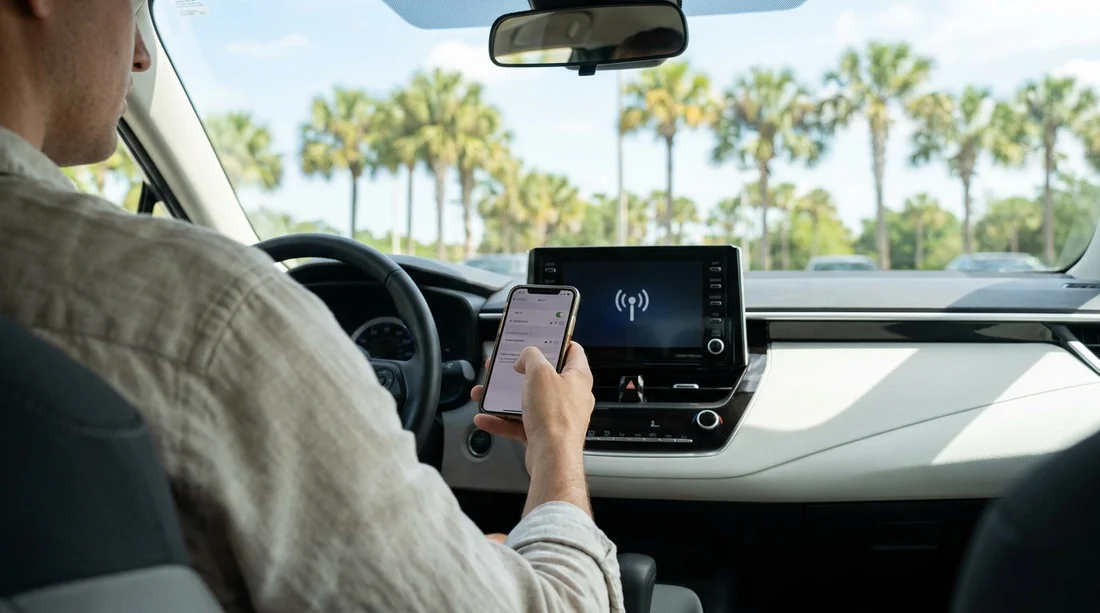
Once you reach the vehicle, do the setup before you move. Sit in the driver’s seat, start the car, and keep it in Park. Many infotainment systems will not allow you to change network settings once the car is in motion, and it is safer to handle everything while stationary.
1) Find the hotspot menu. Look for Settings, Connectivity, Network, Wi‑Fi, or Hotspot in the centre screen. In some models, it appears under a “Phone” or “Apps” menu. If the vehicle has a digital instrument cluster, some settings can appear there as well.
2) Switch the hotspot on. Toggle “Hotspot” or “Wi‑Fi sharing” to On. If you see a prompt for terms and conditions, accept them. If the system asks you to create an admin password, choose one you can remember, and note it along with the Wi‑Fi password, as they can be different.
3) Confirm the network name and password. The screen should display the SSID and a password. If the password fields show dots, there is usually a “show” option. If you cannot find the password in the menus, check the glovebox, sun visor, or the rental key tag for printed details.
4) Connect your phone. On your phone, open Wi‑Fi settings, select the car’s SSID, and enter the password. If your device asks whether to stay connected without internet, wait a moment, because the hotspot may take 30 to 90 seconds to establish a connection after the car starts.
5) Test that it works. Open a webpage or run a quick map search. If there is a captive portal, your phone may open a sign-in page. Some systems require you to accept terms on the phone browser the first time you connect.
6) Check passenger devices. If you have family or colleagues travelling with you, connect their phones or tablets now. Many hotspots support a limited number of devices, so it is helpful to confirm everyone can join before leaving the lot.
If it will not connect, troubleshoot in two minutes
If the hotspot SSID does not appear on your phone, first make sure the hotspot is actually enabled in the car’s menu and that the car has a cellular signal indicator. If you are parked deep inside a garage at Orlando International Airport, try moving a short distance towards the exit area where signal is stronger, then recheck. Do not drive onto public roads until you can safely stop again.
If you see the SSID but the password fails, verify you are using the Wi‑Fi password, not a connected-car account password. Watch for common issues like confusing 0 and O, or 1 and I. If the password is printed, compare it carefully with what the screen shows. If they differ, trust the screen after you have toggled the hotspot off and on once.
If your phone connects but there is no internet, open the car’s hotspot screen and look for a status such as “Connected, no data” or “Subscription required”. That is a sign the feature is not activated for your rental. In that case, return to the booth or call the number on your rental paperwork while you are still at the location. It is usually faster to resolve immediately than after you reach your hotel.
If connection drops repeatedly, reduce the number of connected devices and retest. Also disable any VPN on your phone temporarily to see if it is interfering with the hotspot’s captive portal. Once connected, you can re-enable your VPN if needed.
What is worth checking before you exit the car park
Before you leave the pick-up area, confirm three things: the hotspot is On, at least one of your devices can browse the internet, and you know where to find the SSID and password again later. Take a photo of the hotspot details on the infotainment screen if the rental terms allow, or note them in a secure password manager. If you will be switching drivers, make sure both drivers know how to access the hotspot menu.
It is also sensible to decide how you will use Wi‑Fi alongside mobile data. Passengers often use the hotspot for tablets, laptops, and streaming, while the driver’s phone can remain on its own data plan for navigation as a backup. If you are travelling with more people and luggage, larger vehicles can make setup easier while parked, and you might compare options like minivan hire for Disney area trips if multiple devices will be online at once.
With these steps, you should be fully connected before you join Orlando traffic, and you will know exactly who to contact and what to check if the hotspot needs activation.
FAQ
Q: Is the Wi‑Fi hotspot always included with car hire in Orlando?
A: Not always. Some cars have the hardware, but the data plan may be optional, disabled, or charged per day, so confirm at pick-up.
Q: Where do I find the hotspot name and password in the car?
A: Common places are the infotainment hotspot screen, a sticker in the glovebox, the key tag, or a printed information card, depending on the vehicle.
Q: Can I set my own hotspot password for privacy?
A: Often yes. Many systems let you edit the password in the hotspot settings, but do it while parked, and store it somewhere secure.
Q: Why does my phone show “connected” but web pages will not load?
A: The plan may not be activated, there may be a captive portal to accept, or the car may have weak signal in the garage. Toggle the hotspot, then retest near the exit.
Q: How many devices can connect to a rental car hotspot?
A: It varies by manufacturer and plan, but it is typically around five to seven devices. Connect everyone at the lot to confirm your vehicle’s limit.





























































































