


Quick Summary:
- CarPlay and Android Auto work without data for calls and downloaded media.
- Live navigation, search, traffic and streaming usually require mobile data.
- Download offline maps before pickup, and save key addresses and routes.
- At pickup, test USB ports, Bluetooth pairing, and voice controls immediately.
If you are picking up a car hire in Orlando and planning to use Apple CarPlay or Android Auto, the key detail is this, the screen in the car is mainly a display and control surface for your phone. Many features will still work with little or no mobile data, but anything that relies on live information from the internet can be limited when your signal is weak or you are using a local SIM with a small allowance.
In practice, most travellers can use CarPlay or Android Auto perfectly well while keeping data usage low, as long as they prepare offline maps and understand which functions need a connection. This is especially useful when driving from Orlando International Airport (MCO) to resorts, theme parks, or the coast, where you want navigation ready the moment you leave the car park.
If you are comparing pickup options around MCO, it helps to know that CarPlay and Android Auto are commonly available across many vehicle classes. For general airport pickup information, see car rental Orlando MCO or car rental airport Disney Orlando MCO.
Do CarPlay or Android Auto require mobile data?
CarPlay and Android Auto themselves do not “use data”. Your phone uses data when an app needs the internet. The car’s screen does not provide the connection unless the vehicle has its own built-in hotspot and you subscribe to it. Most rentals rely on your phone’s connection.
Features that can work with no mobile data include downloaded music or podcasts, phone calls (if you have voice service), contacts, and some messaging functions, depending on your phone’s network state. If your phone has no signal at all, the connection between phone and car can still work, but apps that need the internet may show limited results or fail to load.
Features that typically need mobile data include searching for places, loading map tiles as you drive, live traffic, rerouting, reporting incidents, streaming music, cloud-based voice assistant requests, and many third-party apps. Even when you have offline maps saved, certain extras, like real-time traffic and new place search, may still need data.
How much data does navigation use around Orlando?
Data use depends on the app and how you use it. Turn-by-turn navigation with map tiles loading as you drive can use modest data, but constant searching, re-routing, and switching between apps can increase usage. Streaming audio, especially at high quality, often uses far more data than navigation.
Orlando drivers often face sudden reroutes due to congestion on I-4, toll road choices, and peak theme park traffic. Live traffic is helpful, but it is also the bit most likely to rely on data. If you are trying to minimise roaming charges, offline maps plus saved routes can keep you moving without surprises.
Offline preparation, set up maps before you land
The best time to prepare is while you are still on hotel Wi-Fi or airport Wi-Fi. For a smooth start, do these steps before you reach the rental counter.
1) Download offline maps for the areas you will drive. In Google Maps, you can download an offline area around Orlando, including routes to Kissimmee, Lake Buena Vista, and potentially as far as Daytona Beach or Tampa if you plan day trips. Apple Maps also supports offline maps on newer iOS versions, letting you download Orlando and nearby areas for turn-by-turn guidance.
2) Save key places in your favourites. Save your accommodation, theme parks, the airport, and any must-visit restaurants or outlets. When you are offline, saved places are far easier to access than doing a new search.
3) Pre-plan toll preferences. Orlando has many toll roads. Navigation apps may default to the fastest route, which can include tolls. Decide whether you are happy taking toll routes and check your app settings so it does not keep changing your plan when traffic builds.
4) Download entertainment, not just maps. If you want music, podcasts, or audiobooks during drives, download them in advance. This reduces data use and avoids dropouts in areas with weak coverage.
5) Check your charging plan. Navigation and screen use drain battery quickly. Pack a suitable cable for your phone, and consider a car charger as backup if the vehicle’s USB ports are low power.
Choosing the right vehicle category can also make the cabin tech more comfortable for families, especially when multiple devices need charging. If you are travelling with a group, see minivan rental Disney Orlando MCO for an idea of options that often include more ports and space.
Wired vs wireless, what changes for data?
Data requirements do not change much between wired and wireless CarPlay or Android Auto. Data still comes from your phone’s mobile connection. The main difference is reliability and battery use.
Wired connections are often more stable and keep your phone charged, which matters on longer Orlando drives. Wireless connections are convenient, but they can drain battery faster and may be more sensitive to interference. If you expect to rely heavily on navigation, using a cable is usually the simplest approach.
What to check at pick-up before driving away
Before leaving the lot in Orlando, test the setup while parked. Spending two minutes here can prevent a stressful start on busy airport roads.
Confirm the car has CarPlay or Android Auto. Not every trim level includes both, and some only support one. Ask staff if needed, but also check the infotainment menu yourself for smartphone integration options.
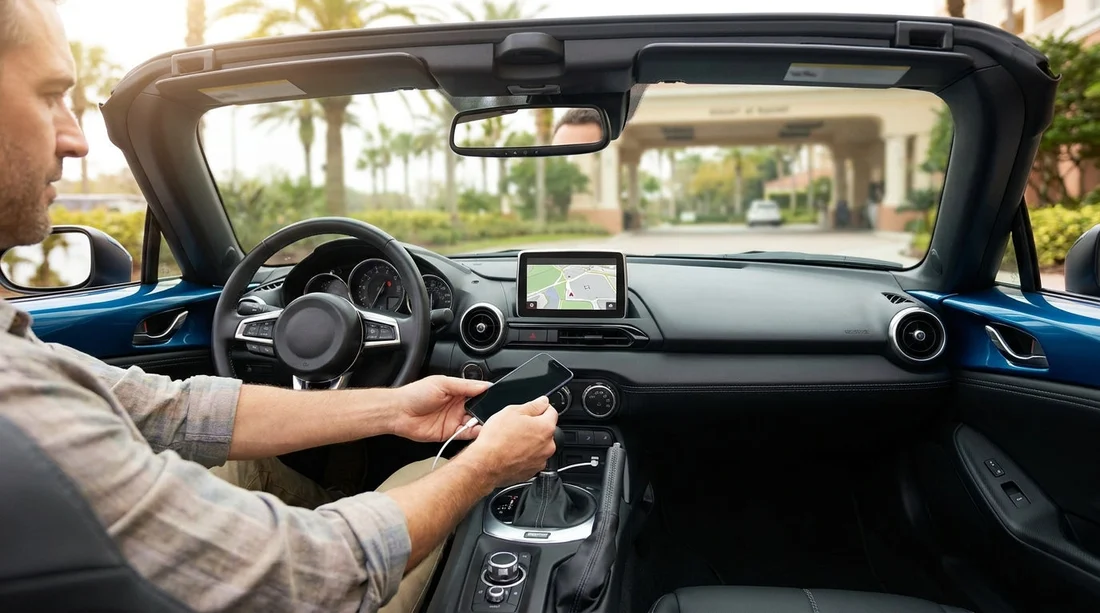
Test the USB ports with your own cable. Plug in and confirm the system recognises your phone. If it only charges and does not launch CarPlay or Android Auto, try a different port or cable. Some ports in cars are charge-only.
Pair Bluetooth as a fallback. Even if CarPlay or Android Auto refuses to connect, Bluetooth calling and audio can still work. Set it up once so you have a backup option.
Check audio routing and microphone quality. Make a quick test call to confirm the microphone works. If callers cannot hear you, voice navigation and hands-free calls will be frustrating.
Enable voice controls. Confirm Siri or Google Assistant triggers properly. Voice control is the safest way to start navigation or change music without taking your eyes off the road.
Look for a phone mount policy. If you intend to mount your phone for backup navigation, check whether the dashboard design supports a vent or suction mount. Even with CarPlay or Android Auto, having a phone visible can help when you need to confirm directions.
If you are keeping costs tight, it can still be possible to get a modern infotainment setup in a value-focused category. Compare options on budget car rental Orlando MCO, then double-check the exact vehicle features at pickup.
Troubleshooting common CarPlay and Android Auto problems in rentals
It connects, but maps will not load. This is usually a data issue. Switch your phone to a stronger network if available, turn off Low Data Mode, or open the maps app on the phone first. If you downloaded offline maps, ensure the offline area covers your destination.
CarPlay or Android Auto will not start. Try unlocking your phone, approving any permission prompts, and using an original or high-quality cable. Restarting the phone often fixes first-time connection issues. Also check if the car is set to restrict smartphone features while moving, some require initial setup while parked.
Audio plays but no navigation voice. Your phone or the car may be routing guidance to a different audio channel. In your maps app, confirm voice guidance is enabled and volume is up, then adjust the car’s volume while the guidance prompt is speaking.
Too much data usage. Reduce streaming quality, download playlists, and use offline maps. Avoid repeated searches while driving, and rely on saved places instead.
FAQ
Do Apple CarPlay and Android Auto work if I have no signal? They can still connect to the car, but apps that need the internet may not function. Offline maps and downloaded media will help most.
Will the rental car provide its own internet for CarPlay or Android Auto? Usually no. Most rentals use your phone’s data connection unless the car has a paid hotspot option.
Can I use Google Maps or Apple Maps offline through CarPlay? Yes, if you download offline maps in advance. Turn-by-turn guidance can work, but live traffic and new searches may be limited.
What should I test at pickup to avoid problems later? Test a USB data port with your cable, confirm CarPlay or Android Auto launches, and set up Bluetooth as a backup.
Does using a USB cable reduce data usage? No, it mainly improves connection stability and charging. Data use depends on your apps, not whether the connection is wired.





























































































