


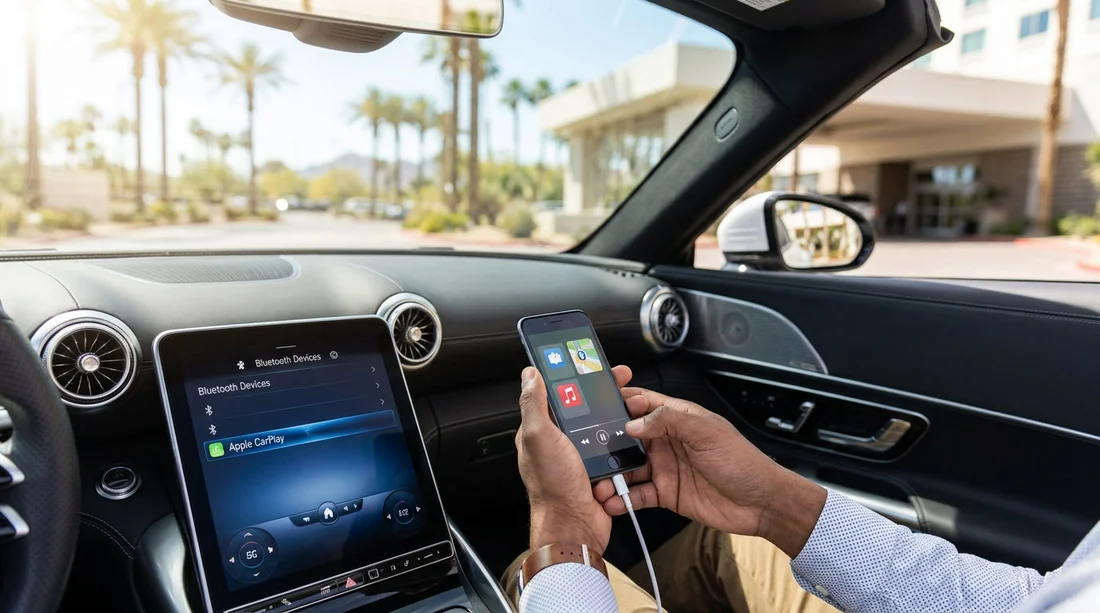
Quick Summary:
- Open the car’s Bluetooth menu, delete previous phones, and confirm memory clears.
- Pair your iPhone via Bluetooth or USB, then accept CarPlay prompts.
- Set CarPlay as the active source, then test music, calls, and Siri.
- Check Maps audio guidance and microphone quality before leaving the car park.
In Las Vegas, it is common to collect a car hire straight from the airport, then head into traffic, hotel drop offs, or a long desert drive. That is exactly why it pays to spend five minutes clearing old Bluetooth pairings and setting up Apple CarPlay before you depart. A rental car may have been paired with multiple devices previously, and older connections can interfere with yours, causing failed pairing, missing contacts, or audio that routes to the wrong place.
This guide walks you through a practical, brand agnostic process that works on most modern rentals. You will remove old devices, connect your iPhone for CarPlay, and confirm navigation and audio are reliable while you are still parked.
If you are arranging pickup logistics, these Hola pages can help you compare options for airport car hire in Las Vegas and city collection via car rental in Las Vegas. The steps below apply regardless of where you collect the vehicle.
Before you start, do two quick checks
1) Identify the connection type. Some cars support wireless CarPlay, others require a USB cable. Look for a CarPlay icon on the infotainment screen, a “Phone Projection” or “Smartphone” menu, or a USB port labelled with a phone icon.
2) Have the right cable. For wired CarPlay, use a good quality Lightning cable. If the car has USB C, you may need a USB C to Lightning cable. A worn cable is one of the most common causes of random disconnects.
Step 1: Clear old Bluetooth pairings on the car
Most issues happen because the car’s system tries to reconnect to a previous driver’s phone. Clearing old entries gives your iPhone priority and reduces interference.
Find the Bluetooth device list. On many systems, tap Settings, then Connections, Bluetooth, or Phone. Look for “Paired devices”, “Device list”, or “Manage devices”.
Delete individual devices. Select each unfamiliar phone and choose Delete, Forget, Remove, or the bin icon. If the car shows several devices with generic names, delete them all unless they belong to someone travelling with you.
Use “Clear all” if available. Some infotainment systems offer “Clear paired devices” or “Reset Bluetooth”. This is faster and often more reliable than deleting one by one.
Confirm it actually cleared. Exit the menu, re enter, and make sure the list is empty or only includes your party’s devices. If the old devices reappear, the system may need a reboot.
Step 2: Clear the old pairing on your iPhone too
If your iPhone has been paired to many cars, it can also get confused, especially if the rental is the same make or name as a previous vehicle.
Forget the car in iOS. Go to Settings, Bluetooth, find the car name, tap the “i”, then Forget This Device. If you previously used CarPlay with that same vehicle name, also go to Settings, General, CarPlay, select the car, then Forget This Car.
Enable the essentials. Check Bluetooth is on, Wi Fi is on (wireless CarPlay often needs it), and Siri is enabled, because CarPlay uses Siri for voice control.
Step 3: Pair Bluetooth first, then enable CarPlay
The smoothest setup is usually: pair Bluetooth, then start CarPlay. Some cars can jump straight to CarPlay when you plug in, but Bluetooth pairing still helps with calls and fallback audio.
Bluetooth pairing. On the car screen, choose Add device or Pair new phone. On the iPhone, go to Bluetooth and select the car. Confirm the pairing code matches on both screens, then accept prompts for contacts and favourites if you want hands free calling.
Start CarPlay, wired. Plug the iPhone into the primary data USB port, usually on the centre console. If there are multiple ports, only one may support CarPlay.
Start CarPlay, wireless. In the car’s Phone Projection menu, select Apple CarPlay, then follow prompts. The car may ask you to hold the voice button on the steering wheel to authorise wireless pairing.
Accept the iPhone prompt. Your iPhone will ask whether to allow CarPlay while locked. Tap Allow. If you miss this prompt, disconnect and reconnect, or look for it in Settings, General, CarPlay.
Step 4: Confirm audio, calls, and navigation before departure
Do these checks while parked in the pickup area or car park. This is the best time to fix issues without pressure.
Set the correct audio source. On the car, select CarPlay, USB, or Phone Projection as the media source. If audio is still coming from the radio, CarPlay may be connected but not selected.
Test music. Play a track in Apple Music, Spotify, or another app. Confirm the steering wheel volume changes the correct source, and that the sound is balanced.
Test calls and microphone. Make a quick call to voicemail or a travel companion. Confirm you can hear clearly, they can hear you, and the call audio is not routed to the handset speaker.
Test Maps guidance. Open Apple Maps or Google Maps in CarPlay, start a short route, and confirm spoken directions play through the car speakers. If guidance is silent, check the phone’s mute switch, the map app’s voice setting, and the car volume while guidance is speaking (cars can have separate navigation volume).
Common issues and fast fixes in rental cars
CarPlay does not appear. Try a different USB port, then a different cable. Confirm the car supports CarPlay, because some trims only have Bluetooth. If wireless, toggle Bluetooth off and on, and ensure Wi Fi is enabled on the iPhone.
Bluetooth pairs but CarPlay fails. Remove the pairing on both the car and iPhone, then restart the iPhone and try again. If the car has a “Phone Projection” setting, make sure Apple CarPlay is enabled and not set to Android Auto only.
Infotainment is frozen or slow. Reboot it. Many vehicles reboot by holding the power or volume knob for 10 to 15 seconds until the screen restarts. If that fails, turn the car off, open and close the driver door, wait a minute, and start again.
Privacy and safety tips for your Las Vegas car hire
Rental cars are shared devices, so take a moment to protect your data. In particular, CarPlay can surface recent destinations, contacts, and message previews depending on your settings.
Limit what you share. When the iPhone asks for access to contacts and favourites, allow it only if you need hands free calling. You can still use CarPlay navigation without importing contacts.
Remove your phone at the end of the trip. Before returning the vehicle, forget the car in your iPhone’s CarPlay settings, and delete your device from the car’s Bluetooth list. This prevents the next driver seeing your name or triggering auto connect near the return area.
If you need a larger vehicle for group travel where multiple phones might connect, van options can change the infotainment layout, see van rental in Las Vegas. Provider specific systems can also differ slightly, for example Avis car hire in Las Vegas or Enterprise car rental in Nevada, but the clearing and pairing principles remain the same.
FAQ
How do I delete all phones from a rental car quickly? Look for Settings, Bluetooth, then “Clear paired devices” or “Reset Bluetooth”. If you only see individual devices, remove each one and confirm the list is empty.
Does Apple CarPlay work without Bluetooth? Wired CarPlay can run through USB without Bluetooth for apps and audio, but many cars still use Bluetooth for calling. For the most reliable setup, pair Bluetooth and then connect CarPlay.
Why is my iPhone connected but there is no sound? The car may be playing a different source. Select CarPlay or Phone Projection as the media source, then raise volume. Also check the iPhone is not routing audio to a different output.
Can two phones use CarPlay in the same car? Some vehicles support multiple paired phones, but only one CarPlay session at a time. Decide the primary driver phone, delete old pairings, and keep the second phone on Bluetooth only if needed.
What should I do before returning my Las Vegas rental? Forget the car in iPhone Settings, General, CarPlay, then delete your device from the car’s Bluetooth list. Clear any saved destinations in the navigation app for extra privacy.

























































































