


Quick Summary:
- Bring a data-capable USB cable, not charge-only, to guarantee pairing.
- Pack USB-A, USB-C, and a small adapter for any port.
- At pick-up, find the CarPlay or Android Auto USB port quickly.
- If wireless fails, use USB immediately to avoid setup delays.
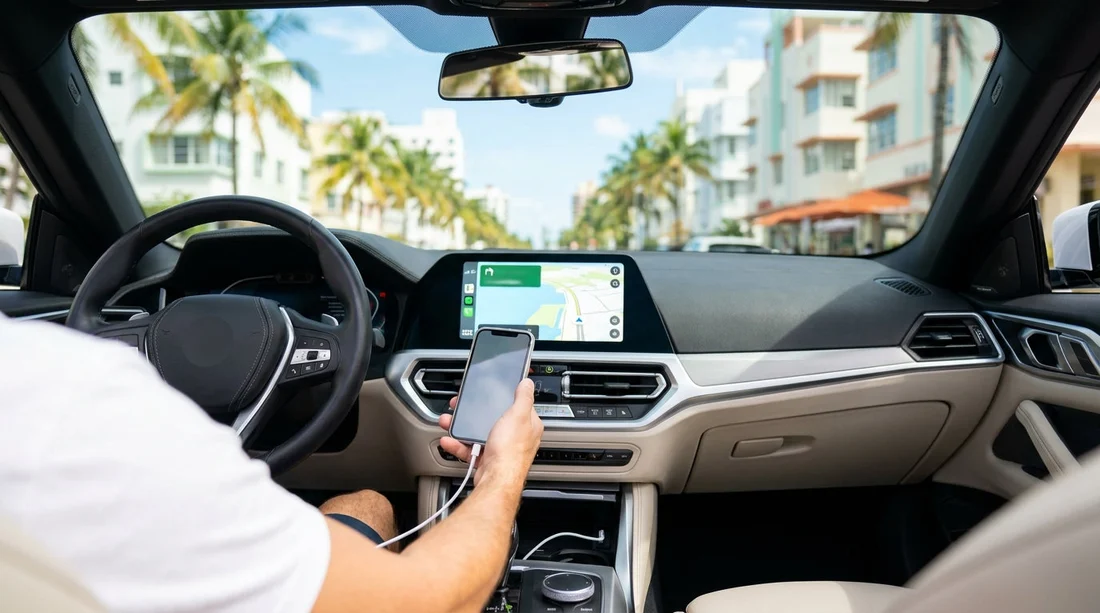
If you are collecting a car hire in Miami and want Apple CarPlay or Android Auto working before you leave the car park, the safest approach is to bring your own USB cable. Many rental cars support wireless CarPlay or wireless Android Auto, but it is not consistent across makes, trims, and model years. Even when wireless is available, some vehicles still require a first-time connection by cable to authorise the phone, or they behave differently after a system reset.
A second reason to pack a cable is speed. Pick-up areas can be busy, you might be dealing with luggage and passengers, and you do not want to spend ten minutes trying to discover which USB port supports phone projection. A known-good cable plus the right adapter means you can connect, accept the on-screen prompts, and drive off with maps and audio ready.
This is particularly useful when you are driving straight into city traffic or heading for expressways, where missed turns can cost time. Whether you are collecting near the airport area or in the city, it helps to treat the cable as part of your essentials, alongside your driving licence and payment card.
Do you actually need a USB cable at pick-up?
Not always, but you should assume you might. Three common scenarios make a cable valuable in Miami car hire.
1) The car only supports wired CarPlay or wired Android Auto. This is still common, especially in older vehicles or lower trims where the head unit is basic.
2) The car supports wireless, but still needs a wired first connection. Some systems ask you to plug in the phone once, approve permissions, then allow wireless afterwards.
3) Wireless exists, but is unreliable in practice. Bluetooth pairing can be quick, but wireless CarPlay and Android Auto also use Wi-Fi. If the system is slow to wake up, or if previous pairings were not cleared, a cable is the fastest reset.
So while you might get lucky and go fully wireless, packing a cable avoids the most common pick-up delay, searching your bag for something that can connect to the car.
What to pack: USB-A, USB-C, and the right adapters
The goal is to cover both the phone end and the car end. Modern iPhones commonly use Lightning or USB-C, while Android phones typically use USB-C. Rental cars, however, can have USB-A, USB-C, or both, and the CarPlay or Android Auto port might be different from the charging-only ports.
Bring at least one high-quality data cable. CarPlay and Android Auto require data transfer, not just power. A charge-only cable can power your phone but fail to launch the projection interface, which is frustrating because it looks like it is working.
Carry one primary cable you trust, plus one backup if you rely on navigation. A short cable reduces clutter near the gear selector, while a longer cable can be helpful if the USB port is inside the centre console.
How to confirm the car’s ports quickly at the counter or on the lot
You can usually identify the relevant port in under a minute with a simple routine.
Step 1, locate all USB ports. Check the centre stack below the infotainment screen, the front of the centre console, inside the centre console bin, and sometimes near the cupholders. Some vehicles also have rear passenger ports that are charging-only.
Step 2, look for labels. Many cars mark the data port with a small phone icon, a CarPlay symbol, “USB” next to the infotainment controls, or “Smartphone” in the menu. If there are two ports, only one may support projection.
Step 3, check the infotainment menu. In settings, look for “Connections”, “Phone”, “Apple CarPlay”, or “Android Auto”. If you see a toggle for “Enable Wireless”, the car likely supports wireless, but it may still accept wired and be faster for first setup.
Step 4, plug in before leaving. With the car in Park, connect your cable and unlock your phone. Accept prompts on both the phone and the screen. If the system asks for permissions such as contacts or notifications, approve what you need now, not at the first junction.
If you are collecting in the city, it can help to do this while still in the pick-up bay where you have time and space. For central collections, see car rental downtown Miami for location details, and allow a couple of minutes for setup before you set off.
Apple CarPlay tips to avoid delays
Use a certified cable. iPhones are sensitive to cable quality. A worn cable can charge but still drop data, causing repeated disconnects. If you have moved to an iPhone with USB-C, make sure your cable supports data, not just fast charging.
Enable CarPlay access when locked. If you keep your phone locked, CarPlay can fail to start until you unlock it. In your iPhone settings, allow CarPlay while locked to reduce friction at pick-up.
Android Auto tips to avoid delays
Update Android Auto and Google Play services. Rental cars sometimes have older head units that are picky about versions. If you update before your flight, you reduce surprises at pick-up.
Use a known-good USB-C cable. Many USB-C cables are power-first and data-second. If Android Auto does not appear, swap cables before changing settings.
Check permission prompts. Android may ask for notification access, microphone, and contacts. Approve what you want while stationary, otherwise the system may not complete setup.
Wireless CarPlay and Android Auto: convenient, but not guaranteed
Wireless is great when it works, but for car hire it is best treated as a bonus rather than something to depend on. Wireless pairing can be affected by previous customers’ phones still saved on the system, the car’s memory being full, or the infotainment being slow after a battery disconnect.
A practical approach in Miami is: try wireless for thirty seconds, then switch to wired if it is not immediate. Once you are on the road, you can revisit wireless later. This avoids the common trap of spending too long in the lot, especially if you are picking up during peak times.
If you are collecting near Coral Gables, you can plan ahead by knowing where you are collecting and giving yourself a small buffer for setup, for example at car hire Coral Gables or car hire airport Coral Gables.
Fast troubleshooting checklist at pick-up
If CarPlay or Android Auto does not launch immediately, run through these quick checks.
Swap the port. If there are multiple USB ports, only one may support projection.
Swap the cable. The fastest diagnostic is a different data cable.
Restart the infotainment. Many systems have a power button you can hold to reboot.
Forget and re-pair. Remove the phone from the car’s Bluetooth list, and remove the car from your phone, then reconnect.
Check for “Projection” settings. Some cars require enabling CarPlay or Android Auto in the menu.
When you have a larger group and want everyone’s devices charging while one phone runs navigation, think about how many ports you need. A family-friendly vehicle such as a people carrier can be useful, and you can compare options like minivan rental Coral Gables where extra passenger ports are more common.
How this affects your Miami driving plan
In Miami, phone projection is not just for music. It is your live traffic, lane guidance, toll road routing, and fast reroutes when bridges or ramps get busy. A smooth setup at pick-up helps you leave with confidence and reduces distractions.
If you are collecting from a brand-focused location, the steps are the same, but menus can differ. Allow a minute to locate the settings and confirm which port is active, for example if you are picking up from Hertz car rental downtown Miami.
FAQ
Do rental cars in Miami always include a USB cable for CarPlay or Android Auto? Usually not. Many vehicles have USB ports, but cables are not consistently provided, so bringing your own avoids delays.
Which cable should I bring for Apple CarPlay in a hire car? Bring a data-capable cable that fits your iPhone, plus an adapter for USB-A or USB-C depending on the car’s port.
How can I tell if a USB port is charging-only? Try the other port first, or look for a phone or CarPlay/Android Auto label. Charging-only ports often fail to trigger the projection prompt.
What if the car has USB-C but my cable is USB-A? Use a small USB-A to USB-C adapter, or carry a USB-C to USB-C data cable. Either option prevents you being stuck at pick-up.

























































































