


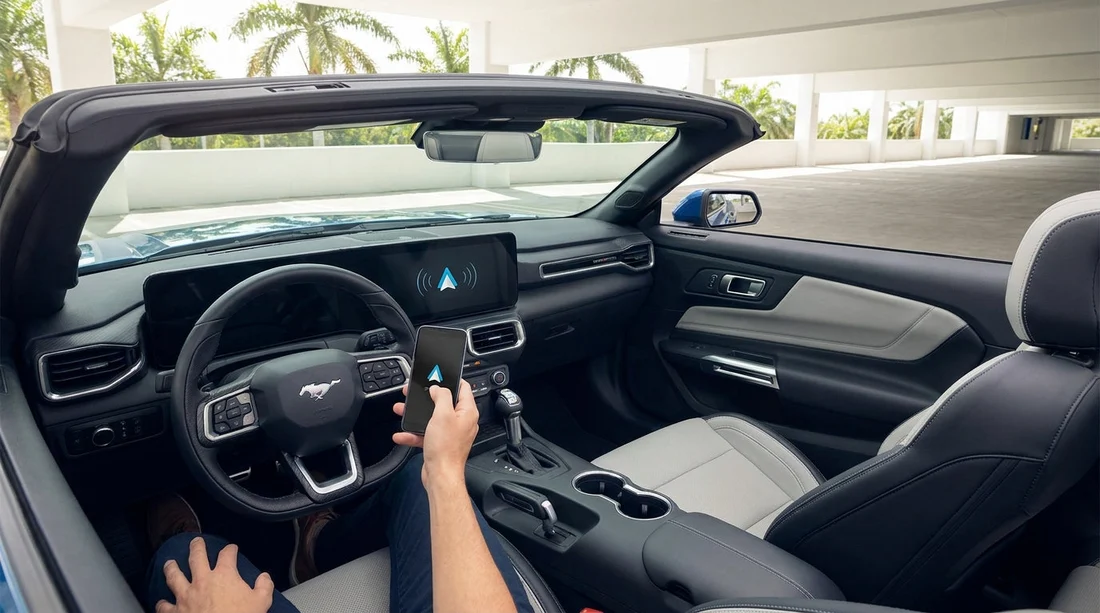
Quick Summary:
- Confirm the car supports wireless Android Auto, and enable Bluetooth and Wi-Fi.
- Pair phone and head unit, then accept prompts for contacts and notifications.
- Allow Android Auto permissions, disable battery restrictions, and confirm wireless toggle.
- If it fails, forget old pairings, reboot both devices, and retry calmly.
When you collect a car hire in Miami, you usually want navigation, calls, and music working before you hit the exit lanes. Wireless Android Auto is brilliant when it connects first time, but it can also waste minutes if the previous driver left old pairings behind or the phone is blocking permissions. Use the checklist below right at the counter or in the bay, while you still have time and signal, and while staff can help if the head unit needs a reset.
First, set your expectations: wireless Android Auto depends on both Bluetooth and Wi-Fi working together. Bluetooth handles the initial handshake and call audio, while the system typically uses Wi-Fi Direct for the high bandwidth projection. If either is off, restricted, or connected to something else, the connection may loop or drop.
If you are arriving via the airport, it helps to do the setup while parked and not in the busy pickup flow. For location context and pickup options, see car hire Miami MIA.
Before you start, do a 60-second phone prep
On your Android phone, update Android Auto and Google Play services if updates are pending. A half-updated app is a common reason for pairing that looks successful, but then fails to launch projection.
Then check these quick settings:
Turn on Bluetooth and Wi-Fi, and keep mobile data on, at least during first setup. Some phones need data briefly to verify services.
Disable VPNs temporarily. Certain VPNs interfere with Wi-Fi Direct negotiation.
Set battery mode to standard and allow background activity for Android Auto, Google, and your navigation app. Aggressive battery savers can stop the wireless session after a minute.
Clear distractions, remove your phone from any active Bluetooth earbuds or smartwatch calls, and close any screen recording apps that might block display permissions.
At the car, confirm the vehicle actually supports wireless Android Auto
Not every head unit that supports Android Auto supports the wireless version. Look for wording such as “Wireless Android Auto”, “Phone Projection”, “Android Auto Wireless”, or a Wi-Fi symbol next to Android Auto in the infotainment menu. If you only see a USB icon or it prompts for a cable, the car may require wired Android Auto. It is still worth preparing your cable as a fallback even if wireless is available.
If you are collecting from central areas where you may be eager to set off quickly, build in a few minutes to check the settings while stationary. Nearby pickup information can be found at car hire downtown Miami.
Step-by-step pairing: the counter-to-car checklist
1) Start the vehicle fully. Put the ignition in the “on” position, or start the engine, and wait until the infotainment finishes booting. Pairing during boot can cause failed prompts.
2) On the car screen, open Phone or Bluetooth settings. Choose “Add device”, “Pair new phone”, or similar. If you see a list of old phones, remove them first. Rental cars often have multiple saved devices that can auto-connect and block you.
3) On your phone, open Bluetooth settings and select the car’s name. Confirm the PIN matches on both screens.
4) Accept the key prompts. For a smooth Android Auto experience, allow contacts access (for calling), call history access (optional), and message/notification access (for replies and alerts). If you deny notifications, you may later think Android Auto is “not working” when it is simply silent.
5) Trigger Android Auto. Some cars automatically pop up “Use Android Auto?”. Others require you to open “Android Auto” or “Apps” on the head unit. If prompted to enable Wi-Fi, accept it. The phone may show a permission screen for “Allow Android Auto to access this device while connected via Wi-Fi”. Approve it.
6) Confirm audio route. Make a short call to voicemail or a hands-free test number and confirm you hear audio through the car speakers. If audio is coming through the handset, open the Bluetooth device settings and ensure “Calls” and “Audio” toggles are enabled.
7) Set a navigation sanity check. Enter a nearby destination to confirm GPS, voice guidance, and map scrolling. In Miami, tall buildings and parking garages can cause initial GPS drift, so it is worth checking that your location stabilises within a minute.
Cable-free troubleshooting before you leave the lot
If it does not connect in two minutes, switch into troubleshooting mode while you are still parked.
Forget and re-pair cleanly. On your phone, go to Bluetooth, tap the car name, and choose “Forget”. On the car screen, delete the phone. Then restart pairing from scratch. Half-pairings are common in rentals.
Reboot both sides. Restart your phone. On the car, turn the ignition off, open and close the door, and wait for the infotainment to power down, then start again.
Check Wi-Fi conflicts. If your phone is clinging to the rental facility Wi-Fi, it may not switch to the car’s Wi-Fi Direct. Temporarily turn Wi-Fi off and back on, then retry Android Auto.
Try wired once, then go wireless. In some cars, plugging in a cable for the initial handshake enables wireless projection afterwards. Even when you plan cable-free driving, keeping a known good USB cable in your bag is practical.
If you are using a larger vehicle for family travel, remember that multiple passengers’ phones can fight for the connection. Pair only the driver’s phone first. For larger group trips, see minivan rental Brickell.
Protect your privacy in a rental car
Wireless convenience should not come at the cost of your data. Before you drive off, check whether the head unit offers a “Guest” profile. Use it if available. Avoid syncing more than you need, and consider skipping “Download contacts” if you are uncomfortable, as long as calling still works.
When you return the car hire, remove your phone from the car’s Bluetooth list and clear Android Auto history if your phone offers that option. Also delete any saved addresses that may have synced to the vehicle’s navigation system.
If you are picking up near the beach and want quick setup before dealing with traffic, it can help to do the pairing in a quieter spot nearby. For area details, see budget car rental Miami Beach.
FAQ
Why won’t wireless Android Auto start even though Bluetooth pairing succeeded? Wireless Android Auto also needs a Wi-Fi Direct session plus several permissions. Check Wi-Fi is on, allow Nearby devices and notifications, and remove old phones saved in the car.
Do I need mobile data to use wireless Android Auto in Miami? For maps, traffic, and streaming, yes. For basic projection, the phone-to-car link uses Bluetooth and Wi-Fi Direct, but some setups still need brief data access during first launch.
What is the fastest fix if the rental car keeps connecting to someone else’s phone? Delete all old devices in the car’s Bluetooth menu, then “Forget” the car on your phone and re-pair. This prevents the head unit from auto-connecting to prior renters.
Will wireless Android Auto drain my battery quickly? Yes, it uses Wi-Fi plus screen projection, which is power-hungry and can heat the phone. Use a charger, keep the phone ventilated, and disable battery saver for Android Auto.
How do I remove my data before returning the car? In the car’s phone settings, delete your device and clear any user profile if available. On your phone, remove the car from Bluetooth and Android Auto remembered cars to stop auto-reconnect later.





























































































