


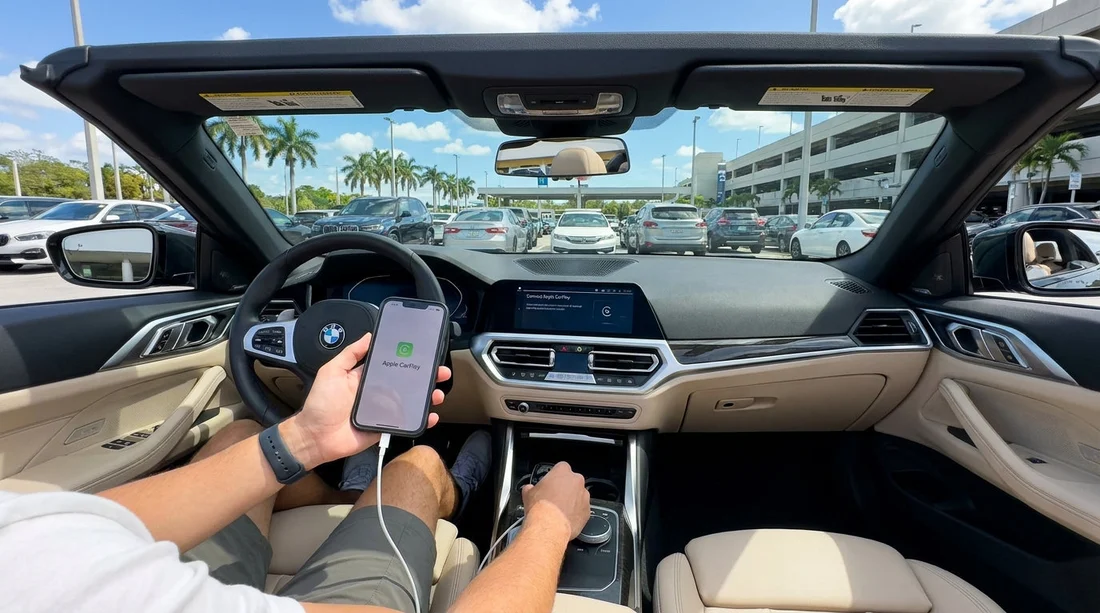
Quick Summary:
- Use a known-good USB cable, then try wireless pairing if supported.
- Approve contacts, notifications and location permissions so Maps and calls work.
- Remove old Bluetooth pairings and prior CarPlay cars to prevent conflicts.
- Test a route, audio and Siri before leaving Miami Airport car park.
When you collect a car hire at Miami Airport in Miami, the fastest way to avoid “no navigation” stress is to set up Apple CarPlay before you roll out of the rental area. Different vehicles, trims and previous drivers can leave behind saved devices, blocked permissions or audio settings that stop CarPlay from connecting cleanly.
If you are picking up at Miami International Airport, it helps to do the setup while parked and stationary, with the engine on or in accessory mode so the infotainment system stays awake. For pickup logistics and airport-specific info, see Miami Airport car rental.
Before you plug in, do a 30-second phone check
Start with your iPhone, because most CarPlay problems are phone-side settings rather than the car. First, unlock your iPhone and turn on Bluetooth and Wi‑Fi. Wireless CarPlay uses both, even if you will mostly stream via cellular. Next, confirm CarPlay is allowed when locked: on your iPhone go to Settings, then Face ID and Passcode, then allow CarPlay under “Allow Access When Locked”. This prevents the car from failing to reconnect after the first stop.
Then check you have a data signal and Location Services enabled. CarPlay can display maps without data for short periods, but traffic, search and rerouting often require connectivity. If you use Apple Maps, check Settings, then Privacy and Security, then Location Services, then Maps, and ensure “While Using the App” is enabled with Precise Location on.
Clear old pairings in the car first to avoid conflicts
Many rental vehicles keep a list of previously connected phones, and those entries can hijack Bluetooth, suppress CarPlay prompts, or route calls to the wrong device. On the car’s infotainment screen, open the phone or settings menu, then Bluetooth devices, and delete all old devices. If the vehicle has a separate “CarPlay devices” list, clear that too. The exact menu wording varies, but look for “Forget”, “Remove device”, “Delete”, or a trash/bin icon.
Do the same on your iPhone if it has been paired to many cars. Go to Settings, then Bluetooth, tap the “i” next to the car name, and select “Forget This Device”. Also go to Settings, then General, then CarPlay, and remove any cars you no longer use. Keeping this list tidy helps your phone prioritise the current vehicle.
For travellers splitting time between areas such as Brickell and Miami Beach, you may be switching vehicles or categories, which makes clearing pairings even more important for reliable connections across different dashboards. You can compare location options via Miami Beach car rental and van hire in Brickell.
Connect with a cable first, then enable wireless if available
The most dependable first-time setup is wired CarPlay. Use a known-good Apple or MFi-certified cable, ideally your own. Plug the USB end into the port marked with a CarPlay or phone icon, if there are multiple ports. Some cars have charge-only ports, so if nothing appears after 10 to 15 seconds, move to another USB port.
On the infotainment screen, accept any prompts to enable Apple CarPlay. On your iPhone, tap “Allow” when asked to connect to CarPlay while the phone is locked. Once CarPlay appears, you can decide whether to keep using the cable or switch to wireless.
Permissions checklist so navigation works immediately
CarPlay can connect yet still feel broken if permissions are denied. Run through these quickly.
Location: Ensure Maps has permission and Precise Location is on. Without it, your position may drift, routes may start from the wrong place, or voice guidance may lag.
Notifications: If you want turn-by-turn prompts to override music, allow notifications for your navigation app. Otherwise directions can be silent, especially if the car audio is on a different source.
Microphone and Siri: Enable Siri on your iPhone (Settings, Siri) and allow “Listen for ‘Siri’” if you use voice commands. Voice entry is the quickest way to set a destination while parked.
Contacts: If you plan to call numbers from your address book, allow contacts sync during pairing. If you prefer privacy, you can deny contacts and still use CarPlay for maps and audio.
Set the correct audio source and volume behaviour
A common “CarPlay isn’t working” report is actually an audio routing issue. After CarPlay launches, play a short audio clip: a song, a podcast, or Apple Maps voice guidance. Then check the car’s audio source is set to CarPlay, USB, or Bluetooth, depending on the system. If you hear nothing, raise the volume while the prompt is actively speaking, because many cars have separate volumes for media, phone calls and navigation.
Also check the iPhone’s silent switch and Focus modes. Focus can suppress notifications and sometimes reduces audible alerts. If you need directions to be clear, consider turning off Focus while driving, or allow your maps app in Focus settings.
Do a two-minute “leave-the-lot” test in Miami
Before you exit Miami Airport, confirm CarPlay will survive real driving conditions. While still parked, set a short route to a nearby landmark, then cancel it. This verifies search, GPS lock and voice guidance. Next, make a quick hands-free call to voicemail or a saved contact, then hang up. Finally, switch between a music app and the maps screen, confirming the audio continues and the map stays responsive.
If you are using a rental from a specific brand desk, the infotainment layout can differ even within the same make. Some drivers find it useful to skim brand-specific notes alongside their car hire paperwork, for example Enterprise in Miami Airport or Alamo in Miami, then apply the same CarPlay checklist regardless of model.
Quick resets if CarPlay refuses to connect
If CarPlay does not appear after you plug in or pair wirelessly, work through these resets in order, stopping as soon as it connects.
1) Restart the iPhone: A simple restart often clears stuck Bluetooth and USB accessory sessions.
2) Toggle Bluetooth and Wi‑Fi: Turn both off, wait five seconds, turn them back on, then retry pairing.
3) Forget and re-add: Delete the car from iPhone Bluetooth and CarPlay lists, delete the iPhone from the car, then pair again.
4) Try a different USB port and cable: A charge-only port or worn cable is a frequent cause at the airport.
FAQ
Why does Apple CarPlay connect, but maps show the wrong location? This is usually a Location Services or Precise Location setting on the iPhone, or weak GPS lock indoors. Move the car outside, enable Precise Location for Maps, and restart the navigation app.
Do I need mobile data for CarPlay navigation in Miami? Basic GPS routing can work with limited data, but search, traffic, rerouting and live ETAs rely on data. If possible, ensure you have a working plan or eSIM before leaving the airport.
Wireless CarPlay keeps dropping, what should I do? Switch to a wired connection for stability, especially in busy urban areas. Also clear old Bluetooth pairings and ensure Wi‑Fi and Bluetooth are enabled on the iPhone.
Can I use CarPlay without sharing my contacts in a rental car? Yes. You can deny contacts sync and still use maps, music and most apps. Calls will still work if you dial manually on the iPhone or use recent numbers you allow.





























































































