


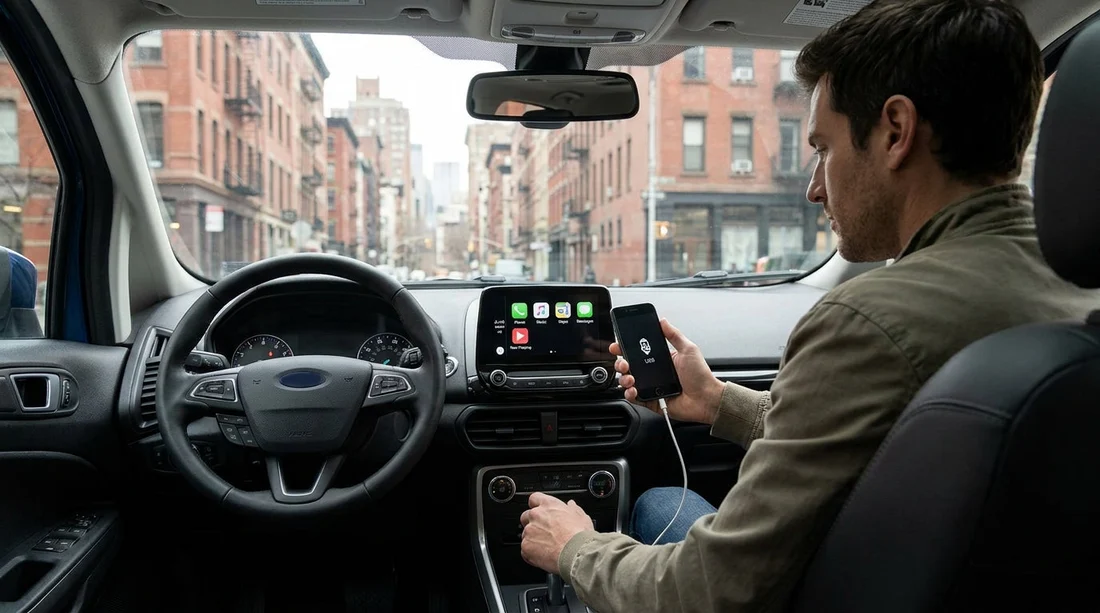
Quick Summary:
- Check the infotainment port type, and bring USB-A and USB-C cables.
- Pair Bluetooth first, then enable Android Auto when prompted by the car.
- Decline contact sync and message access unless you genuinely need them.
- Test calls, maps, music, and the microphone while still parked.
Setting up Android Auto and Bluetooth before you leave the rental lot in New York saves time, avoids distracting troubleshooting in traffic, and reduces privacy risks. New York driving often means quick merges, toll roads, and frequent navigation prompts, so you want your phone connection working properly from the start.
The goal is simple, get audio, calls, and maps running smoothly, while keeping your personal data from being copied to the car. The checklist below is designed for a typical car hire pickup, whether you are leaving from a city location or an airport counter. If you are collecting near JFK, the pickup flow and car park layout can make it harder to stop and tinker later, so doing this before moving off is especially useful.
If your reservation is tied to airport pickup pages like car rental New York JFK, it helps to plan ahead, have the right cable, and confirm which connection method the vehicle supports.
Before you start the engine, do a 60-second privacy reset
Rental vehicles may still have paired phones, saved addresses, or recent call history from previous drivers. Even if the car was cleaned, the infotainment system is often overlooked. Before pairing your phone, open the car’s settings menu and look for options like “Bluetooth devices,” “Phone list,” “Connected devices,” or “Factory reset.”
If you have time, remove any existing devices you see. If the menu offers a quick “Delete all personal data” option, use it. In some vehicles this clears paired phones, navigation history, and stored Wi-Fi passwords. Doing this first reduces the chance your phone connects to the wrong profile or that your call audio routes unpredictably.
Confirm what Android Auto needs in this specific vehicle
Android Auto can be wired, wireless, or not available at all. Do not assume the presence of a USB socket means Android Auto will work, some ports are charge-only, and some cars need a specific port labelled with a phone or “Data.”
1) Look for Android Auto on the screen. In the main menu, search for an Android Auto icon, “Projection,” or “Phone.” If the car supports Android Auto, the system will usually show it even before a phone is connected.
2) Identify the port type. Common ports include USB-A (rectangular) and USB-C (oval). Many newer rentals include USB-C only, while some have both. Bring at least one high quality cable that supports data, not just charging.
3) Ask whether it is wireless. If the screen mentions wireless Android Auto, you may not need a cable, but you still want a cable available to charge on longer drives or if wireless pairing fails.
In busy pickup locations, having a backup plan matters. If you are collecting from Newark area locations referenced by pages like car hire New Jersey EWR, you may also be driving into New York shortly after pickup, so it is worth getting this resolved before you hit the highway.
Step-by-step, pair Bluetooth first
Even if you intend to use Android Auto, pairing Bluetooth first tends to make everything smoother. Bluetooth handles calling and basic audio reliably, and it is a good fallback if Android Auto disconnects.
1) Put the car in Park and keep the handbrake on. Avoid setting this up while rolling, even slowly.
2) On your phone, enable Bluetooth and set it discoverable. On Android, Bluetooth is usually discoverable during the pairing screen.
3) On the car screen, add a new device. Select “Add phone,” then choose your phone name when it appears.
4) Confirm the pairing code matches. Approve on both the phone and the car screen.
5) Be selective with permissions. When prompted for contacts, call history, and messages, consider declining. For most drivers, call audio works without syncing contacts, and you can still dial from your phone if needed.
Tip for avoiding data surprises, if you must allow contacts for hands-free calling, look for “Allow once” or “Only while using” permissions on your phone. Some car systems repeatedly request access, so keep an eye on prompts during the first few minutes.
Then set up Android Auto (wired or wireless)
Wired Android Auto: Plug your phone into the correct data-capable USB port using a data cable. If nothing happens, try a different port and cable. Many cars have multiple USB sockets, only one may support projection.
Wireless Android Auto: The car may instruct you to connect to Bluetooth first, then approve a Wi-Fi connection for Android Auto. Accept the Wi-Fi prompt. Wireless Android Auto typically uses Wi-Fi Direct in the background, so it can increase battery drain, so keep a charging option available.
On your phone, approve Android Auto prompts. You may see requests for location, microphone, notifications, and “Allow Android Auto to access your messages.” If you want minimal exposure, grant only what you need for navigation and voice control.
USB and cable checklist for New York car hire pickups
Most connection issues come down to cables. A “charging” cable may not pass data reliably, and some worn cables cause random disconnects when the car hits bumps.
One short, high-quality USB-C cable. Useful for most modern Android phones and many newer vehicles.
One USB-A to USB-C cable. Still common in many infotainment systems.
A 12V charger. If Android Auto is wireless or the USB port is charge-only, a 12V charger keeps you powered without relying on the infotainment port.
If you are driving with a larger group, a people carrier often means more devices to charge. Pages like minivan hire Newark EWR can be relevant for travellers expecting multiple USB rows, but even then you should confirm which ports support data versus charging.
Audio, microphone, and navigation test, do this before leaving
Once connected, run a quick functional test while stationary. Make a test call, play music, and start a navigation route to confirm voice guidance and microphone permissions are working.
What to do if Android Auto will not connect
If it fails, do not keep driving while troubleshooting. Park safely and try this sequence.
1) Swap cable and port. Use a different cable first, then try another USB port.
2) Restart your phone. A quick reboot fixes many projection issues.
3) Forget and re-pair Bluetooth. Remove the car from your phone’s Bluetooth list and remove the phone from the car, then pair again.
4) Use Bluetooth-only as a fallback. You can still run Google Maps on the phone screen with audio over Bluetooth.
If your rental is through a partner counter page such as Enterprise car rental Newark EWR, you can reference the car model and ask which USB port supports phone projection, rather than describing the entire problem.
Clean up before you return the car
To protect your privacy at drop-off, remove your phone from the car’s Bluetooth list and clear Android Auto history if the system offers it. Delete saved home and work addresses from the car navigation, and remove any connected app integrations you may have added.
If you started your trip from an airport location like Hertz car hire New York JFK, the return lanes can be busy, so allow two minutes at the end for this cleanup.
FAQ
Q: Do I need a USB cable for Android Auto in a rental car? A: Often yes. Many rentals support only wired Android Auto, and even wireless setups benefit from a cable for charging and stability.
Q: Why does the car ask to download my contacts and messages? A: The infotainment system requests access for hands-free calling and message readouts, but you can usually decline to reduce data sharing.
Q: My phone connects to Bluetooth but Android Auto will not start, what is the fastest fix? A: Try a different data-capable cable and the correct USB port first, then restart the phone and re-pair Bluetooth if needed.
Q: Can I use Android Auto without mobile data in New York? A: Yes, if you download offline maps in advance and avoid streaming. Live traffic and search will be limited without data.





























































































