


Quick Summary:
- Enable Bluetooth, set your phone discoverable, and clear old pairings first.
- Pair from the car screen, confirm the PIN, and allow key permissions.
- Select Bluetooth audio, then test calls, music playback, and navigation prompts.
- If it fails, restart devices, forget the connection, and re-pair.
When you pick up a vehicle for car hire in Orlando, it is worth spending two minutes pairing Bluetooth before you leave the lot. Doing it early helps you start navigation hands-free, take calls legally, and avoid pulling over later to fix audio that is coming from the wrong speaker. The steps below are designed as a quick, repeatable pre-drive checklist, whether you are collecting near the terminals or heading towards the theme parks.
If you are arranging collection around the airport area, you might be comparing options like Orlando MCO car rental or a Disney area pickup such as car rental from Orlando MCO to Disney. Whichever desk you use, the Bluetooth process is broadly similar across manufacturers, with small differences in menu names.
Before you start, do a 30-second device check
1) Put the car in Park and apply the handbrake. Many infotainment systems lock pairing menus once you are moving. Doing it now keeps you compliant and prevents half-finished pairings.
2) Charge your phone or plug it in. A low battery can trigger power-saving restrictions that break Bluetooth background processes. If the car has a USB port, connecting it can also stabilise audio and keep navigation running.
3) Turn off Airplane Mode and ensure Bluetooth is on. On iPhone, open Control Centre, then long-press the connectivity tile to confirm Bluetooth is active. On Android, open Quick Settings and ensure Bluetooth is enabled.
4) Check your phone is not already connected elsewhere. If your phone is still linked to earbuds, a smartwatch, or a previous vehicle nearby, it may not present itself cleanly to the rental car. Disconnect temporarily, then pair to the car first.
Clear out old pairings for a faster, cleaner connection
Rental cars often cycle through many drivers, so the infotainment system may be full of previous devices. Likewise, your phone may hold onto old vehicle profiles that conflict.
On the car screen: look for settings such as Phone, Bluetooth, Connections, or Paired Devices. Delete any unused devices, or clear all if the menu allows. If you see a “maximum devices reached” message, this step is essential.
On your phone: go to Bluetooth settings and remove any old entries for the same model car, for example “Toyota Multimedia” or “SYNC”. Use “Forget This Device” on iPhone or “Unpair” on Android. This helps if you have previously used car hire in Orlando and paired to a similar fleet vehicle.
Pair step-by-step: the quickest method that works in most cars
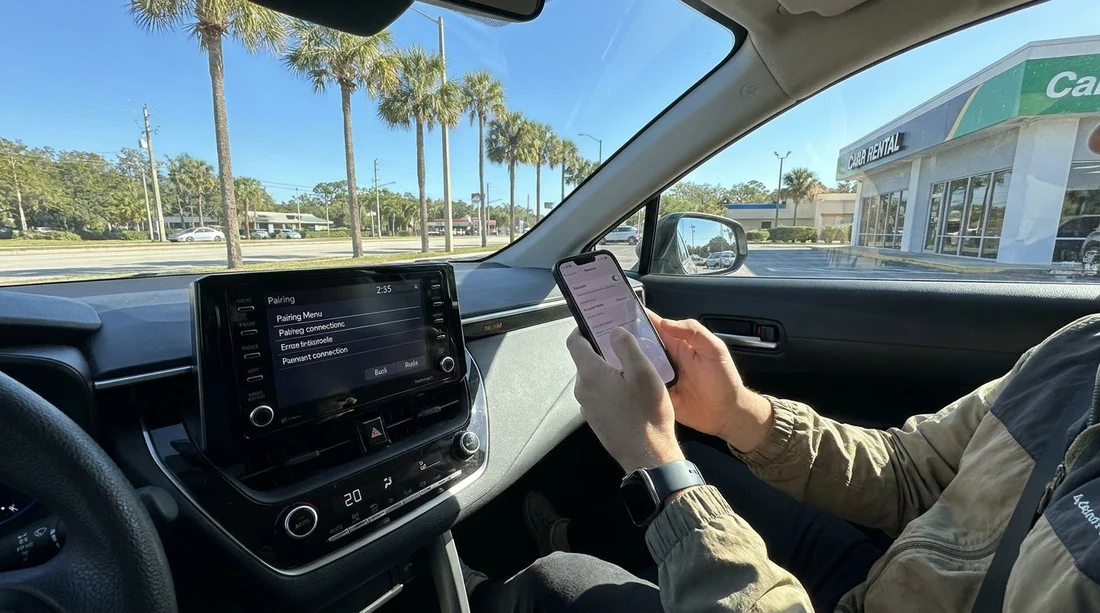
1) Start pairing from the car, not the phone. On most systems, selecting “Add phone” or “Pair new device” on the car screen makes the car discoverable and guides you through prompts.
2) Open Bluetooth settings on your phone and select the car name. It may appear as the brand name, a model code, or a generic label. If multiple similar names appear, pick the one that matches the screen prompt.
3) Confirm the PIN or pairing code. The car may display a six-digit code. Ensure the same code appears on your phone, then accept on both devices.
4) Accept permissions carefully, but do not skip them. To make hands-free calling work properly, allow access to Contacts and Call history if you are comfortable doing so. For messaging, some systems request notification access. If you prefer privacy, you can deny contacts syncing and still use audio, but caller ID and recent calls may not display.
5) Set the phone as the primary device. If you are travelling with other people, the car may connect to whichever phone it sees first. Many systems let you set a priority device so your navigation and calls are always routed correctly.
If you are renting from a supplier option such as Avis at Disney Orlando MCO or comparing brands like Dollar at Disney Orlando MCO, expect minor menu differences, but the same overall flow.
Audio and navigation settings to check before you roll out
Pairing is only half the job. The most common “it is connected but I cannot hear anything” issue is an audio routing or volume mismatch.
1) Choose the correct audio source. On the infotainment home screen, open Media or Audio and select Bluetooth Audio. Some cars connect for calls but not media until you switch the source.
2) Test both call audio and media audio. Play a short track or a podcast, then place a quick test call to voicemail. In some cars, call volume and media volume are separate, and each is adjusted only while that type of audio is playing.
3) Set up navigation voice properly. If you use Google Maps, Apple Maps, or Waze, start a route and listen for the first spoken instruction. If you cannot hear it, increase the navigation prompt volume inside the app while a voice prompt is playing.
4) Decide on Bluetooth vs USB for your journey. Bluetooth is convenient, but USB can provide steadier audio, faster charging, and better integration for CarPlay or Android Auto where available.
Fast troubleshooting if Bluetooth pairing fails in the lot
If the pairing does not work within a minute or two, use this sequence. It resolves most problems without deep settings changes.
1) Toggle Bluetooth off and on. Do it on your phone first, then on the car system if it has a Bluetooth toggle.
2) Restart the phone. A quick reboot clears stuck Bluetooth services and often fixes “connected, no audio” or “pairing rejected” errors.
3) Forget and re-pair. Remove the car from your phone’s paired list, remove your phone from the car, then pair again from the car screen. Do not try to connect to an old saved profile.
4) Check for “device limit” on the car. If the car cannot store more devices, delete one or more old entries and try again.
5) If your car supports CarPlay or Android Auto, try USB instead. If Bluetooth is unreliable, a cable connection can provide immediate navigation and calls while you troubleshoot later.
6) If nothing works, ask for a quick reset. Rental teams can sometimes reset the infotainment system or suggest a different vehicle if the unit is malfunctioning. Doing this before you leave saves time on Orlando roads.
A two-minute pre-drive checklist you can reuse every time
Before pulling away, run through this quick set of confirmations:
Bluetooth shows Connected on both the phone and the car screen.
Media plays through car speakers and the volume is comfortable.
A test call is clear and the microphone picks you up without shouting.
Navigation voice prompts are audible and do not mute other audio unexpectedly.
With those done, you can leave the counter area ready for hands-free guidance to hotels, parks, or meetings, and you will spend less time fiddling with menus during your Orlando car hire trip.
FAQ
How long should Bluetooth pairing take in a rental car? If the car and phone are ready, it usually takes one to three minutes. Clearing old devices first can reduce delays in busy rental fleets.
Why can I make calls but not play music over Bluetooth? Many cars connect the phone profile first, but do not switch the media source automatically. Select Bluetooth Audio in the Media or Audio menu, then raise media volume while music is playing.
Do I need to allow contacts access to use hands-free calling? You can often place and receive calls without syncing contacts, but you may see numbers instead of names. Allowing contacts can make voice dialling and call history more usable.
What should I do before returning the hire car? Remove your phone from the car’s paired devices list and delete any downloaded contacts or call history entries. Also forget the car in your phone’s Bluetooth settings.
Is it better to use Bluetooth or CarPlay/Android Auto in Orlando? Bluetooth is fine for basic calling and audio. If the car supports CarPlay or Android Auto, USB usually gives steadier navigation, better app control, and reliable charging.





























































































