


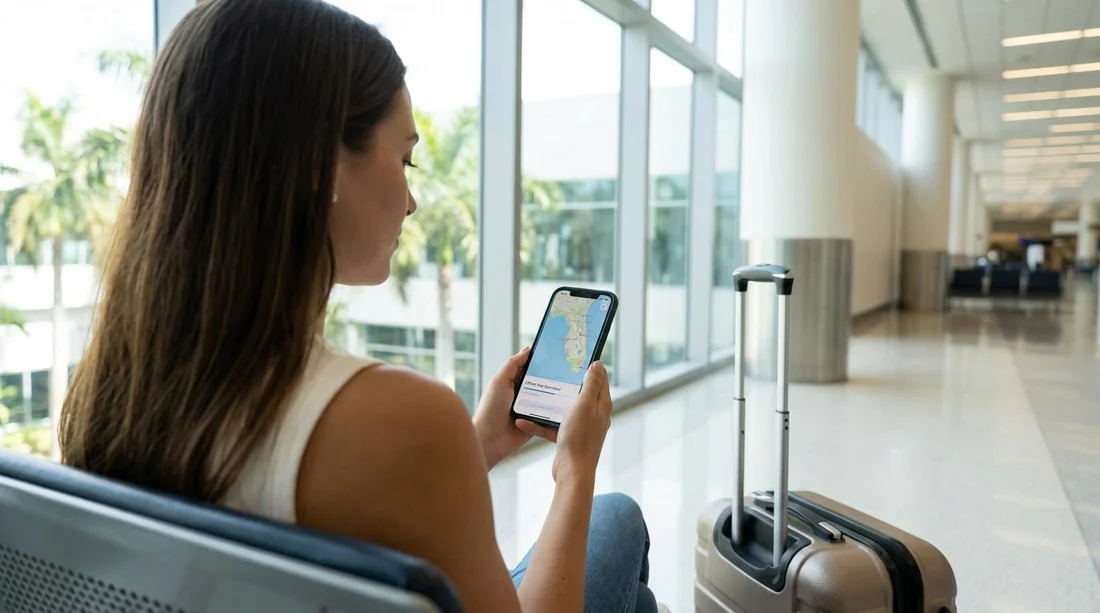
Quick Summary:
- Open Google Maps, select Offline maps, then choose your own map.
- Resize the box to cover airports, hotels, and main driving corridors.
- Download on Wi-Fi, enable offline-only navigation, and limit background data usage.
- Update offline areas before pick-up, then pin key places.
Sorting your navigation before you collect the keys can make Florida car hire feel far less stressful, especially if you land late, change SIMs, or hit patchy coverage on the way to the coast. Google Maps offline areas let you store map data on your phone so you can still search and navigate without using mobile data for most tasks. The trick is downloading the right area at the right size, and applying a couple of settings that reduce data use while you drive.
This guide walks you through downloading offline Google Maps before rental car pick-up for car hire in Florida, plus what to expect offline and how to prepare routes around common pick-up points.
What offline Google Maps can and cannot do
Offline maps are best thought of as a safety net. Once downloaded, you can usually search for addresses, get turn-by-turn directions for driving, and see the road network even with airplane mode on. However, features that rely on live data may not work, such as real-time traffic, alternative route suggestions based on congestion, and some business details like opening hours.
For Florida car hire, offline maps are still extremely useful for getting out of the airport area, following highways like I-95, I-75, Florida’s Turnpike, and I-4, and reaching your accommodation without burning through roaming data.
Step-by-step: download an offline area on Android or iPhone
The menu names can vary slightly by phone, but the flow is similar.
1) Connect to Wi-Fi first. Do your download before you travel, or at your hotel, or on airport Wi-Fi if it is reliable. Offline areas can be large, and downloading over mobile data defeats the purpose.
2) Open Google Maps and find Offline maps. Open the Google Maps app, tap your profile picture or initials, then tap Offline maps.
3) Choose the download type. Tap Select your own map. If you already have suggestions listed (for example, “Home” area), you can use them, but selecting your own gives you better control for travel.
4) Resize the map box for Florida. A rectangle appears. Pinch to zoom and drag the box until it covers where you will actually drive. Keep it tight enough to stay manageable, but wide enough to avoid gaps if you miss an exit. You will see an estimated file size before downloading.
5) Tap Download. Leave the app open until it completes. If the download pauses, check that Wi-Fi is stable and battery optimisation is not restricting the app.
Choosing the right offline map size for Florida car hire
Florida trips often involve long, straightforward highway drives between clusters of activity, so a sensible approach is to cover each cluster plus the corridor between them. Rather than downloading the entire state, aim for your arrival area, your main destination area, and the route connecting them.
If you land in Fort Lauderdale, consider an offline area covering the airport, the rental location, your hotel, and nearby highways. If you are picking up around the terminals, a focused download can still include key exits and fuel stations. For location context, see car rental at Fort Lauderdale Airport (FLL) and the broader Fort Lauderdale car rental area.
If you are starting around Miami Beach or Brickell, you will likely cross causeways, use US-1, I-95, or the Dolphin Expressway, and deal with dense grids where losing signal is inconvenient. An offline map that includes Miami Beach, Downtown, Brickell, and Miami International Airport approaches can be enough for most city driving. Area pages like car hire in Miami Beach and SUV hire in Brickell can help you visualise the neighbourhoods you should include inside your offline rectangle.
If Orlando and theme parks are on your plan, build your offline area to include Orlando International Airport routes, the I-4 corridor, and the Disney area where junctions come quickly. If you expect a lot of short hops between hotels, parks, and restaurants, prioritise a higher-detail city download over a giant statewide one.
A practical size rule: choose the smallest area that covers your first 48 hours of driving without internet. You can always add another offline area later on Wi-Fi.
Settings to reduce mobile data use while driving
Offline maps reduce data, but Google Maps can still use mobile data for extras. Before you collect your car, adjust these settings so your phone is not quietly consuming data in the background.
Turn off auto-update for offline maps if you are roaming. Offline areas typically expire after a period unless updated. If you are using a UK plan in the US, you may prefer manual updates. In Offline maps, check Settings and disable auto-update, or keep it enabled but restricted to Wi-Fi.
Reduce background activity. On iPhone, you can limit background refresh for Google Maps. On Android, you can restrict background data use and battery usage for the app. This helps when you are navigating and your phone keeps trying to sync reviews, photos, and location history.
Disable media-heavy layers. Avoid turning on layers that depend on live content. Also consider keeping Satellite view off while you are in the car, as it may trigger extra downloads when you reconnect.
Pin key places before pick-up
Offline maps are better when you remove uncertainty. Before arrival, save and label the essentials in Google Maps. Good candidates are your terminal, the rental desk or shuttle pick-up point, your first fuel stop, your hotel, and any planned toll road entrances.
To do this, search the place, tap Save, and add it to a list such as Favourites. You can also label it with a short name. When you are offline, having saved places reduces the need for searching and makes it quicker to start navigation.
Storage, battery, and safety checks
Check available storage. If your phone is nearly full, downloads can fail mid-way. Clear space or remove old offline areas you no longer need.
Bring a car charger. Navigation is power-hungry. A low battery can force you back onto paper directions at the worst moment.
Use audio guidance. If you are driving solo, rely on voice prompts rather than constant screen checks. Downloading offline maps is about convenience, but safe driving comes first.
Troubleshooting: if offline maps are not working
You cannot find Offline maps. Update the Google Maps app and sign in. Some menus move depending on version.
The download fails repeatedly. Switch Wi-Fi networks, restart the phone, and try a smaller area. Large downloads are more likely to stall on unstable connections.
Search results are missing. Offline search is limited. If you cannot find a small business offline, search by full address, or save the place while online before you need it.
Navigation wants data. Ensure the route is within your offline area. If part of the route falls outside, Google Maps may try to fetch missing tiles. Expand the rectangle slightly to include alternative approaches.
FAQ
Q: How far in advance should I download offline Google Maps for Florida car hire?
A: Download the day before travel, then refresh the offline area on Wi-Fi shortly before pick-up, so roads and labels are up to date.
Q: Will offline Google Maps show live traffic in Florida?
A: No. Offline maps do not include live traffic, incident alerts, or dynamic rerouting based on congestion.
Q: Can I use offline Google Maps in airplane mode after I collect the rental car?
A: Yes, as long as the route is inside your downloaded area. GPS still works in airplane mode, but keep Bluetooth on if you need hands-free audio.
Q: How big should my offline map be for a Miami to Orlando drive?
A: Include Miami pick-up, the Turnpike or I-95 corridor you plan to use, and the Orlando and Disney area. If storage is tight, download two smaller rectangles and overlap them.
Q: Do offline maps replace a sat nav for car hire in Florida?
A: For most visitors, yes for basic driving directions. A dedicated sat nav can be helpful if you want a larger screen or do not want to rely on your phone’s battery.





























































































