


Quick Summary:
- Check the vehicle class notes for “Apple CarPlay” before paying.
- Message or call to confirm CarPlay, plus wired or wireless support.
- Bring a genuine USB-A or USB-C cable, plus adapter if needed.
- At pick-up, pair quickly and verify CarPlay launches before leaving.
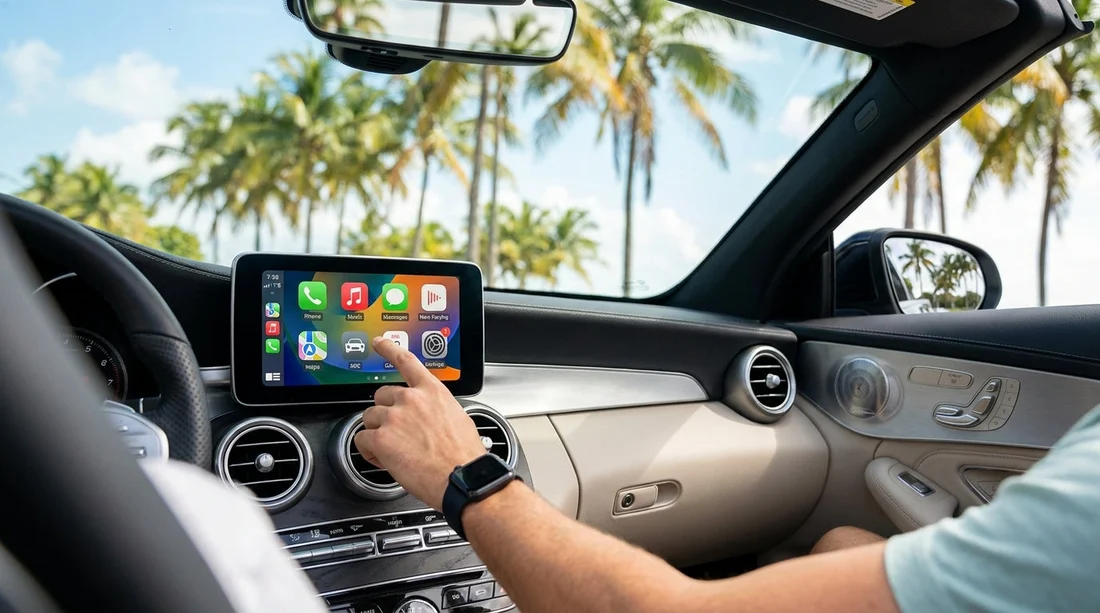
Apple CarPlay can make driving in Miami far easier, especially when you want familiar maps, hands-free calls, and music without learning a new infotainment system. The complication is that CarPlay availability can vary by model year, trim level, and even which exact vehicle is allocated on the day. When you are arranging car hire, you can take a few practical steps to confirm CarPlay before you collect the keys, and reduce the chance of surprises at the counter.
This guide focuses on three moments that matter: what you can verify during online selection, what to confirm with the rental team before arrival, and what to check quickly at handover. If you are collecting near the airport or around the city, the same principles apply, whether you are using car rental in Miami generally, or collecting from a specific desk location.
1) Start with the vehicle class notes, not just the photo
Most rental listings show a representative image, but that image may not match the exact vehicle you receive. Instead, look for written feature notes. The strongest confirmation is an explicit mention of “Apple CarPlay” (and ideally “Android Auto” too), because that indicates the feature is expected in that class for that supplier.
When comparing options for car hire, scan for these signals:
Look for feature callouts: “Apple CarPlay”, “Smartphone integration”, “USB media”, “Bluetooth audio”, or “Touchscreen”. CarPlay is rarely guaranteed by “Bluetooth” alone, so treat Bluetooth as helpful but not decisive.
Check the vehicle class carefully: compact and economy cars can have CarPlay, but it is not universal. Mid-size and standard classes are more likely to include modern infotainment.
Be cautious with “or similar” wording: rental fleets rotate, so you may get an equivalent model without the same trim. The more specific the listing is about CarPlay, the better.
If you are collecting around Miami International Airport or nearby Doral, you may see slightly different inventory mixes by location. It can help to check pick-up details for the area you will use, such as car hire airport Doral, then confirm features against the class you have selected.
2) Confirm with the counter team in advance, using precise questions
If CarPlay is important to you, a short, specific confirmation beats a general request like “I need a car with Bluetooth”. Contact the rental team ahead of time and ask questions that identify both availability and the type of CarPlay you can use.
Use questions like these:
“Is Apple CarPlay available on the vehicle class I am picking up?” Ask them to confirm it is expected for that category, not only on “some cars”.
“Is it wired CarPlay, wireless CarPlay, or both?” Many cars offer only wired CarPlay. Wireless is convenient, but less common on older model years.
“Which USB ports are in the car, USB-A or USB-C?” This affects which cable you bring. Some newer cars have only USB-C.
“Can you add a note to my reservation that I need CarPlay?” Notes are not guarantees, but they help staff allocate the best match when options exist.
Also consider your pick-up point. Downtown and beach locations can have different fleets from airport desks, and that can influence feature consistency. For example, if you are collecting a people carrier for family travel, check the location page for that type of hire, such as minivan hire downtown Miami, then confirm CarPlay for the class you intend to drive.
3) Know what you should bring: cables, adapters, and a backup plan
Even if the car has CarPlay, the most common reason it fails at the kerb is a cable issue. Some vehicles are picky about cable quality, and data-capable cables matter, not just charge-only leads.
Pack these items to protect your set-up:
A reliable data cable: ideally an Apple or MFi-certified Lightning cable if you use an iPhone with Lightning, or a quality USB-C cable if your iPhone uses USB-C. Avoid frayed or very long cables.
USB-A and USB-C flexibility: if you are unsure which port the car has, bring a small USB-A to USB-C adapter, or carry both cable types. This is particularly useful when you do not know the model year in advance.
A windscreen or dash mount: if CarPlay is unavailable, you can still use your phone safely for navigation with a mount and voice guidance.
Offline essentials: download an offline map area and save your hotel and key destinations. If the phone signal drops in parking garages or dense areas, you still have directions.
Wireless CarPlay can be convenient, but it is not always faster. Wired CarPlay can be more stable, and also charges your phone, which is helpful if you are navigating for hours.
4) What to check at the desk before you walk away
Once you arrive, you can still verify CarPlay before leaving the car park. You are not trying to run a full technology audit, just a quick confirmation that CarPlay launches and your audio routes correctly.
Use this simple two-minute check:
Step 1: start the car and locate the media or phone menu on the infotainment screen.
Step 2: connect your iPhone with your cable, even if you plan to use wireless later. Wired pairing is the fastest way to confirm compatibility.
Step 3: accept the prompts on the phone and the car screen. If it asks to enable CarPlay while locked, allow it for convenience.
Step 4: confirm you see the CarPlay home screen with your main apps. Open Maps and play audio briefly.
Step 5: if it does not appear, try another USB port. Some cars have a “charge-only” port and a separate “data” port for CarPlay.
If CarPlay will not launch, ask the staff whether there is a setting to enable smartphone projection, or whether a different vehicle is available in the same class. Being calm and specific helps, for example: “CarPlay is not appearing on either USB port, is there another vehicle with CarPlay in this category?”
5) Common reasons CarPlay is “missing” and quick fixes
Sometimes the car supports CarPlay but it is not obvious at first. These are frequent causes, with quick solutions:
Wrong port: try every USB port. Look for a smartphone or screen icon near the correct one.
Charge-only cable: swap to a known data cable. This is the number one fix.
CarPlay restricted on the iPhone: check Settings, then Screen Time, then Content and Privacy Restrictions, and ensure CarPlay is allowed.
Bluetooth confusion: delete old pairings on both the car and phone, then connect via USB and follow prompts.
Head unit needs a reset: some cars have a simple “restart” option in settings, or you can turn the vehicle off, wait a minute, and try again.
Also remember that not every trim level includes CarPlay, even within the same model. That is why confirming by class notes and counter confirmation is valuable for car hire in a fast-moving fleet environment.
6) Planning your Miami routes with CarPlay in mind
CarPlay is particularly useful in Miami because route guidance can change quickly with congestion, roadworks, and event traffic. Before you set off, make sure your preferred navigation app is installed and updated. If you rely on voice guidance, set the audio volume while navigation is speaking, since some cars separate media volume from guidance volume.
If your itinerary includes trips north along the coast, it may be useful to think about pick-up and drop-off logistics too. If you are flying out of a different airport, planning around your rental location can reduce stress, such as using information for car rental Fort Lauderdale FLL when comparing options and confirming features in advance.
FAQ
Is Apple CarPlay guaranteed with every Miami car hire? No. CarPlay depends on the specific vehicle and trim, so you should verify it in the vehicle class notes and confirm with the rental team.
What is the best single question to ask to confirm CarPlay? Ask, “Can you confirm the vehicle class I’m collecting has Apple CarPlay, and whether it’s wired or wireless?” This forces a clear, usable answer.
Which cable should I bring for CarPlay in a rental car? Bring a high-quality data cable that matches your iPhone, plus a USB-A to USB-C adapter if you are unsure which port the car has.
Can I add CarPlay as a special request on my reservation? You can request it and ask for a note to be added, but it may not be guaranteed. Confirm again at the desk before accepting the vehicle.
What should I do if CarPlay doesn’t work at pick-up? Try another USB port and a different data cable first, then ask staff if the car has a CarPlay setting or if an alternative vehicle is available.





























































































