


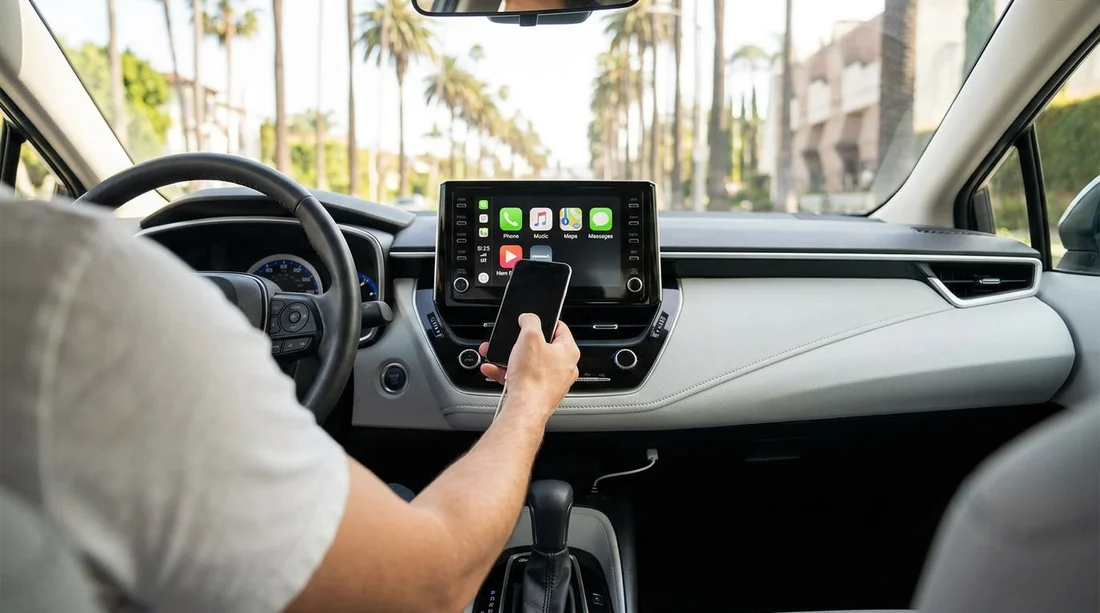
Quick Summary:
- Ask for the exact trim and infotainment option, not just model name.
- Confirm whether CarPlay is wired or wireless, and which USB ports work.
- Check the head unit menu, then plug in your iPhone before leaving.
- Pack USB-C and Lightning cables, plus a car charger for backups.
When you are planning car hire in Los Angeles, Apple CarPlay can be the difference between a calm, guided drive and a frustrating start. The tricky part is that CarPlay support is not guaranteed just because a car is “new” or a listing shows a modern infotainment screen.
This guide focuses on what you can do before pick-up and what to verify at the counter, so you can confirm CarPlay support quickly, identify whether it is wired or wireless, and bring the right cables for your iPhone.
If your trip starts at LAX, it helps to review your pick-up plans and supplier details in advance through car hire at Los Angeles Airport (LAX).
Check CarPlay before you arrive: what to confirm in your booking notes
Before you travel to the desk, try to narrow down uncertainty. CarPlay depends on the infotainment system fitted to the specific vehicle, not the rental “category” name.
1) Look for a confirmed feature note, not an assumption. Some confirmations will say “Apple CarPlay/Android Auto” as a feature, but many do not. If the listing does not explicitly mention it, treat CarPlay as unconfirmed and plan to check at pick-up.
2) Learn the typical USB port type for your likely category. Many newer cars use USB-C ports, but older fleet vehicles may still use USB-A. Your cable choice depends on the port, not on your iPhone alone.
3) Consider your pick-up location and supplier mix. Being ready with questions saves time when you are tired after a flight. If you are comparing suppliers at the airport, pages like Hertz car rental California LAX or Enterprise car hire California LAX can help you understand which desk you are likely to use and what vehicles may be common.
What to ask at the counter to confirm Apple CarPlay
At the counter, you want specific, closed questions that force a clear answer. “Does it have Bluetooth?” is not enough, Bluetooth calling and audio are separate from CarPlay.
Ask for the exact vehicle and trim (or a comparable confirmed option). Say: “Which exact model and trim are you assigning me, and does that trim include Apple CarPlay?” If the agent does not know the trim, ask: “Does the head unit menu show Apple CarPlay, and is it enabled?”
Ask whether CarPlay is wired or wireless. Say: “Is Apple CarPlay wireless in this vehicle, or does it require a USB cable?” Some cars support wireless CarPlay but only after one initial wired pairing, so also ask: “Does it need a first-time USB pairing?”
Ask which port activates CarPlay. This matters because some vehicles have multiple ports, and only one data port supports CarPlay, while others are charge-only. Say: “Which USB port supports data and CarPlay, and is it USB-A or USB-C?”
Ask about any restrictions or settings. In some vehicles, CarPlay can be disabled in settings, restricted by a “Valet” profile, or blocked until you accept a prompt on the infotainment screen. Say: “Do I need to enable CarPlay in the settings or accept a prompt on the screen?”
Ask whether the car has built-in navigation and whether it matters. Built-in navigation is separate from CarPlay, but if CarPlay fails you may want a fallback. This is particularly helpful for longer drives or if you are hiring a larger vehicle for group travel. For example, if you are collecting a people carrier, you might be browsing options like minivan hire Los Angeles LAX, where multiple drivers may rely on consistent phone connectivity.
How to confirm wired vs wireless CarPlay in the car, fast
Even if the counter says it supports CarPlay, confirm it yourself before you leave. It only takes a minute, and it avoids discovering a problem once you are already in traffic.
Step 1: Start the car and check the infotainment menu. Look for icons labelled “Phone”, “Projection”, “Apple CarPlay”, or “Smartphone integration”. If there is a “Devices” menu, open it and look for “Add device” or “Apple CarPlay”.
Step 2: Test wired CarPlay first, even if wireless is claimed. Plug your iPhone in using a known good cable. Wired is the most reliable way to prove the head unit supports CarPlay. If nothing happens, try another port because only one may support data.
Step 3: Watch for the iPhone prompt. Your phone may ask “Allow CarPlay while phone is locked?” Tap Allow. If you do not see a prompt, unlock the phone and try again.
Step 4: Validate wireless CarPlay properly. If the car claims wireless CarPlay, disconnect the cable, then check whether CarPlay reconnects after 10 to 30 seconds. If it only works when plugged in, treat it as wired-only for your trip and plan charging accordingly.
Which cables and adapters to pack for iPhone compatibility
For car hire in Los Angeles, assume you will encounter either USB-A or USB-C in the vehicle, and possibly both. Your goal is to be able to connect for CarPlay, charge reliably, and keep a backup option if one cable fails.
1) A high-quality USB cable for data, not just charging. Many cheap cables charge but do not reliably pass data, which can break wired CarPlay. Bring a cable you know works for syncing.
2) A Lightning to USB-A cable and a Lightning to USB-C cable. This covers most rental vehicles. If your iPhone uses USB-C, bring USB-C to USB-A and USB-C to USB-C cables instead.
3) A compact car charger with the right ports. A charger gives you a fallback if the car’s ports are charge-only or loose. A dual-port charger with USB-A and USB-C is practical.
Troubleshooting at pick-up: quick fixes that work
If CarPlay does not appear immediately, try these simple checks before you return to the counter.
Restart both sides. Turn the car off, open and close the driver door, then restart. On the iPhone, toggle Airplane mode on and off, or reboot if needed.
Forget and re-pair. On the car, delete the phone from the device list. On the iPhone, go to Settings, Bluetooth and forget the vehicle, and also remove it from Settings, General, CarPlay if it appears there. Then reconnect via USB and accept prompts.
Try a different cable and a different port. If the cable is charge-only or damaged, CarPlay may never appear. Switch ports, as only one may be the data port.
If it still fails, ask for another vehicle assignment. Be clear and factual: you tested two ports and two cables, and CarPlay did not appear. At that point it is likely a vehicle configuration issue, not your phone.
FAQ
Can I guarantee Apple CarPlay on my Los Angeles car hire? Not always. CarPlay depends on the exact vehicle and infotainment system assigned. You can improve your odds by confirming at the counter and testing before leaving.
How do I tell if CarPlay is wired or wireless? Plug in with a data-capable USB cable first. If CarPlay only appears when connected by USB, it is wired. If it reconnects after you unplug and the phone pairs over Wi-Fi and Bluetooth, it is wireless.
Which cable should I bring for a rental car? Bring at least one known good data cable that matches your iPhone, plus both USB-A and USB-C options if possible. Many rentals have USB-C, but plenty still use USB-A.
Why does my phone charge but CarPlay does not start? Some ports are charge-only, and some cables do not carry data reliably. Try the other USB port, switch to a different cable, and check the infotainment “projection” or “Apple CarPlay” menu.
Do I need to enable anything on my iPhone for CarPlay? Usually you just need to unlock the phone and tap Allow on the CarPlay prompt. If it does not appear, check Settings, General, CarPlay and remove old cars, then reconnect and accept prompts again.





























































































